Coupons
The Coupons feature allows you to create and manage reusable coupon lists that can later be used across campaigns, such as email, SMS, or push. Each coupon list acts as a container for coupon codes, making it easier to track usage, monitor availability, and set up automated reminders.
How to Access
Navigate to: Content > Assets > Coupons
This opens the Coupons Listing Page, where you can view all previously created coupon lists.
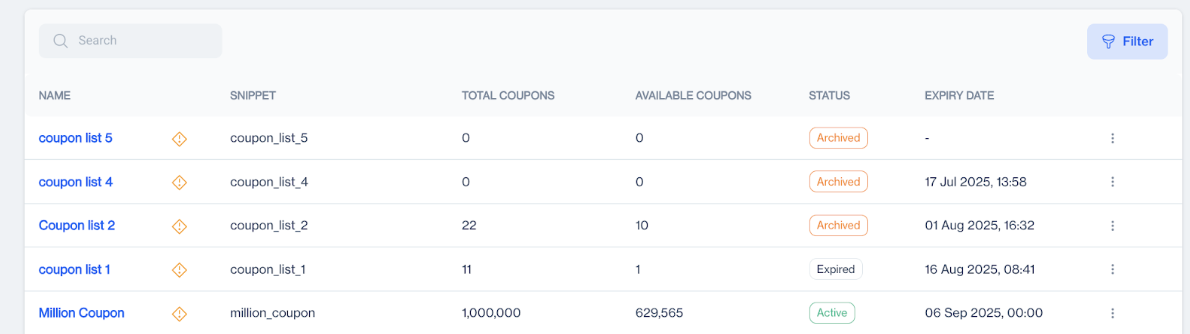
Coupon Lists
Coupons Listing Page
On the listing page, you can search, filter, and review details of all coupon lists. Each list displays:
- Name: Internal name of the coupon list.
- Snippet: A short identifier usable in content.
- Total Coupons: Total number of coupon codes in the list.
- Available Coupons: Number of unused coupons still available.
- Status: Current state of the coupon list: Active, Expired, or Archived.
- Expiry Date: Optional, if a date-based expiration is set.
Filters
You can filter coupon lists using:
- Status: Select from Active, Expired, or Archived to view only lists in that state.
- Date Range: Filter lists created or expiring within a specific date range.
Creating a New Coupon List
To create a new coupon list, click the New button in the upper-right corner. When you click New, a creation form opens. This form has two main sections: General Settings and Email Alerts.
List Name
- This is a required field. It must be a unique identifier for the coupon list.
- Example: HOLIDAY2025 or WELCOME_CAMPAIGN.
Expiry Date (Optional)
- Select a date from the calendar if you want the list to automatically expire.
- After the expiry date, coupons cannot be used.
- Example: 31 December 2025.
Description (Optional)
- Add additional notes for internal reference, such as the purpose.
- Example: Coupons for the December holiday campaign or Used for new user onboarding.
Setup Email Alerts (Optional)
- Toggle this On to receive email notifications for coupon shortages or upcoming expiries.
- Enter the recipient email at the top.
- Coupon Shortage: Notify when the remaining coupons fall below a defined percentage (e.g., alert me when only 10% remain).
- Expiry Reminder: Notify before the coupon list expires. You can define the timing in days, weeks, or months.
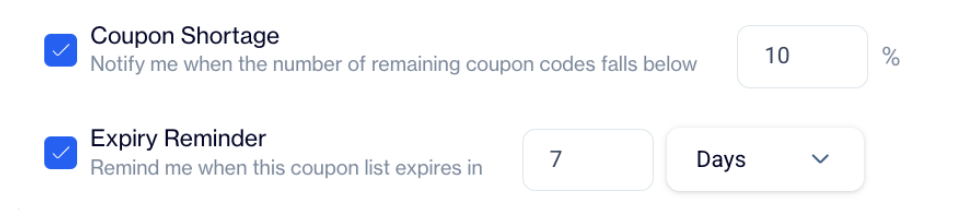
Email Alerts
Adding Coupon Codes to a Coupon List
Once all fields are completed and email alerts are configured, click Save to create the coupon list.
Next, navigate to the Coupon List tab. In the upper-right corner, click the Add Coupon button. This opens the Upload File modal.
Uploading Coupons
- The maximum allowed file size is 100 MB, and supported formats are .CSV or .ZIP.
- You can upload files using:
- Manual Upload - select a file from your computer.
- Drag & Drop - drag the file directly into the upload area.
- Select - choose a file via the file selector.
During the upload, mapping the required columns is mandatory. You must map the Code and Status fields. For Status, the allowed values are A (Active) or T (Taken).
Uploading via Contact Key is also supported. While Contact Key and Device ID can be included, they are optional columns.
After the upload, the following information is displayed for each coupon:
- Coupon Code - the actual code to be used in campaigns.
- Status - the current state of the coupon (e.g., available, used).
- Contact Key - optional, links the coupon to a specific contact if provided.
- Device ID - optional, links the coupon to a specific device if provided.
Upload History
The Upload History tab tracks all past uploads and their details:
| Field | Description |
|---|---|
| File Name | Name of the uploaded file |
| List Source | Origin of the coupon list |
| Success / Error / Warning | Number of records successfully processed, failed, or with warnings |
| Added On | Date and time of upload |
| Added By | User who uploaded the file |
| Status | Current processing state of the file |
Status Definitions
- Completed - Import complete, all records processed.
- In Progress - Import is currently running.
- Error - Import failed.
- Not Started - File uploaded but import not complete, mapping may be missing.
- New - Status just before "In Progress"; import has started.
Coupon Code Generation
Coupon Code Generation allows you to create coupon codes directly inside a coupon list without uploading a file. Instead of preparing CSV or ZIP files, you can instantly generate unique coupon codes within the platform.
This makes coupon creation faster and easier, especially when you need to quickly prepare coupons for campaigns. Generated coupons are automatically added to the coupon list and can be used immediately in email, SMS, or push campaigns.
How to Access
To generate coupon codes:
Content > Assets > Coupons
- Open an existing coupon list or create a new one
- Click Add Coupons
- Select the Generate tab
How to Use
- Click Add Coupons in your coupon list
- Switch to the Generate tab
- Configure the generation settings:
- Prefix (Optional)
- Adds a custom text to the beginning of each coupon code
- The system automatically appends 8 random letters and numbers
- Coupon Count
- Specifies how many coupon codes will be generated
Generate
- Click Generate
After generation, you are redirected to the coupon list screen, where all newly created coupon codes are displayed and ready for use.
Coupon Code Generation
Coupon Codes Usage Across Channels
Coupons created in the platform can be used across all marketing channels, including:
- SMS / MMS
- Mobile / Web Push
- In-App
- On-Site
How to Use in Content
For example, in the Email Rich Text Editor, click Insert > Customization Tags. The Customization Selector will open. Normally, options like Contact Columns, Device Columns, Dynamic Contents, Columns from Segment, and Columns from Table are available.
With this feature, a new Coupons tab appears on the right. From this tab, you can select a previously created coupon list. The list displays the following details:
- Name
- Description
- Usable / Total
- Creation Date
- Status
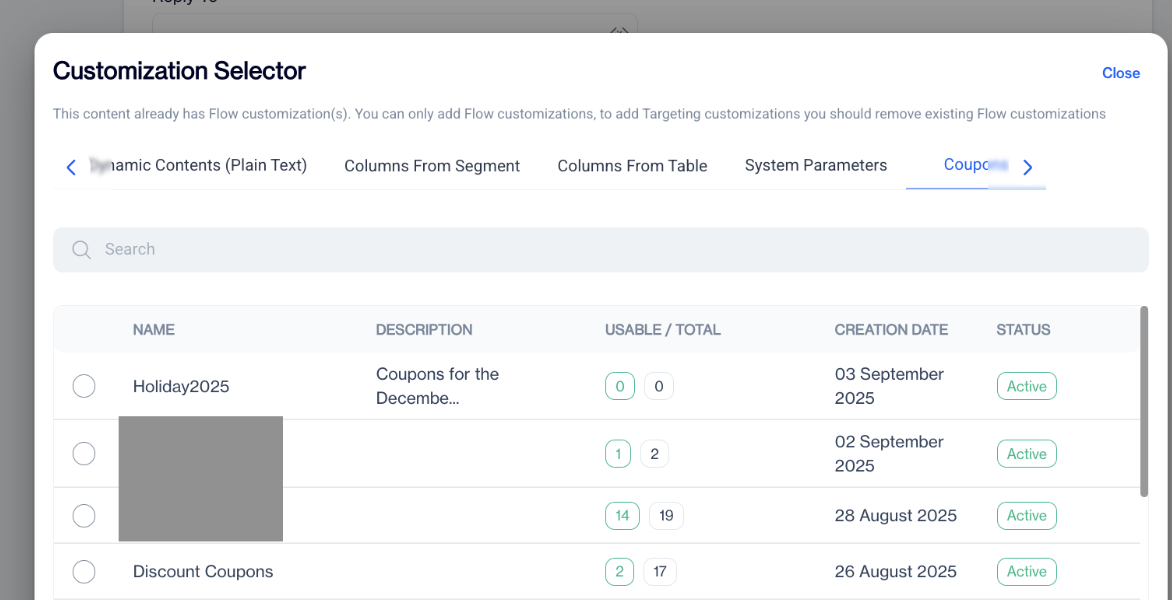
Coupons Tab
Click the desired coupon list to insert it dynamically into your content.
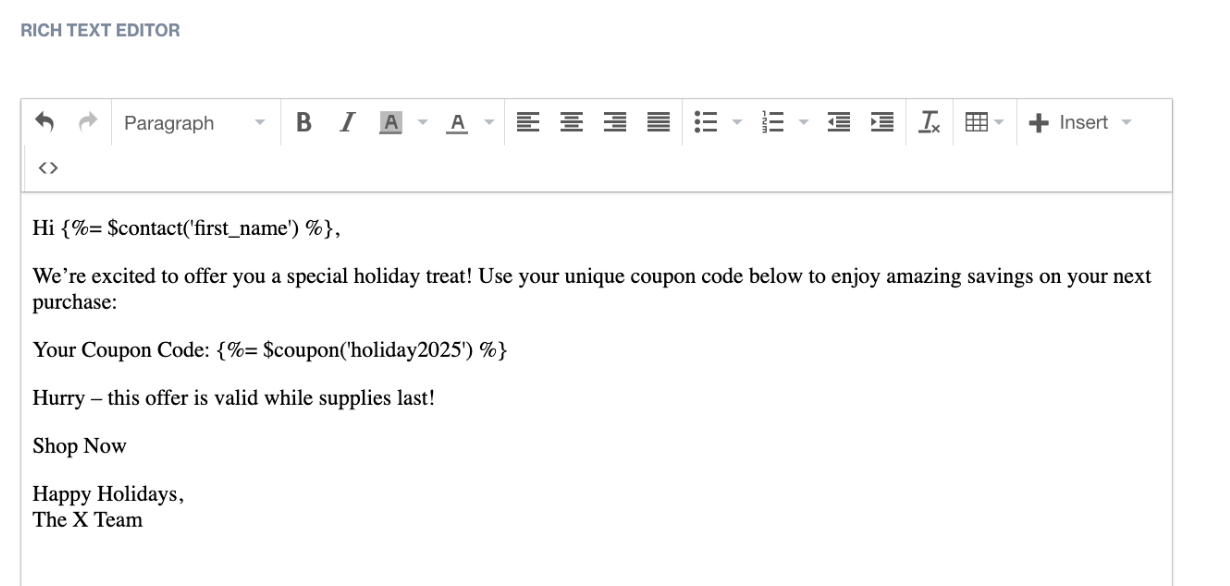
Example of Usage - Email
Examples of Usage:
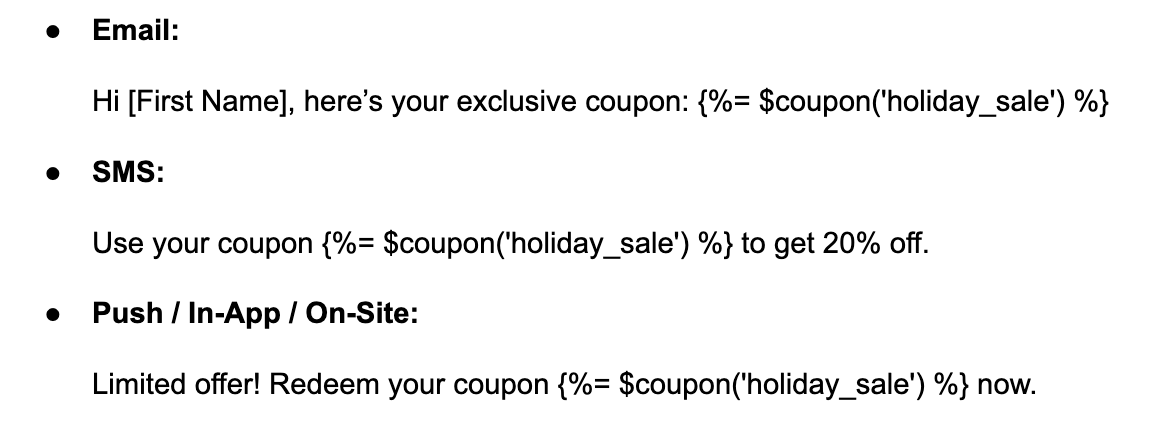
Preview and Test
In the Preview section, you can check the uploaded coupons before using them in a live campaign. During testing, the system does not display the real coupon codes.
If the coupon list name is Coupon test list, the codes shown in the preview will appear in this format: Coupon_Test_List_CodeX - where X is a number between 1 and 999.
For example, you might see: Coupon_Test_List_Code456
This ensures you can confirm that the list and mapping are correct without exposing actual coupon codes.
Coupon Code - View & Manage Permissions
The Coupons feature allows you to create and manage reusable coupon lists that can be used across campaigns such as Email, SMS, or Push.
This feature includes permission-based visibility for coupon codes to ensure security and controlled access.
Viewing Coupon Codes - Permission-Based
Navigate to:
Content > Assets > Coupons
When a user opens a coupon list:
- Coupon codes are partially masked by default
- Only the last two characters of each coupon code are shown
- The remaining characters appear as ***
Revealing a Coupon Code
- An icon is displayed next to each coupon code
- Clicking this icon reveals the full coupon code
- Visibility depends on the user's permissions
- If the user does not have the required permission, the full code cannot be viewed
If you cannot see the reveal icon or the full code, it means you do not have the required coupon permission.
Coupon Roles & Permissions
Coupon permissions are managed under Roles and Permissions and are defined in a dedicated Coupon section.
How to Manage Coupon Permissions
Navigate to:
Settings > Identity & Access Management > Roles & Permissions
Steps:
- Click on a role name
- This opens the Role Details page
- Scroll down to the Coupon section
- Enable or disable permissions using the toggle buttons
Available Coupon Permissions
Under the Coupon section, the following permissions are available:
View:
- Allows users to view coupon lists and the coupon codes within those lists in masked (starred) format.
- Users with View permission cannot see the "View Code" button and therefore cannot reveal unmasked coupon codes.
Manage
- Allows users to view coupon lists and coupon codes in masked (starred) format.
- Users with Manage permission can also see the "View Code" button.
- When clicking View Code, they can view coupon codes in unmasked (plain text) format.
This ensures both ease of use and secure access control when working with coupon codes across campaigns.
Coupon Code - Expire Date Filter Update
This update enhances the Coupon List Expiry Date setting by adding date & time selection and preventing users from selecting past dates.
Previously, coupon list expiration was limited to date-only selection. With this update, expiration control is more precise and error-proof.
This improvement applies when creating or editing a coupon list.
Updated Expiry Date Field
Expiry Date (Optional)
- Users can now select:
- Date
- Time
- The system automatically blocks:
- Any past date
- Once the expiry date & time is reached:
- Coupons in the list can no longer be used
Example:
- Expiry Date & Time: 31 January 2026 - 23:59
- Coupons remain valid until exactly 23:59 on 31 January 2026
This update improves both user experience and campaign accuracy without changing existing coupon list workflows.
Related Articles
Gamification - Spin to Win
Spin to Win is a gamification-focused campaign template designed to increase user engagement by turning promotions into an interactive game experience. Instead of passively showing a message, users actively participate by spinning a wheel to win a ...