CTA Image Popup
The CTA Image Popup is a visually engaging template designed to display a background image with a call-to-action (CTA) button. This template is suitable for driving user interaction, whether it’s promoting a product, encouraging sign-ups, or directing users to a specific page.
Creating a CTA Image Popup
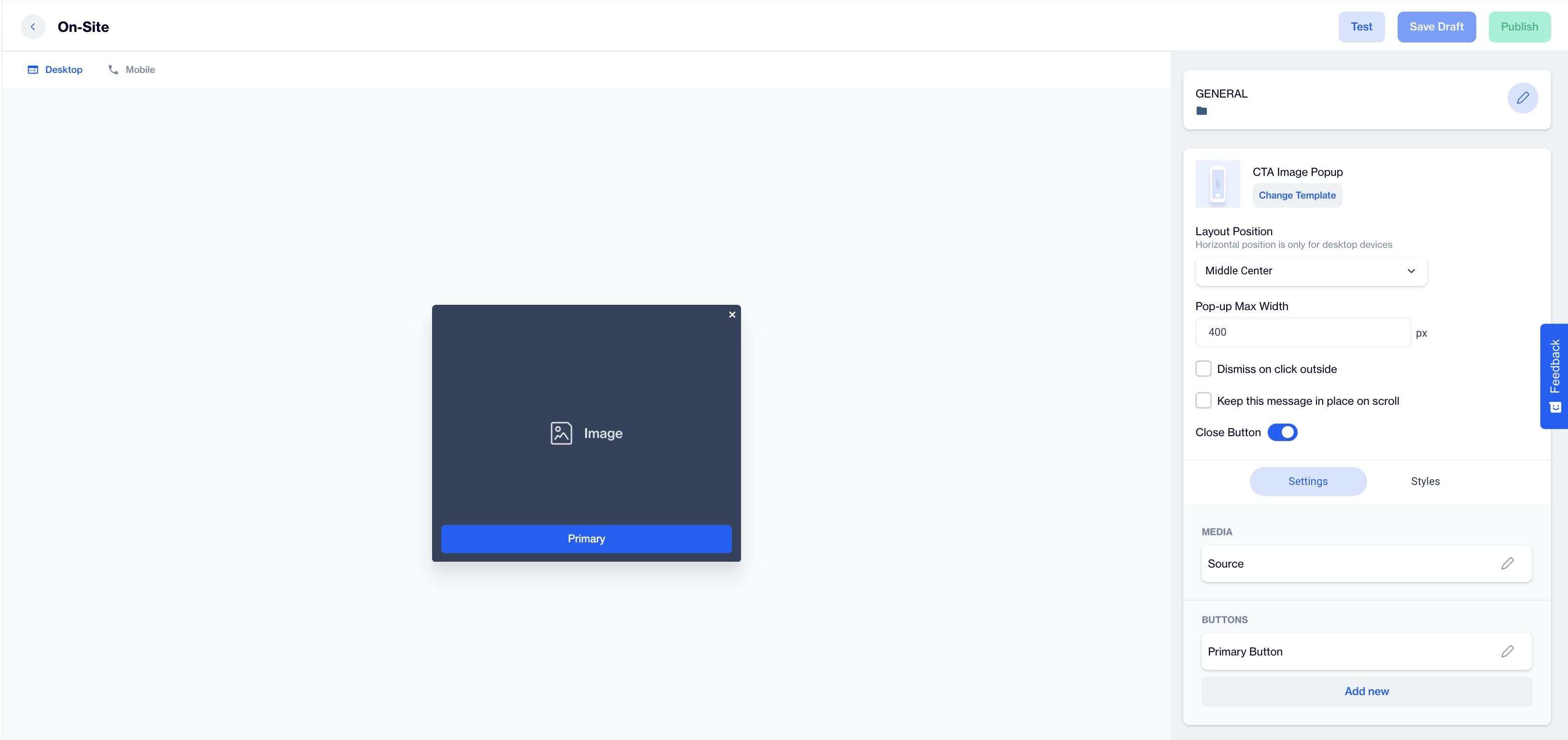
CTA Image Popup
Preview on Desktop or Mobile:
After selecting the CTA Image Popup template, users will see a preview on the left side of the screen showing how the popup will appear on desktop and mobile devices.
General Section
- Fill out the Name and choose a Folder to save the popup.
- After completing this step, the Content section will become available for customization.
Content Section
Change Template:
- If needed, users can click the Change Template button to switch to a different layout.
Layout Position:
- Set the popup's position using the Layout Position dropdown, option includes various placements such as Bottom Center, Top Right.
- Remember, Horizontal position is only for desktop devices.
The Pop-up Max Width:
- This option allows users to specify the maximum width of the popup, ensuring it fits seamlessly within the design of the page. Users can set this width to achieve a balanced look and prevent the popup from being overly wide or distracting.
Additional Options:
- Enable the Dismiss on click outside option to allow users to close the popup simply by clicking anywhere outside of it, rather than needing to interact with the close button.
- Enable the Keep this message in place on scroll option if you want the popup to stay visible as users scroll.
- Toggle the Close Button option to allow users to close the popup.
Below these settings, users will find the Settings and Styles sections to further customize the popup.
Settings:
Media:
- In the Media section, click on the image placeholder to open the Image Selector screen. Here, you can choose your desired image to be displayed in the popup.
- Users can also utilize the Customization Selector to add dynamic content.
Buttons:
- To customize the button, click on the pencil icon. Here, you can enter the Button URL to define where the button will direct users.
- You can also toggle the Open a New Tab option if you want the link to open in a separate browser tab.
- To add additional buttons, click on the Add New button. Like the media section, users can apply the Customization Selector for dynamic button content.
After clicking on the icon in the right corner, users need to click the Save & Back button to save their changes and return to the previous screen.
Styles
In the Styles section, users can customize the visual appearance of the CTA Image Popup to align with their design preferences. Key customization options include:
- Fonts: Choose the font family and font URL to match the brand's aesthetic or campaign style.
- Layout Customization: Adjust the popup's layout by modifying the card radius and padding for a polished look.
- Colors: Set the background color, button color, and customize the title and message colors to ensure visual harmony with your campaign.
- Text Styling: Control the font size and weight for both the title and message, ensuring that important information stands out clearly.
These customization options allow users to design a fully personalized popup for both desktop and mobile views, ensuring consistency across devices.
After adding your content successfully, save it as a draft for future use or publish it to make it ready for your campaigns.
Related Articles
Image Popup
The Image Popup is an on-site element designed to display a single image, providing an engaging and attention-grabbing experience.This feature is ideal for showcasing promotional visuals or announcements in a more prominent, popup-style format. ...Horizontal Popup
The Horizontal Popup is designed to display an image, text, and two buttons (primary and secondary) in a horizontal layout. It offers flexibility for users to convey messages with both visual and textual elements, while providing multiple calls to ...Vertical Popup
The Vertical Popup is an on-site element designed to display a combination of images, text, and buttons in a vertical layout, making it ideal for delivering engaging messages or calls to action. Creating Vertical Popup Vertical Popup Preview on ...Video Popup
The Video Popup is an on-site element designed to display video content in a clean and straightforward format. It’s ideal for showcasing promotional videos or any other video content without additional distractions. Creating Video Popup Video Popup ...Subscription Popup
The Subscription Popup is an on-site element designed to capture user information through a form, typically for email subscriptions or sign-ups. This popup is ideal for growing your mailing list or promoting special offers through a ...