Customized Unsubscribe Page
The Customized Unsubscribe Page allows personalization for users unsubscribing from email or SMS/MMS campaigns.
On the Customized Unsubscribe Page screen, there are two sections:
- SMS/MMS
Click the downward arrow (↓) to view and edit details.
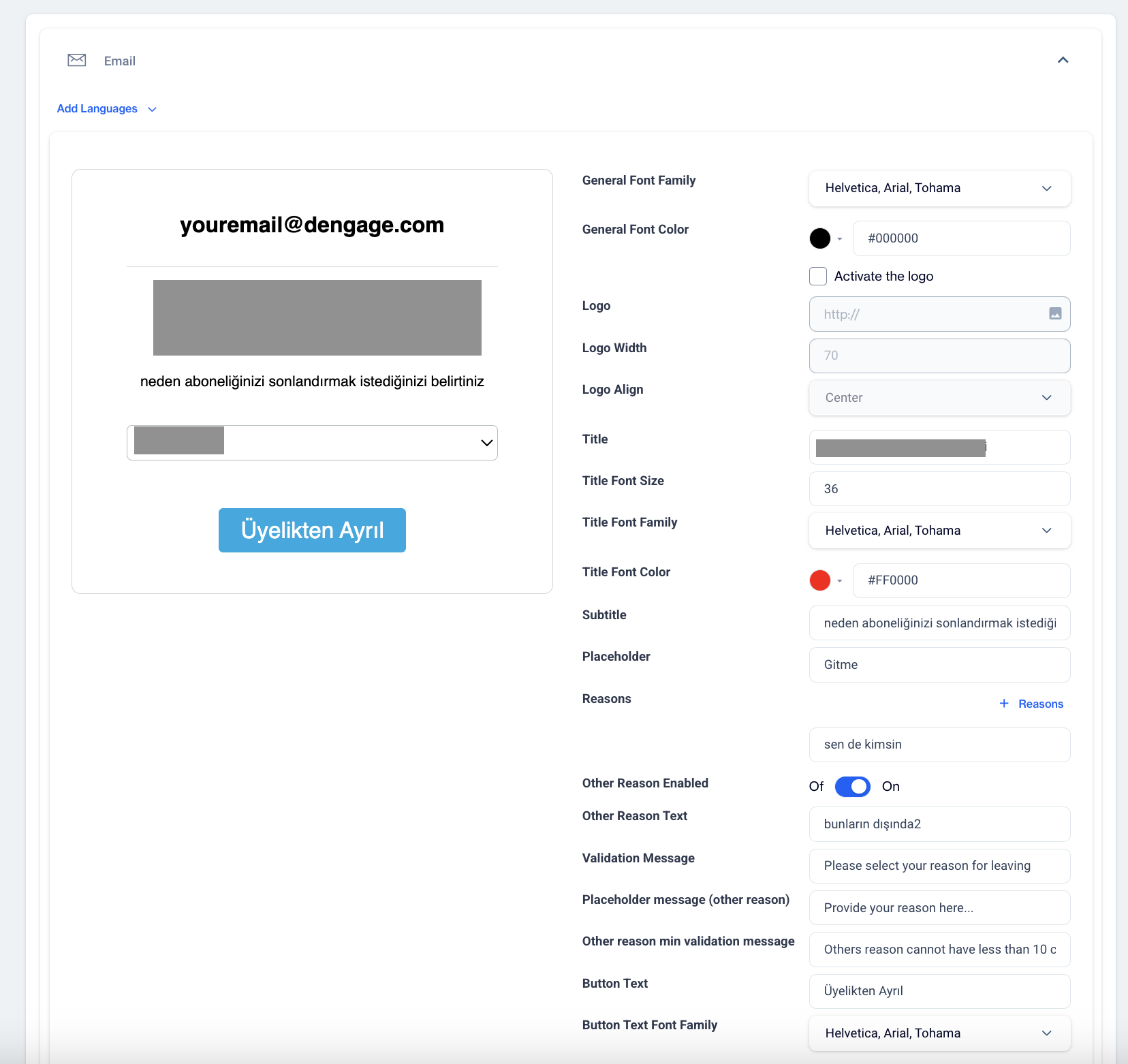
Email Customized Unsubscribe Page
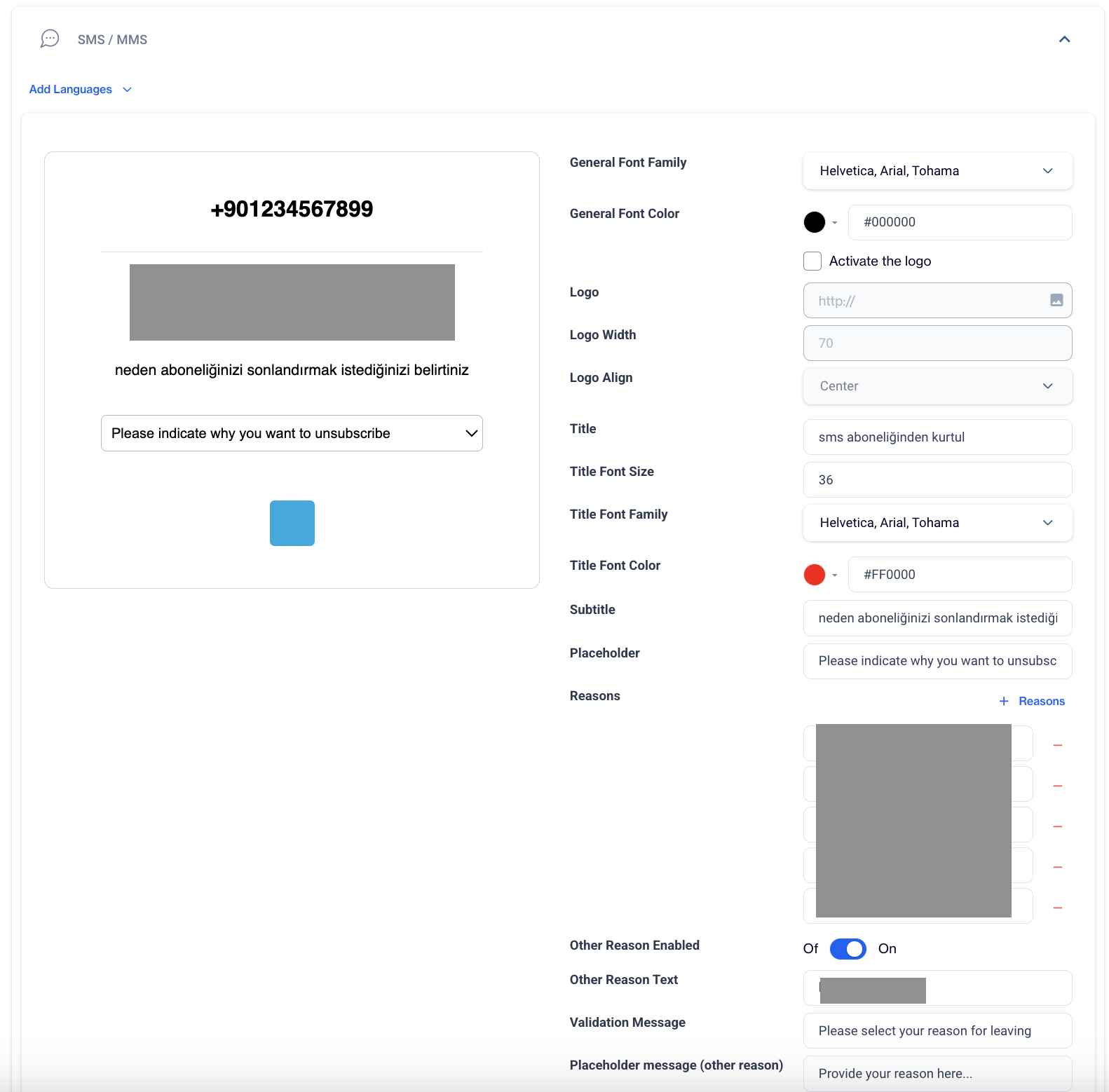
SMS Customized Unsubscribe Page
Settings for the Unsubscribe Page
Add Languages: You can add multiple languages for the unsubscribe page to cater to your audience's preferences.
- Copy from Content: You can use existing content from previous unsubscribe pages for a quicker setup.
- Create Blank Content: If you prefer to create a completely new page, you can start fresh by clicking Create Blank Content.
Design
General Settings
- General Font Family:Choose the font family for general text on the page.
- General Font Color:Set the general font color.
Logo Settings
- Activate the Logo: Toggle the Activate the logo setting to display a logo on the unsubscribe page.
- Logo URL:Enter the URL for the logo image.
- Logo Width: Set the width of the logo.
- Logo Align:Choose where to align the logo.
Title Settings
- Title:Enter the title for the unsubscribe page.
- Title Font Size:Set the font size for the title.
- Title Font Family:Choose the font family for the title text.
- Title Font Color: Set the color for the title text.
Subtitle Settings
- Subtitle: Enter the subtitle text for the page, such as:Please indicate why you want to unsubscribe.
Placeholder Settings
- Placeholder:Add a placeholder text for the input field.
Reason Options
- Reasons: Provide a list of reasons for unsubscribing.
- Other Reason Enabled:Enable the option for users to provide an additional reason by toggling On/Off.
- Other Reason Text: Add a message for users selecting "Other".
Validation and Error Messages
- Validation Message: Add a validation message to prompt users to select a reason for unsubscribing.
- Placeholder message (other reason): Add a placeholder message for the "Other" option (e.g., Provide your reason here...).
- Other reason min validation message: Set the minimum character validation for the "Other" reason (e.g., Others reason cannot have less than 10 characters).
Button Settings
- Button Text: Set the text for the unsubscribe button.
- Button Text Font Family: Choose the font family for the button text.
- Button Text Font Size: Set the font size for the button text.
- Button Background Color: Set the background color of the button using a hex code.
- Button Text Color: Set the text color of the button using a hex codeç
Once you have configured all the settings for your customized unsubscribe page, click the Save button to apply your changes.