The Event Logs feature provides detailed insights into campaign activities, ensuring transparency and enabling in-depth analysis of performance and system actions.
The Event Logs screen displays key details about recorded events:
Name: The name of the event, offering a quick reference to the type of action or activity logged.
Event Date: The date and time when the event occurred, providing a timeline of activities and helping users trace actions accurately.
Selecting and Viewing Event Details
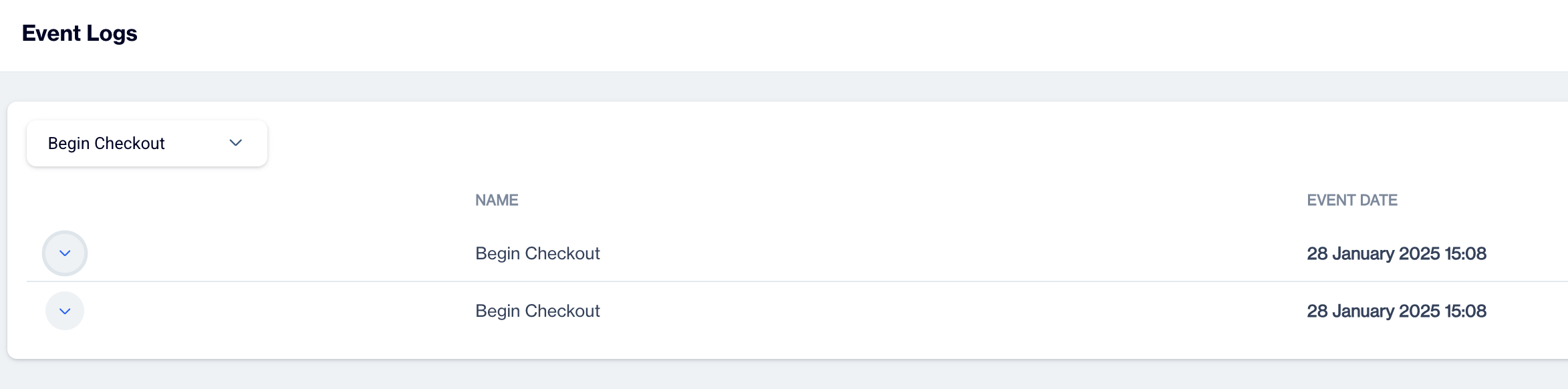
Event Logs
To analyze specific events:
Select Event:
Use the dropdown menu to choose an event from the list of recorded logs.
Selecting an event will display its basic details, including:
Name: The event's identifier.
Event Date: When the event took place.
View Event Log Details:
Click the downward arrow next to an event to expand and view its log details.
The Internal Logs section in the Data Space is a centralized hub for accessing and managing critical system logs. It plays a vital role in ensuring system transparency, offering users the ability to monitor, analyze, and troubleshoot various data ...
The Event Definitions feature in Campaign Configuration allows you to create, edit, and manage events that track user interactions and campaign performance. The Event Definitions screen contains: Events List: Displays all existing event definitions ...
Does the event definition for the conversion goal need to be an online event, or can it be created from regular tables as well? Indeed, it is possible to create a conversion goal based on regular tables or offline events. The event definition for the ...
Is the only way to transmit events to the big data tables through an SDK? You have several options for sending your events to the big data tables. One way is to integrate the SDK and event JS directly into your source code or utilise Google Tag ...