Image Hosting
The Image Hosting section under settings allows you to manage the storage and serving of images used in your content. By default, the platform provides its own image hosting service. However, you can add and configure your own image hosting service to suit your requirements.
Accessing the Image Hosting Section
- Navigate to the Settings menu.
- Select Image Hosting from the options.
- You will see a list of existing image hosting configurations with columns for Default, Name, and Type.
Adding a New Image Hosting Service
If you want to use your own image hosting service:
Click the Add button on the Image Hosting screen.
The Image Hosting Details page will open.
Enter the following details:
Name: Specify a name for your hosting service.
Type: Select one of the following hosting types from the dropdown menu:
- FTP
- S3
- Azure
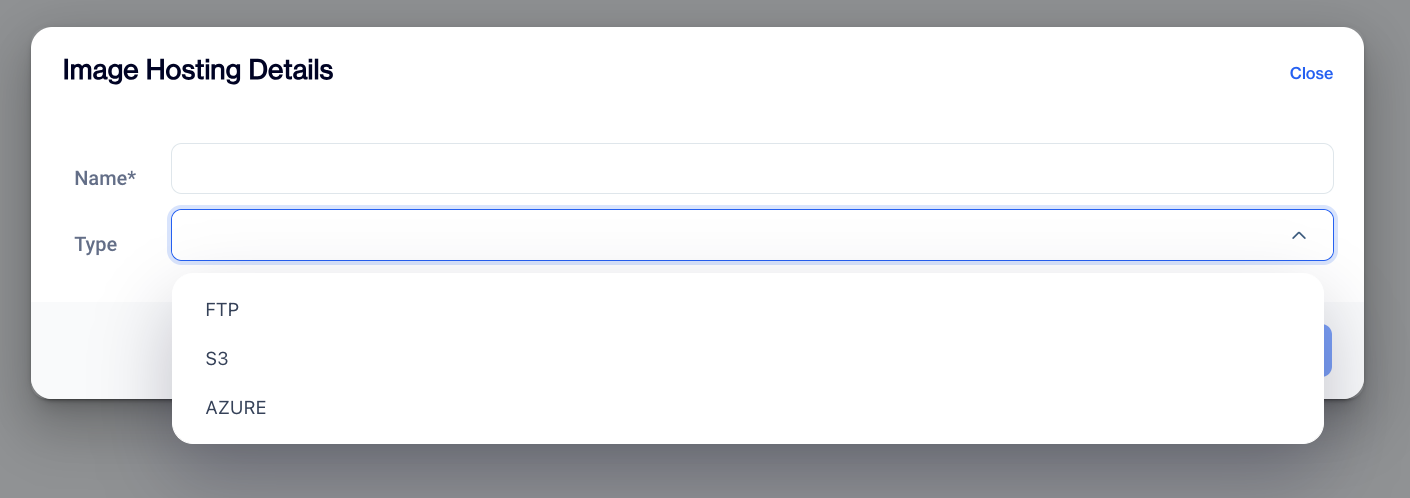
Image Hosting Details
Configuring Hosting Details
1. FTP Settings
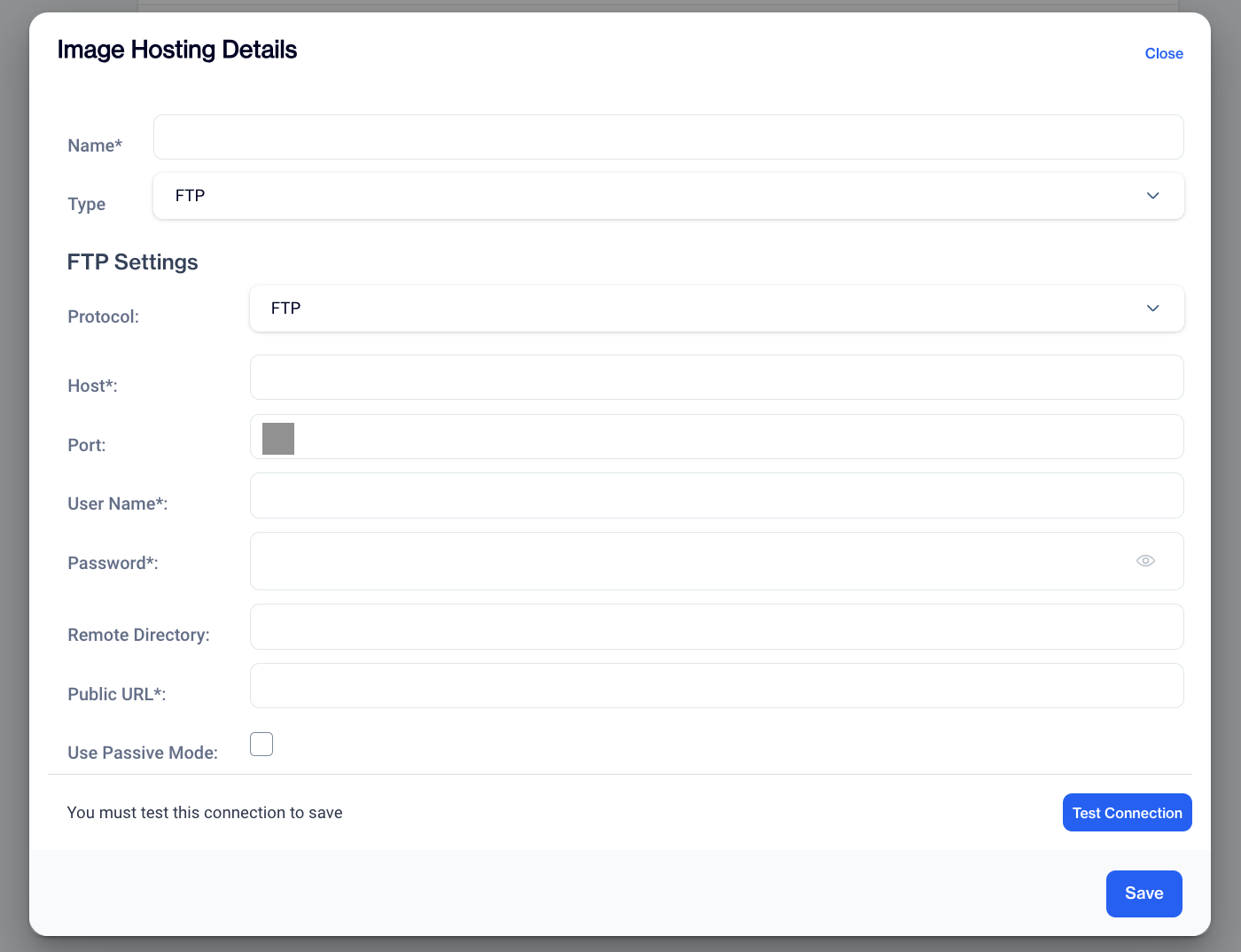
FTP Settings
If you select FTP as the hosting type, provide the following details:
- Protocol: Choose FTP.
- Host: Enter the server address.
- Port: Specify the port number.
- User Name: Enter your FTP username.
- Password: Enter your FTP password.
- Remote Directory: Specify the directory where images will be stored.
- Public URL: Enter the URL used to access the stored images.
- Use Passive Mode: Enable or disable passive mode for FTP connection.
2. S3 Settings
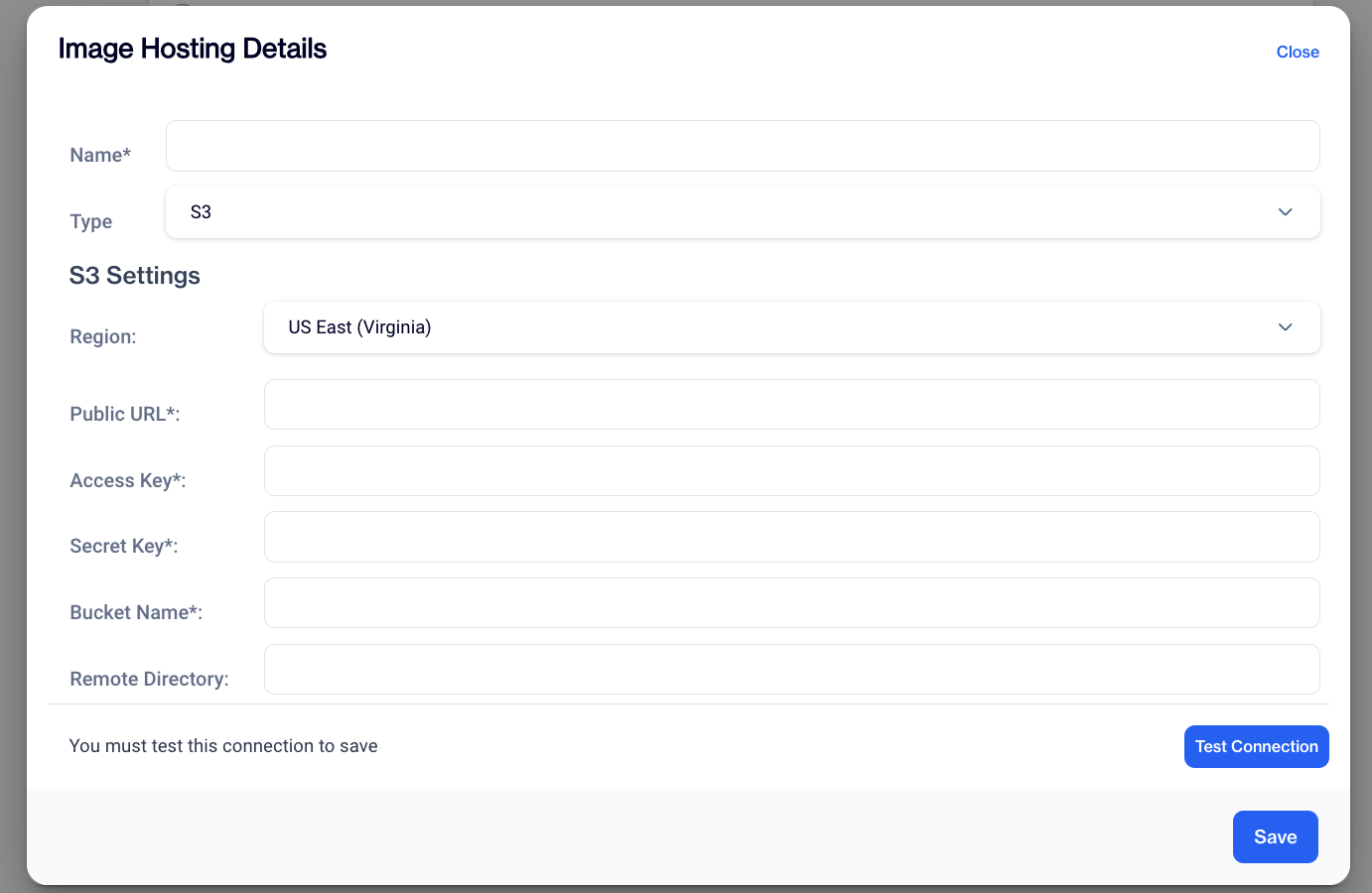
S3 Settings
If you select S3 as the hosting type, provide the following details:
- Region: Select the appropriate region (e.g., US East[Virginia]).
- Public URL: Enter the URL used to access the images.
- Access Key: Enter your S3 access key.
- Secret Key: Enter your S3 secret key.
- Bucket Name: Specify the bucket where images will be stored.
- Remote Directory: Indicate the specific directory within the bucket.
3. Azure Settings
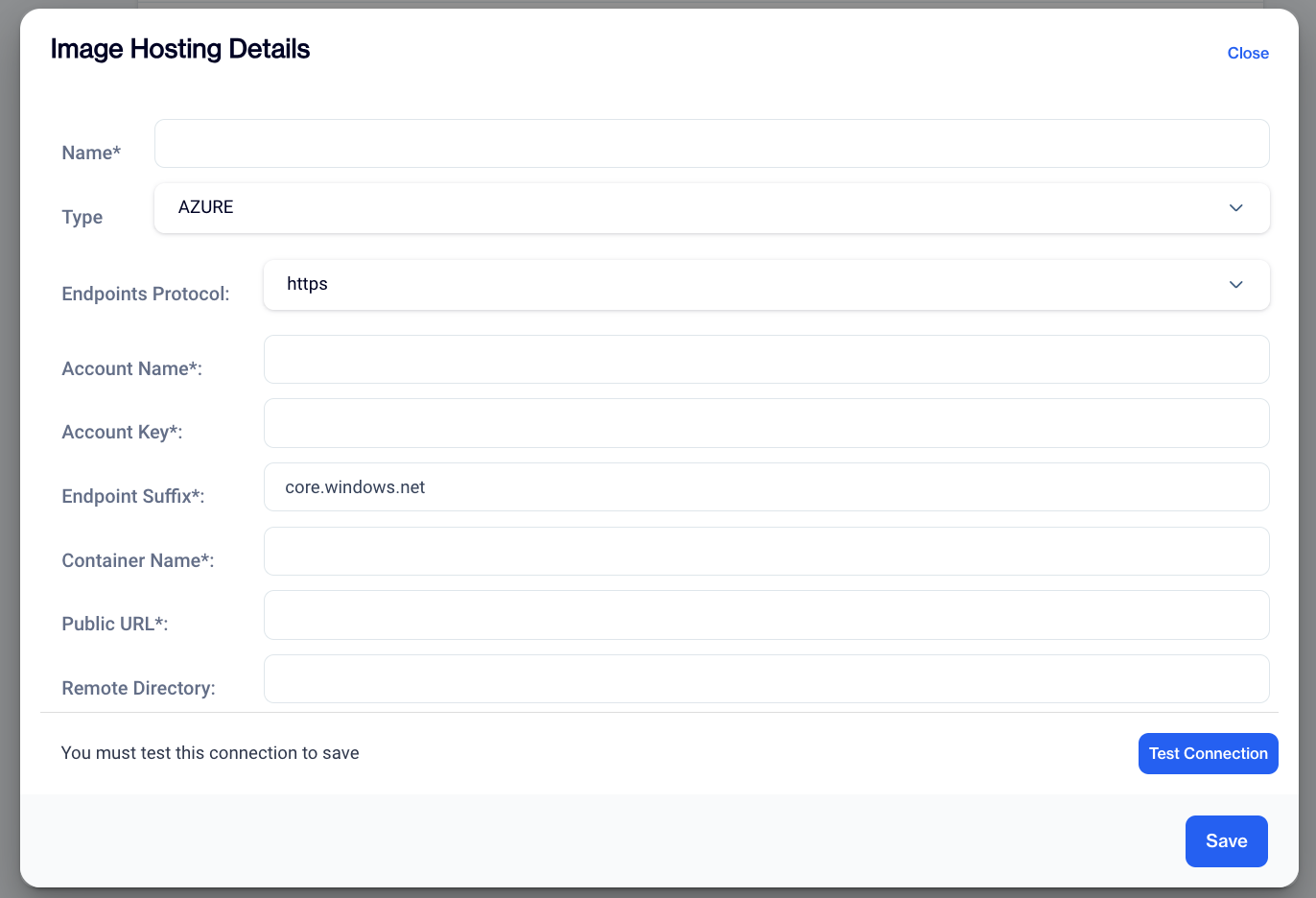
Azure Settings
If you select Azure as the hosting type, provide the following details:
- Endpoints Protocol: Choose https.
- Account Name: Enter your Azure account name.
- Account Key: Enter your Azure account key.
- Endpoint Suffix: Specify the suffix for the Azure endpoint.
- Container Name: Enter the name of the container for storing images.
- Public URL: Provide the URL used to access the images.
- Remote Directory: Specify the directory within the container.
Using Hosted Images
Once the image hosting is configured:
- You can upload images and manage settings from this section.
- The hosted images can be used across your content, and their URLs can be retrieved for embedding.
Note: The drag-and-drop editor does not currently support this feature.
Related Articles
Image Library
This segment outlines the folder structures for all images. The system also allows for the addition of new folders. Images are organized within these folders, and you have the option to upload any image to a designated folder. Additionally, you can ...Image Bar
The Image Bar is a streamlined on-site element designed to display a single image, without any accompanying text or buttons. This feature allows users to showcase a visual element, such as a promotional banner or announcement, across the top or ...Full Image
The Full Image template displays a single, full-screen image to create a strong visual impact for users. Creating a Full Image Full Image Name: Enter a name for your Full Image to easily identify it in your list of templates. Preview on Mobile: Once ...Image Modal
Image Modal The In-App Image Modal is designed to display an image alone within the app, providing a simple yet effective way to showcase visuals for promotions or announcements. This template maximizes visibility and is effective for visual ...Image Popup
The Image Popup is an on-site element designed to display a single image, providing an engaging and attention-grabbing experience.This feature is ideal for showcasing promotional visuals or announcements in a more prominent, popup-style format. ...