(Old iOS Version) - In-App Messaging
An in-app message is a type of mobile message where the notification is displayed within the app. It is not sent at a specific time but it is shown to users when the user is using the app.
Examples include popups, yes/no prompts, banners, and more.
In order to show in-app messages, there is no permit requirement.
Requirements
- D·engage SDK 2.5.3+
Implement Real-Time In-App MessagingFor developers seeking to integrate real-time functionality into their apps, our Real-Time In-App Messaging section offers instructions on leveraging our SDK for instantaneous communication.
Methods
Created messages will be stored in D·engage backend and will be served to mobile SDKs.
If you integrated mobile SDK correctly for push messages, for using in-app features you just have to add setNavigtion function to every page navigation.
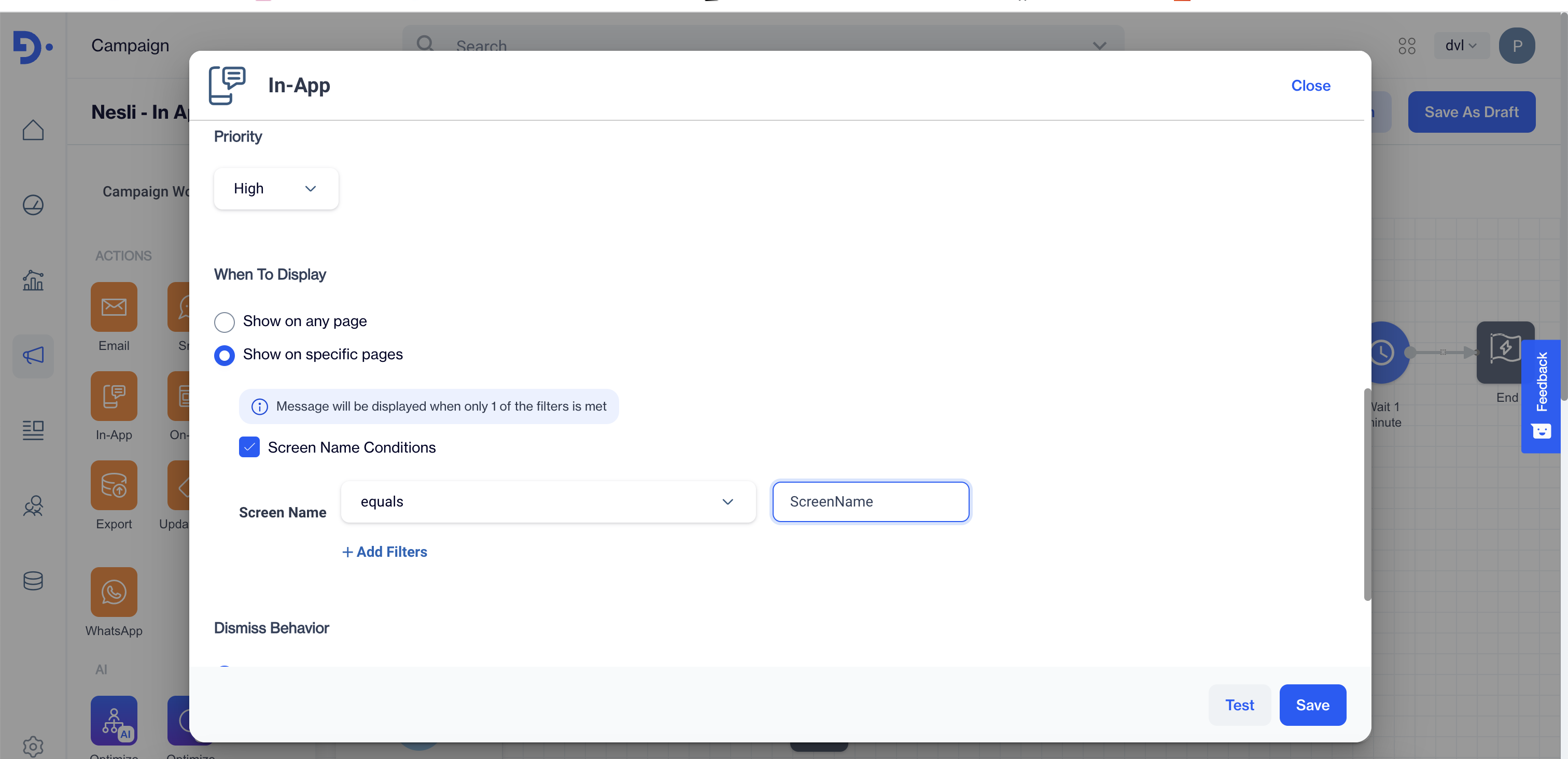
If you want to use a screen name filter, you should send the screen name to setNavigation function in every page navigation.
You should pass the current activity to setNavigation function.
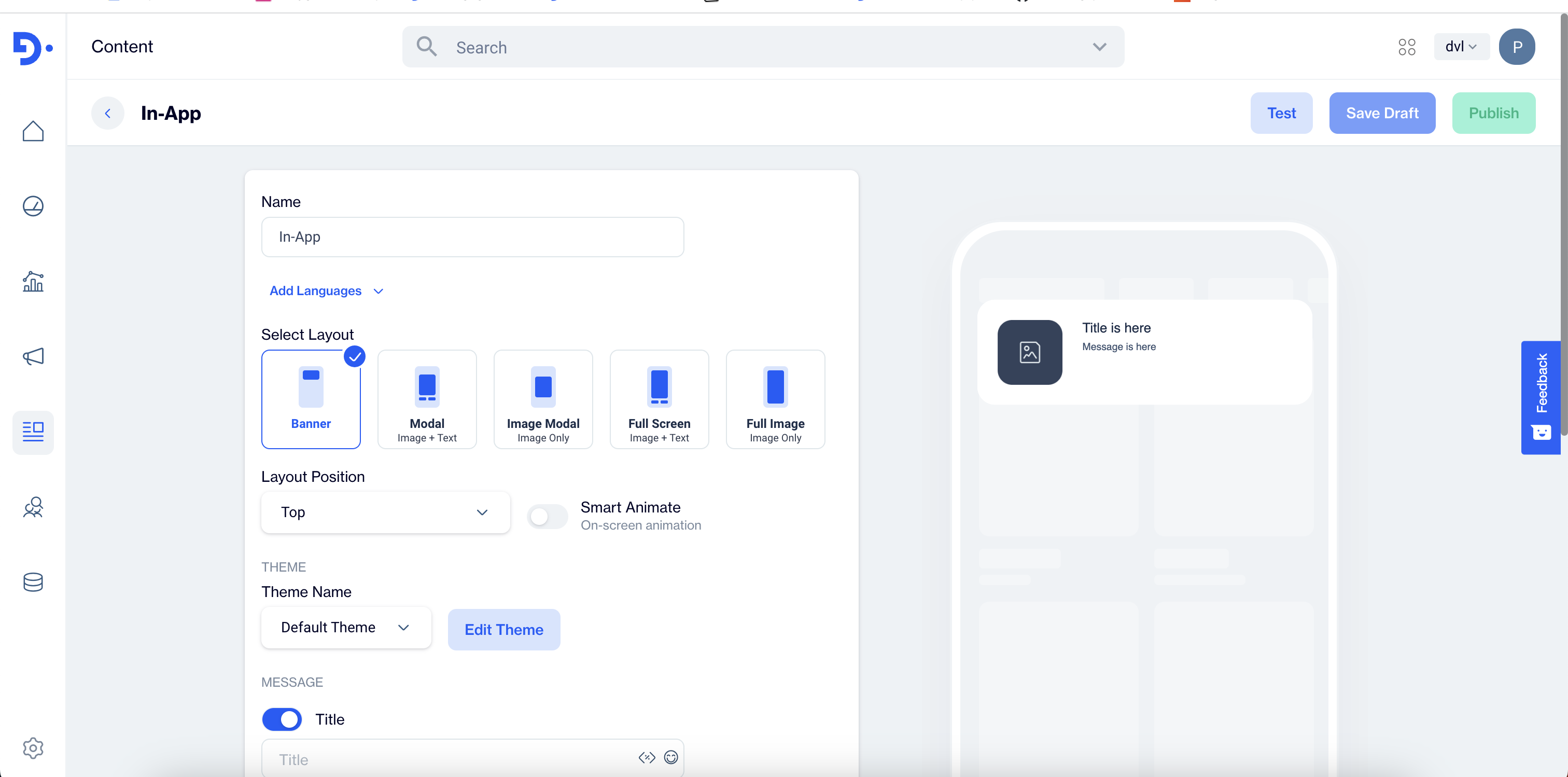
Simple In App Messaging
To use InApp on any default screen without any filter than You can use the link <https://app.dengage.com/#/contents/inApp0>
In App Messaging with Screen Name
To use InApp on any particular screen with filter than You can use the link <https://app.dengage.com/#/editCampaign/oneTime/0/0>
How to enable inapp messaging
Settings > Applications > Mobil Push App > Definition > "In-App Messaging" enable click on
Minimum Interval For Fetching Messages: SDK will fetch messages for that user periodically and stores those messages in local storage. This determines the minimum required elapsed time before fetching the new messages again. (min 4 minutes)
Minimum Duration Between Displaying Messages: If there are multiple messages in the local storage waiting. Most of the time you don't want them to be shown every page navigation. This may disturb the user. So this determines the minimum required elapsed time before showing the next message from the queue.

Retrieve on the same link parameter from the dashboard
Related Articles
iOS
License This part explains the iOS part of the Mobile SDK. If you are using D·engage iOS SDK version lower than 5.0.0 Dengage.Framework provides necessary classes and functions which handles. To use version 5.0.0 Dengage provides necessary classes ...(Old iOS Version) - Implementing the SDK
Implementing Mobile SDK for IOS requires the steps below Setting Integration Key Integration Key is generated by CDMP Platform while defining application. It is a hash string that contains information about the application. At the beginning of your ...(Old iOS Version) - Sample iOS App for Developers
For Old SDK: Here is the link for a sample android application for mobile developers. For New SDK: Here is the link for a sample android application for mobile developers.New iOS SDK Setup
SDK Setup Requirements Minimum iOS version supported 11.0 SDK Installation CocoaPods Integration Dengage is available through CocoaPods. To install it, simply add the following line to your Podfile: Ruby pod 'Dengage', '~> 5.89' Run pod install via ...(Old Android/Huawei Version) - Android SDK
Sdk Implementation Add dengage sdk dependency to your project level gradle file. Java dependencies { implementation 'com.github.dengage-tech:dengage-android-sdk:6.0.85' } For latest Android SDK click Sdk Necessary Rules Application Manifest ...