Remote Segments
Remote segments retrieve audiences from external data tables not locally available within Dengage CDMP.
Remote Segments represent one of the cornerstone features of the Dengage Platform, addressing the complexities associated with managing and synchronizing vast quantities of data collected from numerous touchpoints. The challenge of transferring this substantial data outside of our systems and maintaining its synchronicity is a significant concern for many businesses.
Dengage elegantly resolves this issue by facilitating the creation of segments that seamlessly integrate data from both local databases hosted on our platform and remote data silos. This innovative approach allows Dengage to treat local and remote data sources as a cohesive unit, enabling marketers to construct unified segments that leverage insights from across these varied data landscapes.
The platform's capability to connect with multiple remote sources enhances its versatility, allowing for the creation of comprehensive remote segments. This integration ensures that marketers can harness the full potential of their data, regardless of its location, to drive targeted and effective marketing campaigns. By bridging the gap between local and remote data, Dengage empowers organizations to achieve a more holistic view of their audience, thereby enhancing the precision and impact of their marketing efforts.
Understanding Segments and Remote Segments
Within this menu, you have the flexibility to create numerous Remote Segments. These remote segments can subsequently be incorporated into your existing segments, allowing you to craft segments that leverage data from both local and remote sources simultaneously.
Key Concepts
There are two core concepts to keep in mind when working with this feature:
- Remote Source: The connection definition for the external database Dengage will connect to. It must be defined before creating a Remote Segment.
- Remote Segment: An audience definition created by running a SQL query against a defined Remote Source.
The overall flow is: 1) Define a Remote Source → 2) Create a Remote Segment (write and validate your SQL query) → 3) Use the segment in campaigns, journeys, and content personalization.
Prerequisite: Configure a Remote Source
Before creating a Remote Segment, you must configure at least one Remote Source. A Remote Segment retrieves audience data from an external database connected to Dengage through a Remote Source.
The available database types for Remote Segments depend on the Remote Sources configured in your account. To create or manage a Remote Source, go to Settings > Integrations > Remote Sources.
- Click the +Add button.
- Enter a name for the remote source.
- Select the database type from the list of supported types below.
- Fill in the connection parameters specific to your chosen database.
- Click Save.
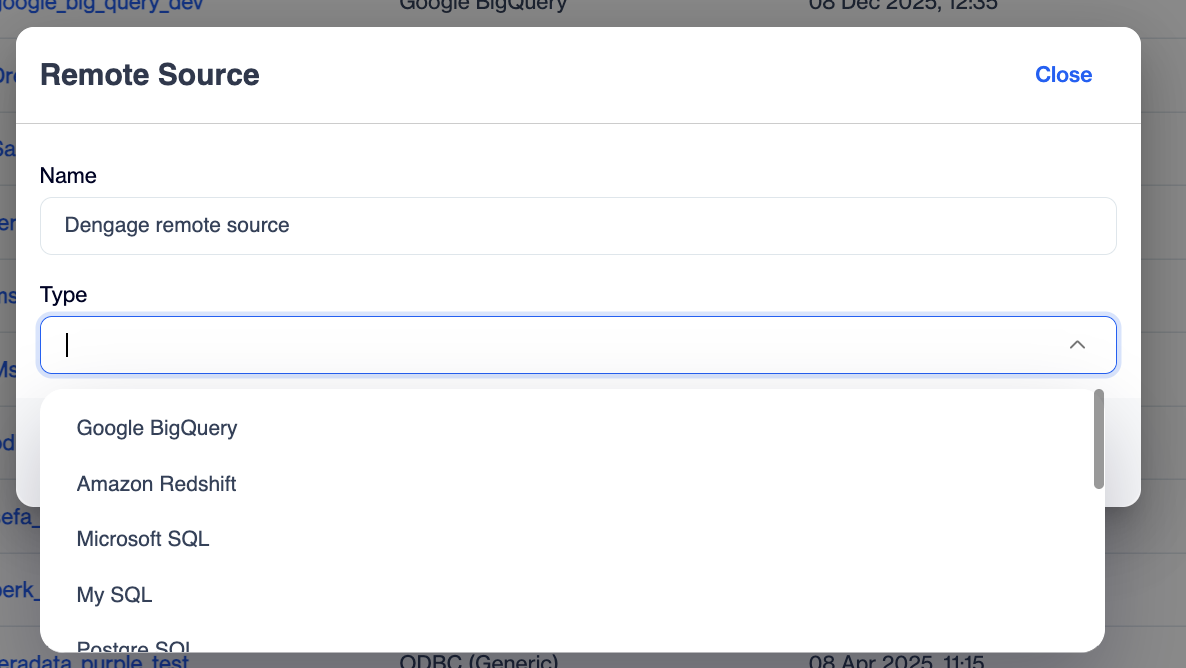
Supported Database Types
The following database types are supported as Remote Sources:
- Google BigQuery
- Amazon Redshift
- Microsoft SQL
- MySQL
- PostgreSQL
- Oracle
- Dremio
- SAP HANA
- Kafka
- ODBC
- Teradata
Database-Specific Connection Details
| Type | Required details |
|---|---|
| Standard SQL (MySQL, PostgreSQL, MSSQL, Oracle, Dremio, Teradata) | Server address/IP, port, database/schema name, username, password |
| Google BigQuery | JSON credentials file |
| Amazon Redshift | Standard server connection details + username/password |
| SAP HANA | Server, port, default schema, username, password |
| Kafka | Broker URL, SSL toggle, authentication credentials, SASL configuration, CA certificate upload |
| ODBC | Server details, port, database name, username, password, ODBC driver selection |
For more information about creating and configuring Remote Sources, see the Remote Sources documentation.
Note
You can also import data through a Remote Source: under Data Space > Automated Flows, create a new flow, add an "Audience Builder" / "Data Builder" node, and use "Create from Remote Source" to build a SQL query.
The Remote Segment Listing feature provides users with a comprehensive view of remote segments, including key details like name, creation date, and edit history. Users can search, filter, and sort the segments for efficient navigation. The actions menu offers options to view segment details, move segments between folders, or delete them with confirmation. Folders are used to organize remote segments, allowing users to create, rename, move, copy public IDs, and delete folders. Additionally, users can create new remote segments by filling out a form with general information and selecting a remote source, streamlining the segment management process.
Remote Segment Listing
The "Remote Segments" section comprises two primary divisions: "All Segments" and "Segments created by me." as their names imply, they list all and segments created by the user respectively. Here, all segments are detailed, including listing data and folders.
The following columns are displayed:
- Name
- Last Edited On
- Last Edited By
- Created By
- Created On
(1)Search Remote Segments: The search option enables quick access to any segment. Searches are conducted based on keywords, facilitating efficient navigation to the desired segment.
(2)Sort Remote Segments: Sorting functionality enables users to arrange the segments table data according to their requirements. In the specified listing, there are three main columns that can be sorted:
- By Name: A-Z or Z-A
- By Last Edited On: Ascending or Descending
- By Created On: Ascending or Descending
(3)Filter Remote Segments: Filter option is available to filter out the data by any specific category. In this case, date range filter is available or the system allows to filter by the following options:
- By date: Range [From-To]
- By date: update date or creation date.
(4)Remote Segment List: In the listing section, the first column, labeled "Name," is interactive. You can access the details of any remote segment by simply clicking on it. Additionally, you can also click on the three dots within the listing to edit remote segments.
Add a Remote Segment
This feature enables the creation of a new remote segment within the remote segment listing. Upon clicking the "New" button, the system will redirect the user to the "New Remote Segment" form.
- Selecting the "Cancel" button will close the form.
- Choosing the "Save" button will prompt the system to save the form after validating its contents.
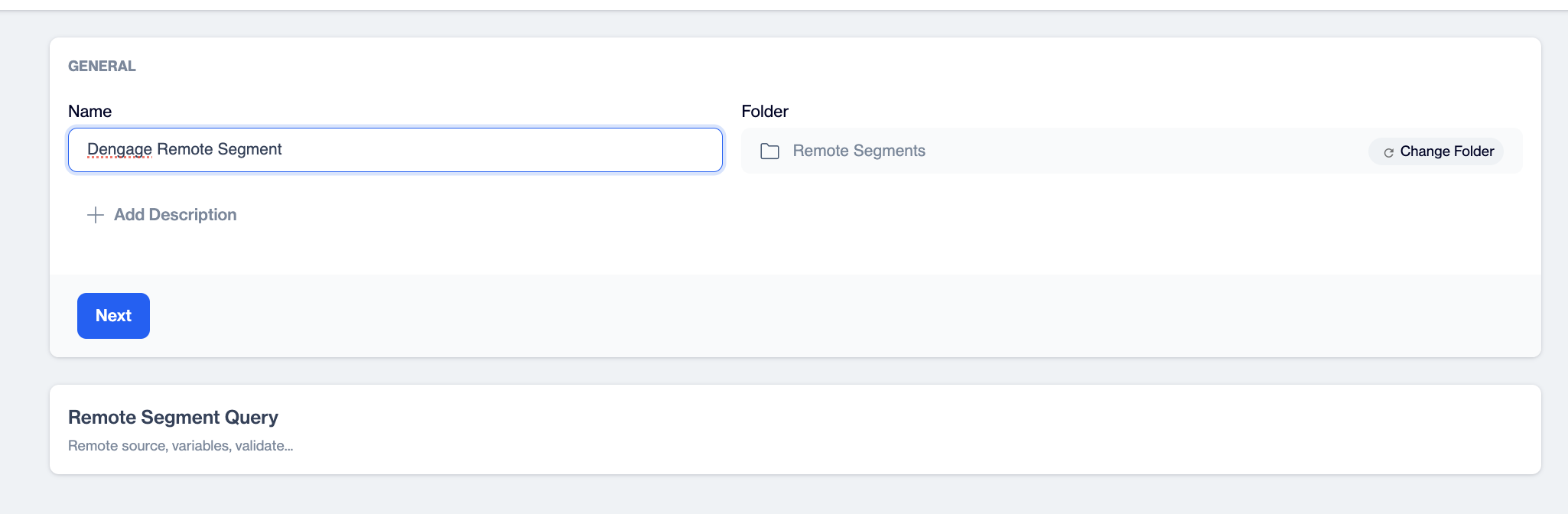
(1) Name: Assign a unique name to your remote segment.
(2)Add Description: Clicking on "Add Description" text will prompt the system to open a field where the user can write a description.
(3)Change Folder: This feature enables users to change the folder placement and triggers a pop-up window to select the desired folder.
(4)Next: After adding the remote segment name and description, the system enables the "Next" button.
Upon clicking the "Next" button, the system will redirect the user to a new screen where they can perform the following actions:
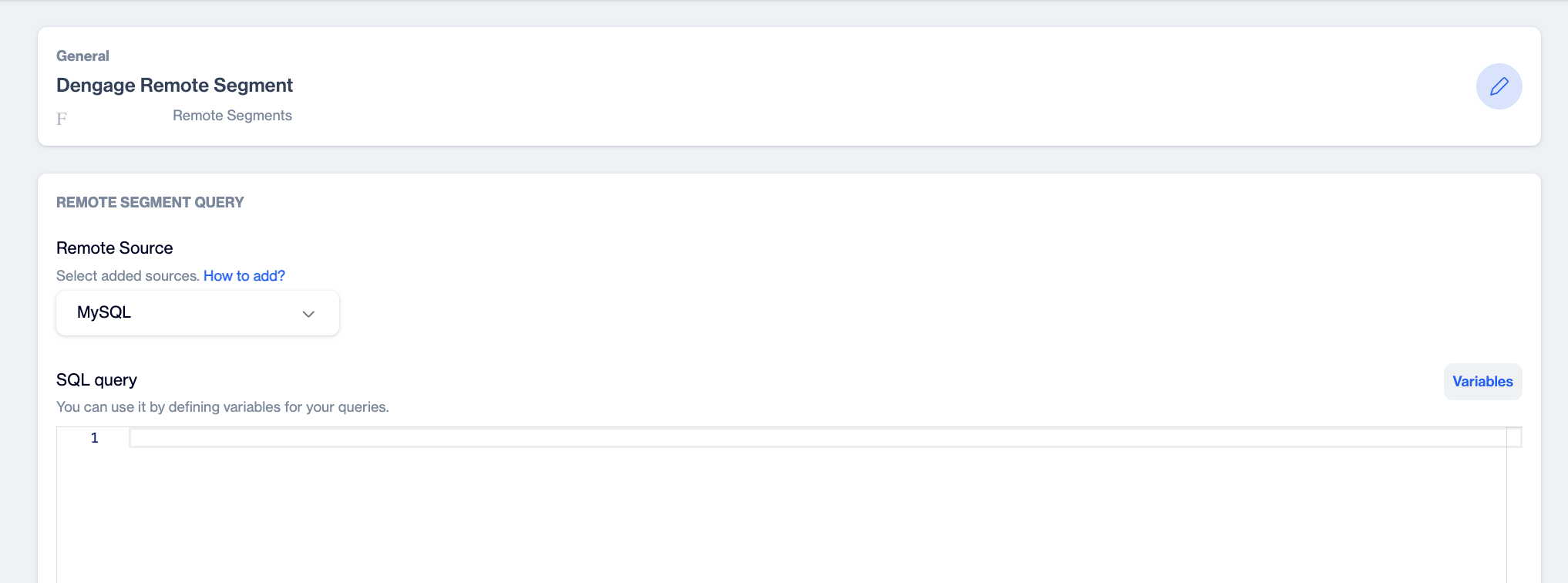
- Remote Source: Displays a dropdown menu to select from available remote sources.
- Edit: Use this option to modify the remote segment name and details given in the first step.
After selecting the remote source, a query window will appear where you can compose your own mapping query to align your data with the Dengage CDMP. Please write your query and run it. This will validate your query and allow you save it for future use.
Run and test your query
Ensure to run and validate your query before saving it.
Variables
Queries can be saved with variables, allowing you to specify these variables later when you run them to query your dataset with different parameters.
For example, instead of a fixed query such as 'select all people who purchased items in the last 7 days with an average spend of $100', you can save a flexible query like 'select all people who purchased items in the last X days with an average spend of $Y'. This approach enhances flexibility significantly.
Edit and Test a Remote Segment
By clicking the name of a remote segment or selecting 'Action>Edit' at the end of each row, the SQL query associated with that segment will be displayed as follows:
(1) Remote Source: Indicates the remote data source this remote segment is working on.
(2) SQL Query Window: This area maintains the SQL query for selecting audiences from remote segments. Subsequently, these remote segments may be integrated into local segments or directly employed in journey mappings.
Using Variables in Remote Segment Queries
Remote segment queries are dynamic, supporting variables within their SQL structures. This approach greatly enhances flexibility, allowing remote segments to serve as templates: write the query once, then modify the variables to execute the same query with different parameters.
(3) Run: Clicking this button executes the query on your remote source, with the outcomes displayed in a separate window. Should the query include a variable, the platform will prompt you to supply this parameter as illustrated below:
After entering the variable, the platform executes the query and retrieves the corresponding results. This indicates that the query is functioning correctly and the test is successful. Consequently, this remote segment can be utilized across the Dengage Platform.
(4) Variables: This button lists all variables available on the platform. You can add any defined variables to the query, and also create new variables to be used in this query or future queries.
Variables in the query can be of various types, including String, String List, Integer, Integer List, Decimal, and custom types. Once it is defined here, it can be used in the remote segment query window.
Using a Remote Segment as a Target Audience
A prepared and validated Remote Segment can be selected as the target audience in a flow or campaign:
-
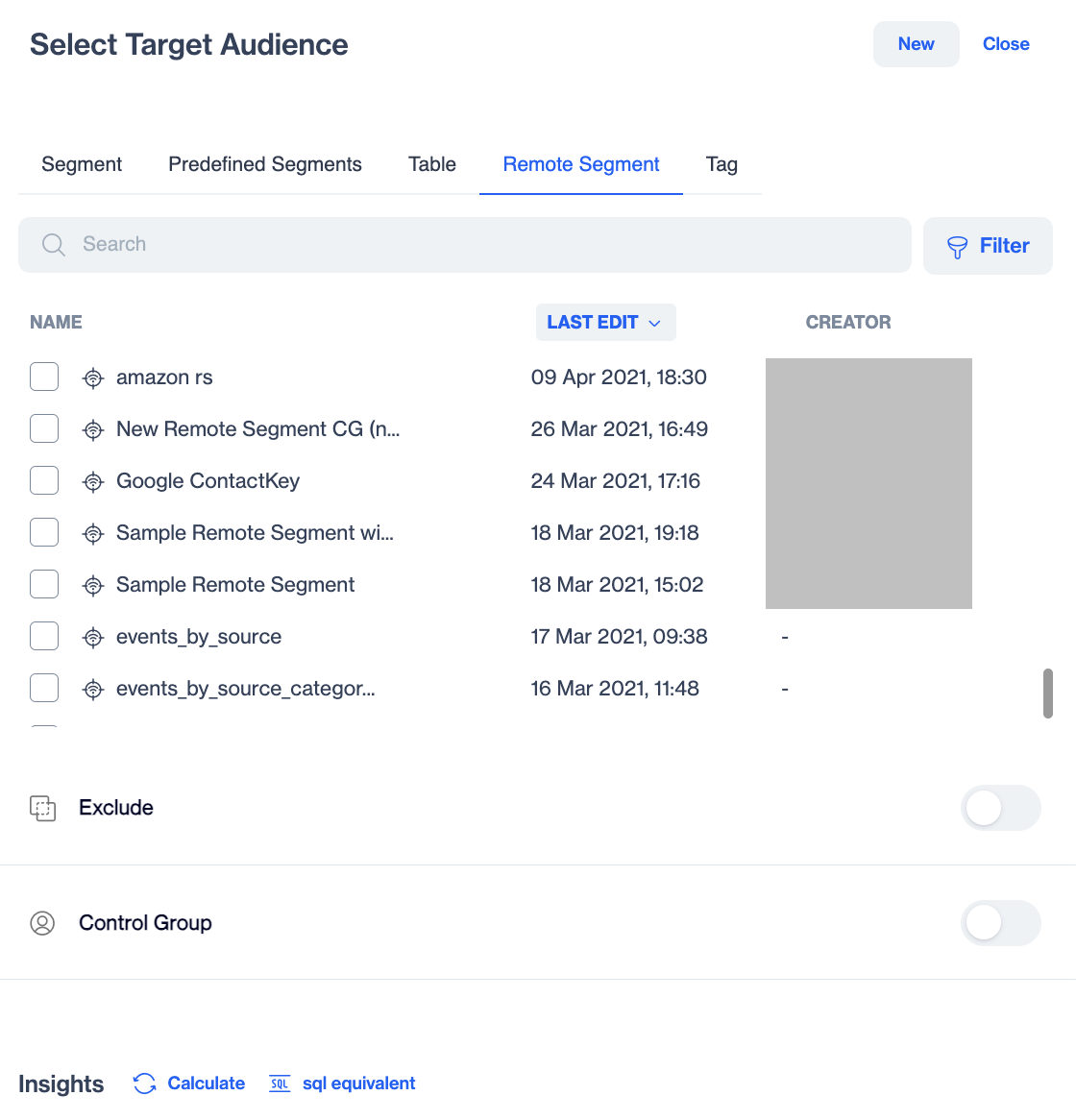
Double-click the Audience node in the flow/campaign; the "Select Target Audience" panel opens.
-
Switch to the Remote Segment tab at the top of the panel. (The panel tabs are: Segment, Predefined Segments, Table, Remote Segment, and Tag.)
-
Check the segment you want to use from the list. The list displays Name, Last Edit, and Creator columns, and search/filter options are available.
-
Configure the Exclude and Control Group toggles if needed.
-
Click Save to attach the audience to the campaign.
Content Personalization with Remote Segment Columns
The columns returned by your Remote Segment query can be used as personalization variables during content creation. This works consistently across all channels: Email, Onsite, In-App, and WhatsApp.
-
Open any content item (Email, Onsite, In-App, or WhatsApp).
-
Click the "Add Customization" icon; the Customization Modal opens.
-
In the modal, switch to the "Columns from Remote Segment" tab; all columns returned by the selected segment are listed.

- Select the column you want; it is inserted as a dynamic variable that receives real values upon delivery.
Tips and Considerations
- Define the Remote Source before the segment; only defined sources appear in the dropdown at the segment creation step.
- Always validate the query with Run before putting the segment into operational use.
- Use variables for reusable templates; run a single query with different parameters instead of writing a new query per scenario.
- The platform treats local and external sources as a cohesive unit; multiple remote sources can be combined.
- Make sure the columns you plan to use for personalization are included in the query output.
- Organize segments with folders; navigate quickly with search, sorting, and date filters.
Source: dev.dengage.com