RFM Segment
RFM Segment Sentences
The RFM Segment Sentences feature enhances user experience by simplifying the process of creating segments based on RFM (Recency, Frequency, Monetary) criteria. Users can now locate and utilize RFM segmentation directly from the dropdown menu while filtering, reducing unnecessary steps.
With this feature, users can create segments based on RFM segments or scores. Once the segment is created, a sentence summarizing the specific filter will appear, allowing users to proceed with marketing actions seamlessly.
How to Access
- Navigate to Audience > Segments.
- Click the New button.
- Choose Interactive Segment as the segment type.
- Enter a name and an optional description.
- Select a folder for organization.
- Click Next to access the filter section.
- Under User Data, choose RFM Segments as the filter type.
- If Segment is selected: Choose a specific segment from the dropdown.
- If RFM Score is selected: Choose a comparison option (e.g., less than, equals, etc.) and enter the desired value.
How to Use
Step 1: Select RFM Segments
- Go to the filter section.
- From the dropdown menu, select the RFM Segments.
Step 2: Choose Criteria
After selecting the RFM Type, you will see two options:
- Segment
- RFM Score
If You Choose "Segment"
- A dropdown will appear with the following segment options:
- Champions
- Loyal
- Cannot Lose Them
- At Risk
- Promising
- Need Attention
- New Customers
- About to Sleep
- Lost Customers
- Select the desired segment, and it will automatically be added to your filter criteria.
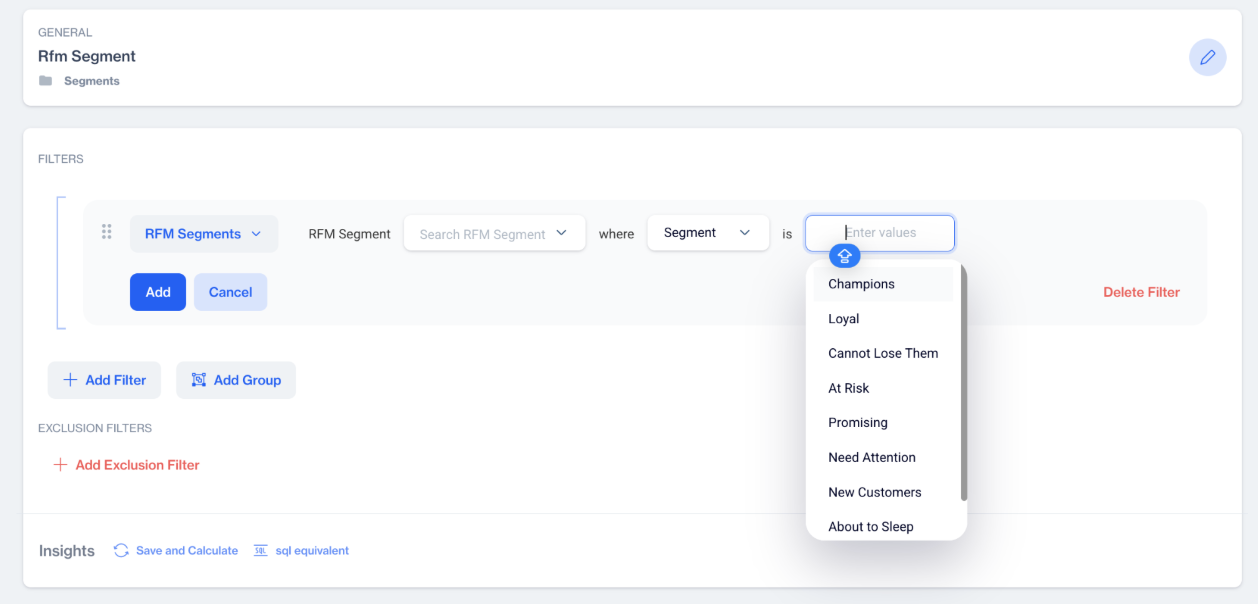
RFM Segments
If You Choose "RFM Score"
- A dropdown menu will appear with comparison options:
- is less than
- is greater than
- equals
- not equals
- is between
- Select the appropriate comparison option.
- Enter the required value(s) in the field.
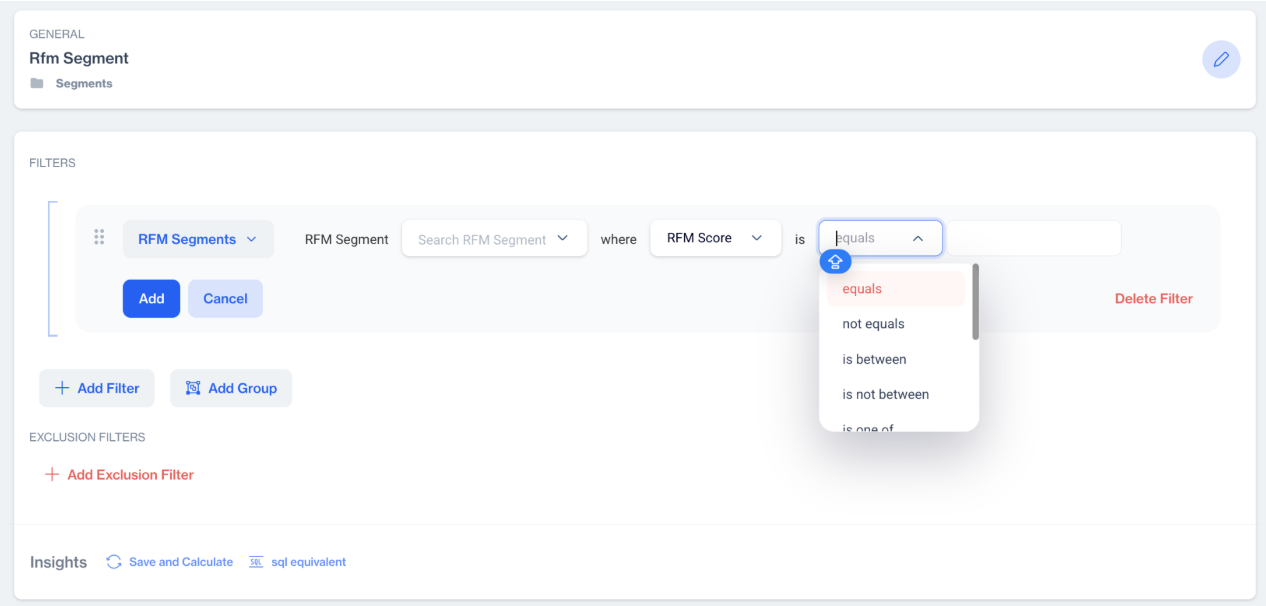
RFM Score
By using this feature, you can easily target the right audience and take informed marketing actions.
Add CLV (Customer Lifetime Value) and RFM Score Filters to RFM Segments
This update introduces Customer Lifetime Value (CLV) and RFM Score filters to the RFM Segment within the Interactive Segment. These filters provide enhanced customer segmentation based on event-based RFM data.
- CLV Filter Moved: The CLV filter is relocated from Predictive Analytics to the RFM Segment and now calculates CLV based on defined RFMs instead of account-level data.
- RFM Score Filter Added: Users can now filter segments based on specific RFM scores using various operator options.
How to Access
Accessing CLV & RFM Score Filters
- Navigate to Segments > New > Interactive Segments.
- Enter a name for your new segment and choose a folder. Then click Next.
- Under Filters, locate RFM Segments then choose;
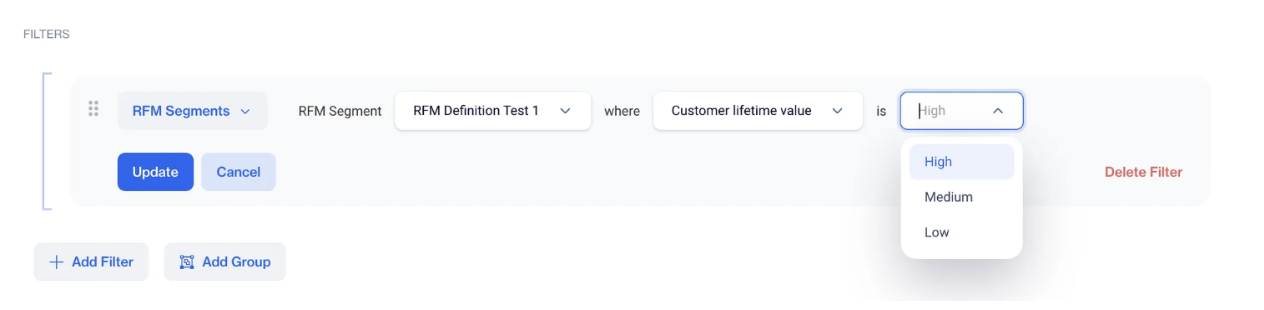
- CLV Filter → Select High, Medium, or Low.
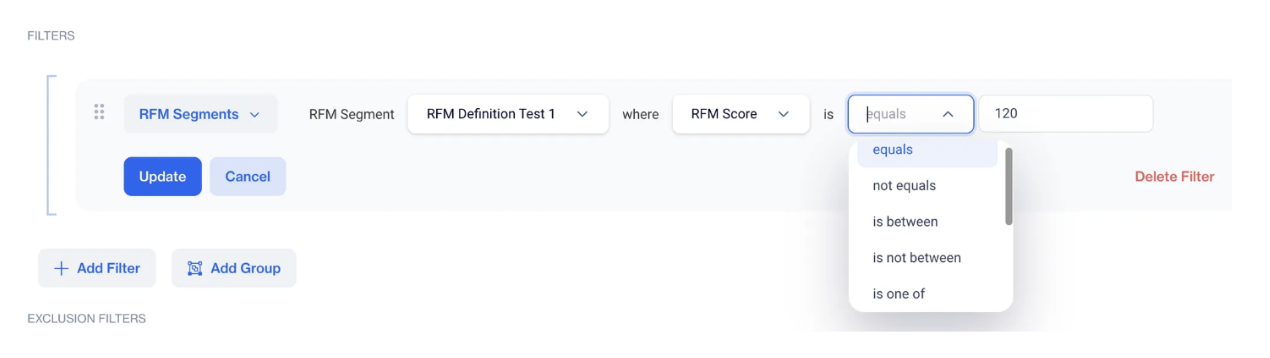
- RFM Score Filter → Define conditions using available operators.
- Apply the filters to refine your customer segment.
- Click Save to finalize the segment.
How to Use
1. CLV Filter in RFM Segments
- The CLV filter now calculates Customer Lifetime Value (CLV) based on the defined RFMs, rather than overall account-level data.
- Users can filter customers using the following CLV categories:
- High
- Medium
- Low
2. RFM Score Filter in RFM Segments
- Users can filter by specific RFM scores using different operators:
- Equals
- Not equals
- Is between
- Is not between
- Greater than
- Less than
- The filter helps refine customer segments based on Recency, Frequency, and Monetary (RFM) scores.
The addition of CLV and RFM Score filters enhances customer segmentation, allowing users to refine their target groups more effectively. These improvements provide more precise, event-driven insights into customer behavior.
Related Articles
RFM Analysis
The Analysis module aims to help businesses understand customer behavior, identify high-value segments, and optimize engagement strategies. By leveraging RFM (Recency, Frequency, and Monetary) scoring, the module enables data-driven decision-making, ...RFM Analysis
Analysis RFM Segments In the first tab of the “Analysis” screen, you’ll find the RFM Segments chart, which visually maps customer segments based on their Recency and Frequency scores. The vertical axis represents the frequency score, while the ...Event Based RFM Report
The Event-Based RFM Report feature enhances the existing RFM Analysis system by allowing users to define and calculate custom RFM segments based on selected events, attributes, and metrics. This flexibility improves segmentation accuracy and ...Segment
How to create segments for event tables (like shopping_cart event, order event ...)? To create segments for the event table: Navigate to Audience -> Segments -> New. Select segment type (Interactive, SQL). For Interactive Segment: Enter the segment ...Segment Snapshot
The Segment Snapshot feature simplifies the segment calculation process and enhances the user experience by providing detailed information after each calculation. Users can easily see the most recent calculation results and decide whether to ...