Creating SMS Content
The SMS section allows users to efficiently create and manage SMS messages for rapid communication with their audience. This feature streamlines the process of generating SMS content, ensuring that users can quickly craft and organize messages for various campaigns or purposes.
The SMS section is structured in folders, providing an organized way to access and manage all SMS drafts and send messages. This setup allows users to keep their SMS content well-arranged for easy retrieval and editing.
How to Access
To begin creating a SMS:
- Navigate to Content > Marketing > SMS.
- Click the New button to start creating a new SMSl.
When you click on a new button, you will be presented with a page containing two main sections: General and Content.
General
- This section allows you to provide a Content Name and select a Folder for organizing your SMS.
Once a name is entered, the Content section will become available for editing.
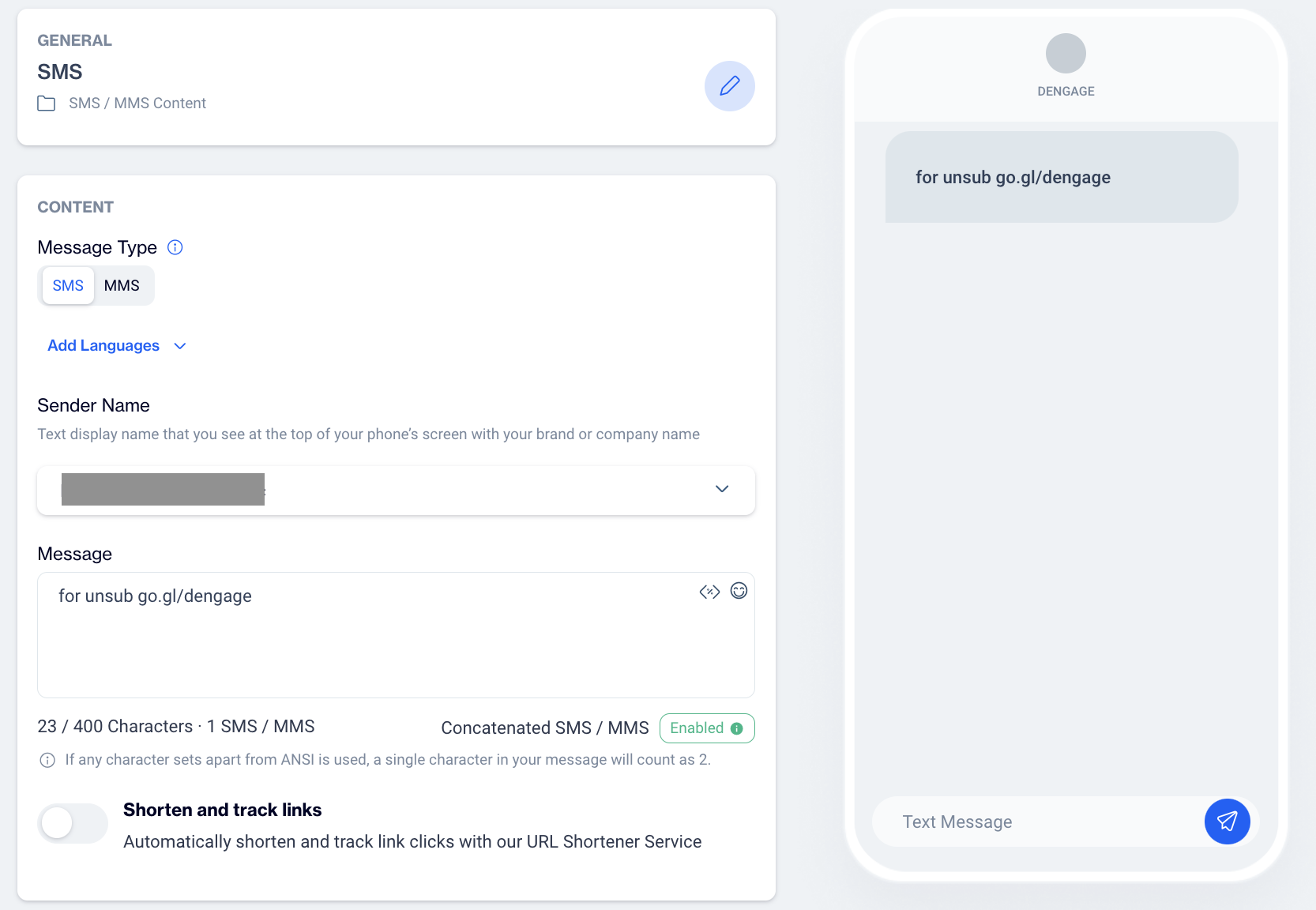
SMS Content
Content
a) Message Type
- The default message type is SMS. This field is set automatically when creating an SMS.
b) Add Languages
- Choose between two options:
- Copy from content: Use content from an existing SMS.
- Create Blank SMS Content : Start with a blank SMS template and add content from scratch.
c) Sender Name
- Select the sender’s name from the dropdown menu. This is the name that will appear when recipients receive the SMS, typically your brand or company name.
d) Message
- Enter your SMS text in the Message field. You can add customization : when adding Customization Tags to your SMS content, you'll see the Customization Selector pop-up. This tool allows you to personalize your SMS messages using various data fields.
Customization options include:
- Contact Columns: Insert data specific to your contacts, such as contact_key, name, or phone number.
- Device Columns: Personalize content based on the recipient’s device data (e.g., device type, or device_id).
- Dynamic Content (Plain Text): Add dynamic text that adjusts based on recipient data or context, ensuring more personalized SMS content.
- Column from Segments: Use data from predefined segments to tailor your SMS content for specific groups.
- Column from Table: Incorporate data from your custom tables to further customize your SMS content.
- Unsubscribe: Insert an unsubscribe option to comply with legal requirements and allow recipients to opt out. (e.g., {{unsubscribe-link}}, {{brand-unsubscribe-link}}).
- Include emojis to make your message more engaging.
- Character Limits for SMS: A single SMS is limited to 400 characters. If any character set apart from ANSI is used (such as special characters or emojis), each character will count as 2.
e) Shorten and Track Links
- Enable this option to automatically shorten URLs and track link clicks using the built-in URL Shortener Service.
- Enabling this feature automatically shortens your links using the default short domain provided by Dengage (e.g., cok.la), which may vary based on the datacenter. To view the shortened versions, save the content and navigate to the test screen.
- Additionally, you're not restricted to using the default short domain. You can define a custom short domain for your brand. To do this, set up an A record for your desired short link domain in Dengage's DNS settings and contact your account manager for further assistance.