Rich Text Editor
The Rich Text Editor is designed for creating email content without the need for advanced technical skills. It provides a user-friendly interface where you can easily insert images and apply basic styling to your email content.
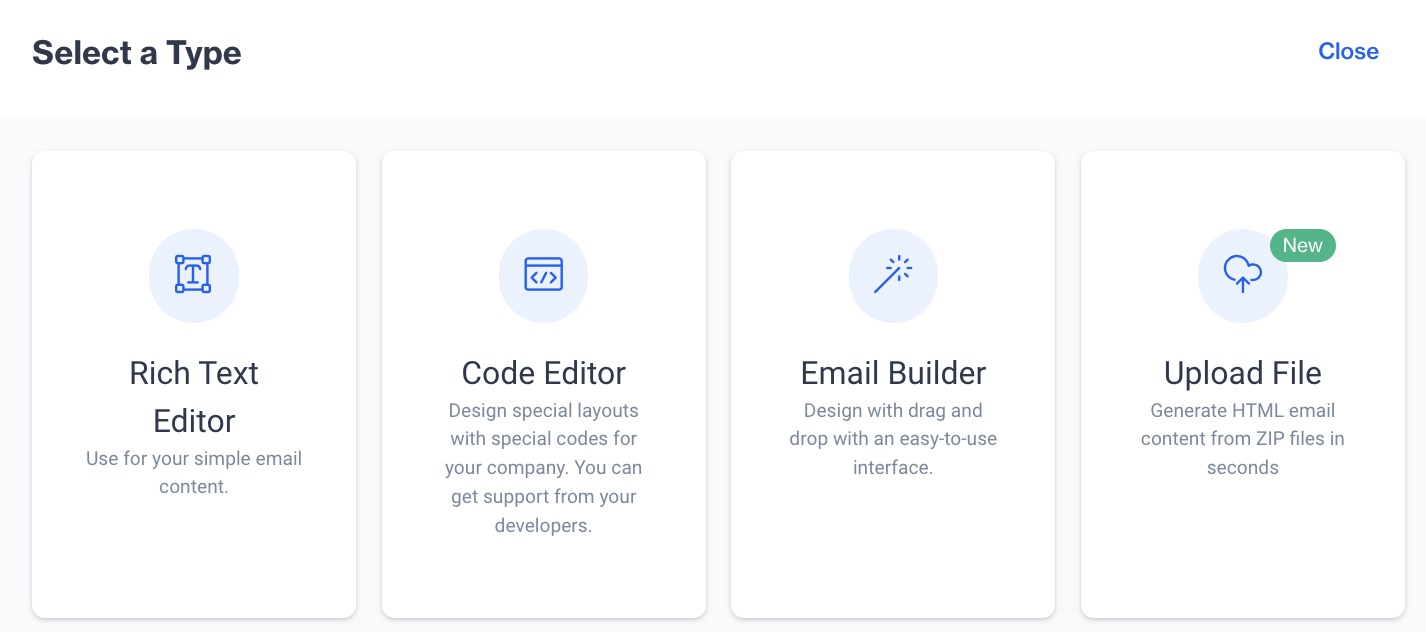
Select a Type > Rich Text Editor
Users can easily format their email content using various options. You can make text bold or italic, align it to the left, right, center, or justify it. For organization, bullet points and numbered lists are available, and indentation can be adjusted as needed. If you need to remove all applied styles, the clear formatting option is available.
Additionally, users can insert tables, images, links, customization tags, dynamic content, and special characters. Dynamic images and unsubscribe links can also be added to personalize or manage compliance in emails.
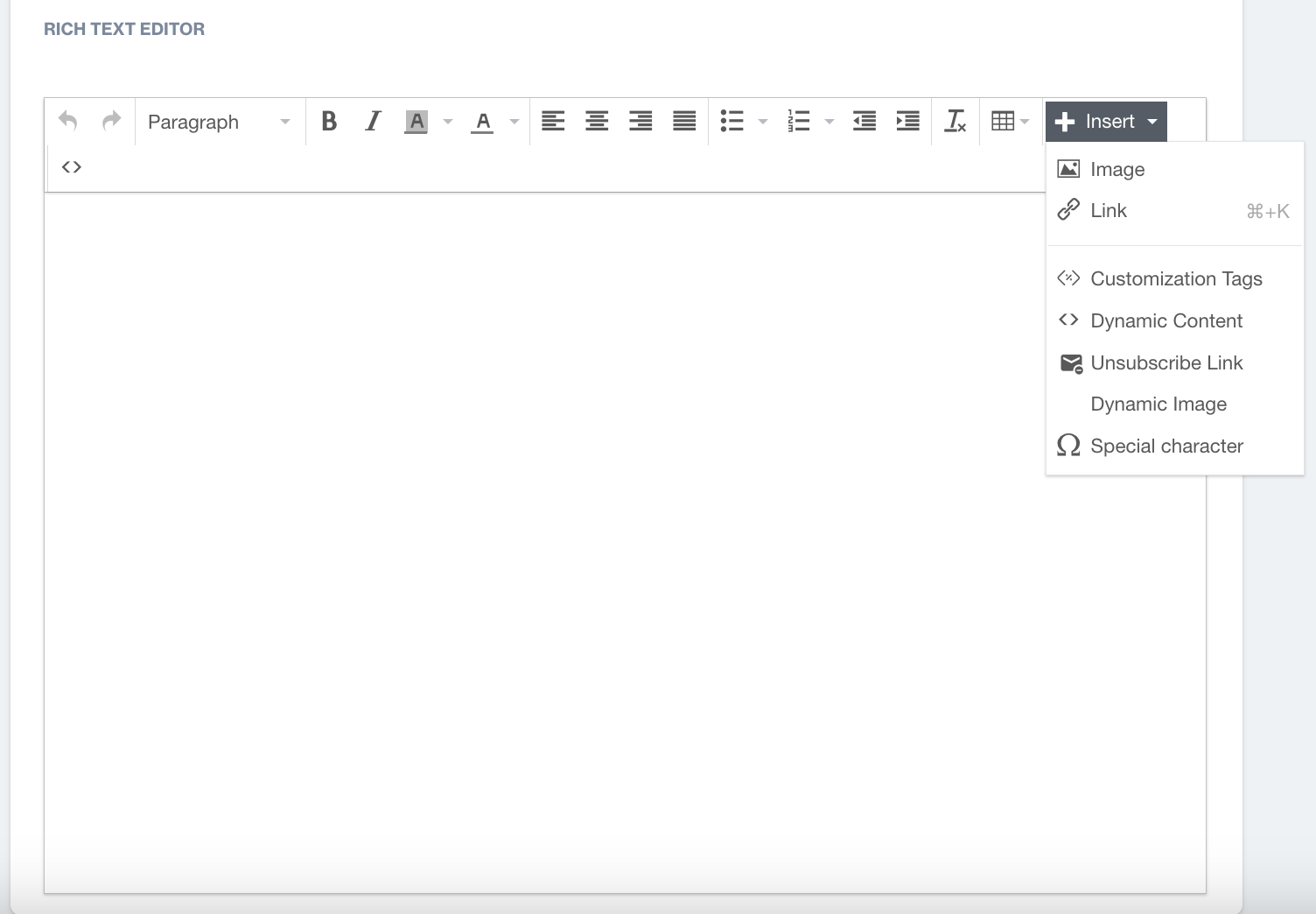
Rich Text Editor > Insert Options
Insert Options
- Insert Table
- Add tables to your email content for organized data presentation.
- Insert Image
- Embed images into the email by selecting the image file you want to include.
- Insert Link
- Insert a hyperlink into the email content by selecting text and clicking "Link" (⌘+K for quick access).
To insert a hyperlink into your email:
- URL: Enter the destination web address (URL) you want the link to point to.
- Text to Display: Type the text that will be clickable in the email (this is the visible link text).
- Title: Add an optional title that appears when hovering over the link.
- Target: Choose how the link opens:
- New Window: Opens the link in a new window.
- None: Opens the link in the same window.
- Customization Tags
When adding Customization Tags to your email content, you'll see the Customization Selector pop-up. This tool allows you to personalize your emails using various data fields. Keep in mind that if the content already contains Flow Customizations, you can only add more Flow Customizations unless you remove the existing ones to switch to Targeting Customizations.
Customization options include:
- Contact Columns: Insert data specific to your contacts, such as contact_key, name, email.
- Device Columns: Personalize content based on the recipient’s device data (e.g., device type or device_id).
- Dynamic Content (Plain Text): Add dynamic text that adjusts based on recipient data or context.
- Column from Segments: Use data from predefined segments to tailor content for targeted groups.
- Column from Table: Incorporate data from your custom tables to further customize your email.
- Unsubscribe: Insert an unsubscribe link to comply with legal requirements and allow recipients to opt out. (e.g.,{{unsubscribe-link}}, {{brand-unsubscribe-link}} )
- Dynamic Content
- In the Dynamic Content section, you can enhance your email by selecting from three options:
- Product Box: Use this option to display product information dynamically, including images, descriptions, and prices, tailored to the recipient's preferences or behaviors.
- HTML: Insert custom HTML to create visually appealing and interactive elements in your email.
- Plain Text:Add dynamic text that adjusts based on recipient data or context.
- Unsubscribe Link
- Add an unsubscribe link for recipients to opt-out of future emails, ensuring compliance with email regulations.
- Dynamic Image
- Embed images that change dynamically based on customizations.
- Special Characters
- Insert special characters (like currency symbols etc.) to enhance the content.
Related Articles
Rich Text Editor
This module facilitates easy copying and pasting of HTML to construct email content. It provides essential sections for content and folder configuration. Users can effortlessly customize sender details, subject lines, and pre-headers. Additionally, ...Code Editor
It offers essential sections for configuring content and folders, allowing users to easily personalize sender information, subject lines, and pre-headers. Additionally, it supports the creation of server-side advanced JavaScript codes for building ...Code Editor
The Code Editor provides a powerful interface for configuring your email content and folders, allowing for comprehensive personalization. It enables users to easily customize sender information, subject lines, and pre-headers to enhance engagement. ...Email
The Email Module is a versatile and user-friendly platform that facilitates creating, personalizing, and managing email campaigns to meet a range of user needs. The Email Module provides an all-in-one solution for creating emails that range from ...HTML Editor
The HTML Editor allows you to design and customize layouts that align with your brand's unique style using code. This section offers full control over the layout and design elements, enabling you to tailor each aspect to fit your specific brand ...