Segment Shaper
Segment Shaper is a powerful new feature that enables you to create audience segments effortlessly using natural language prompts. Powered by Zeki, it allows you to describe your target audience in plain language.
This feature is especially helpful for users who may not be confident in using SQL or feel that Interactive Segment does not meet their needs. With Segment Shaper, segmentation becomes faster, easier, and more accessible—no technical expertise required.
How to Access
- Navigate to Audience from the main menu.
- Find and click on Segments.
- Click the New button to start creating a new segment.
- From the segment type options, select Segment Shaper.
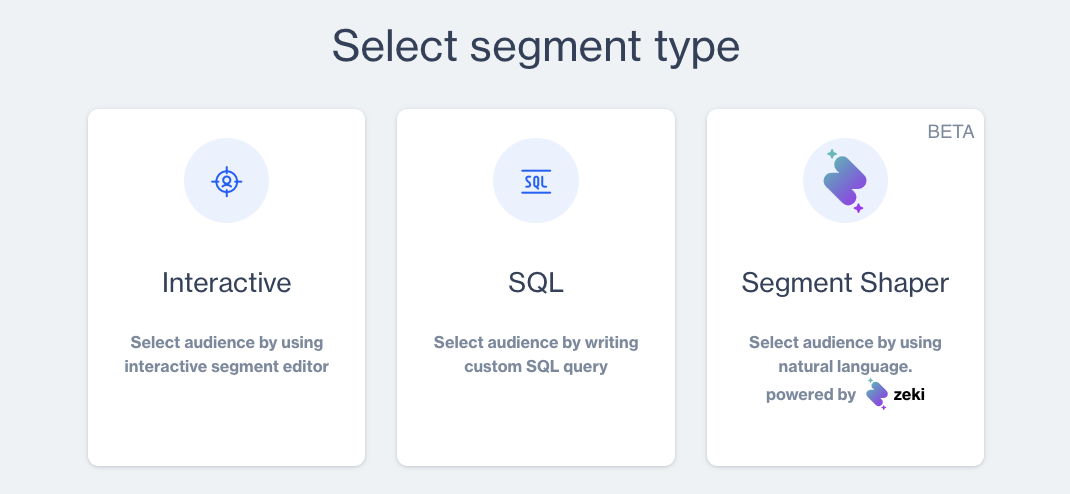
Segment Shaper
How to Use
- After selecting Segment Shaper as the segment type, you will first land on the General screen.
- Enter a name for your segment.
- Choose a folder to organize it.
- Add a description if needed.
- Click the Next button to proceed to the Prompt screen.
- On the Prompt screen:
- Enter your prompt using natural language in the input field. (e.g., “Users with Dengage domain”)
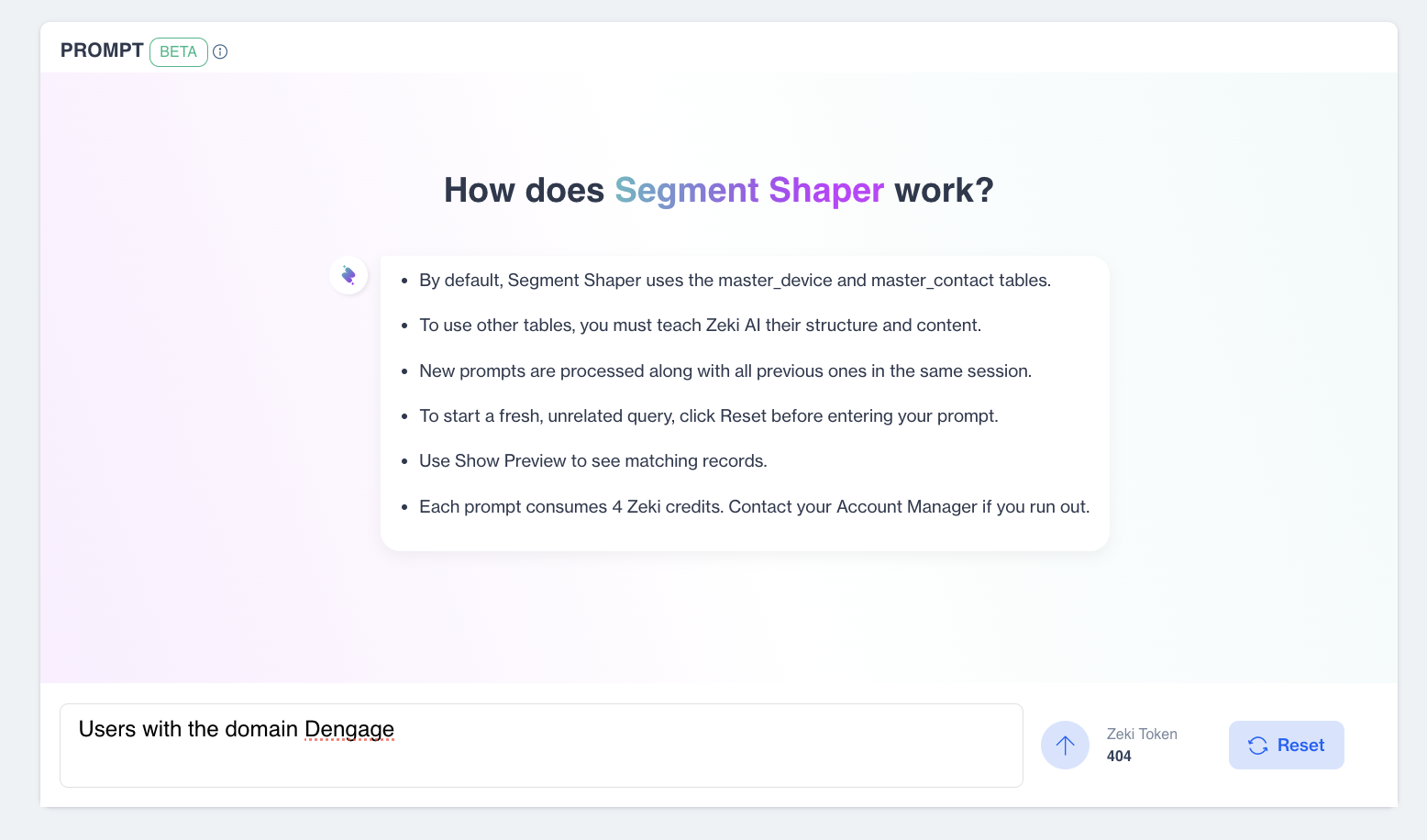
- Press the OK icon to generate the segment based on your prompt.
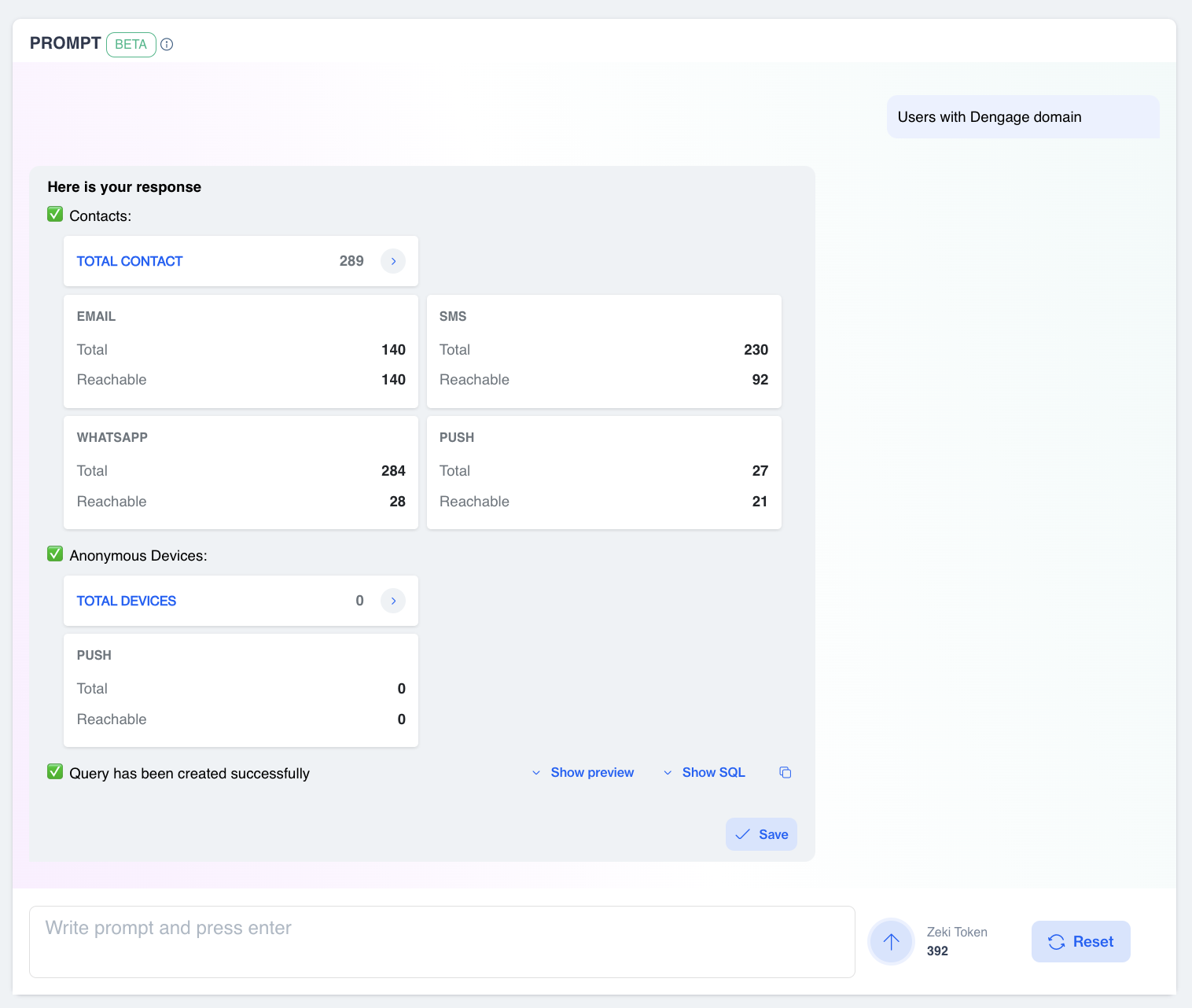
Segment Based on Prompt
- If you want to write a separate prompt without being influenced by the existing one, you should either click the Reset option or use the bin icon next to the existing prompt to delete it. Otherwise, if you simply add a new prompt below the existing one, the response will be shaped based on both prompts combined.

Bin Icon
- In the response section, next to “Query has been created successfully” message, you may find Show Preview and Copy SQL options. You can click Copy SQL to copy the query and paste it elsewhere for review or further analysis.

Copy SQL Query
You can write the prompt in any language—the response will always appear in the platform's language.
Additional Info
By default, Segment Shaper operates using the master_device and master_contact tables.
If you wish to include additional tables, go to Data Space > Data Management > Tables. Select the table you want to use, then under the table name, fill in the Description field with a table description of at least 10 characters. Next, for each column in the table, fill in the Column Description field, also with a minimum of 10 characters. Once both the table and column descriptions are completed, enable the Zeki Sync button to make the table available for use in Segment Shaper.
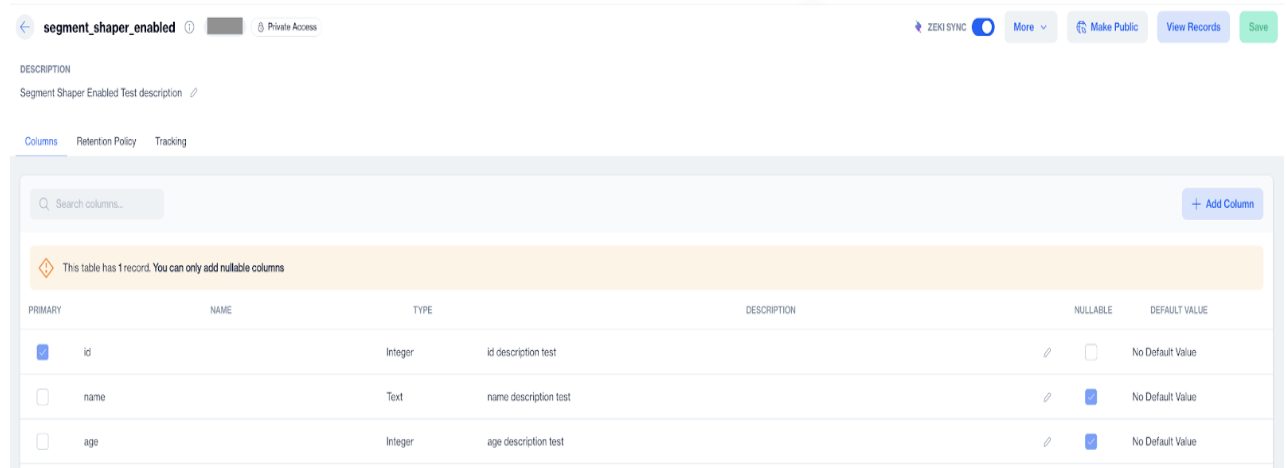
Zeki Sync
When you navigate to Data Space > Data Management > Star Schema, please note that Zeki Sync is not supported for remote tables. Segment Shaper can only use tables that are directly connected (first-level connections) to master_contact or master_device within the Star Schema.
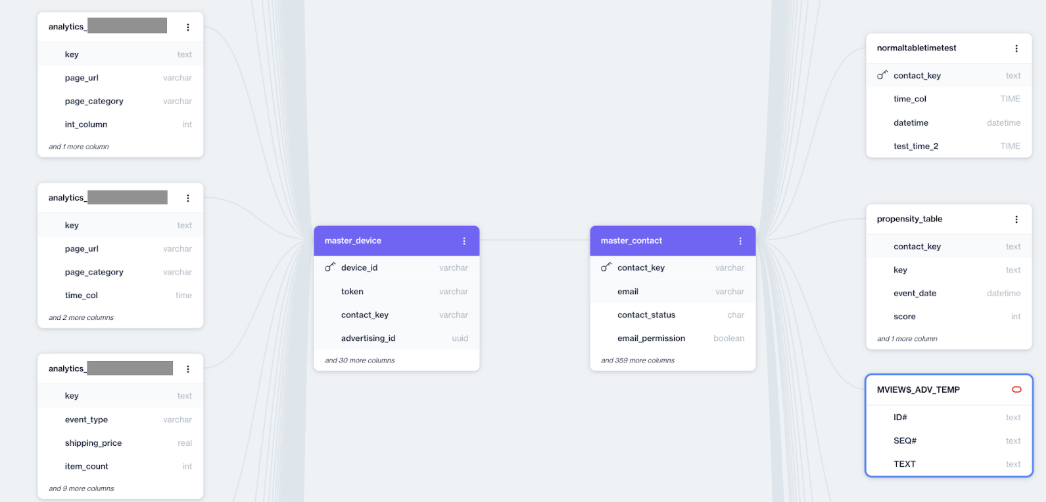
First-level Connections
On the Prompt screen, you'll see your available Zeki Tokens. Each prompt you enter consumes four tokens.
Prerequisites
Make sure the Segment Shaper feature flag is enabled for your account.
🎥 Watch Segment Shaper in Action
Here’s a quick demo showing how to use Segment Shaper to create audience segments using natural language prompts.