Tags
Tags are a fundamental concept used in marketing platforms to categorize, organize, and manage users based on specific criteria, behaviors, preferences, or actions.
The Tags Listing feature provides users with a centralized view of all tags, displaying key details such as name, type, properties, and modification history. Users can easily search, filter, and sort the tag list to locate or organize tags efficiently. The feature also allows the creation of new tags through a structured form, where users can define details like tag name, type, description, audience type, and real-time sync settings. This functionality simplifies tag management, enabling better organization and streamlined workflows.
In the context of digital marketing and customer relationship management (CRM) systems, Tags provide a versatile and efficient method for segmenting audiences, enabling personalized communication strategies, and tracking user interactions across various channels.
Purpose and Use of Tags in Marketing Platforms:
User Segmentation: Tags allow marketers to segment users into distinct groups based on shared characteristics or behaviors. For example, you might tag users as "Interested in Sports" or "Frequent Buyers." This segmentation enables the delivery of tailored content and offers that are more likely to engage each group.
Personalization: By tagging users based on their actions, preferences, or demographic information, marketing platforms can personalize communication at a granular level. Personalized emails, recommendations, and advertisements can significantly improve user engagement and conversion rates.
Tags vs SegmentsWhen contrasting Tags with Segments, it's important to understand that Tags represent static lists, whose composition remains unchanged unless users are explicitly added or removed. On the other hand, Segments are based on dynamic queries, meaning the audience included within a segment continuously evolves based on the segment's defined criteria.
Tags Listing
In the tags listing, you'll find columns for tag name, type, properties, last edited date, last edited by, created by, synchronization, and creation date.
(1) Search Tags: This interface enables you to swiftly search for tags using keywords, facilitating quick access to specific tags.
(2)Sort Tags: The sorting option facilitates rapid data access and empowers users to customize the tags listing view. When a column is sorted, it will be highlighted in blue, indicating its active status. The system permits sorting the tags by the following options:
- By Name: A-Z or Z-A
- By Last Edited On: Ascending or Descending
- By Created On: Ascending or Descending
(3)Filter Tags: The filtering option is accessible to refine the tags displayed in the listing. This functionality enables users to swiftly locate specific tags from a diverse range. Users can utilize this filter to select tags based on type, editing date, or creation date. Additionally, there's an option to clear any applied filters. Clicking on the cancel button will close the popup window.
- By Type: All, List, or Key Value
- By Date: update date or creation date.
Tag Info
Every tag name is interactive, and clicking on it will launch a new window showing tag details.
Each tag comprises 3 sections:
- (1)Details: This section exclusively presents tag details, allowing for the addition of descriptions. Additionally, this screen provides the option to enable tag synchronization.
- (2)Audience: Here, the contact key, name, surname, email address, phone number, permission, and status of all tag-associated members are displayed.
- (3)Delete: This removes the tag from the system.
Add New Tag
Clicking on the "New" button will open a new screen where you can define a new tag.
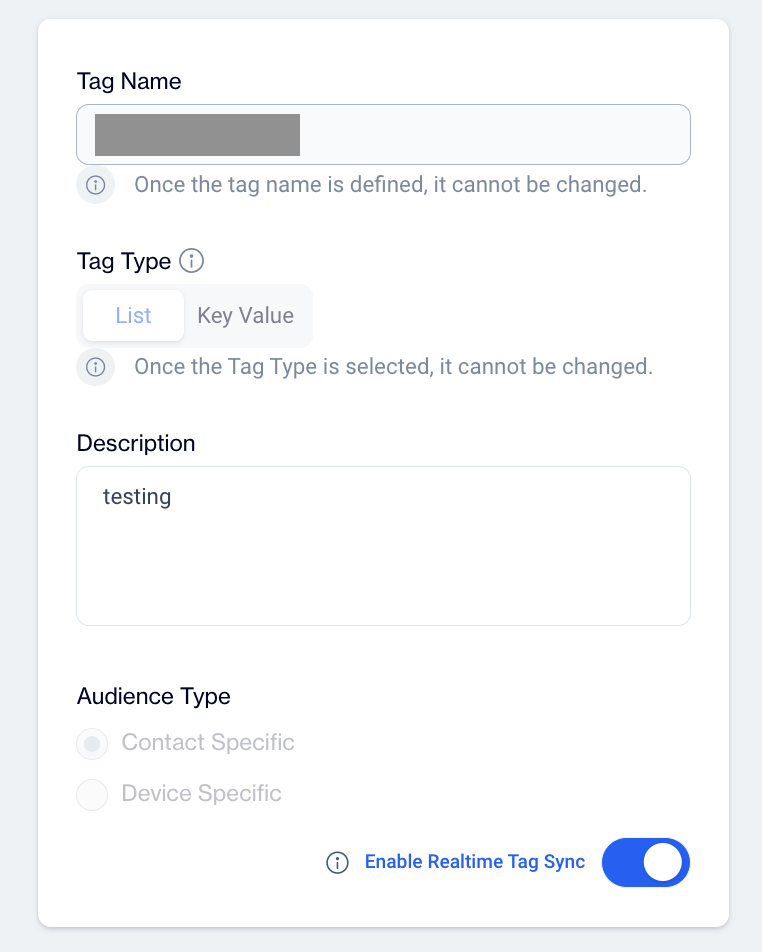
The "Add Tag" screen will allow you to input the following information:
- Tag Name: The unique name of the tag in the system.
- Tag Type: The type of Tag: List or Key Value
List vs Key Value TagsFor instance:
List tags are simplistic identifiers without intrinsic meaning beyond their labels. They are used to categorize or mark entities under broad, umbrella terms without specifying details. A tag like "LiverpoolFan" could be used to identify members of a community who support Liverpool Football Club, while "VIP" might denote users with special privileges or status within a system or service.
Key-value tags, in contrast, provide detailed metadata by associating specific information (the value) with a particular attribute (the key). This structured format allows for more precise categorization and searchability. For example, the tag birth_year = 1977 associates the specific attribute of 'birth year' with the value '1977', offering clear and searchable data about an entity's age. Similarly, favorite_food = 'hamburger' links the 'favorite food' attribute with 'hamburger', indicating a preference that could be used in personalized recommendations or profiles.
These descriptions help in later understanding the specific purposes these tags serve, whether for simple identification, grouping, or detailed attribute assignment.
- Description: The description of a tag serves as an informative note that explains its purpose or usage, making it easier to understand the context in which the tag is applied.
- Audience Type: Use "Contact Specific" or "Device Specific" as appropriate. If this tag is intended for tagging contacts, please assign it the "Contact Specific" attribute. Otherwise, assign the "Device Specific" attribute for tagging devices.
- Enable Realtime Tag Sync: If selected, this tag will be added to your account's real-time cache on the platform, enabling its use in targeting for real-time onsite and in-app activities. This means if a user or device falls under this tag, actions such as displaying popups or conducting web personalization can be triggered accordingly.
Tag Details
You have the option to place the "Cancel" button at the far right of the screen or click on the arrow button at the far left to navigate back to the tags listing.
Related Articles
SmartTag with ZekiAI
Smart Tags is an AI-powered feature that helps you create meaningful tags automatically by using your existing business and product data. Instead of defining all tags manually, the system analyzes your data and suggests ready-to-use tags that can ...Dynamic Content & Customization
What is dynamic content? Dynamic content refers to content that adapts based on user data, preferences, or behaviors. Unlike static content, dynamic content is flexible and responsive, allowing users to display personalized information for different ...Frequency Capping
The Frequency Capping feature in the Campaign Configuration section helps you manage how often your audience receives communications, preventing overcommunication and improving user engagement. Frequency Capping General Rules Displays a summary of ...Export
How can I export campaign reports? To export campaign reports, you need to navigate to the Analytics section. Then, click on Channel Report and apply filters for Campaign Type, Campaign, Channel selection, and Tags if needed. Specify the desired date ...HTML Editor
The HTML Editor allows you to design and customize layouts that align with your brand's unique style using code. This section offers full control over the layout and design elements, enabling you to tailor each aspect to fit your specific brand ...