Update Data Space with FTPS
Important NoteYou need to create an automation FTP user on admin panel. You can find the steps for how to create automation FTP user on this link
Create an Automated Flow to Update Your ‘Master Contact’ Table
- Under the "Data Space" tab, click on "Automated Flows" to create an automated job for Data Space updates.
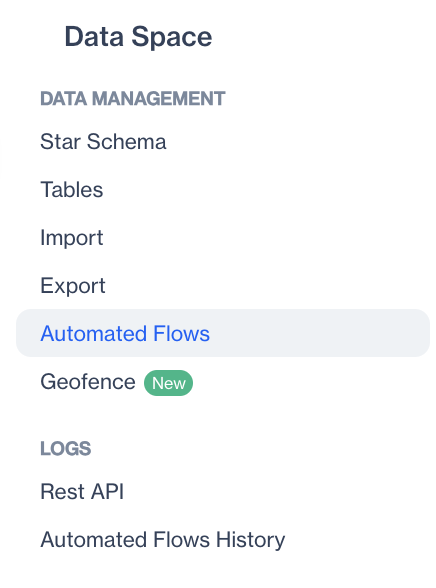
Automated Flows
- Click “New”, choose "Automated Flow" and fill the details (name, start date, end date) of the automated flow.
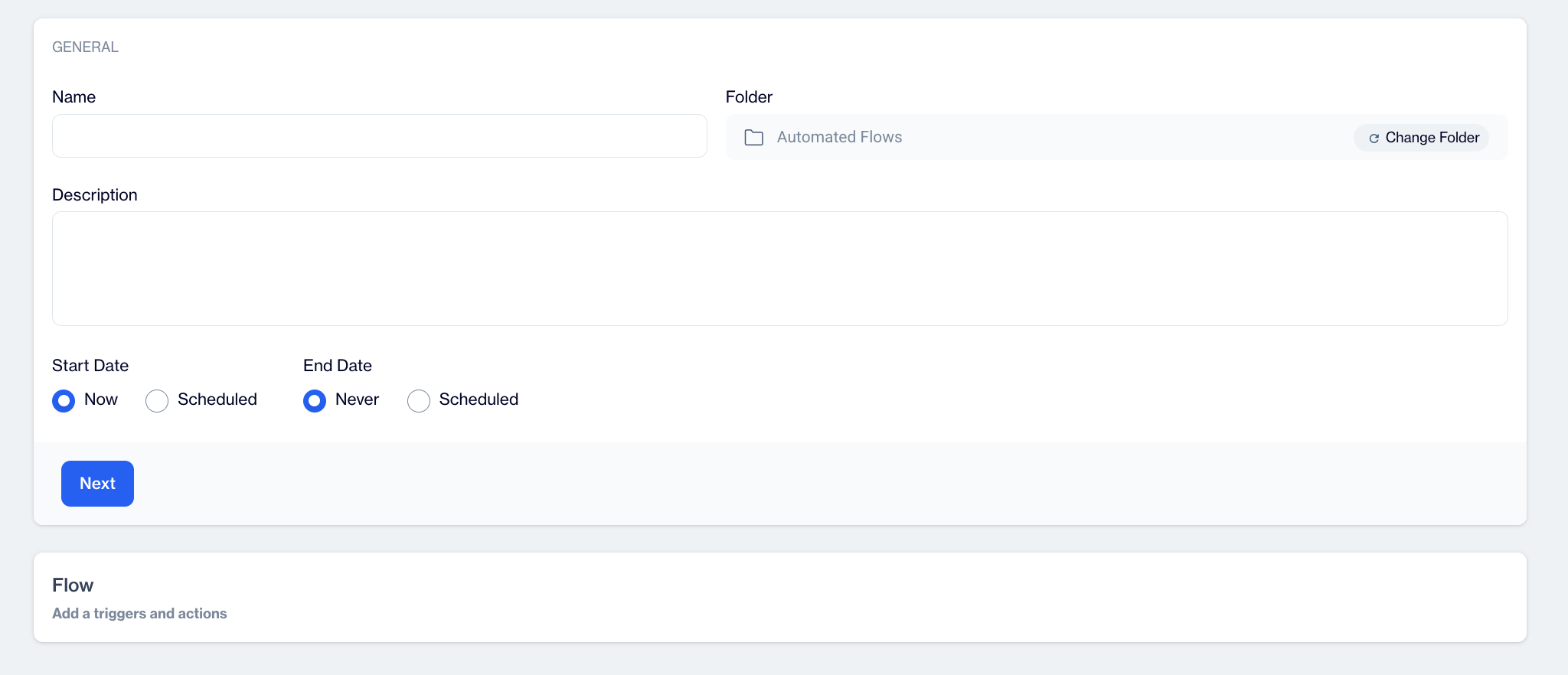
New Automated Flow
- Add a “File Drop Trigger” to listen to an FTP space. Click “Configure” to configure the node and fill out the necessary data as shown below. You can upload files with TXT, CSV or ZIP extension.
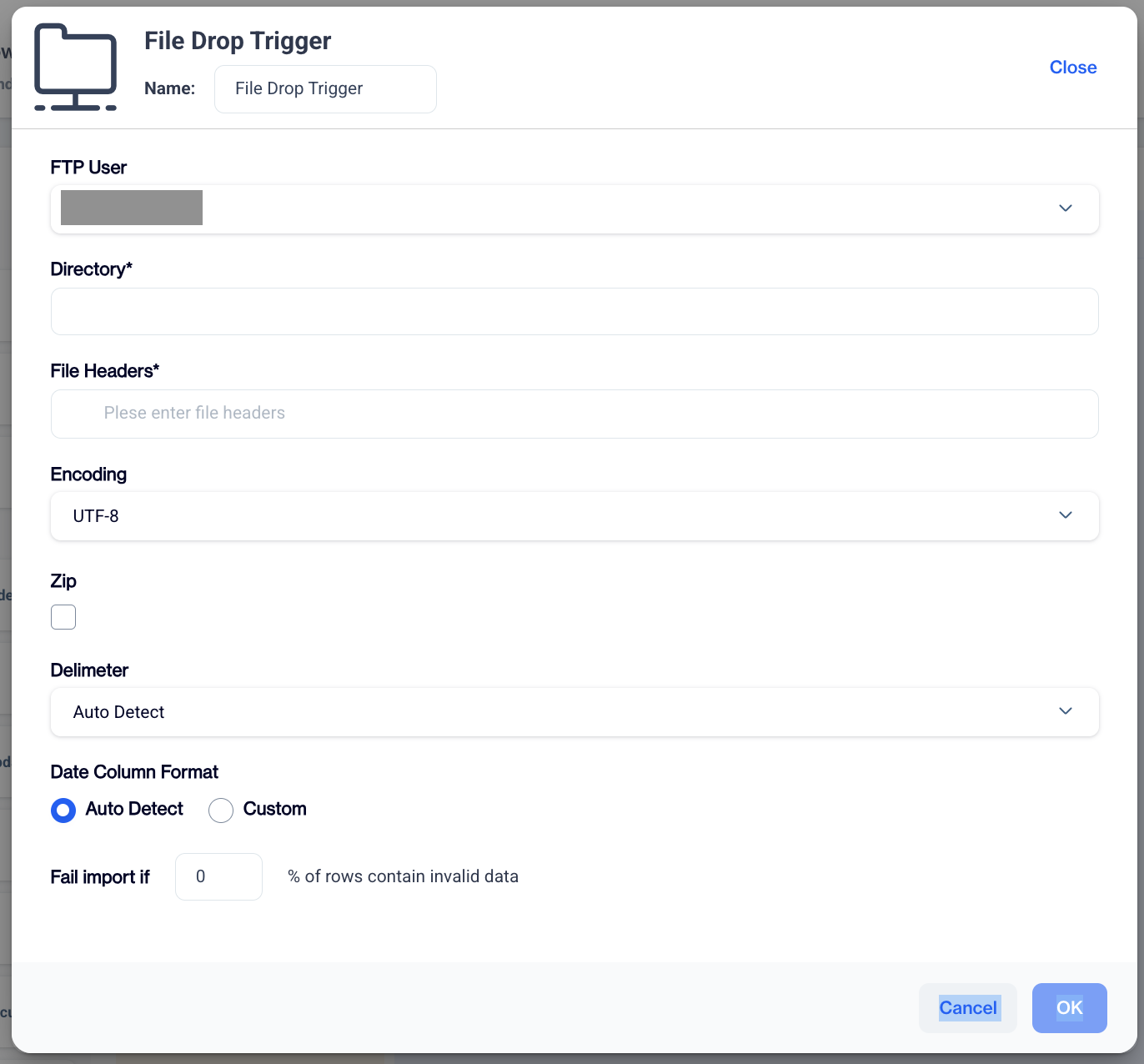
"File Drop" Trigger
4.Next, you need to add a data space update node for updating a specific table. Click “Configure” and select a data source to configure this node and press “Continue”
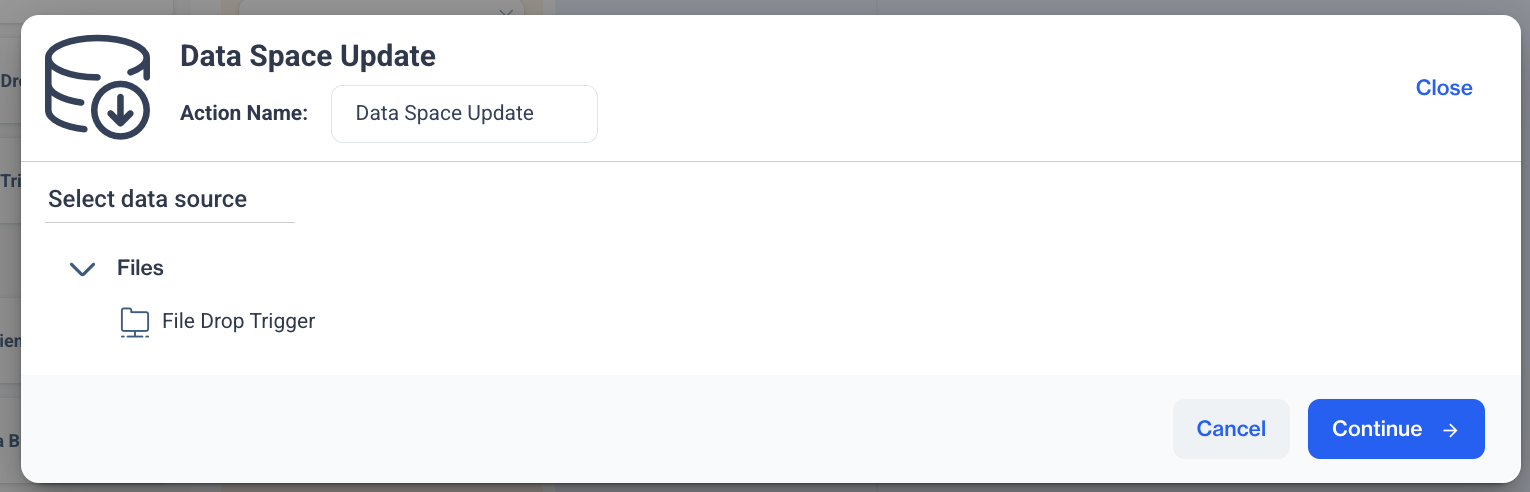
Data Space Update
- Select the Master Contact table as target table on your data space and press continue,
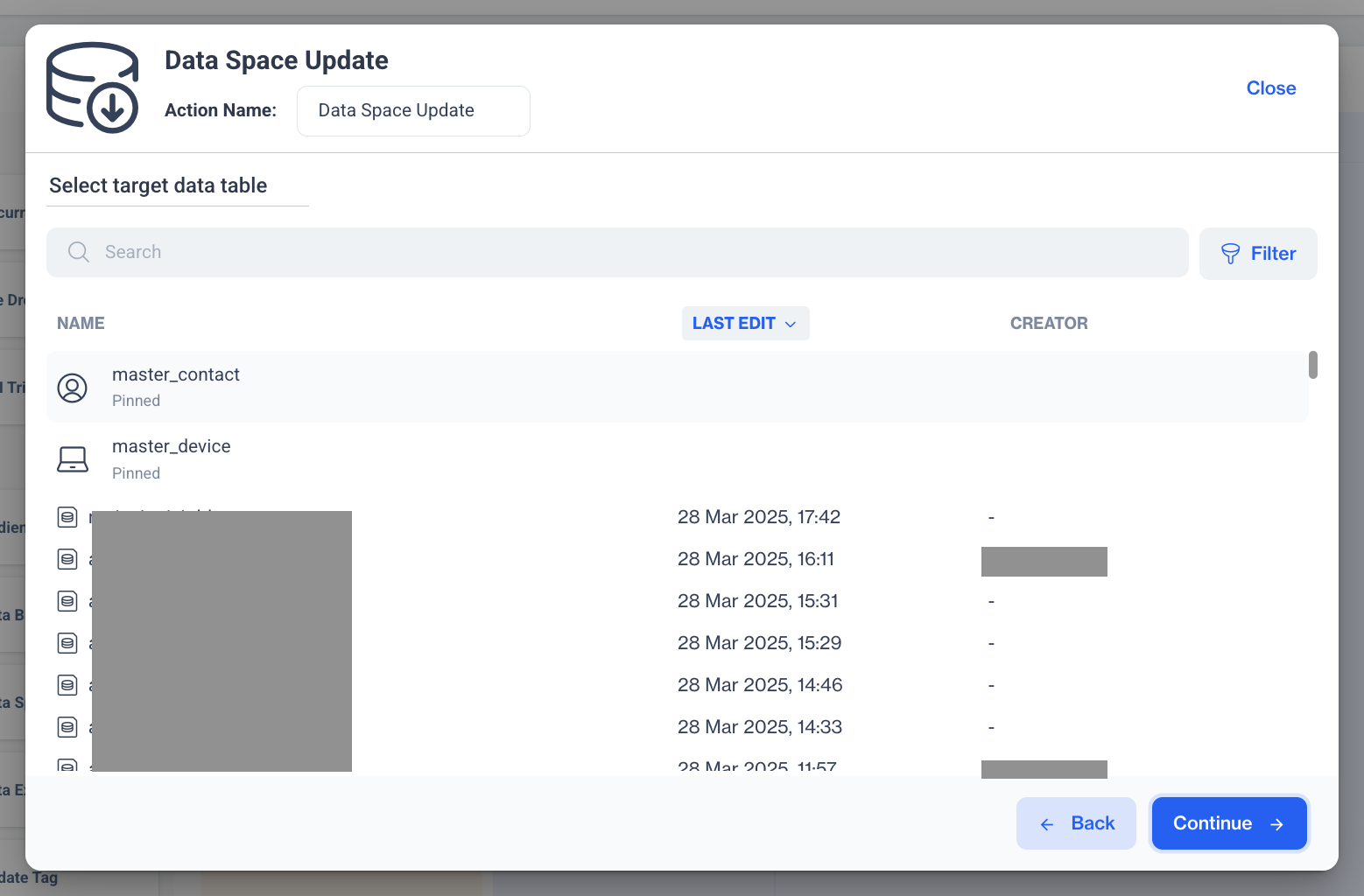
Master Contact
- You can make column mapping on this step;
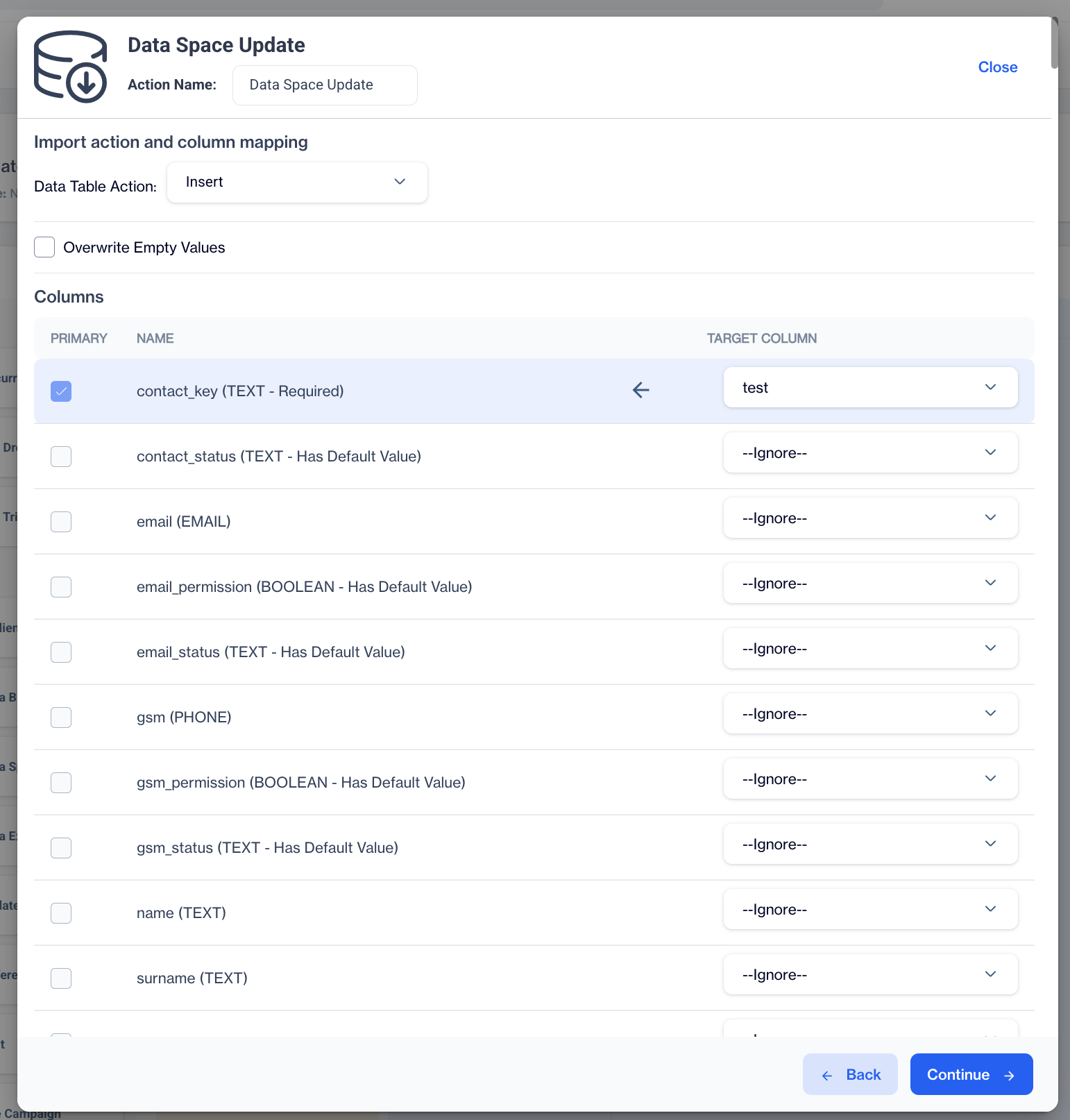
Column Mapping
There are 3 Data Table Action Types as shown below
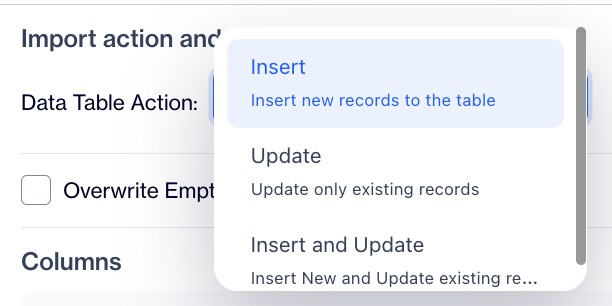
Data Table Actions
Sample FileIf you upload the sample file to the selected folder in the File Drop Trigger, the service receives this file from the FTP and updates your master contact table.
contact_key;email;name;surname;email_permission |
Create an Automated Flow to Update any Table of on your Data Space
- Under the "Data Space" tab, click on "Automated Flows" to create an automated job for Data Space updates.
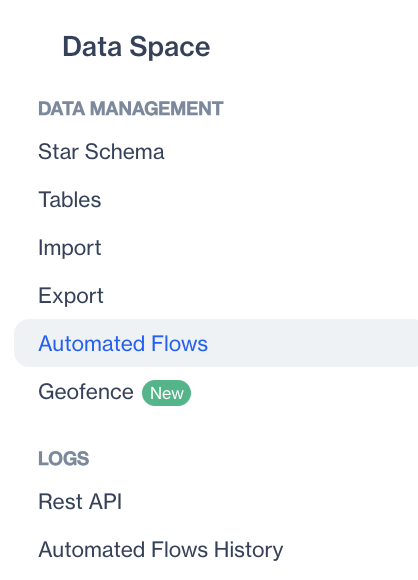
Automated Flows
- Click “Add” and fill the details (name, start date, end date) of the automated flow.
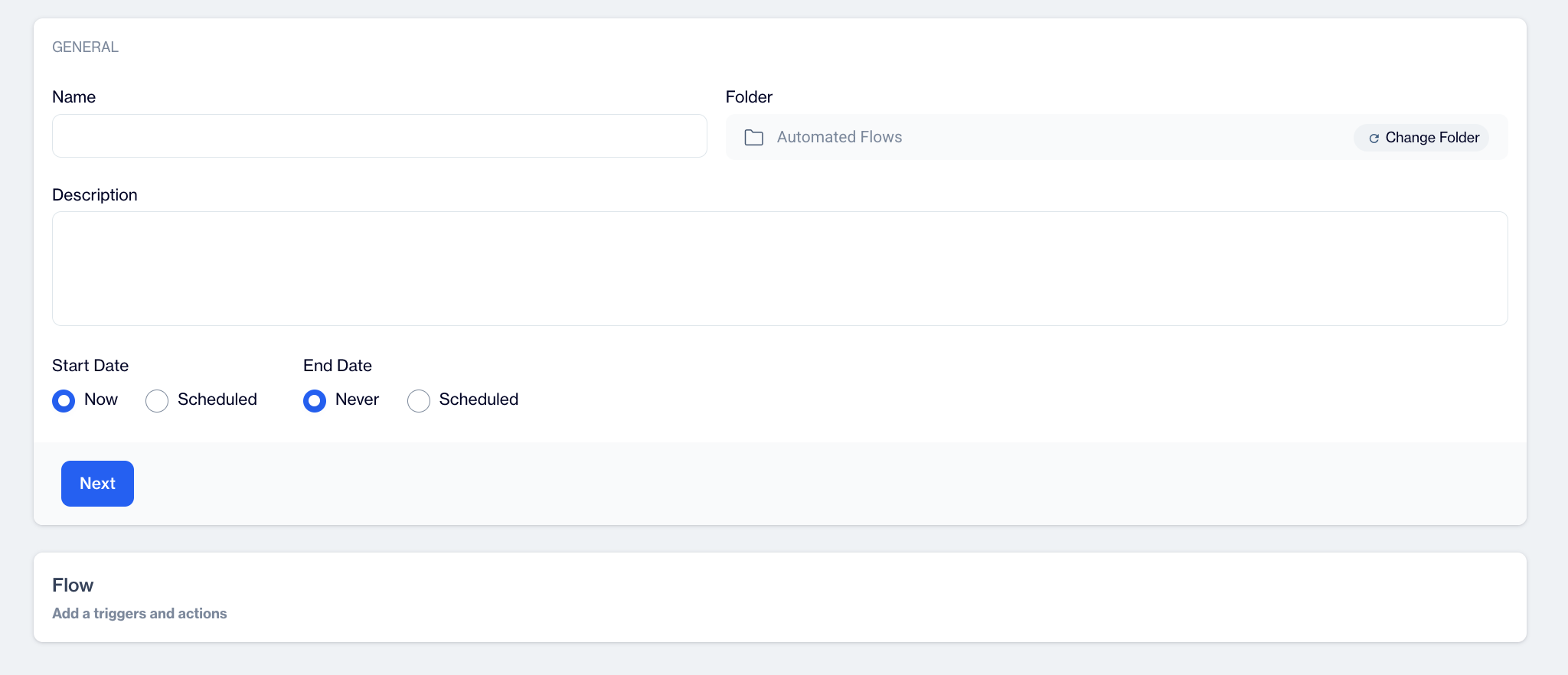
New Automated Flow
- Add a “File Drop Trigger” to listen to an FTP space. Click “Configure” to configure the node and fill out the necessary data as shown below. You can upload files with TXT, CSV or ZIP extension.
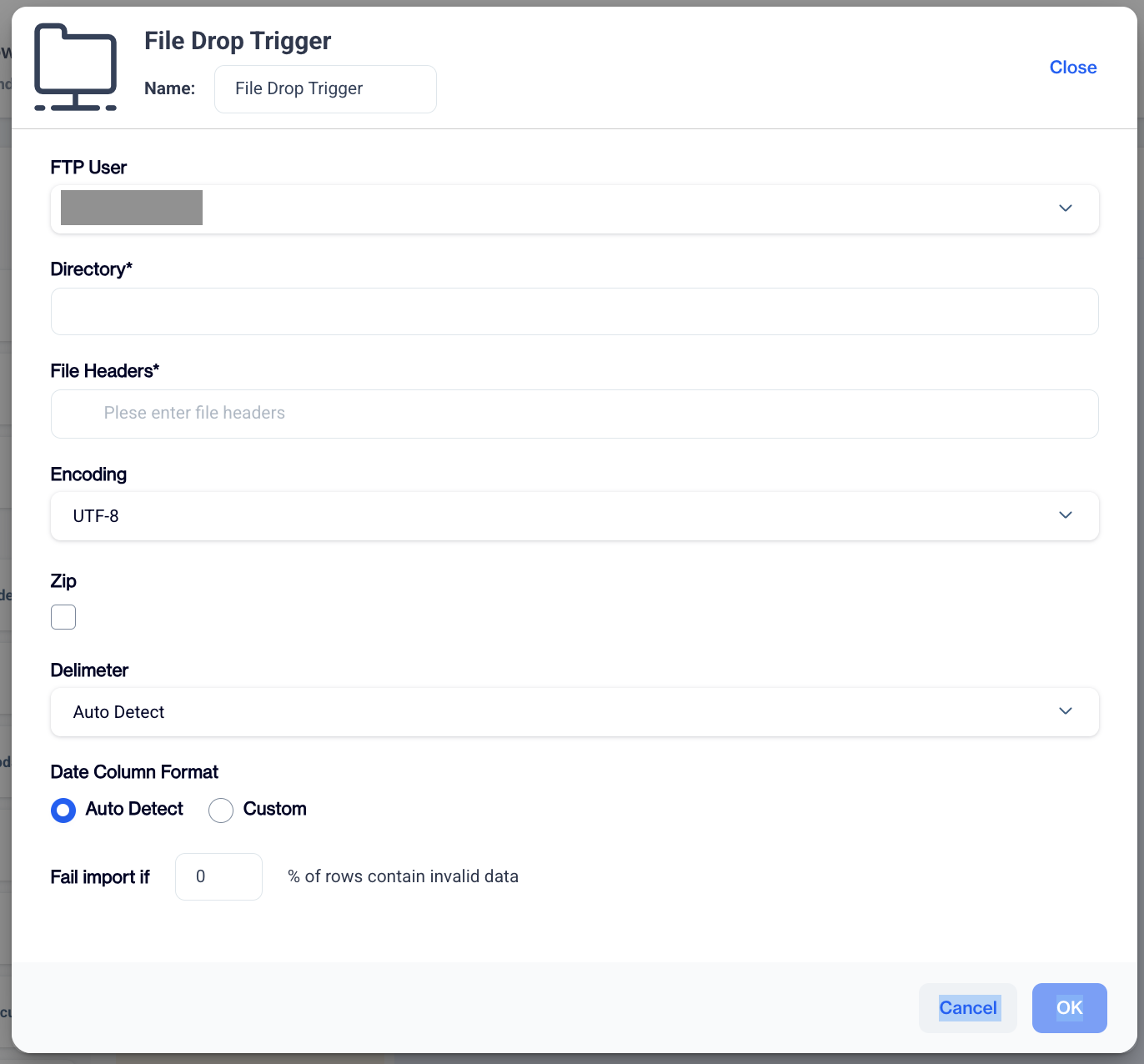
File Drop Trigger
- Next, you need to add a data space update node for updating a specific table. Click “Configure” and select a data source to configure this node and press “Continue”
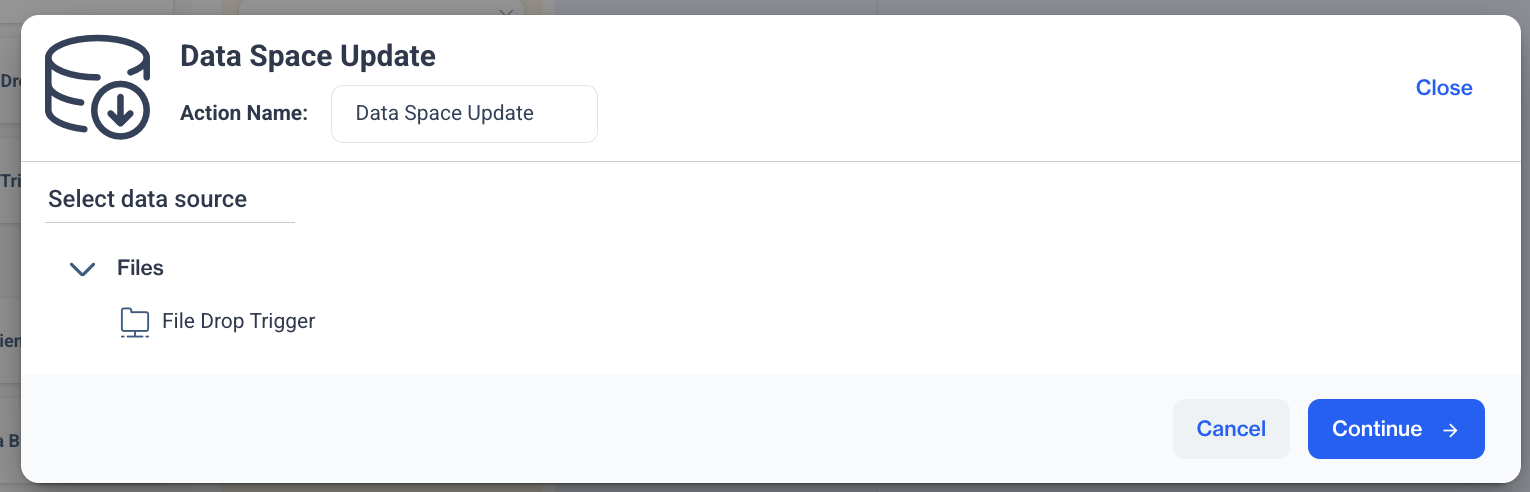
Data Space Update
- Select a target table on your data space and press continue,
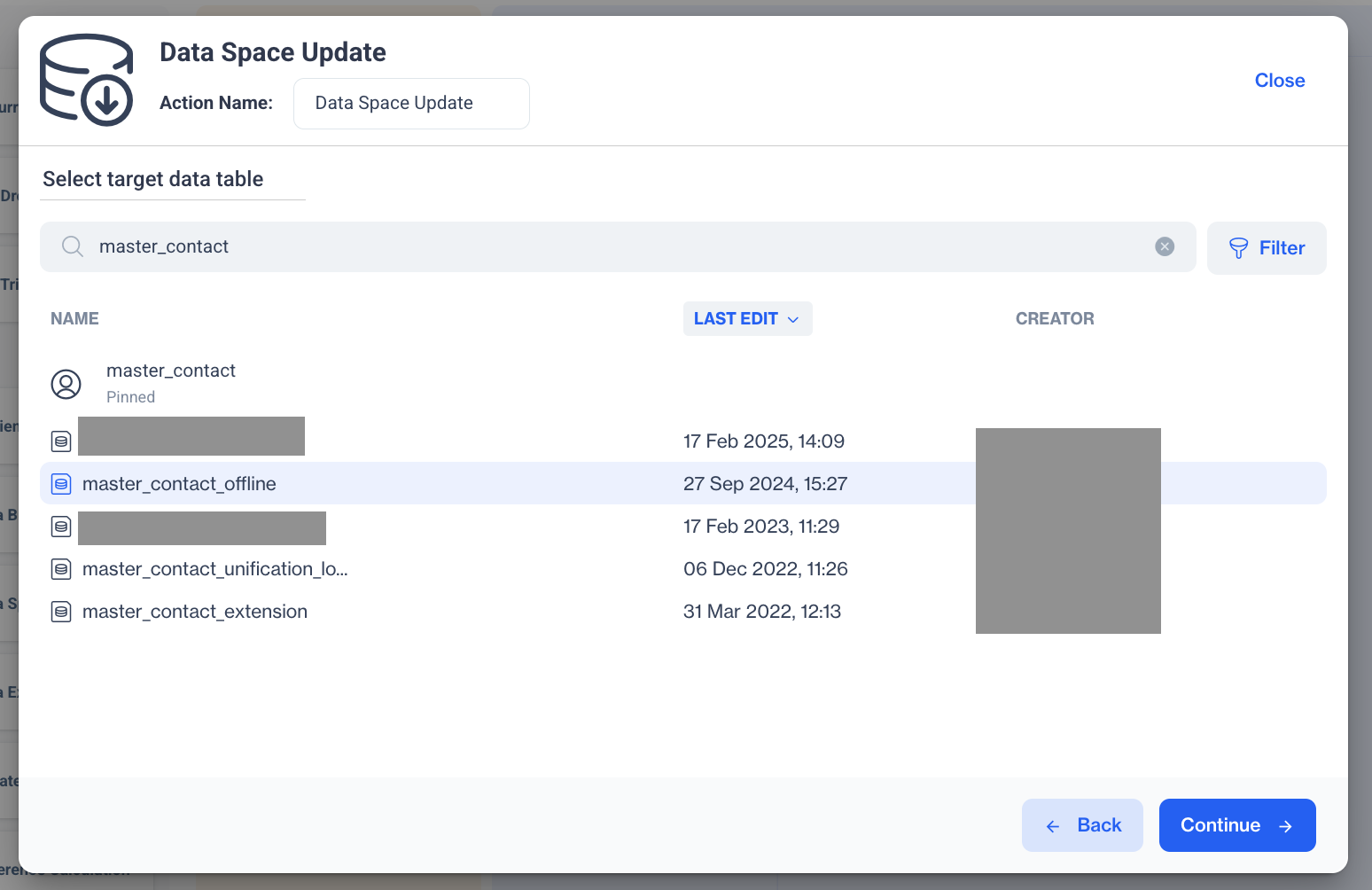
Target Table
6.You can make column mapping on this step;
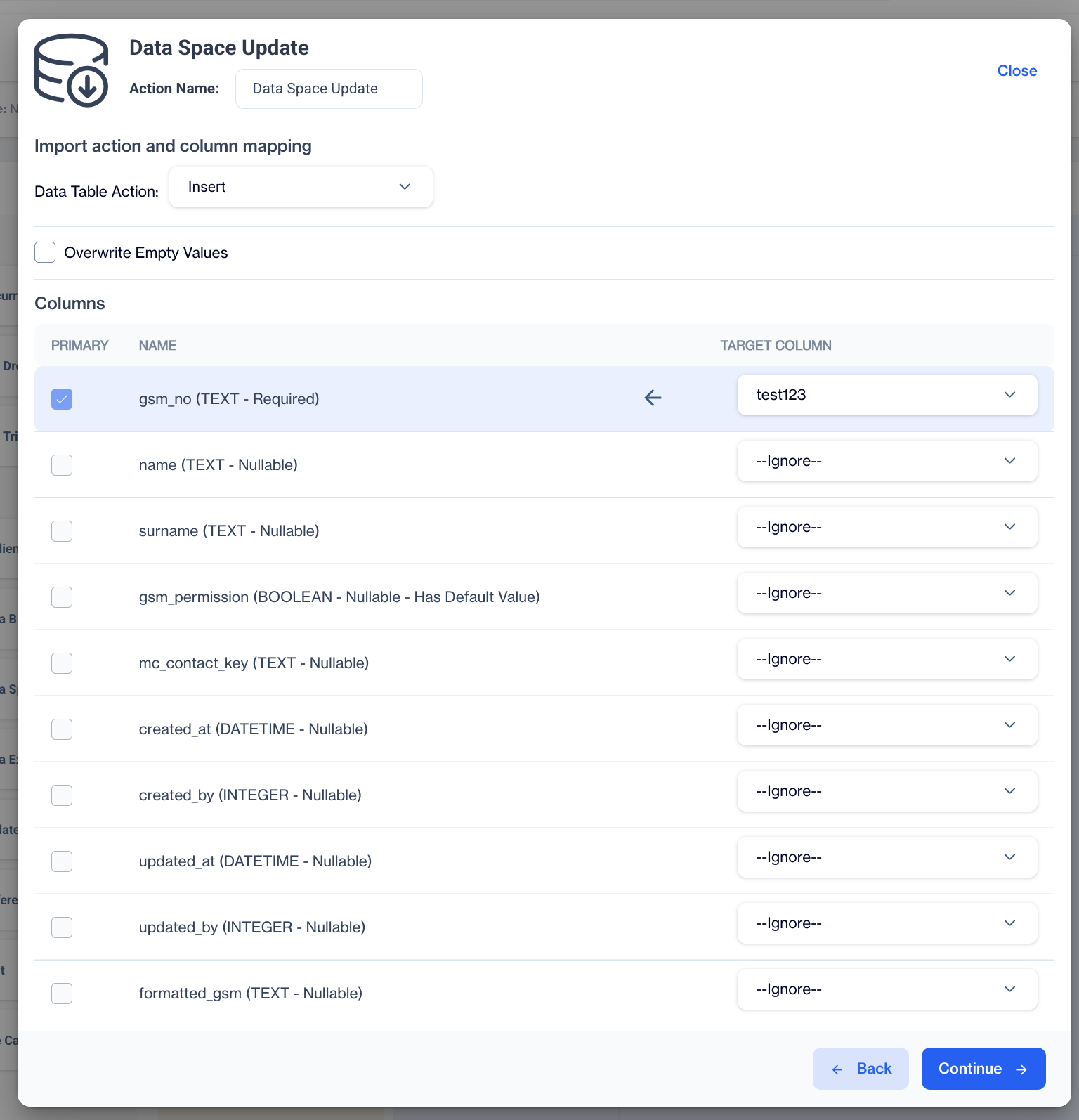
Column Mapping
There are 5 Data Table Action Types as Insert, Update, Insert and Update, Truncate and Insert, Delete
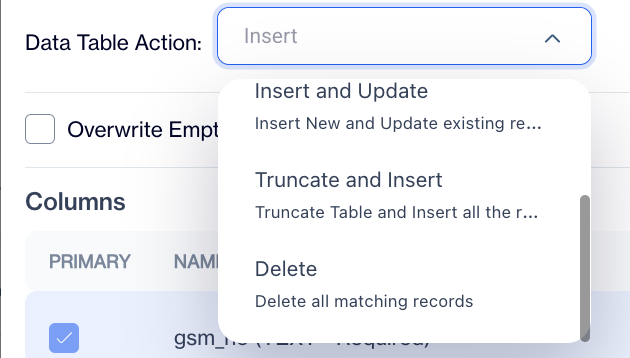
Data Table Actions
Sample FileIf you upload the sample file to the selected folder in the File Drop Trigger, the service receives this file from the FTP and updates your target table.
contact_key;email;name;surname |
Create an Automated Flow to Update Your 'Master Device' Table
- Under the "Data Space" tab, click on "Automated Flows" to create an automated job for Data Space updates.
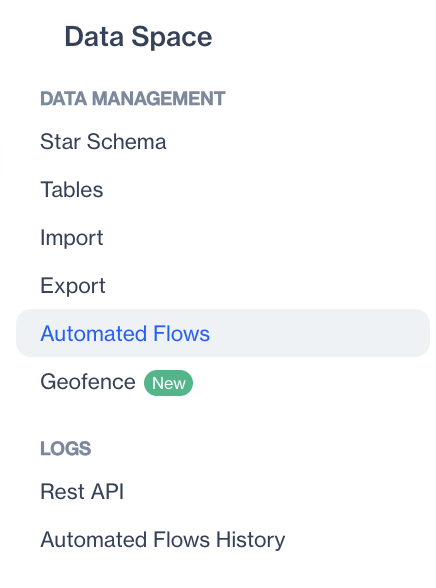
Automated Flows
- Click “Add” and fill the details (name, start date, end date) of the automated flow.
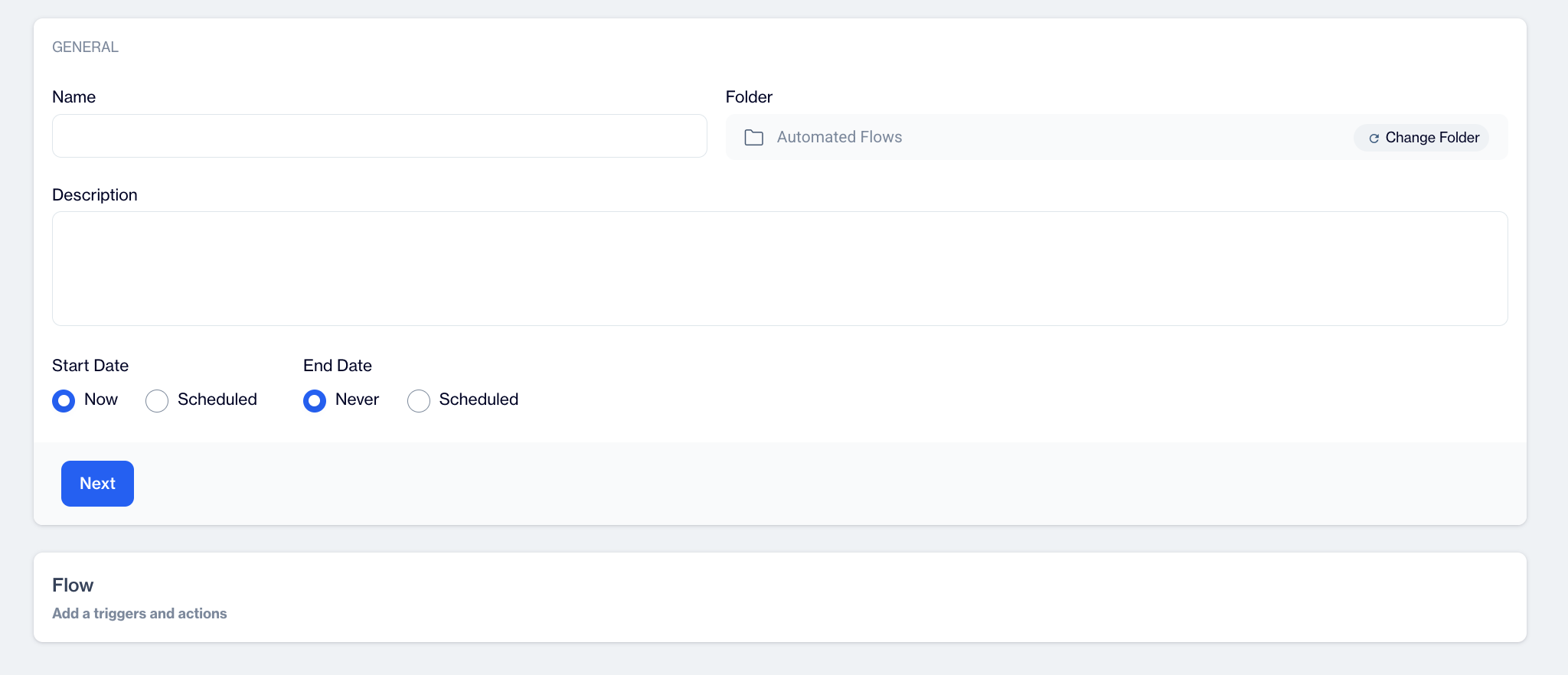
New Automated Flow
- Add a “File Drop Trigger” to listen to an FTP space. Click “Configure” to configure the node and fill out the necessary data as shown below. You can upload files with TXT, CSV or ZIP extension.
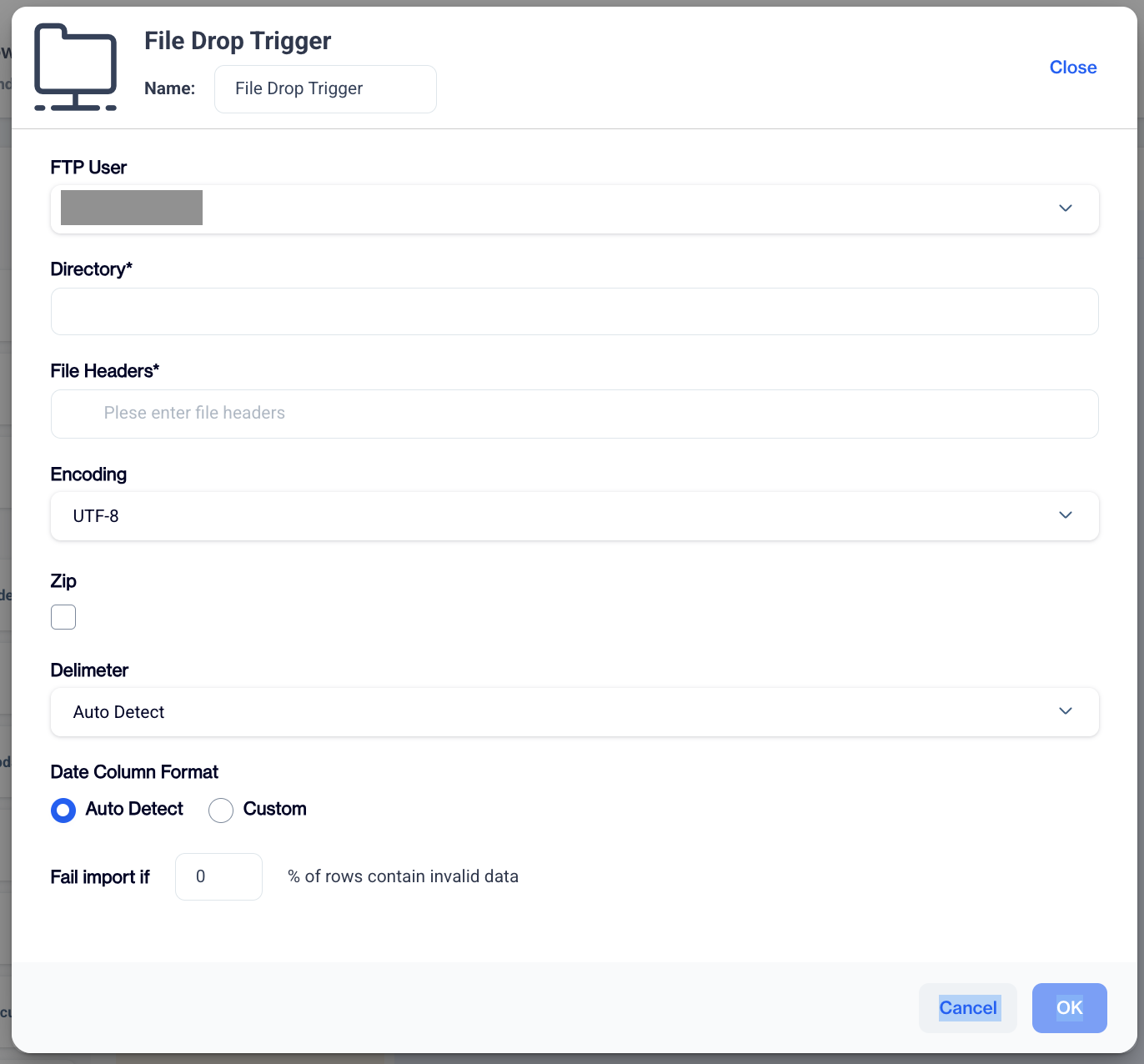
File Drop Trigger
- Next, you need to add a data space update node for updating a specific table. Click “Configure” and select a data source to configure this node and press “Continue”
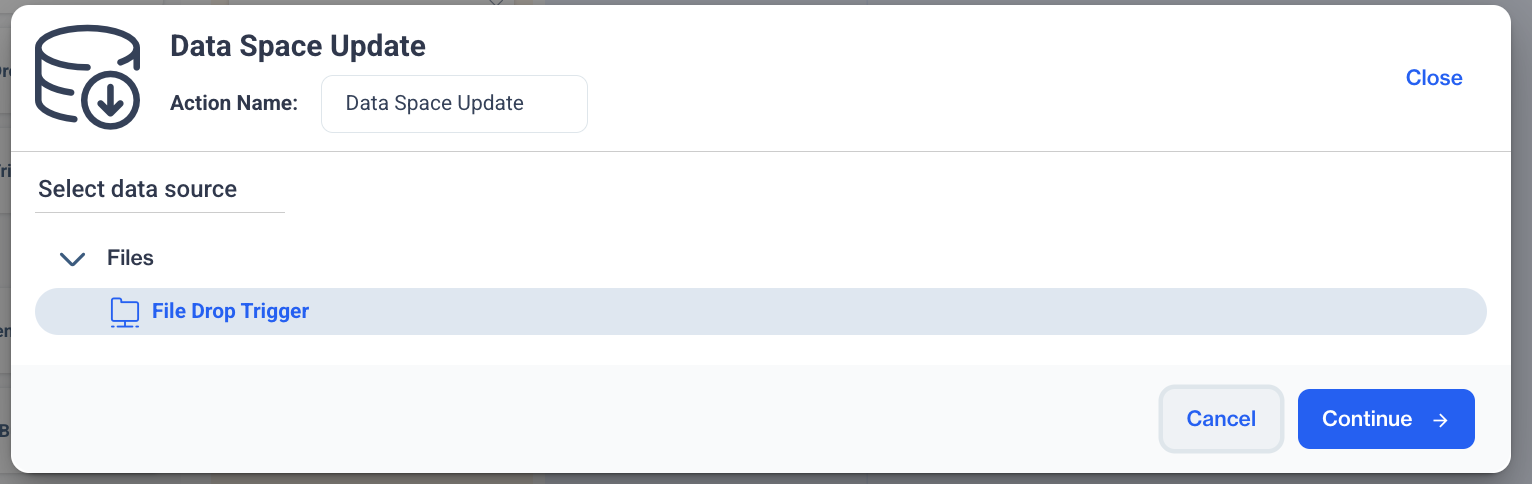
Data Space Update
- Select the Master Device table as target table on your data space and press continue,
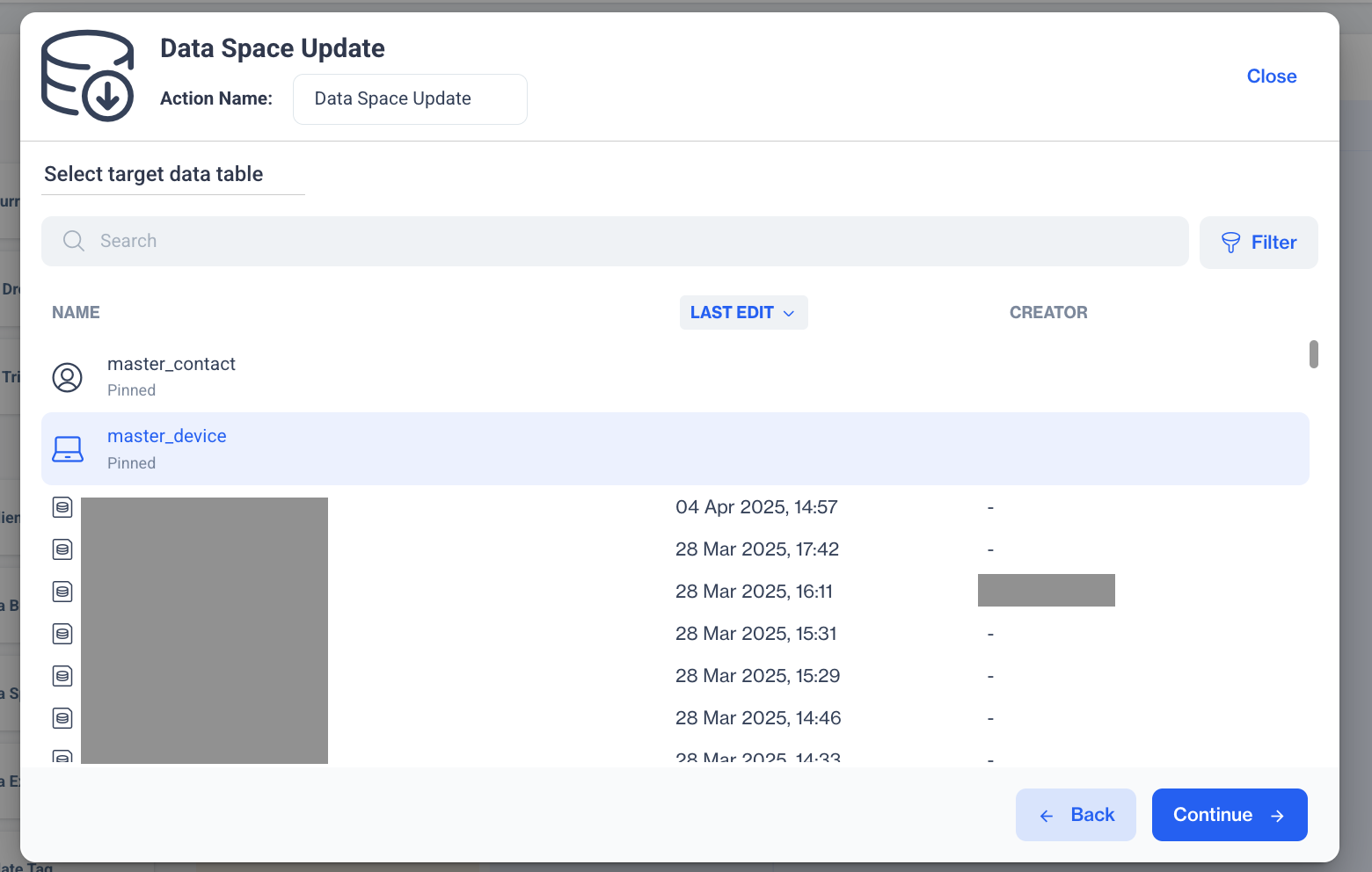
Master Device
- You can make column mapping on this step;
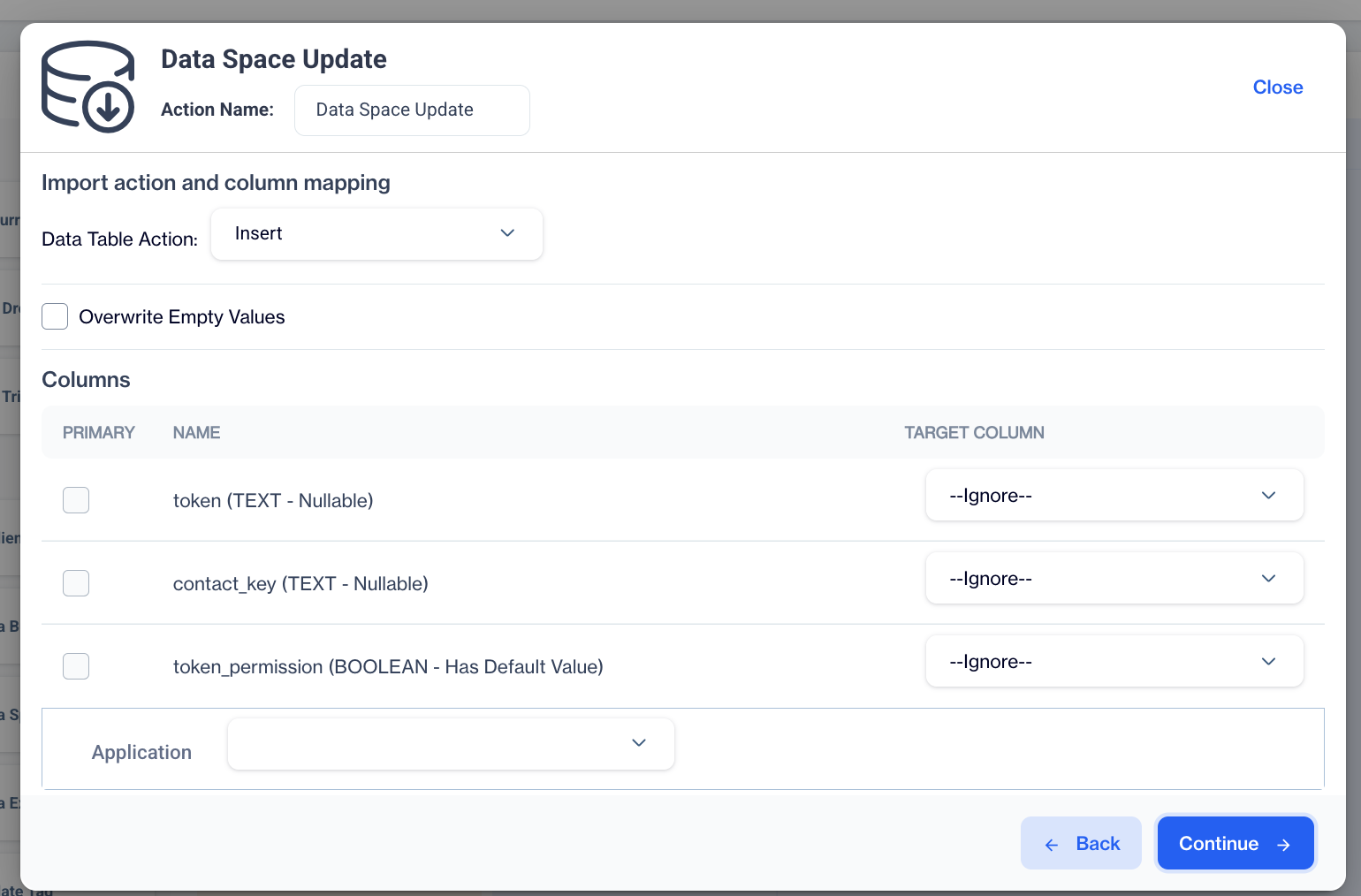
Column Mapping
There are 5 Data Table Action Types as Insert, Update, Insert and Update, Truncate and Insert, Delete
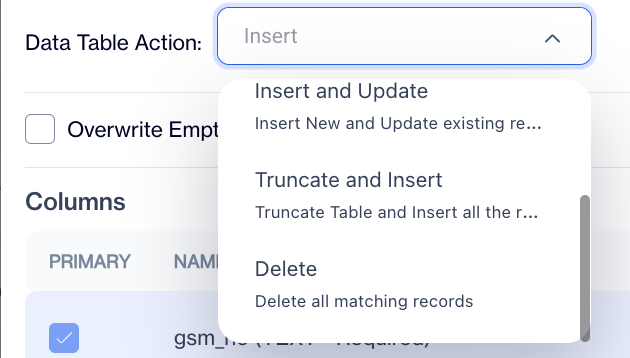
Data Table Actions
Mapping for Integration KeyIf the integration key is not included in the file, you can select the *Constant Value option to select a specific application defined on your account for this column.
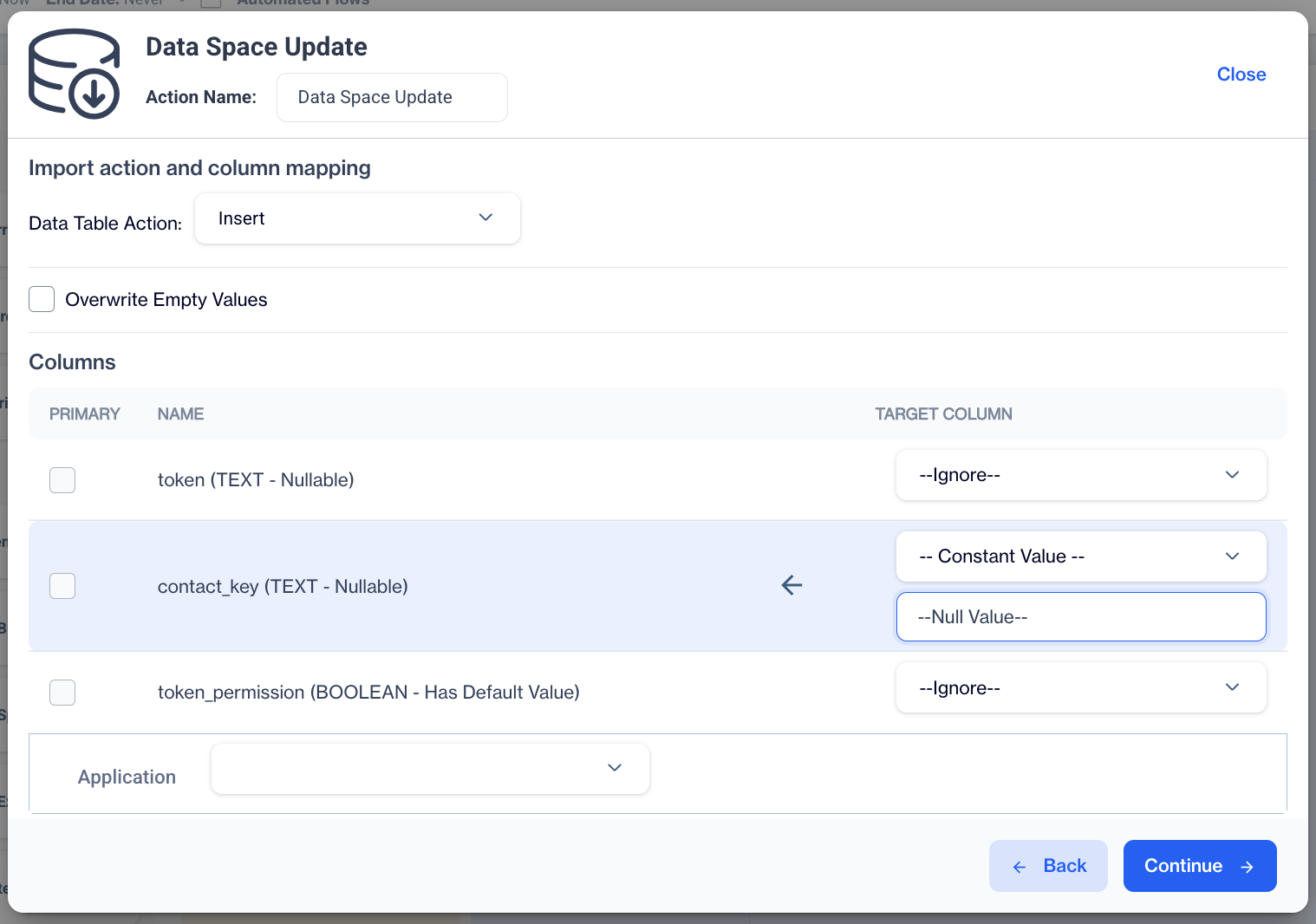
Constant Value
Sample FileIf you upload the sample file to the selected folder in the File Drop Trigger, the service receives this file from the FTP and updates your Master Device table.
contact_key;token;integration_key;token_permission |
Related Articles
Intro to Data Space
At the core of the D·engage platform is the scalable and highly available relational database where you can store your data and create N-to-N (many-to-many) relations between them. Accessing the data does not require navigating a rigid pathway ...Connect to Dengage FTP
Connection Details Protocol: ftps Host Name: ftps.dengage.com Port: TCP 990, TCP 30000-50000 Connection Type: Explicit Sample Codes You can find the sample codes for connecting to D·engage FTPS below public static async System.Threading.Tasks.Task ...Automation FTP User
The Dengage platform supports FTPS (File Transfer Protocol Secure) to allow clients to securely integrate via file transfer protocol. The FTP Users section under Settings > Identity & Access Management allows you to manage FTP users. This feature ...Dengage Onboarding
Welcome to Dengage CXDP! This guide will walk you through the onboarding process, which consists of two main topics: Data Integration and Channel Integration. Data Integration Dengage CXDP enables you to store and manage both online and offline data. ...CXDP in a Nutshell
The D·engage CXDP API provides programmatic access to D·engage Platform, providing the required tools to exploit and trigger system functionality remotely, enabling our customers to integrate their IT applications swiftly. API aims to provide you ...