Automation FTP User
The Dengage platform supports FTPS (File Transfer Protocol Secure) to allow clients to securely integrate via file transfer protocol.
The FTP Users section under Settings > Identity & Access Management allows you to manage FTP users.
This feature ensures that data transfers are encrypted and protected, providing a secure method for clients to upload and download files. By utilizing FTPS, Dengage enhances the security of data exchanges, safeguarding sensitive information and maintaining compliance with industry standards. This secure integration method facilitates reliable and efficient data management, ensuring that your information is always protected during transfers.
Where You Can Use 'FTP Users'
In our Automated Flow module, we have a File Drop option. In order to drop a file to our system, you need a ftp username and password to connect to our FTPS site.
More than one FTP Users can be added to your account for Security purposes for different departments.
This section includes the following fields.
- Name: Name of the ftp username. You should use this name as a username credential.
- Description: A brief note about the purpose of this user or the department it is associated with, providing context for its creation.
- Active: You can enable / disable this user whenever you want.
How to Add a New FTP User
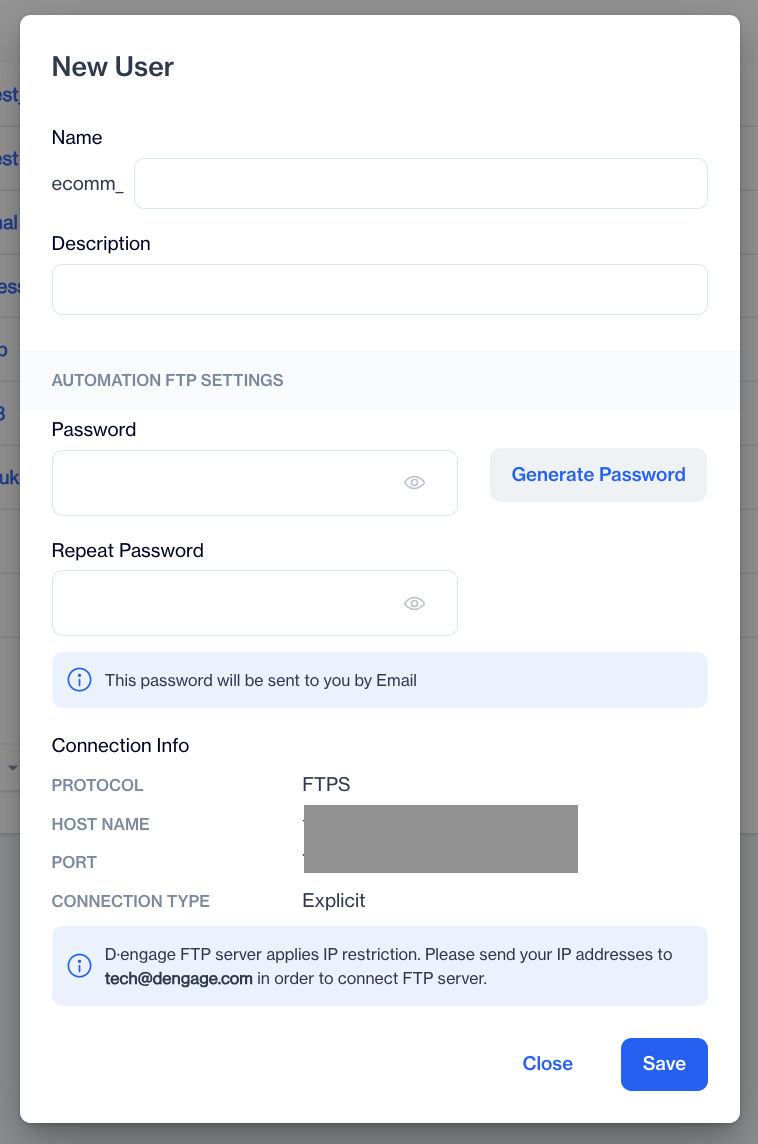
Add a New FTP User
The platform allows users to add many FTP Users to connect for a file drop. Please click the Add button on the page.
1. Name: Enter a username. Your account name is added as a prefix to your username.
2. Description: Enter a description for this user.
3. Password: Choose your own password or have the system create one for you using the Generate Password button. And repeat the same password.
4. Connection Info: Connection info will be displayed in the Connection Info section of the page.
When setting up FTP integration, the Host Name varies depending on the data center.Ensure you select the appropriate Host Name according to your data center to complete the integration successfully.
5. Save: Save to create the ftp user.
IP Restriction WarningDengage FTP server forces IP restriction. Please send your IP addresses from where you will connect to our FTPS server to hello@support.dengage.com address. Without this while-liste creation, you can't connect to our FTPS server even if you have username ad password.
Related Articles
Connect to Dengage FTP
Connection Details Protocol: ftps Host Name: ftps.dengage.com Port: TCP 990, TCP 30000-50000 Connection Type: Explicit Sample Codes You can find the sample codes for connecting to D·engage FTPS below public static async System.Threading.Tasks.Task ...Adding FTP IP Restriction to Settings
The FTP Users system now includes an IP Restriction feature, allowing administrators to control FTP access by specifying allowed IP addresses. Enabling IP Restriction A new "Restrict IP Access" checkbox has been added to the FTP Users screen. When ...Update Data Space with FTPS
Important Note You need to create an automation FTP user on admin panel. You can find the steps for how to create automation FTP user on this link Create an Automated Flow to Update Your ‘Master Contact’ Table Under the "Data Space" tab, click on ...Dengage Onboarding
Welcome to Dengage CXDP! This guide will walk you through the onboarding process, which consists of two main topics: Data Integration and Channel Integration. Data Integration Dengage CXDP enables you to store and manage both online and offline data. ...CXDP in a Nutshell
The D·engage CXDP API provides programmatic access to D·engage Platform, providing the required tools to exploit and trigger system functionality remotely, enabling our customers to integrate their IT applications swiftly. API aims to provide you ...