Upload File
The "Upload File" function, previously available for creating content in Marketing Emails, is now extended to Transactional Emails. This feature allows users to generate HTML email content from ZIP files quickly and efficiently.
How to Access
To use the "Upload File" feature for transactional emails:
- Navigate to Content > Transactional > Email.
- Click New to create a new transactional email.
- In the email creation screen, select "Upload File" as the content type.
- Upload a ZIP file containing the HTML email structure.
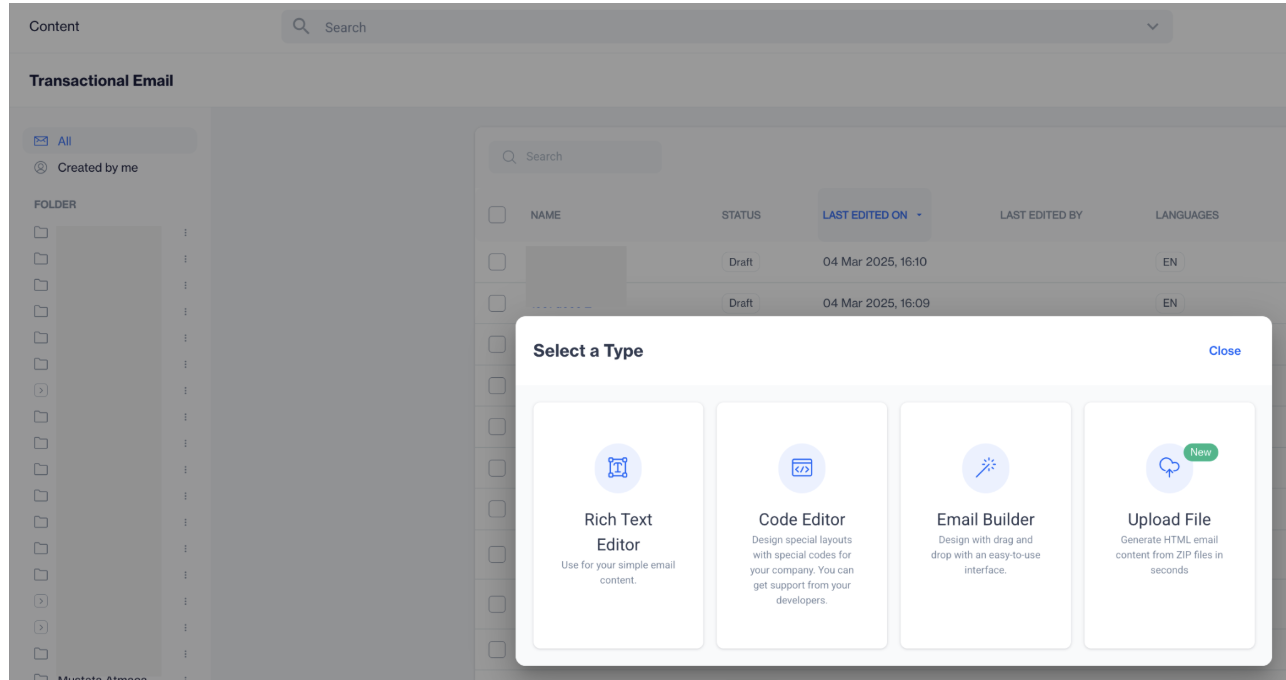
Upload File
How to Use
- Prepare a ZIP file containing your email's HTML file and any associated assets.
- Inside the ZIP file, there should be a folder with a name matching the ZIP file itself.
- Inside this folder, you should find one HTML file and one subfolder.
- The subfolder should only contain image files.
- Avoid using special characters (such as " " and "_") or Turkish characters in the folder and image file names.
- The ZIP file size should not exceed 10MB.
- Follow the steps under How to Access to upload the file.
- In the General Section, enter:
- Content Name: Give a name to your content.
- Choose Folder: Select where to store the content.
- Click Next.
- In the Content Section, fill in:
- From Name*: The display name for your brand or company.
- Reply To: The reply email address.
- Subject*: A compelling subject line.
- Pre-header: A small line of text following the subject line in the inbox.
5.Upload ZIP File:Use Drag & Drop or Select to upload your ZIP file.
The "Upload File" feature for transactional emails streamlines the process of creating HTML email content, ensuring ease of use and consistency.
Related Articles
Upload File
The Upload File feature allows you to streamline your email content creation by generating HTML email content directly from a ZIP file. This enhancement simplifies the process, eliminating the need for manual coding and promoting efficiency in your ...Format File to Export
This section will explain how to format a file to export to a FTP site or Amazon S3 or directly download from the platform. This section explains how to format a file for export to an FTP or Amazon S3 site, or for direct download via a web browser. ...Automated Sendable Contact Import
The Automated Sendable Contact Import feature lets you automatically create a new, dynamic sendable contact table every time a file is uploaded. This is different from a regular Automated Flow, which can only update existing tables. With Automated ...Image Library
This segment outlines the folder structures for all images. The system also allows for the addition of new folders. Images are organized within these folders, and you have the option to upload any image to a designated folder. Additionally, you can ...Coupons
The Coupons feature allows you to create and manage reusable coupon lists that can later be used across campaigns, such as email, SMS, or push. Each coupon list acts as a container for coupon codes, making it easier to track usage, monitor ...