Custom Inline
The Custom Inline feature allows you to create personalized content directly within your website using HTML, CSS, or JavaScript. This functionality provides the flexibility to enhance user experience by incorporating unique design elements and interactive features.
Creating Custom Inline
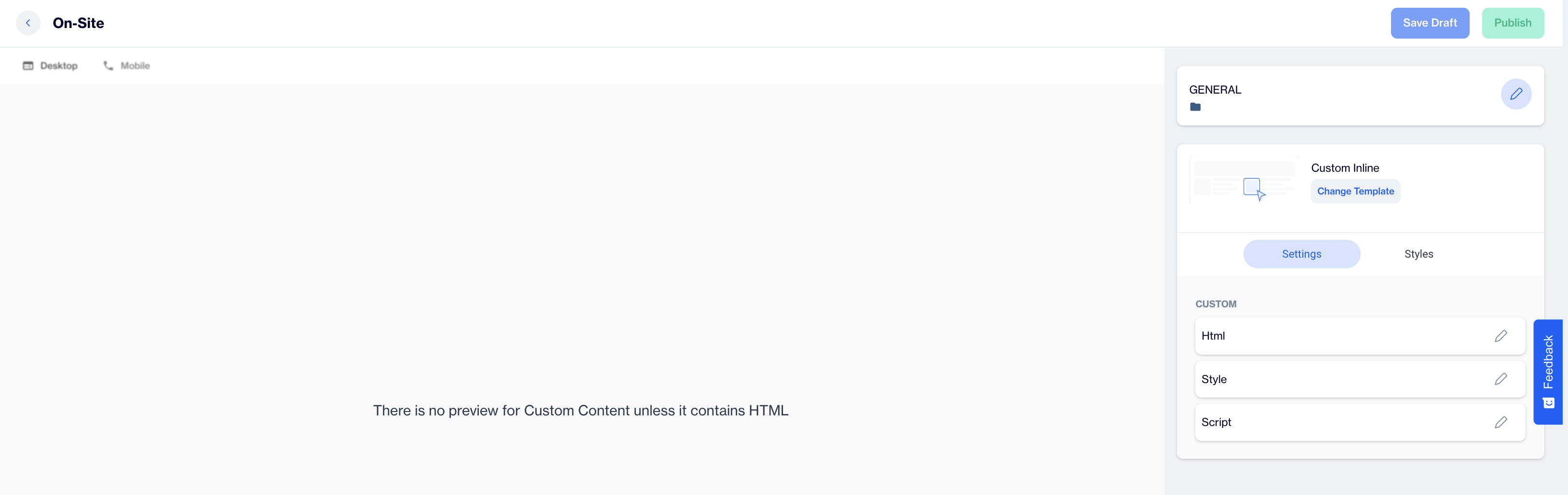
Custom Inline
Preview on Desktop or Mobile
After selecting the Custom Inline template and adding elements, users can preview the inline content on the left side of the screen, displaying its appearance on both desktop and mobile.
General
This section is for inputting Name and Folder details to organize the Custom Inline element effectively, similar to other on-site elements.Click the Next button to proceed to the settings.
Change Template:
Switch between templates by clicking the Change Template button.
Settings
In the Settings section for the Custom Inline element, you can customize three main parts: HTML, Style, and Script.
HTML
Use this section to enter your custom HTML code. This allows you to add text, images, links, and other elements to your inline content.
Style
In the Style section, you can apply custom code to style your inline element. Adjust colors, fonts, margins, and padding to match your website’s design.
Script
The Script section is where you can add custom code. This allows you to create interactive features to enhance user engagement.
Styles
In the Styles section, customize the appearance of the Custom Inline element with the following settings:
- Font Family: Choose a font family for the inline content.
- Font URL: Provide the URL for any custom font.
- Card Radius: Adjust corner radius for sharp or rounded edges.
- Card Padding: Set inner padding for spacing within the card.
- Background: Select a background color to match your website's theme.
- Close Button Color: Specify the color of the close button.
- Close Button Size: Adjust the size of the close button for visibility.
After adding your content successfully, save it as a draft for future use or publish it to make it ready for your campaigns.
Related Articles
Inline
The Inline Content template lets you embed content directly within the app, allowing you to tailor the experience to suit your visitors' preferences and needs. Creating an Inline Content Inline Name: Enter a name for your Inline Content to easily ...Inline
The Inline element allows you to customize the website to suit your visitors' preferences and needs, offering a seamless user experience. Creating Inline Inline Preview on Desktop or Mobile: After selecting the Inline template and adding elements, ...Push Custom Parameters
The Push Custom Params feature allows users to define and manage custom parameters for push notifications. This customization enhances the personalization and functionality of push campaigns. Custom Params List Custom Params List: Displays all the ...Custom API Endpoints
The Custom API Endpoints feature allows users to define and manage API endpoints for custom integrations. This is particularly useful for sending data to external systems or receiving data in a campaign workflow. How to Add a Custom API Endpoint ...Custom Reports - Charts
All Reports The report list is displayed in a table format that includes: Name: The title of the report. Use clear and descriptive names to easily identify its purpose and content. Type: Specifies the report type, such as Pivot Table, Big Number, ...