This module serves as a guide and management interface for handling email-related tasks within a larger content management system. It allows users to organize emails into folders, apply filters for sorting and searching, and perform various actions such as renaming, copying, moving, and deleting emails. Additionally, it provides functionalities for creating new email content using different methods such as rich text editing, code editing, email building, and file uploading. Overall, the module facilitates efficient management and creation of marketing email content.
Accessing the Email Feature
To access the Email feature, navigate from the main page to Content > Marketing > Email.
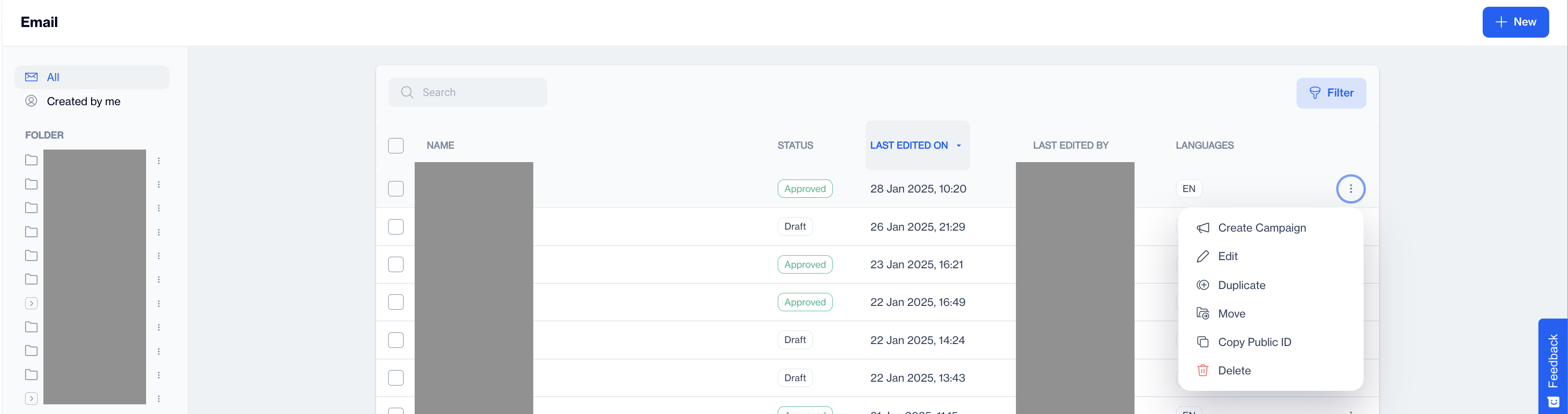
List of Email Contents
When you arrive at the Email Main Page, you will be presented with a list of emails, each equipped with enabled actions, along with options for folding and filtering. Let's explore these sections in more detail.
Folder Pane
This field allows you to manage Email contents based on folder structure.
- Created By Me: Allows you to quickly filter the list of emails that have been created by your user.
- Predefined Emails : This menu includes pre-defined audience emails created based on predetermined conditions or characteristics. These emails are designed to target user groups with specific attributes quickly and easily.
- New Folder: Click on the New Folder button located in the bottom-left corner of the page. to add a new folder to your structure. Enter the folder name and click on the Ok button, and your folder will be created successfully.
Folder Actions
Click on the three dots of any folder to perform the following actions.
- Rename: The first option is "Rename." Clicking on it will prompt a pop-up where you can edit the folder name.
- Copy Public ID: This option will copy the public id on clipboard.
- Move Item: Allows to move items of one folder to another folder. You can also create a new folder here and move items into it.
- Delete: Delete option allows to delete the folder by asking confirmation.
Search, Filter & Sort Emails
Search Box: Search box allows you to instantly search created emails by given names.
Filter: Filter allows you to filter the list of emails by following parameters:
- Languages: English, Spanish, Russian, Turkish, and Urdu.
- Date Range: Allows you to filter the list based on a given date range and given update or creation dates.
- By update or creation date: Allows you to filter by update and creation dates.
Clear Filters & Cancel: Clicking on "Clear Filter" will remove all applied filters, while the "Cancel" option is utilized to close the pop-up from the screen.
Sort Emails: You can sort emails listing By Name (a-z or z-a) and Last Edited On (ascending or descending).
New Email
Allows you to start creating a new email content. To understand how to create a new email content please refer to Creating Email Content.
Email Actions
- View Details: Allows you to view email details. Investigating which filters or exclusions have been added to harmonize with the given logic operands will be available with this action. Alternatively, you can click on Email Name to view its details.
Related Articles
Email
Can I create my own email template? Yes, you can create your own email Newsletter template via CXDP’s Email Builder (a drag and drop editor used to create attractive Email Newsletters quickly). Can I add gif to an email? Yes, you can add GIFs in the ...Email
The Email Module is a versatile and user-friendly platform that facilitates creating, personalizing, and managing email campaigns to meet a range of user needs. The Email Module provides an all-in-one solution for creating emails that range from ...Email
Can we use the same sender domain with our former email provider? Yes, you can use the same sender domain that you were using with your former email provider. We just need to check your past 3 months events based on email data(openers, clickers, ...Email Builder
The Email Builder provides an easy-to-use drag-and-drop interface, allowing users to create engaging email content without needing advanced coding skills. It is divided into two primary sections: 1. Template Gallery The Template Gallery contains a ...Alert Email
Alert Email Alert emails notify you about issues or errors that may arise during campaign execution or data processing. These alerts ensure you stay informed and can promptly address any problems. Alert Email You can configure alert emails for the ...