Firebase SDK Setup
Requirements
- Google Firebase App Configuration
- Android Studio
- Android Device or Emulator
- D·engage Mobil SDK for Android supports version 4.4 (API Level 19) and later.
- D·engage Mobil SDK for Huawei supports all new versions.
1. Create Firebase App
1.1 Create an Android app on Firebase Console.


1.2 Download your configuration file (google-services.json) and copy the file on your app directory.


1.3 Add the following dependencies to project >build.gradle file and project > settings.gradle which is located in your project root directory and sync.
1.4 Add the following dependencies to app > build.gradle file which is located in your project app directory and sync.
1.5 For android sdk minSdkVersion should be 19. (app > build.gradle)
1.6 Run your app and verify your configuration.

2. Configuration
2.1 If you prefer to handle messages by D·engage, paste the following config values into your AndroidManifest.xml file. Thus all incoming push messages that received from D·engage Platform will be generated by the SDK.
2.2 Make sure that your app has the following permissions.
3. Defining Push Application
3.1 Access Your Dengage Panel
Log in to your Dengage Panel.
Navigate to Settings > Integrations > Applications and click the New > Android button.
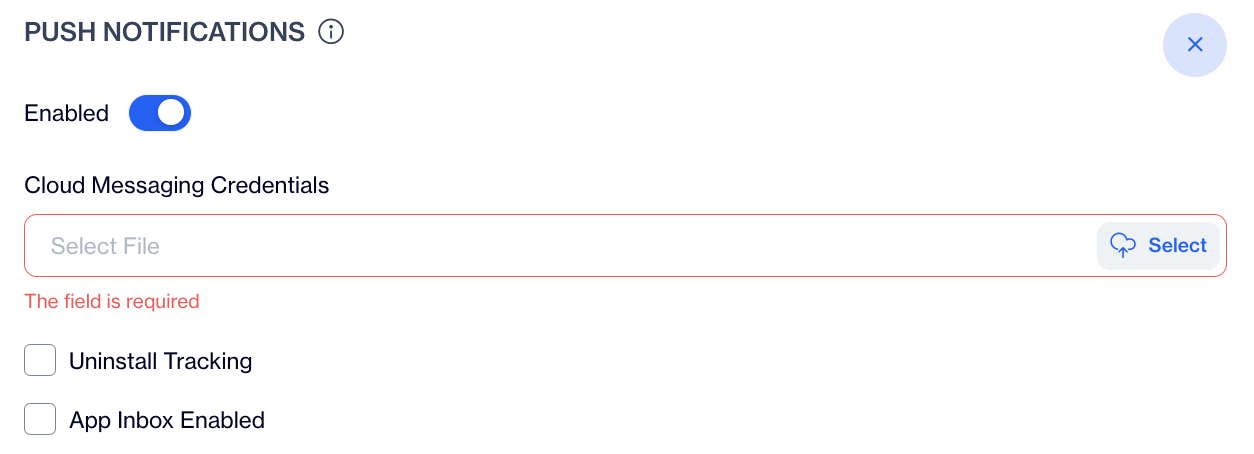
On this page, enable the Push Notification option.
3.2 Generate a Private Key in Firebase
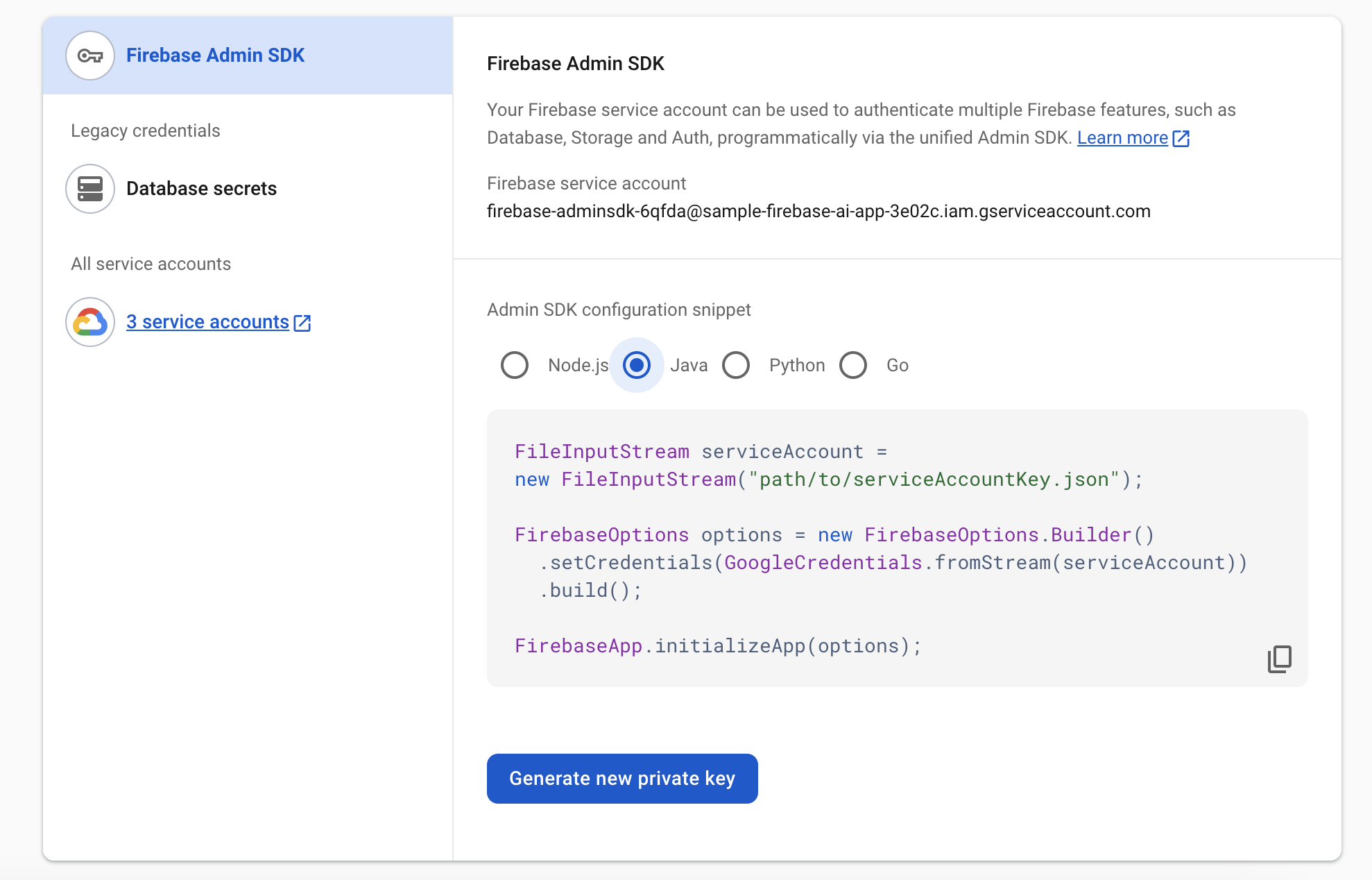
Open your Firebase Console and go to Settings > Service Accounts.
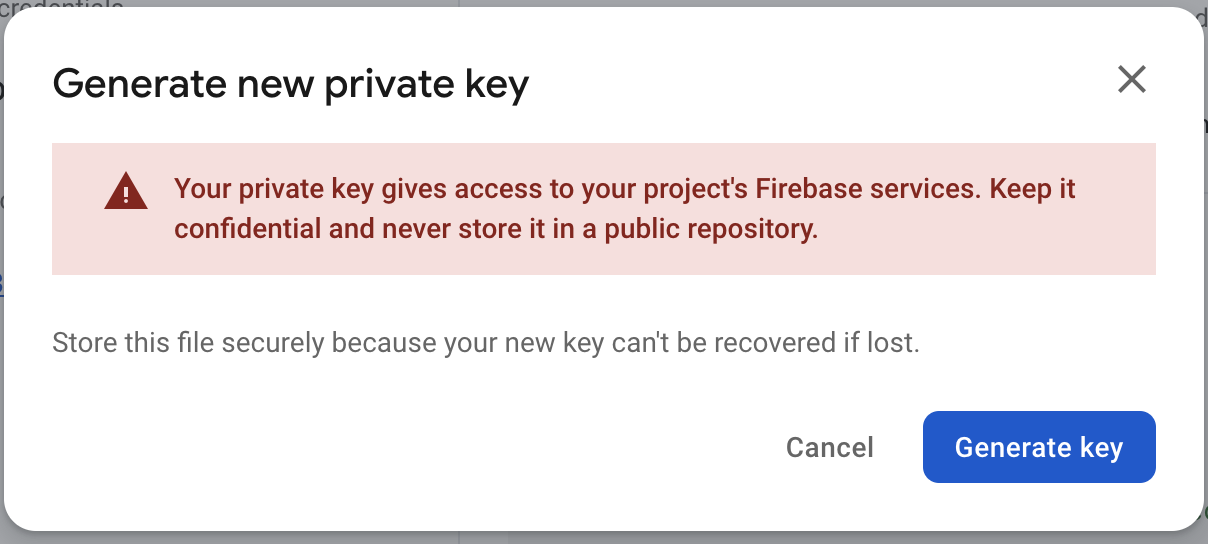
Click Generate New Private Key, then confirm by selecting Generate Key.
3.3 Securely store the downloaded JSON file containing the private key, as it will be required for integration.
3.4 Upload the Private Key File to Dengage
Return to the Dengage Android Settings page.
In the Cloud Messaging Credentials section, click Select File and upload the JSON file you downloaded from Firebase.
Once the file is uploaded, click the Save button to finalize the setup.
Related Articles
Huawei SDK Setup
Requirements Huawei Developer Account Java JDK installation package Android SDK package Android Studio 3.X HMS Core (APK) 4.X or later Huawei Device or Huawei Cloud Debugging Supports Android API level 4.4 or higher. Information Huawei AdID service ...New Android SDK
SDK Setup Requirements Minimum Android version supported 19+ SDK Installation Dengage SDK is available on JitPack package repository. If you haven't done so yet, add the JitPack repository in your project's build.gradle file: Groovy buildscript { ...iOS SDK Setup
iOS SDK Setup Requirements D·engage Integration Key iOS Push Certificate iOS Device (you need to test on a real device for notifications) A Mac with the latest Xcode iOS version 10 or later (supported by D·engage Mobile SDK) Integration Methods ...New iOS SDK Setup
SDK Setup Requirements Minimum iOS version supported 11.0 SDK Installation CocoaPods Integration Dengage is available through CocoaPods. To install it, simply add the following line to your Podfile: Ruby pod 'Dengage', '~> 5.89' Run pod install via ...Web Push SDK Setup
Requirements D·engage Application Definition - Required for configuring push notification settings. Access to your Website Files - Needed to add the Service Worker File and the Injection Script. D·engage Web SDK provides an interface that handles ...