Huawei SDK Setup
Requirements
- Huawei Developer Account
- Java JDK installation package
- Android SDK package
- Android Studio 3.X
- HMS Core (APK) 4.X or later
- Huawei Device or Huawei Cloud Debugging
Supports Android API level 4.4 or higher.
InformationHuawei AdID service requires min target SDK version 19
D·engage Huawei SDK provides an interface which handles push notification messages that delivered by Huawei Messaging Service (HMS). It is similar to Firebase but has a bit different configuration process that contains the following steps;
1. Preparations for HMS Core
Before you start, prepare your android project for HMS Push. Please follow the steps on docs that written by Huawei;
https://developer.huawei.com/consumer/en/codelab/HMSPreparation/index.html#6
2. Implementation Huawei Push Kit
The following docs will help you to configure your android project and Huawei App Connect account for implementing Push Kit;
https://developer.huawei.com/consumer/en/codelab/HMSPushKit/index.html#4
3. Implementation OAID
D·engage SDK tries to access device AdID which is provided by Huawei, to associate with a subscription. To do that you need to add the following dependency to your android project.
For more information please read the documentation:
https://developer.huawei.com/consumer/en/codelab/HMSAdsOAID/index.html#3
4. Creating Push Application
4.1 Visit your project settings page on Huawei App Gallery Connect and navigate to App Information Section. Copy your AppID and AppSecret.
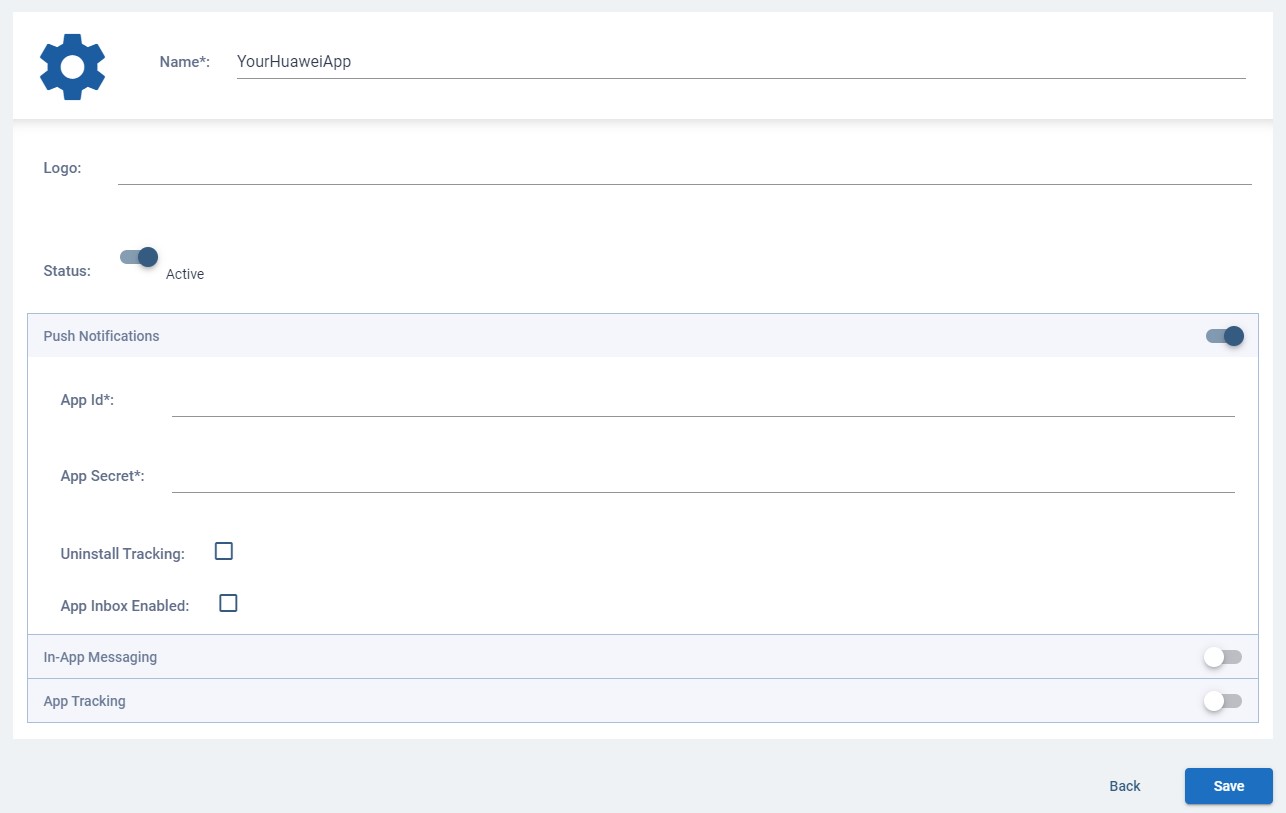
4.2 Login your D·engage Admin Panel. Navigate to “Settings > Push Applications” page and click the “Add > Android (Huawei)” button. Paste your AppID and AppSecret into associated box.
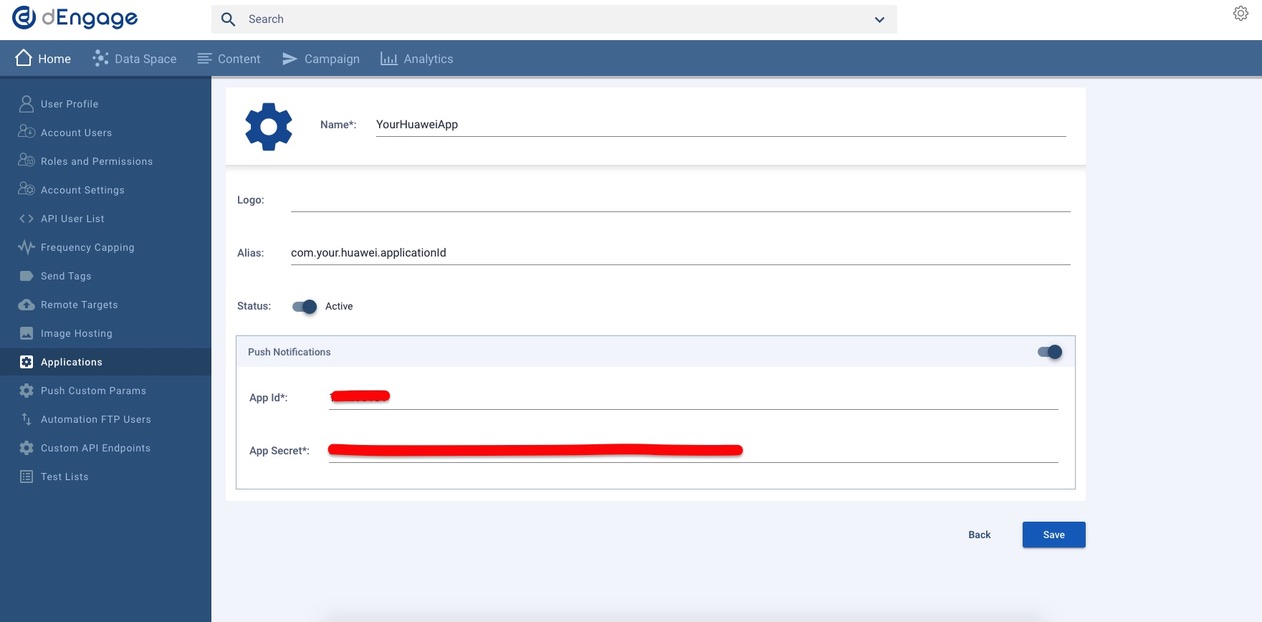
4.3 Save your application and keep your integration key for the next steps.

5. App Configuration
If you prefer to handle messages (delivered from D·engage) by the SDK , you will need to apply these steps;
5.1 Add the following dependencies to build.gradle file which is located in your project root directory and sync.
5.2 Add the following dependencies to build.gradle file which is located in your project app directory and sync:
5.3 Paste the following configuration values into your AndroidManifest.xml file. Thus all incoming push messages that received from D·engage Platform will be generated by the SDK.
After these steps, You will be able to send a push notification to your app and view the notification which is built by the SDK.
Related Articles
Firebase SDK Setup
Requirements Google Firebase App Configuration Android Studio Android Device or Emulator D·engage Mobil SDK for Android supports version 4.4 (API Level 19) and later. D·engage Mobil SDK for Huawei supports all new versions. 1. Create Firebase App 1.1 ...New Android SDK
SDK Setup Requirements Minimum Android version supported 19+ SDK Installation Dengage SDK is available on JitPack package repository. If you haven't done so yet, add the JitPack repository in your project's build.gradle file: Groovy buildscript { ...iOS SDK Setup
iOS SDK Setup Requirements D·engage Integration Key iOS Push Certificate iOS Device (you need to test on a real device for notifications) A Mac with the latest Xcode iOS version 10 or later (supported by D·engage Mobile SDK) Integration Methods ...New iOS SDK Setup
SDK Setup Requirements Minimum iOS version supported 11.0 SDK Installation CocoaPods Integration Dengage is available through CocoaPods. To install it, simply add the following line to your Podfile: Ruby pod 'Dengage', '~> 5.89' Run pod install via ...Web Push SDK Setup
Requirements D·engage Application Definition - Required for configuring push notification settings. Access to your Website Files - Needed to add the Service Worker File and the Injection Script. D·engage Web SDK provides an interface that handles ...