Remote Sources
Dengage Platform is capable of importing data or creating segments and audiences from external sources, which are referred to as Remote Sources within the platform.
The Dengage Platform is equipped to import data and create segments and audiences from external sources, referred to as "Remote Sources" within the platform. This capability allows the platform to connect with a variety of databases, enhancing its integration and data handling flexibility. You can utilize this feature to connect to several widely-used databases, ensuring a broad compatibility range for different data management needs.
The list of supported databases and queues includes:
- Google BigQuery
- Amazon Redshift
- Microsoft SQL
- Azure Data Warehouse
- MySQL
- PostgreSQL
- Oracle
- DreamIO
- SAP HANA
- Kafka
- ODBC
- Teradata
This diverse range of databases enables you to seamlessly integrate the platform with your existing data infrastructure, facilitating efficient data utilization and management across various environments.
Navigate to Settings > INTEGRATIONS > Remote Sources to set up resources.
The interface will list all Remote Sources created in the system.The interface will display a comprehensive list of all the Remote Sources that have been created in the system. The list typically appears in a structured format, providing key details for each source to help users easily identify and manage them.
- Name: The name assigned to the Remote Source.
- Type: Specifies the type of database (e.g., Google BigQuery, Amazon Redshift).
- Update Date: Shows the date and time when the Remote Source was last updated.
- Actions: Options available for each source, such as edit, delete.
This organized display ensures that users have all the necessary information at their fingertips to effectively manage their data integrations.
How to create a new Remote Source
In Dengage's settings section, the Remote Source Option enables users to add and manage remote sources for data integration and export.
+Add: By clicking the "+ Add" button, users can introduce a new remote source. This action opens up a set of options to configure the new remote target.
In Dengage's settings section, the Remote Target Option provides a streamlined process for adding and managing remote targets, which are crucial for data integration and export. The interface is divided into several key areas:
Name: Specify a name for the new remote target.
Type: Choose from a list of available remote target types, which include:
- Google BigQuery: Users can connect to Google BigQuery, Google's data warehouse service, for data analysis and storage.
- Amazon Redshift: Users can integrate with Amazon Redshift, a cloud data warehouse provided by Amazon Web Services (AWS).
- Microsoft SQL: Integration with Microsoft SQL Server allows users to connect with the popular relational database management system.
- MySQL: Users can integrate with MySQL, a widely used open-source relational database management system.
- PostgreSQL: Integration with PostgreSQL, a powerful open-source relational database, provides users with access to their PostgreSQL data.
- Oracle: Users can connect with Oracle Database, a leading enterprise database system, for data management and analytics.
- Dremio: Integration with Dremio allows users to connect to this data-as-a-service platform for data exploration and management.
- SAP HANA: SAP HANA is a high-performance in-memory database. Users can integrate with it for real-time data processing and analysis.
- Kafka: Users can connect to Apache Kafka, a distributed event streaming platform, to handle high-throughput data streams.
- ODBC:Users can connect to databases via ODBC (Open Database Connectivity), a standard API that allows integration with various databases.
- Teradata: Users can integrate with Teradata, a scalable enterprise data warehouse platform, to perform advanced analytics and manage large volumes of structured data efficiently.
Save Button: After setting the name and type for the remote target, finalize the setup by clicking the "Save" button. This action saves the new or updated remote target settings, integrating them into the platform's data export and integration framework.
Google BigQuery
This remote source type is designed to facilitate connections to a Google Big Query site.
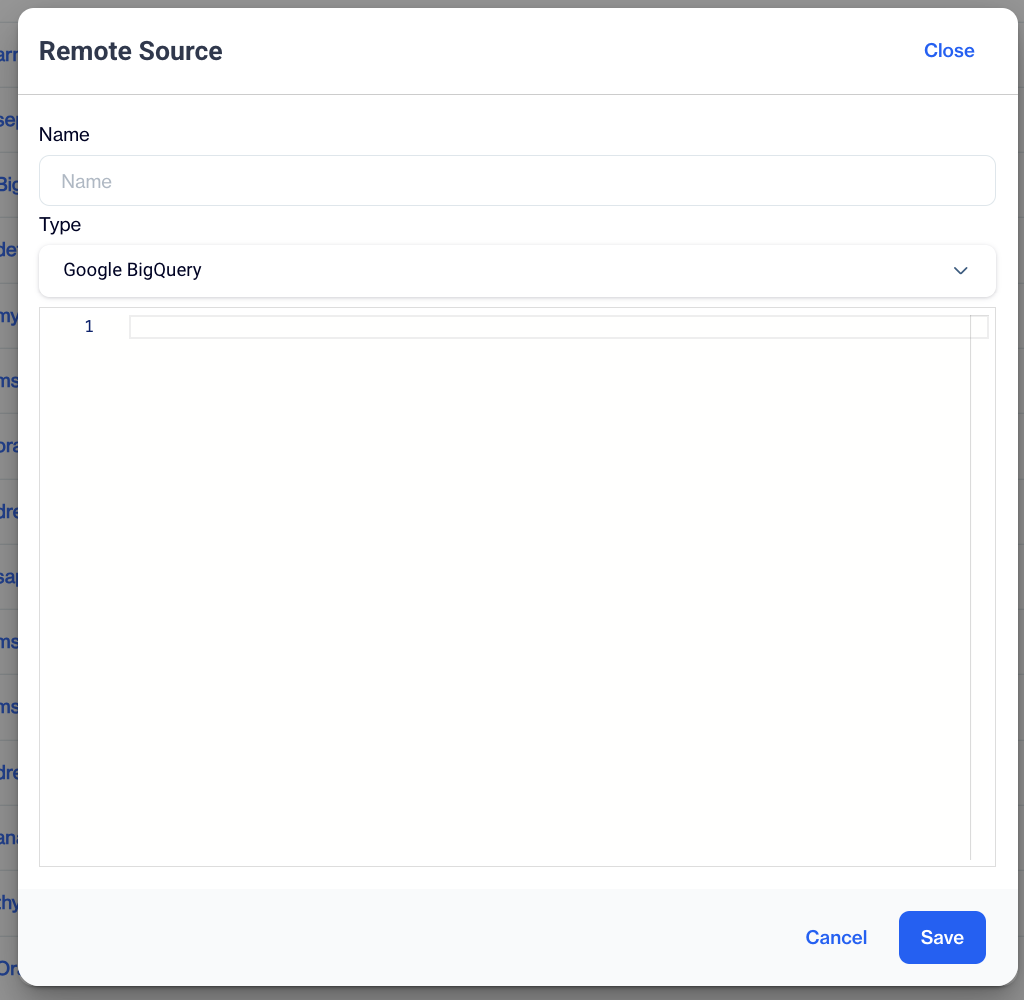
Google BigQuery
Google BigQuery Credentials: Provide Google Big Query credentials in JSON format.
Amazon Redshift
For Amazon Redshift, typical database connection settings must be provided.
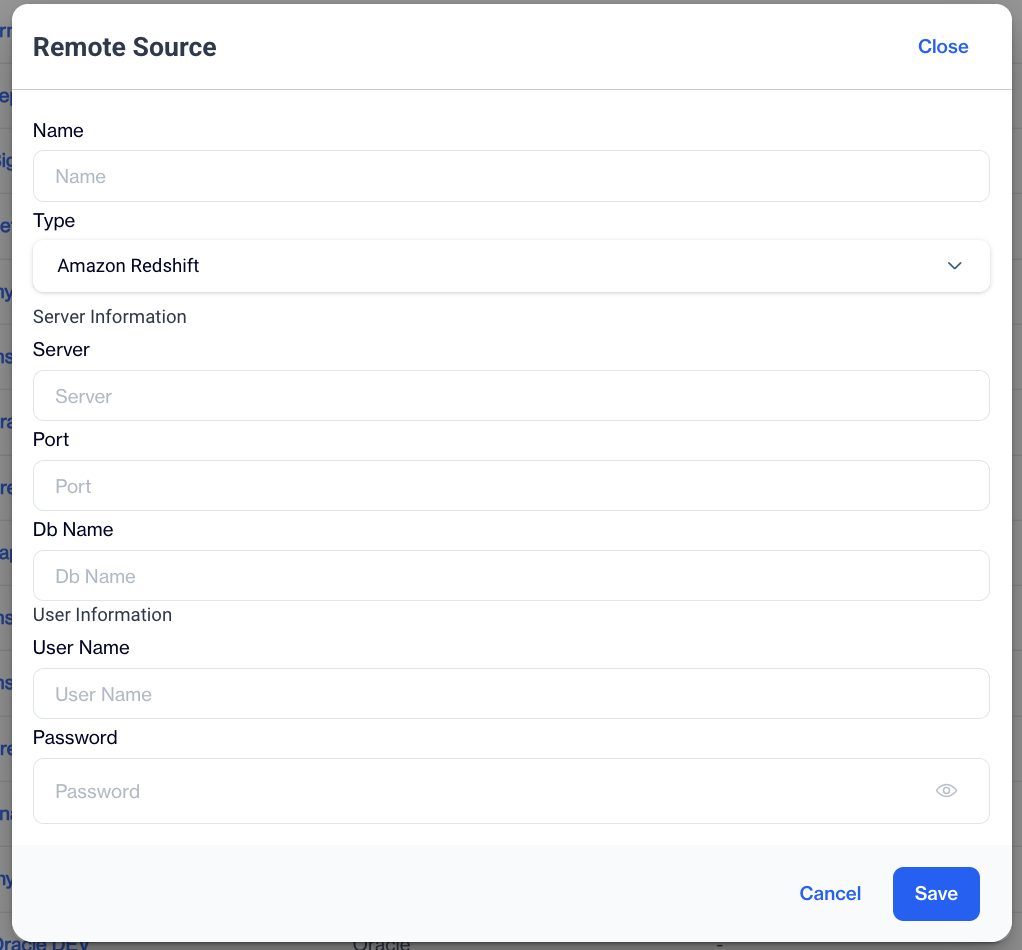
Amazon Redshift
Server Information
- Server: Enter the name or IP address of the server to which you wish to connect.
- Port: Specify the port number for the connection.
- Database Name: Input the name of the database you aim to access on the server.
User Information
- Username: Provide the username required to authenticate with the server.
- Password: Enter the password associated with the username to ensure secure access to the server.
Microsoft SQL / Azure Data Warehouse
For Microsoft SQL or Azure Data Warehouse, typical database connection settings must be provided.
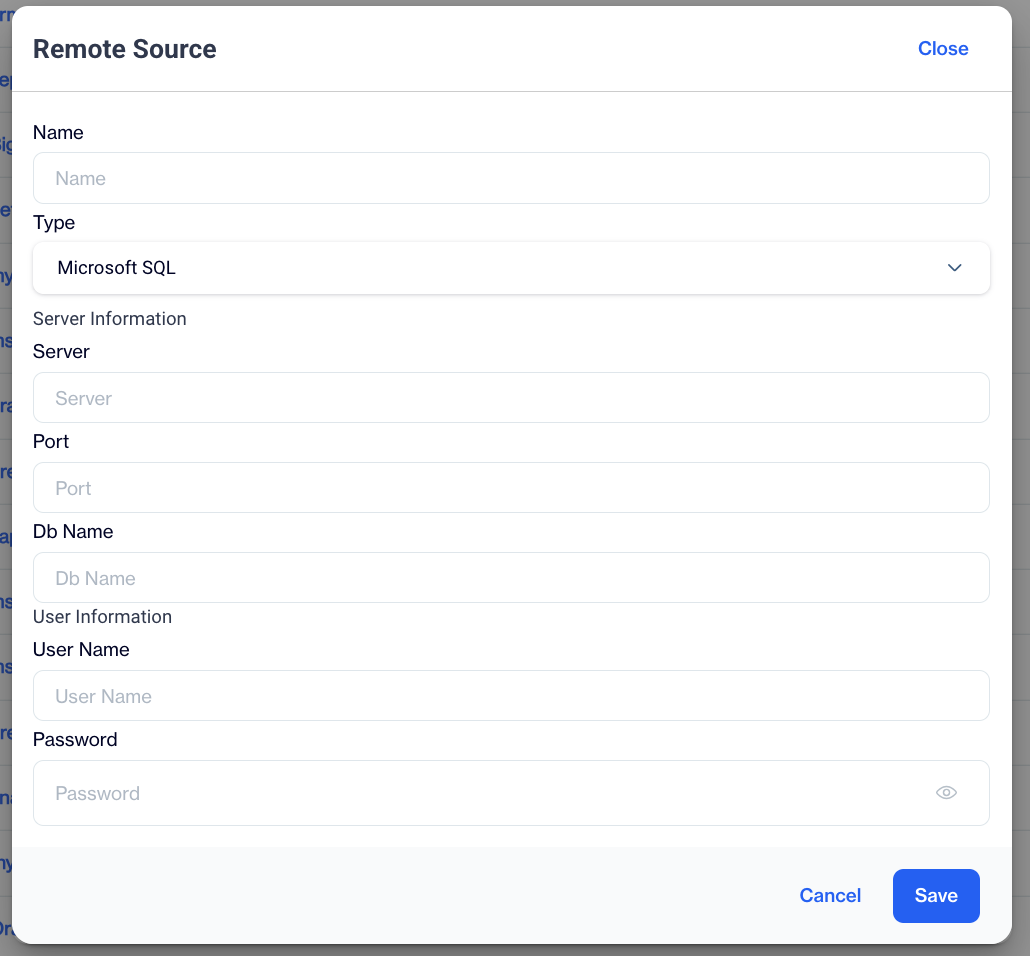
Microsoft SQL/Azure Data Warehouse
Server Information
- Server: Enter the name or IP address of the server to which you wish to connect.
- Port: Specify the port number for the connection.
- Database Name: Input the name of the database you aim to access on the server.
User Information
- Username: Provide the username required to authenticate with the server.
- Password: Enter the password associated with the username to ensure secure access to the server.
MySQL
For MySQL, typical database connection settings must be provided.
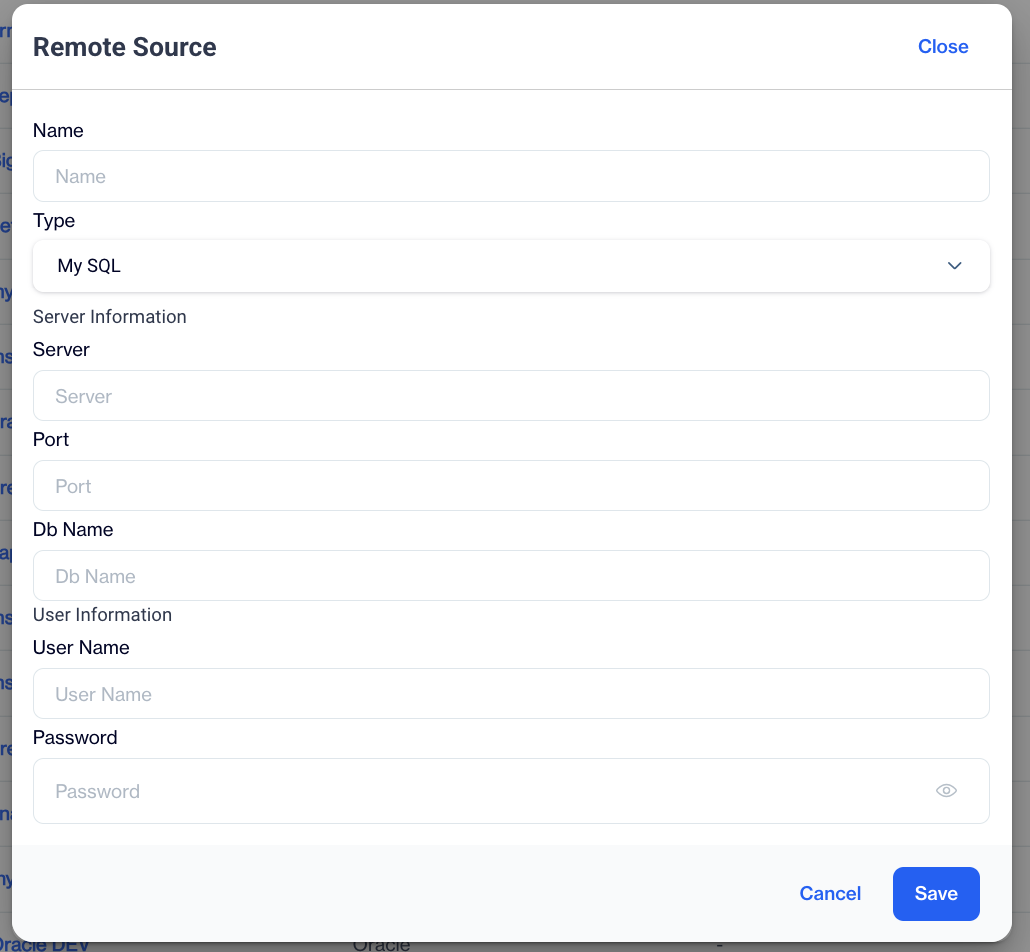
MySQL
Server Information
- Server: Enter the name or IP address of the server to which you wish to connect.
- Port: Specify the port number for the connection.
- Database Name: Input the name of the database you aim to access on the server.
User Information
- Username: Provide the username required to authenticate with the server.
- Password: Enter the password associated with the username to ensure secure access to the server.
PostgreSQL
For Postgres, typical database connection settings must be provided.
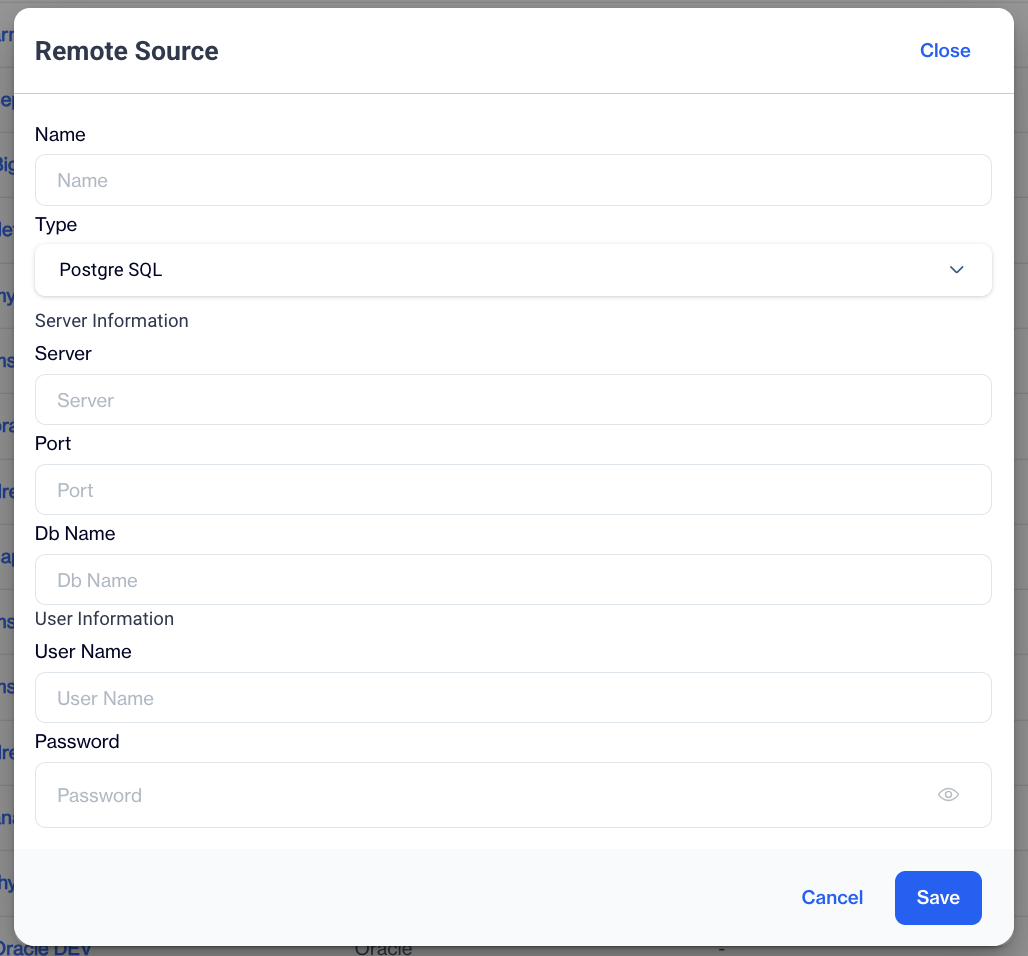
Postgre SQL
Server Information
- Server: Enter the name or IP address of the server to which you wish to connect.
- Port: Specify the port number for the connection.
- Database Name: Input the name of the database you aim to access on the server.
User Information
- Username: Provide the username required to authenticate with the server.
- Password: Enter the password associated with the username to ensure secure access to the server.
Oracle
For Oracle, typical database connection settings must be provided.
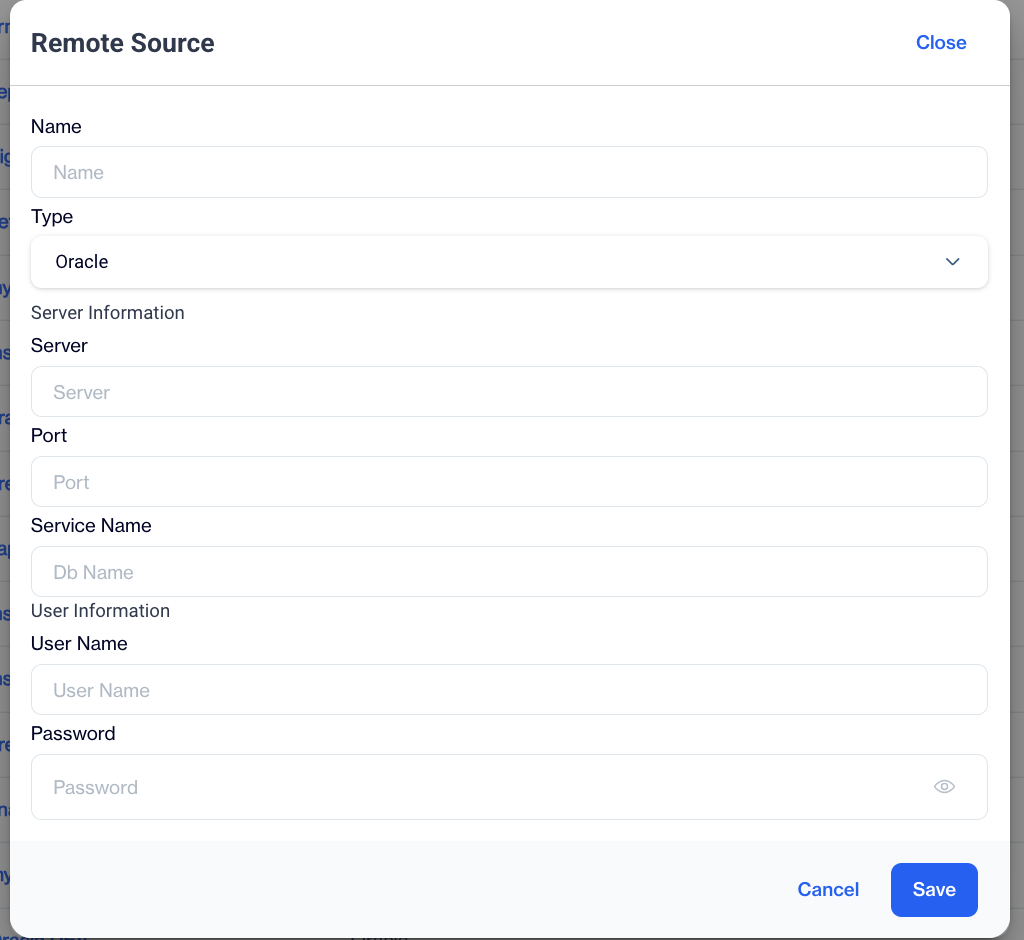
Oracle
Server Information
- Server: Enter the name or IP address of the server to which you wish to connect.
- Port: Specify the port number for the connection.
- Service Name: Input the name of the service name(database name) you aim to access on the server.
User Information
- Username: Provide the username required to authenticate with the server.
- Password: Enter the password associated with the username to ensure secure access to the server.
Dremio
For Dremio, typical database connection settings must be provided.
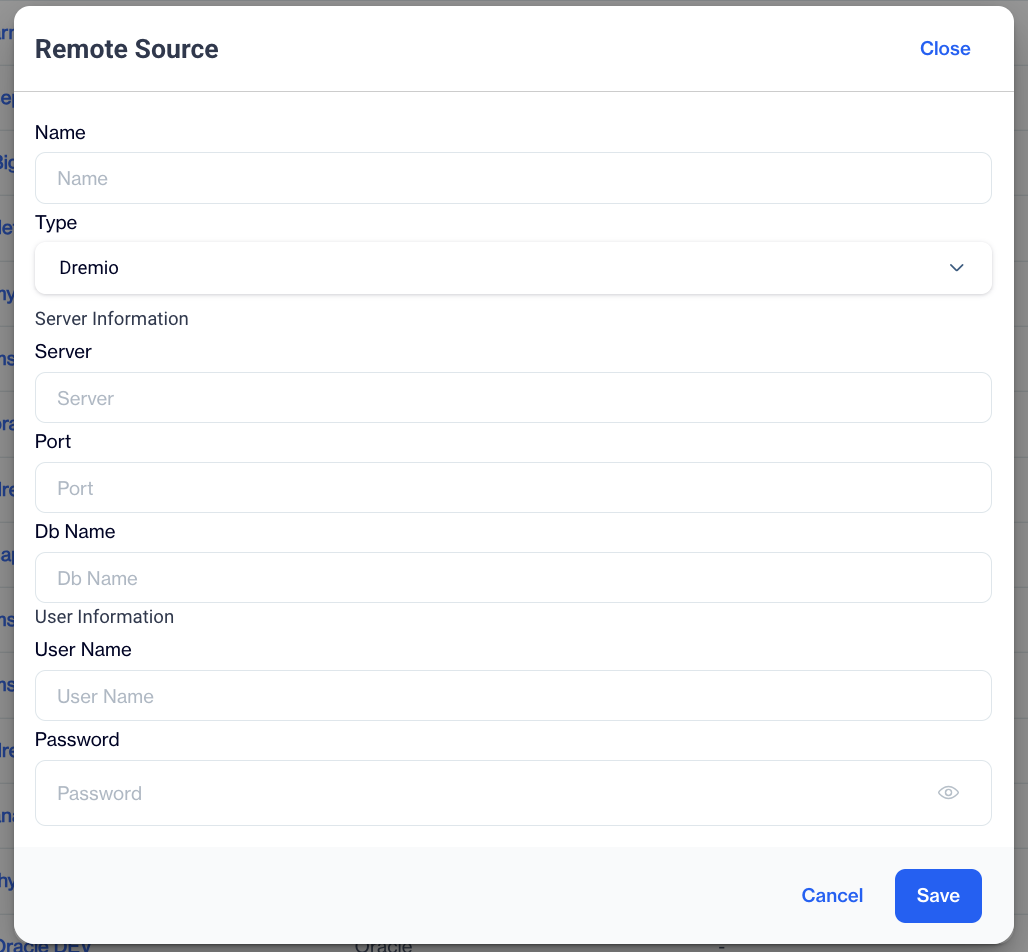
Dremio
Server Information
- Server: Enter the name or IP address of the server to which you wish to connect.
- Port: Specify the port number for the connection.
- Database Name: Input the name of the database you aim to access on the server.
User Information
- Username: Provide the username required to authenticate with the server.
- Password: Enter the password associated with the username to ensure secure access to the server.
SAP HANA
For SAP HANA, typical database connection settings must be provided.
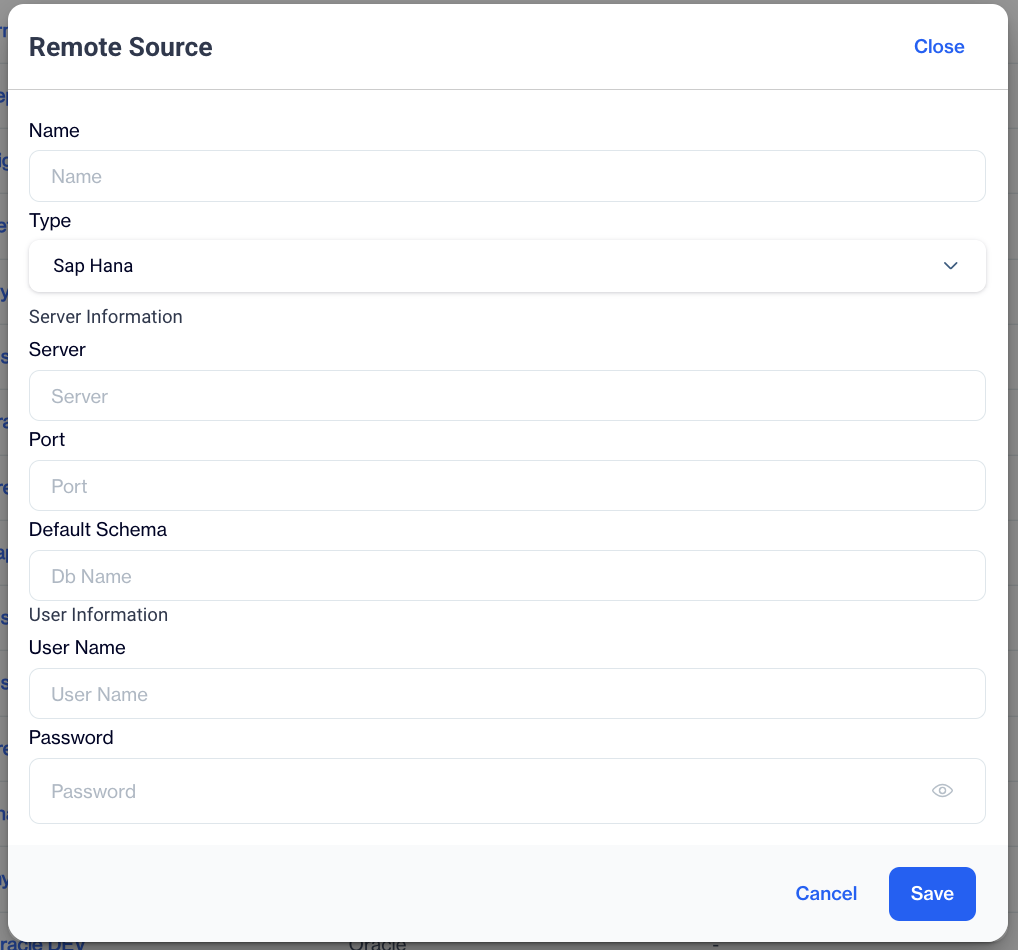
SAP HANA
Server Information
- Server: Enter the name or IP address of the server to which you wish to connect.
- Port: Specify the port number for the connection.
- Default Schema: Input the name of the default schema(database) you aim to access on the server.
User Information
- Username: Provide the username required to authenticate with the server.
- Password: Enter the password associated with the username to ensure secure access to the server.
Kafka
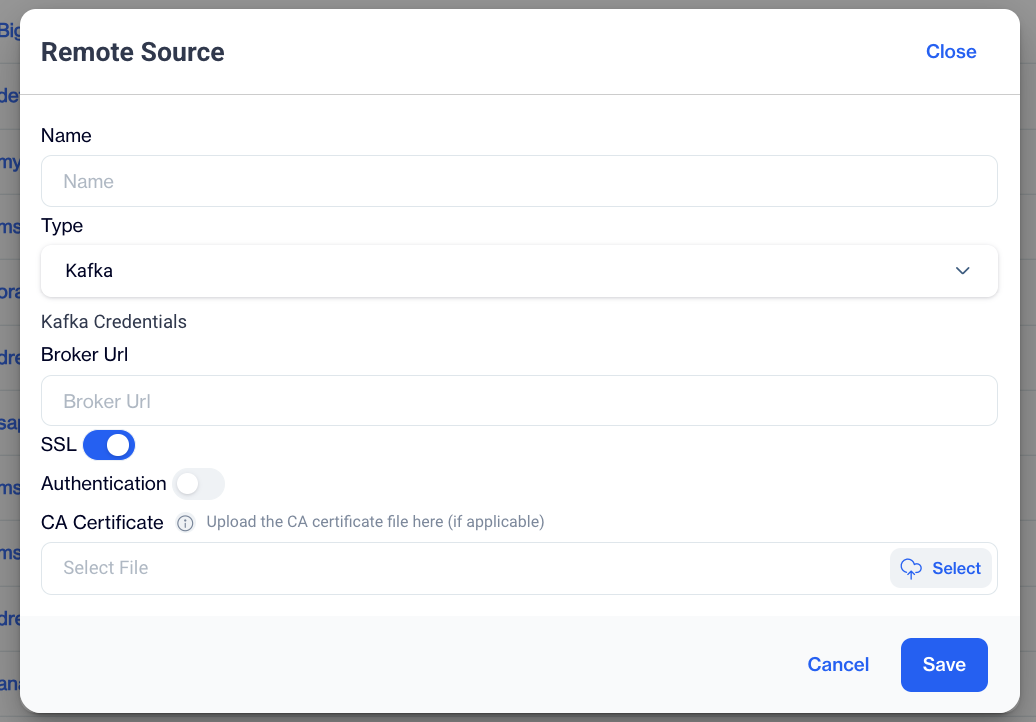
For Kafka, typical database connection settings must be provided.
Kafka
Kafka Credentials
- Broker URL: Enter the URL of the Kafka broker you wish to connect to.
- SSL: Toggle this option to enable or disable SSL encryption for the connection.
- Authentication: Toggle this option to enable or disable authentication for the connection.
- Username: Provide the username required for authentication with the Kafka broker.
- Password: Enter the password associated with the username to ensure secure access to the broker.
- SaSL Type: Toggle this option to enable or disable SASL (Simple Authentication and Security Layer) for the connection.
- CA Certificate : If applicable, upload the CA certificate for secure SSL communication.
ODBC
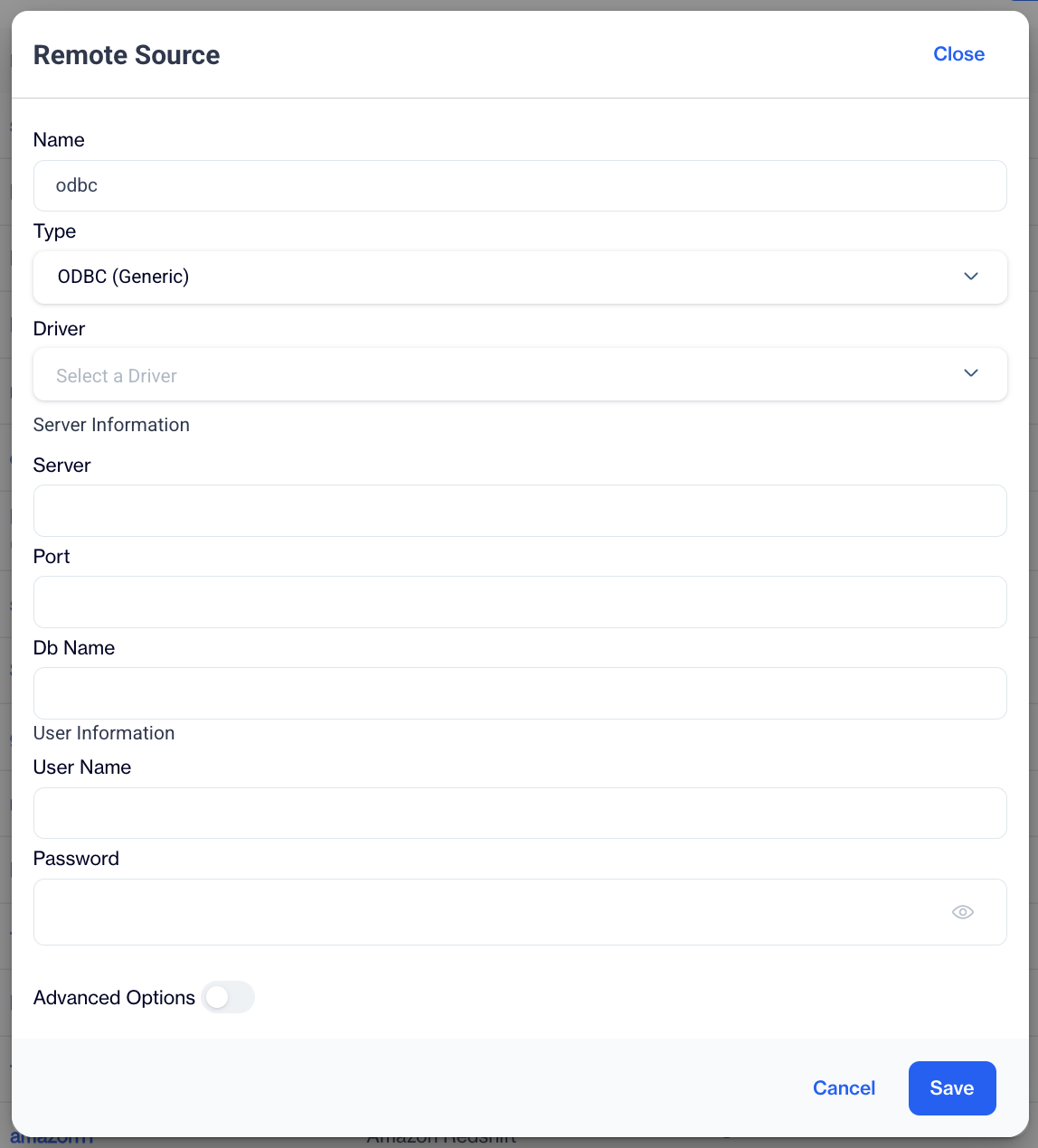
For ODBC, typical database connection settings must be provided.
ODBC
Server Information
- Server: Enter the name or IP address of the server to which you wish to connect.
- Port: Specify the port number for the connection.
- Db Name: Input the name of the database you aim to access on the server.
User Information
- Username: Provide the username required to authenticate with the server.
- Password: Enter the password associated with the username to ensure secure access to the server.
Driver
Select a Driver: Choose the appropriate ODBC driver required for the connection.
Teradata
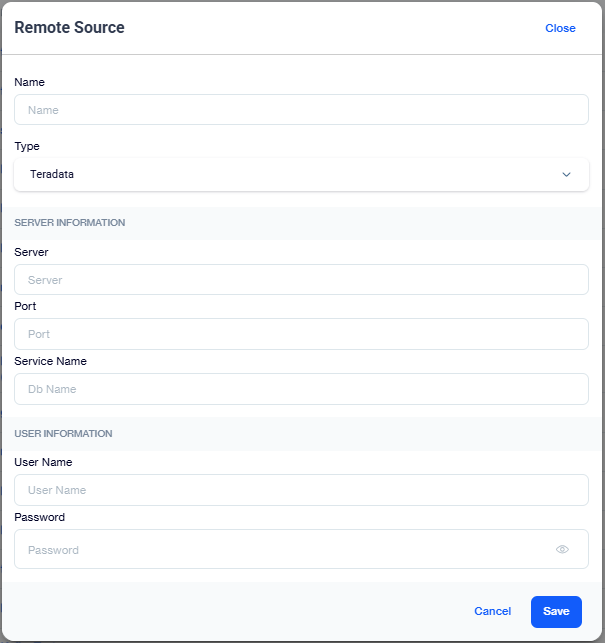
For Teradata, typical database connection settings must be provided.
Teradata
Server Information
- Server: Enter the name or IP address of the server to which you wish to connect.
- Port: Specify the port number for the connection.
- Db Name: Input the name of the database you aim to access on the server.
User Information
- Username: Provide the username required to authenticate with the server.
- Password: Enter the password associated with the username to ensure secure access to the server.
Importing Data from Remote Sources
Once you have created and configured your desired remote source to your account, you can use Automated Jobs from the web UI to import your data from these remote sources.
- Navigate to Automated Flows
- Go to Data Space > Automated Flows
- Click New and then choose “Automated Flow” to create a new automated flow.
- Set Up Your Automated Flow
- Type a name for your flow.
- Choose a folder.
- Schedule the start and end date.
- Click Next to proceed to the Automated Flow screen.
- Add a Data Node
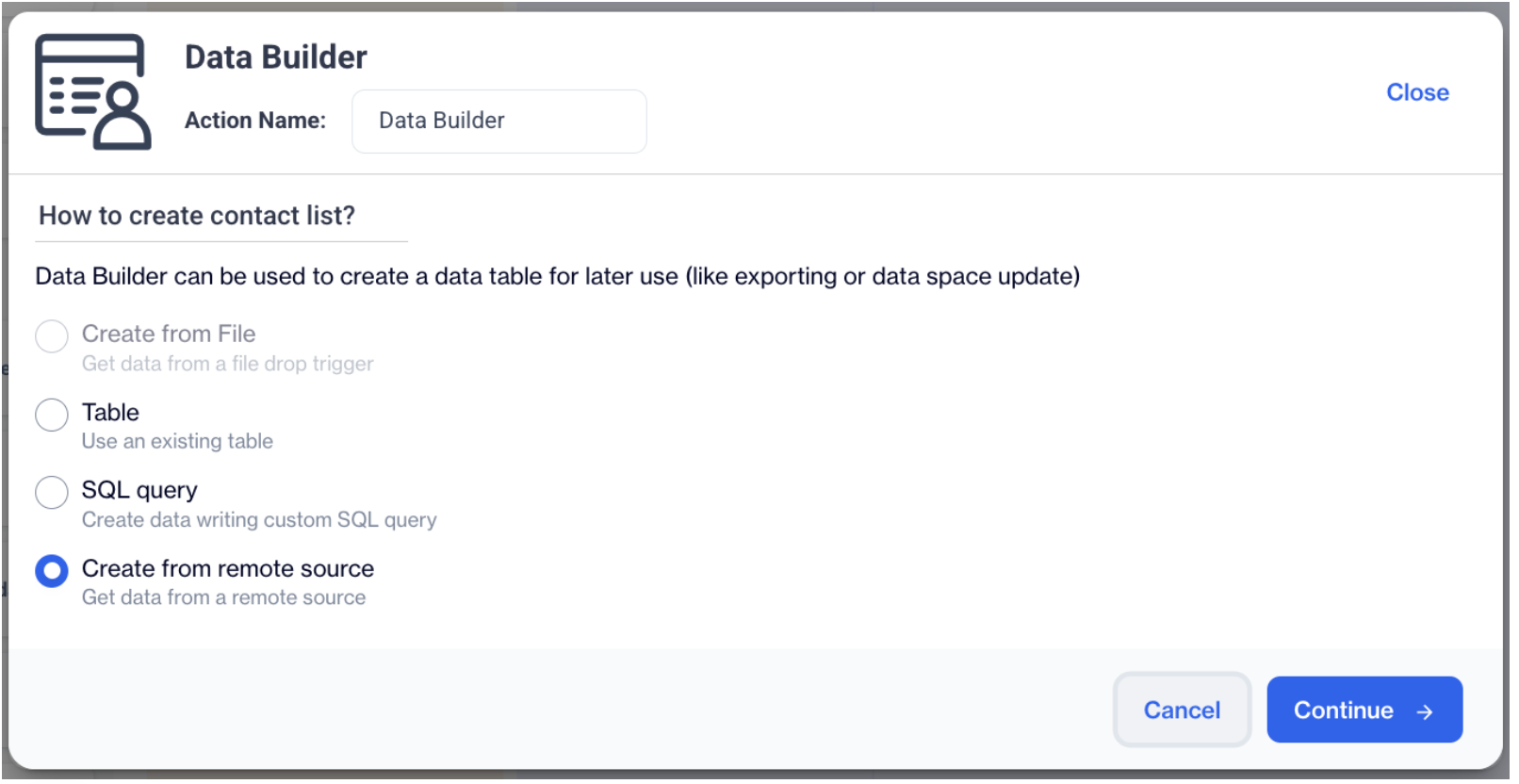
- Drag and drop the "Audience Builder" or "Data Builder" node to import your data.
- Click on Configure to open the settings.
- Select the Remote Source
- Select Create from Remote Source and choose your remote source from the list.
- Click the Continue button.
Create from remote source
- Build and Validate the Query
- Import data from the selected remote source by building an SQL query.
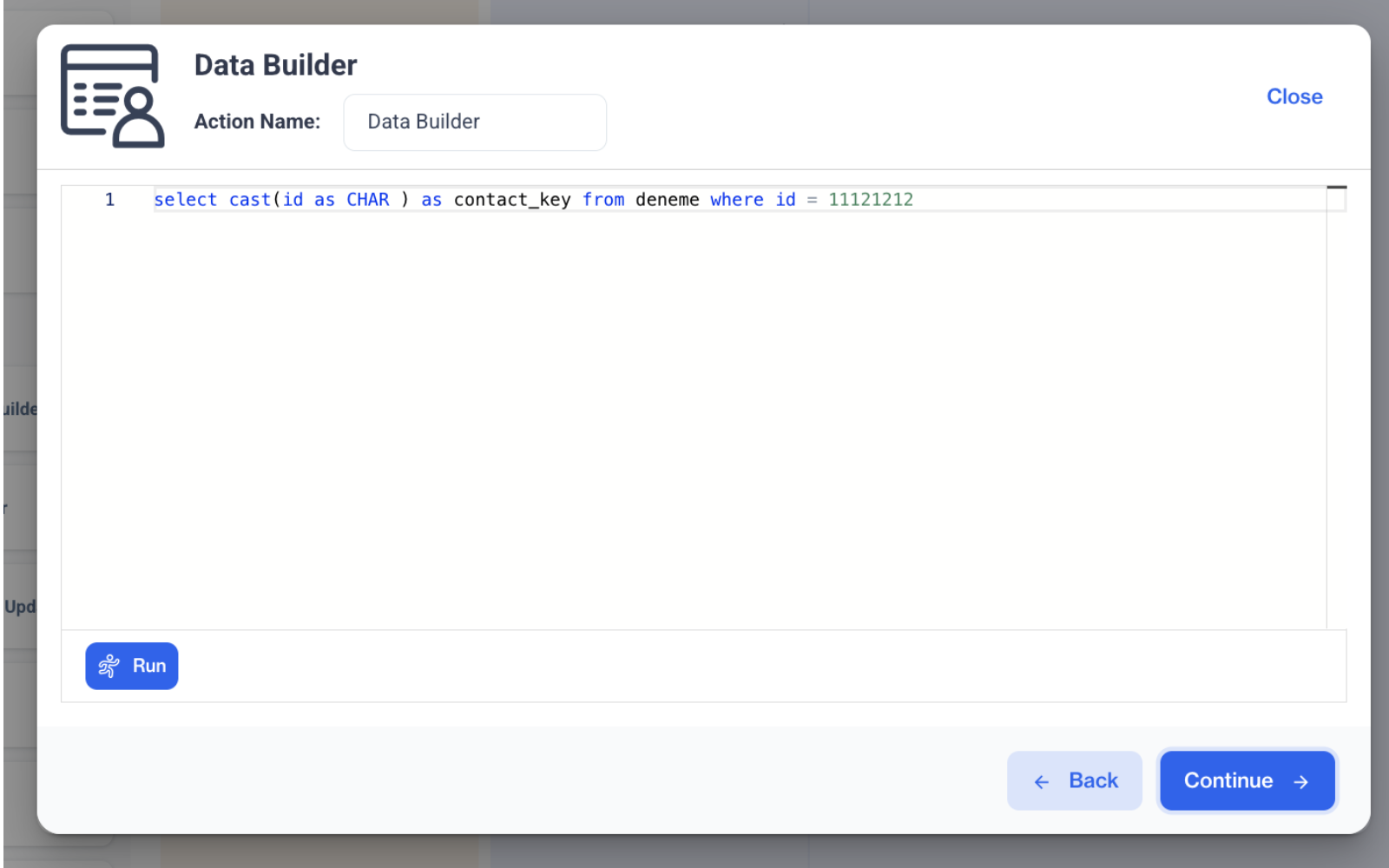
SQL Query
- After running the query and receiving a valid query notification, click Continue to proceed.
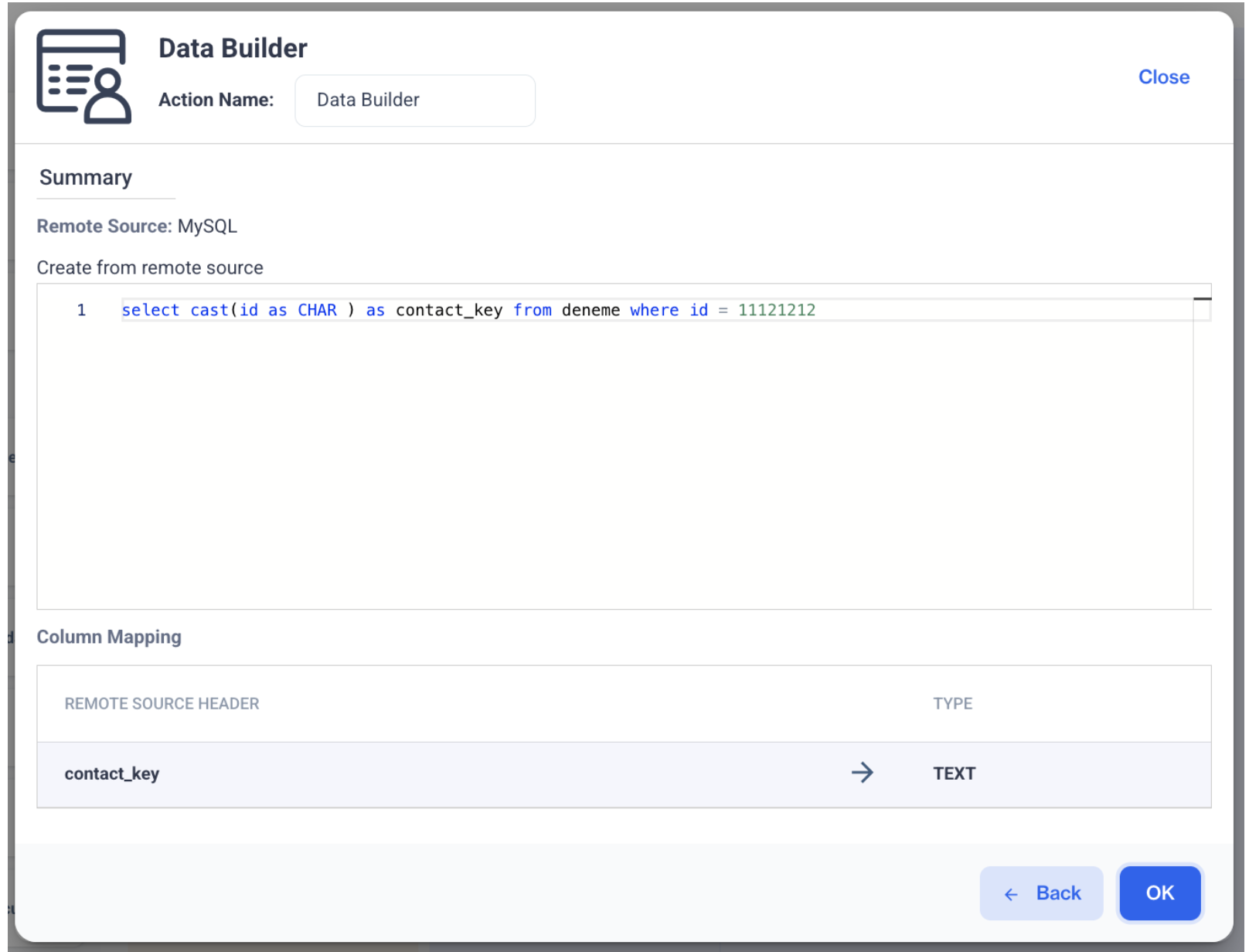
- You will then see the column mapping screen. Click OK to finalize the process.
Once the validation is successful, your data import process is set up and ready to run based on the configured schedule.