Rest API
The REST API section provides users with detailed logs of API requests and responses. This functionality enables users to monitor and analyze REST API interactions effectively.
Upon accessing this section, the system displays the following columns:
- Request Time: The timestamp when the request was made.
- Response Time: The timestamp when the response was received.
- Username: The user who made the request.
- Transaction ID: A unique identifier for the transaction.
- Event Name: The name of the event associated with the request.
- IP Address: The IP address from which the request originated.
- Page URL: The URL of the page associated with the request.
- Request URL: The endpoint that was requested.
How to Use
Viewing Logs
- Navigate to Data Space > Internal Logs > REST API.
- The system will display a table with the above-mentioned columns, allowing you to view API logs.
Filtering Logs
To refine the displayed logs, apply filters:
- Search in Request:
- Enter a keyword or phrase to search within the request data.
- Transaction ID:
- Enter a specific Transaction ID to locate a particular log entry.
- Request Data:
- Select a specific date from the calendar to filter logs by the date they were created.
- Request Time Range:
- Specify a time range to filter logs based on the request time.
- Click the Apply button to update the log display based on your selected filters.
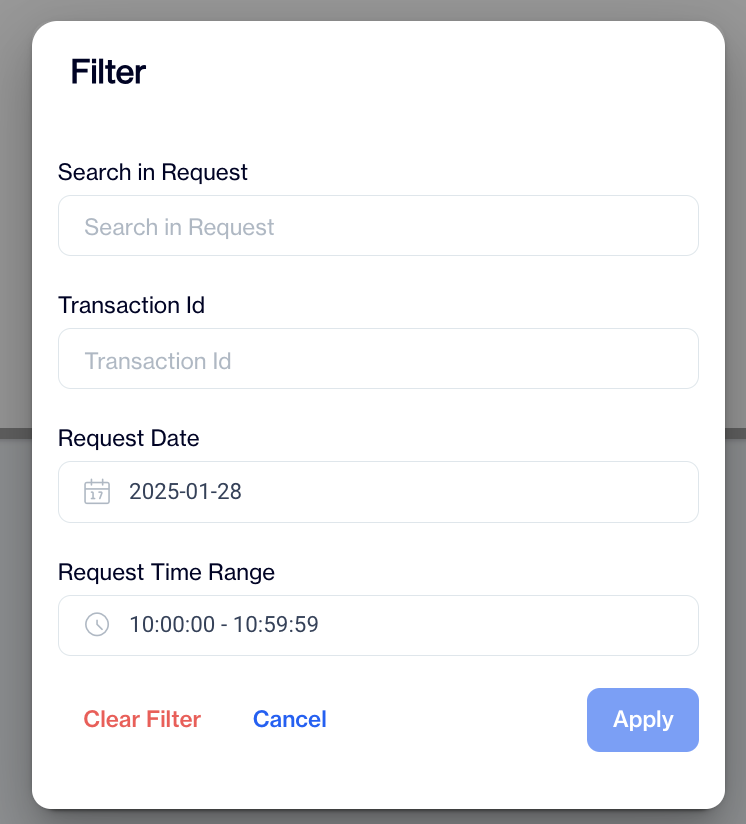
Rest API Filter
By utilizing these features, users can effectively monitor and troubleshoot REST API interactions in the system.
Related Articles
API IP Restriction
This section enables you to specify IP addresses that are allowed to connect to our REST APIs and utilize the available API functions. REST APIs are a method to integrate with our services. By default, access to REST APIs is blocked for API Users ...Whatsapp Business API
Dengage now supports direct integration with the WhatsApp Business API. Users can seamlessly set up and manage their WhatsApp messaging without relying on third-party providers. Once the integration is configured via Settings > Integrations > 3rd ...API Users
This page enables you to create and authenticate API Users. The API Users section under Settings > Identity & Access Management allows you to manage API users for accessing your account. You can view, add, and manage API users with ease. Each API ...Custom API Endpoints
The Custom API Endpoints feature allows users to define and manage API endpoints for custom integrations. This is particularly useful for sending data to external systems or receiving data in a campaign workflow. How to Add a Custom API Endpoint ...Develop your own WEB API
The Dengage Platform can invoke your Custom Web APIs during the audience export process. This section outlines the format of the data sent by the Dengage Platform, providing the necessary details for you to develop a function that receives and ...