API IP Restriction
This section enables you to specify IP addresses that are allowed to connect to our REST APIs and utilize the available API functions.
REST APIs are a method to integrate with our services. By default, access to REST APIs is blocked for API Users from any IP address on the internet to ensure optimal security.
Please add the IP addresses from which you will be calling our REST APIs. REST APIs provide a method to integrate your services with our platform.
API IP Restriction
How to Configure API IP Restrictions
- Access the API IP Restriction Settings:
- Navigate to Settings > Identity & Access Management > API IP Restriction.
- Once there, you'll see a list of existing IP definitions. The number of IP addresses to add to the platform is limited.
- Add Trusted IP Addresses:
- In the API IP Restriction section, specify the IP addresses or ranges that will be allowed to call the REST APIs.
- Only these trusted IP addresses will be granted access to use API functions.
How to Add an IP Address or Range
To add a new IP address or range:
- Click the Add Button:
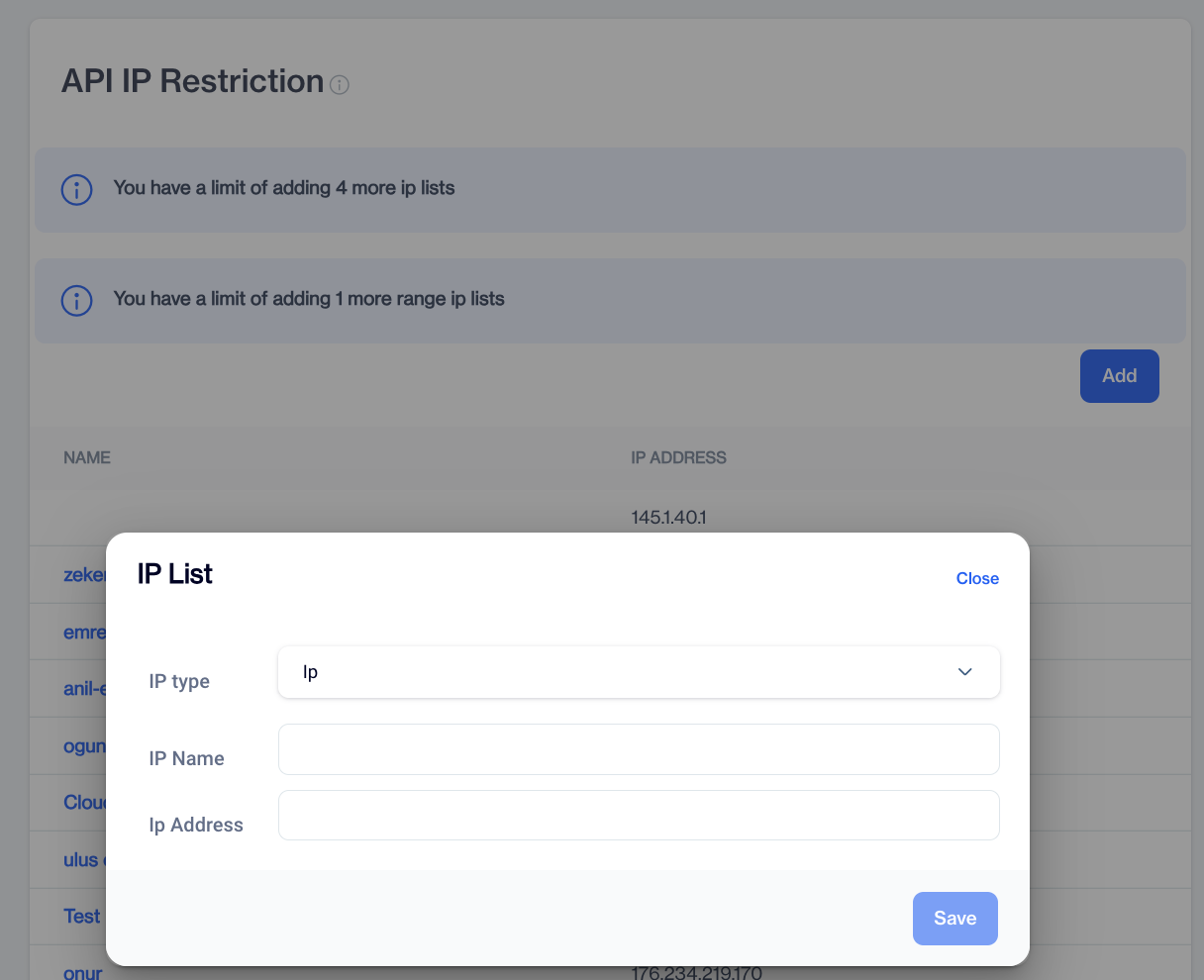
- This will open the IP List Configuration modal.
- Fill Out the Fields:
- IP Type:
- Choose IP if you want to specify a single IP address. (e.g.,192.168.0.0)
- Choose Range if you want to define a broader set of IP addresses within a range. (e.g., 192.168.0.10 - 192.168.10.20)
- IP Name (Configuration Name):
- Provide a name for the IP configuration to help you identify its purpose.
- It is for your reference and should be something easily recognizable, helping you identify the purpose of this restriction.
- IP Address or Range:
- Enter the specific IP address (for single IP configurations) or the range of IP addresses (for IP range configurations) that you want to allow or restrict from connecting to your platform. This is where you define the actual IP information for your restriction.
- Save the Configuration:
- After filling out the fields, click Save to apply the changes.
NoteAfter clicking Save, the IP restrictions will be ready to take effect automatically in 5 minutes.
Editing or Removing IP Addresses
To manage your IP configurations:
- Edit an IP Configuration:
- Click on the name of the IP configuration you want to modify.
- Make changes to the fields and click Save to update.
- Delete an IP Configuration:
- Click on the name of the IP configuration you want to delete.
- Click the Trash Bin icon next to the IP configuration you want to remove.
These steps allow you to update or delete IP addresses for API access easily.
Related Articles
Adding FTP IP Restriction to Settings
The FTP Users system now includes an IP Restriction feature, allowing administrators to control FTP access by specifying allowed IP addresses. Enabling IP Restriction A new "Restrict IP Access" checkbox has been added to the FTP Users screen. When ...Rest API
The REST API section provides users with detailed logs of API requests and responses. This functionality enables users to monitor and analyze REST API interactions effectively. Upon accessing this section, the system displays the following columns: ...API Users
This page enables you to create and authenticate API Users. The API Users section under Settings > Identity & Access Management allows you to manage API users for accessing your account. You can view, add, and manage API users with ease. Each API ...Shopify
In just a few minutes, you can seamlessly connect your Shopify store to your D·engage account. This integration performs a one-way sync, transferring your product catalog, along with contact and order data, directly from your Shopify store to your ...Custom API Endpoints
The Custom API Endpoints feature allows users to define and manage API endpoints for custom integrations. This is particularly useful for sending data to external systems or receiving data in a campaign workflow. How to Add a Custom API Endpoint ...