Scratch to Win
Scratch to Win is a gamified campaign template that allows users to reveal hidden content by scratching a surface on the screen. When users complete the scratch action, the hidden reward underneath becomes visible.
This template can be used in both In-App and Onsite campaigns. It creates a simple and engaging interaction between two areas: the scratch area and the reveal area.
You can decide how the result is shown. The reward can appear automatically after users scratch a certain percentage of the surface.
The main purpose of Scratch to Win is to increase user engagement. Instead of showing a standard promotion, you present the message or reward through an interactive and game-like experience. This helps attract attention, improve participation, and make campaigns more memorable.
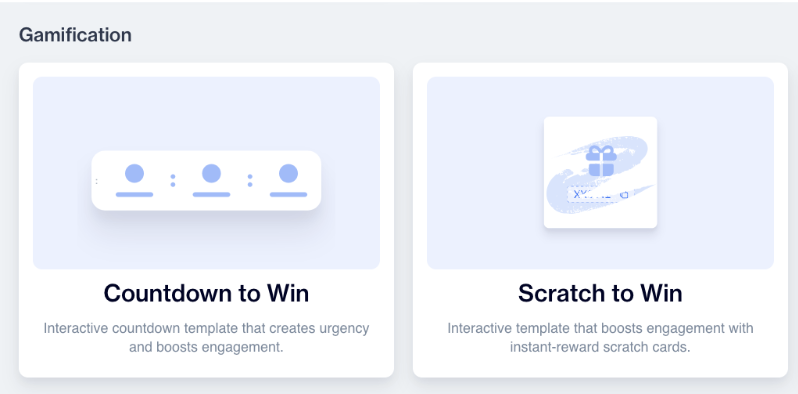
How to Access Scratch to Win
To create a scratch to Win campaign, start by navigating to Content > Marketing > In-App or Onsite.
After choosing In-App or Onsite, continue by selecting Visual Editor. Once the Visual Editor opens, you will see different template categories. From there, go to the Gamification category and select scratch to win. This will open the scratch to win template, where you can start customizing your campaign.
How to Use Scratch to Win
When you open the template, you first define the basic information of your content.
In the General section, enter a Name and Description. This helps you identify the content later. If you run campaigns in multiple languages, you can use Add Languages to create different language versions. You can also copy an existing content structure or start with blank content.
Next, you can adjust the theme. The theme controls the overall design, such as colors, fonts, text alignment, and button styles. By editing the theme, you can match the campaign design with your brand guidelines without changing each element one by one.
Background
You can define the overall background by selecting an image. This helps you design the experience according to your content goal.
Scratch Area
The scratch area is the part users interact with. This is the top layer that will be erased.
You can upload an image or choose a color for the scratch surface. You can adjust the height of the scratch area and set the erase radius, which controls how large the scratch effect appears.
The Reveal Threshold setting defines how much of the surface must be scratched before the hidden content becomes visible. This allows you to control the interaction level.
Reveal Area
The reveal area is the content shown after the scratch action is completed.
You can set a background image or color, adjust text color and font size, and customize border color, border width, and border radius.
This section determines how the revealed reward will look to the user.
Reward Rules
In the Reward Rules section, you define how the reward is managed.
You can choose between a static or dynamic coupon type.
If you select static, you manually enter a single coupon code that will be shown to all eligible users.
If you select dynamic, you must also select a Coupon Code List. The system will assign unique codes from this selected list to users. This ensures each user receives a different code.
You can also define a Win Limit to control how many users can receive the reward. If the win limit is reached or no dynamic codes are available, a Fallback Code can be shown instead.
This setup allows you to manage reward distribution in a secure and controlled way.
Text Settings
You can customize the texts shown before and after the scratch interaction.
In the Default Text section, define the title and body displayed before the reward is revealed.
In the Win Text section, define the title and body shown after the scratch is completed.
You can also enable a primary button and define its button text. A close icon can also be displayed if needed.
These settings help guide users to the next step after they interact with the content.
Using Scratch to Win Reward Data in Segmentation
You can segment users based on the reward they receive from the Scratch to Win campaign. When a user scratches the card and reveals their reward, this interaction is recorded as a click event in the system. The coupon type associated with the reward is captured as the Action Button value, allowing you to create segments based on whether users received a Static or Dynamic coupon.
To create this segmentation, go to:
Audience > Segments > New > Interactive Segments
Add an Inclusion filter and select either Realtime In-App or Realtime Onsite, depending on where your Scratch to Win campaign is published.
Then configure the filter to target users who clicked a realtime in-app or onsite message.
Next, choose the Coupon Type used in the reward:
Static Coupon – Targets users who received a predefined coupon code configured in the content.
Dynamic Coupon – Targets users who received a unique coupon assigned specifically for them.
Since the coupon type is recorded as the Action Button value after the user scratches the card and reveals the reward, selecting Static or Dynamic allows you to group users according to the coupon type they obtained.
This enables you to build audiences based on reward outcomes, plan different follow-up communications for each reward group, or manage future campaigns by identifying users who already received a specific type of coupon.
Use Case
An e-commerce brand wants to increase interaction on its mobile app during a seasonal promotion. Instead of showing a regular discount banner, the team creates a Scratch to Win In-App content.
When users open the app, they see a scratch surface with a message like “Scratch to reveal your special offer.” After scratching 60% of the area, the hidden reward appears.
The brand selects dynamic coupon types and connects a coupon code list. Each winning user receives a unique discount code. A win limit is defined to control how many users can receive the main reward. If the limit is reached, a fallback code with a smaller discount is shown instead.
Scratch to Win enables you to create interactive and engaging In-App and Onsite content. It increases user interaction while giving you full control over design, messaging, and reward distribution.
Related Articles
Gamification - Spin to Win
Spin to Win is a gamification-focused campaign template designed to increase user engagement by turning promotions into an interactive game experience. Instead of passively showing a message, users actively participate by spinning a wheel to win a ...Creating In-App Content
The In-App Content feature enables you to deliver targeted messages and interactive content directly within your mobile app. This includes elements like banners, pop-ups, and other notifications designed to engage users, promote offers, and drive ...Creating Onsite Content
The Onsite Content feature is a powerful tool within the platform that allows users to display personalized marketing content directly on their website. This content can include banners, pop-ups, and other interactive elements aimed at improving user ...HTML Editor
The HTML Editor allows you to design and customize layouts that align with your brand's unique style using code. This section offers full control over the layout and design elements, enabling you to tailor each aspect to fit your specific brand ...Email
The Email Module is a versatile and user-friendly platform that facilitates creating, personalizing, and managing email campaigns to meet a range of user needs. The Email Module provides an all-in-one solution for creating emails that range from ...