Integration with a Service Provider
On the Dengage platform, integrating with a service provider is a vital prerequisite for sending WhatsApp marketing messages. This integration is a crucial step to enable WhatsApp marketing campaigns.
- Navigate to Settings> Integrations > 3rd Party Integration
- Locate WhatsApp in the list and click the Connect button.

If the Connect button is not visible, it means that WhatsApp is not activated yet for your account , would you please contact your Account Manager or our Technical Support team to Activate WhatsApp integration for your account.
- Click on the "New WSP" button, then select your provider and click "Next" to proceed.
Integration Process for WhatsApp Service ProvidersBeyond this stage, the configuration steps will differ depending on your chosen WhatsApp Service Provider (WSP). Please refer to the relevant section below to complete your configuration.
Whatapp Business API Integration
Integrating your WhatsApp Business API into Dengage allows you to send WhatsApp messages directly, without relying on third-party platforms.
Prerequisite
Before starting the integration process, make sure WhatsApp is added to your Meta Business Manager.
If you haven’t added it yet, go to your Meta Business Account and add WhatsApp to your account. This step is mandatory, as the integration cannot proceed without it.
Requirements on Meta
In this phase you will prepare everything on Meta so you have the values Dengage needs (App ID, Access Token, WABA ID, Phone Number ID) and the correct permissions.
1.Create or Select a WhatsApp Business Account (WABA)
- Log in to Meta Business Manager: business.facebook.com > Business Settings.
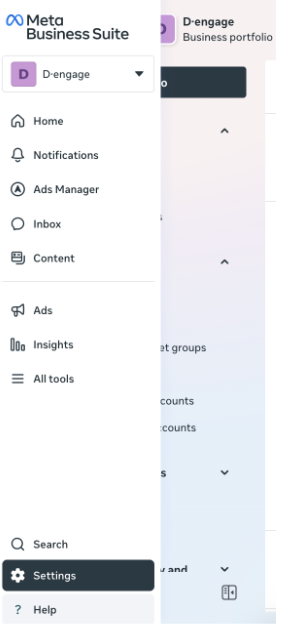
Business Settings
- Go to Accounts > WhatsApp Accounts.
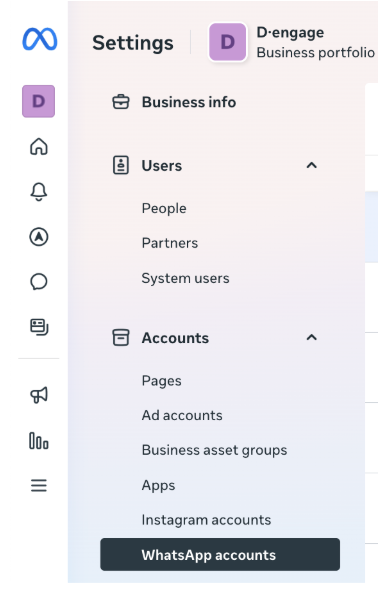
WhatsApp Accounts
- If you don't have a WABA, click Add / Create a WhatsApp Business Account and follow the wizard. If you do, select it from the list.
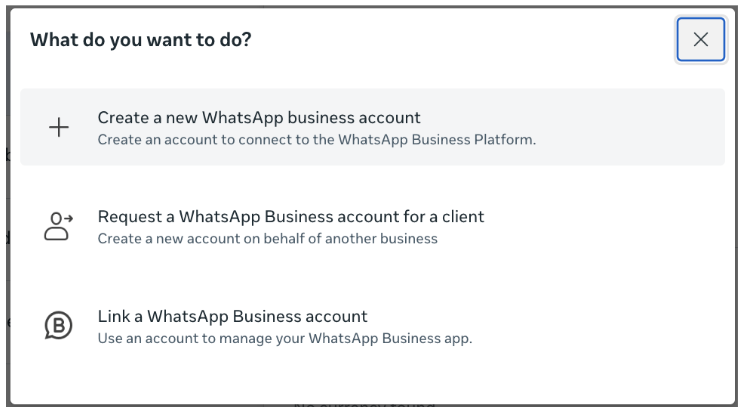
Create a WhatsApp Business Account
When creating a new WhatsApp Business Account, you will be asked to provide some profile details:
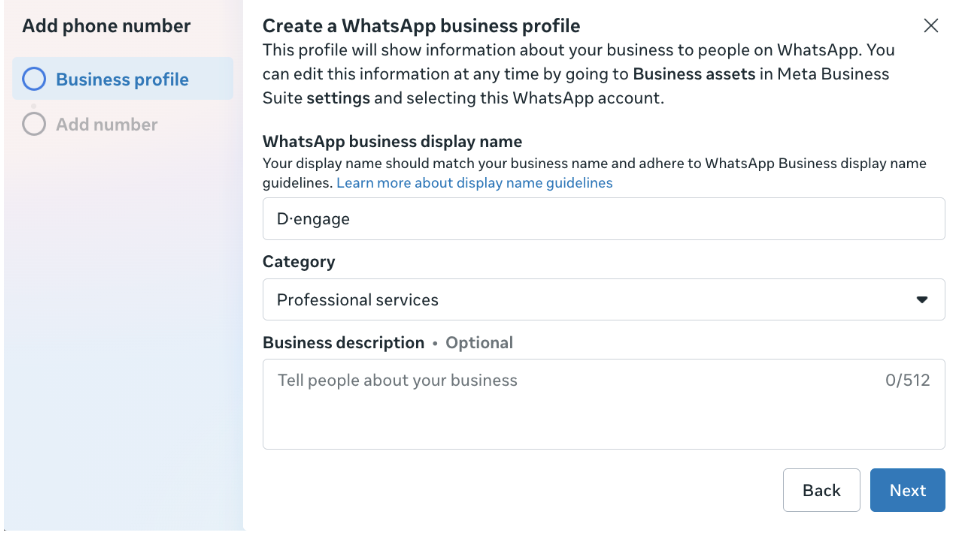
Business Profile
Display name: Enter your business display name. This must match your business name and follow WhatsApp display name guidelines.
Category: Select the most relevant category for your business (e.g., Professional Services).
Business description (optional): You may enter a short description to tell people about your business.
After completing these steps, click Next to continue.
In the following step, you will be prompted to add a phone number for your WhatsApp Business Account. This number will be associated with the account and used to send and receive messages.
- (Recommended) In Security Center, start Business Verification to avoid quota and template issues later.
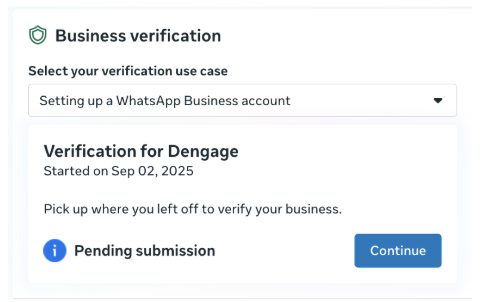
Business Verification
2. Add and Verify a Phone Number
- Open WhatsApp Manager for your WABA > Phone Numbers > Add Phone Number. business.facebook.com/latest/settings/whatsapp_account
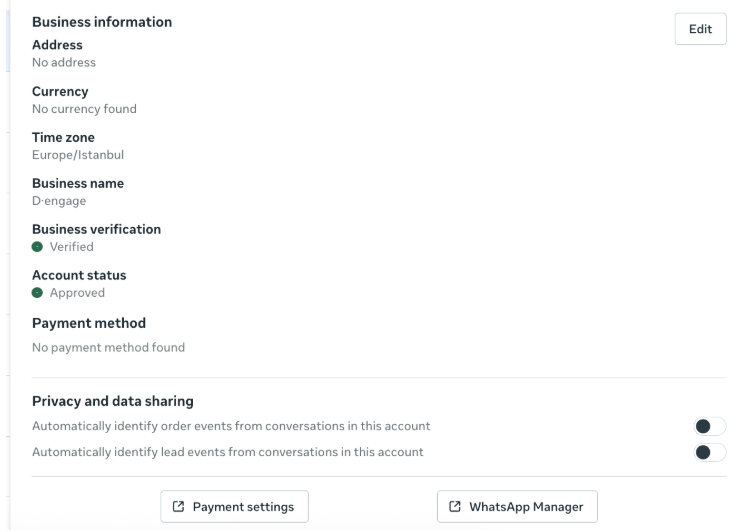
- Fill Business Profile (Display Name, Category, etc.).
Fill Business Profile
- Use a number that:
- Can receive SMS or Voice Call OTP
- Is not already registered on any WhatsApp account (personal/business)
- Is not VoIP or toll-free
- The WhatsApp verification call cannot navigate through an IVR (Interactive Voice Response) menu. Therefore, the IVR must be temporarily disabled or the call should be redirected to a real person to complete the verification.
- Choose SMS or Voice and enter the OTP to verify.
Note: If the number is in use on the mobile app, migrate it first.
3. Create a Meta App (Developers Console)
- Go to developers.facebook.com > My Apps > Create App.

Create App
- Select Business as the app type and complete the form.
Business portfolio (Optional in UI, but REQUIRED for our use case):
In the "Business portfolio" dropdown, select the same Business that owns your WABA. This ensures the app is owned by your business, not just shared.
App Type - Business
- Create the app and open the App Dashboard. Your App ID is shown at the top-left.
App ID
- On the App Dashboard, scroll down to Add Products to your app. From the available products, select WhatsApp and click Set Up. This will add WhatsApp as a product in your app and allow you to continue with the WhatsApp Business API configuration.
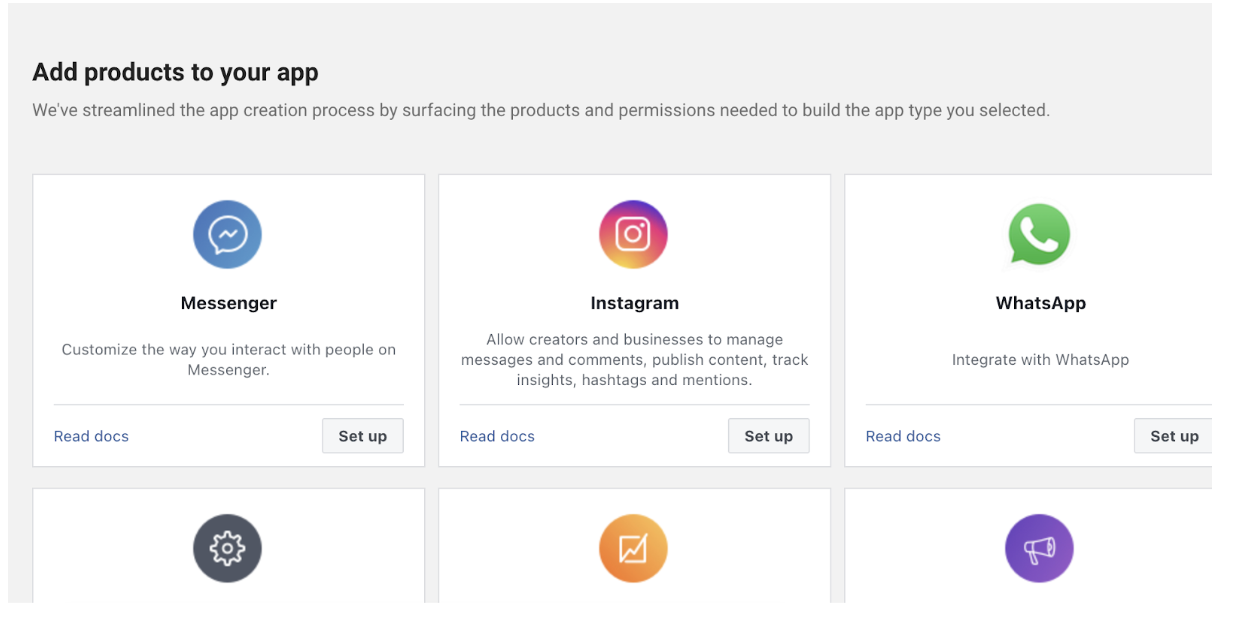
Add Products to Your App
4. Create a System User and Assign Roles
- Business Settings > Users > System Users > Add (if none exists).
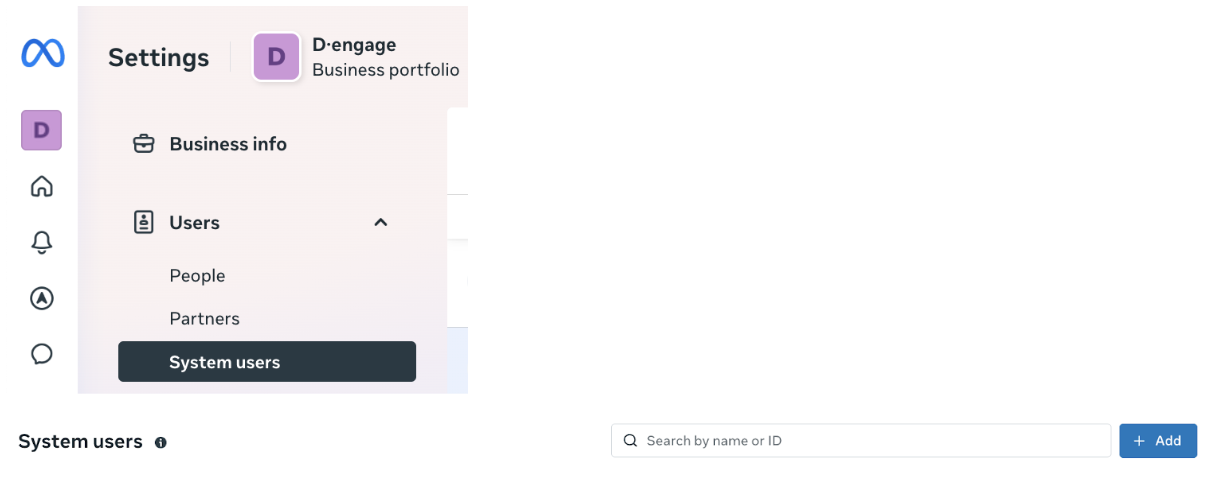
System Users
- Give the System User Full Control on the App
Go to Business Settings > Users > System Users > select your system user.
Click Add assets > choose Apps > select your App.
Turn Full Control (e.g., Manage app) on > Save.
Full Control
5. Generate a Permanent Access Token
- Business Settings > Users > System Users > select the Admin system user > Generate Token.
Token
Choose your app and Expiration = Never (recommended) or 60 days.
Select permissions:
business_management
whatsapp_business_messaging
whatsapp_business_management
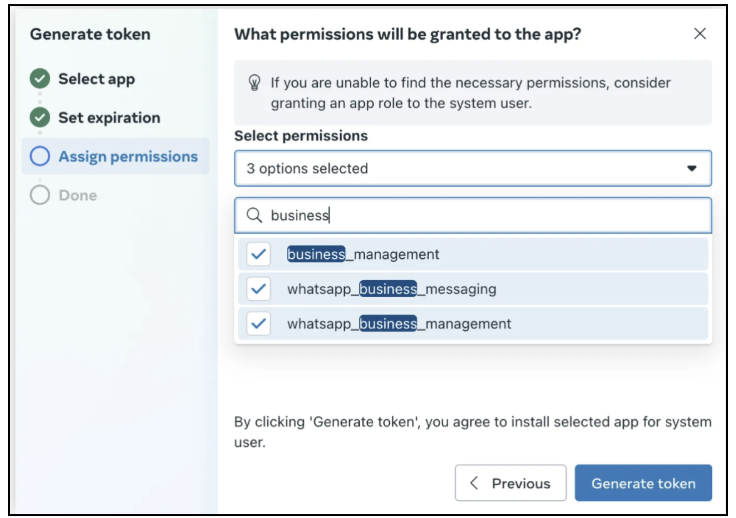
Select Permissions
Click Generate and copy the token immediately, it's shown only once.
6. Retrieve WABA ID and Phone Number ID
- In Developers Console → your app → WhatsApp → API Setup.
- Select your phone number. Copy the WABA ID and the Phone Number ID shown on this page.
7. Prerequisites Checklist
You should now have:
- App ID (from Developers Console)
- Permanent Access Token (with the 3 permissions above)
- WABA ID
- Phone Number ID
- At least one verified phone number under your WABA
How to Start the Integration
Now that you have all Meta values, configure Dengage.
Open WhatsApp Integration in Dengage
To begin, go to: Settings > Integrations > 3rd Party Integrations > WhatsApp
If you don’t see Connect, WhatsApp is not activated for your account. Please contact your Account Manager or Technical Support to enable it.
In this section, you'll see a list of available third-party integrations, including WhatsApp.
To proceed with integration details, click the Details button.
On the screen that opens, you’ll see the integration options for CM, Karix, and WhatsApp Business API.
Choose a Provider
- A modal (pop-up window) will appear with three provider options:
- CM, Karix and WhatsApp Business API
- In order to create a New Sender (WSP) Using WhatsApp Business API: Select WhatsApp Business API, then click Next to continue.
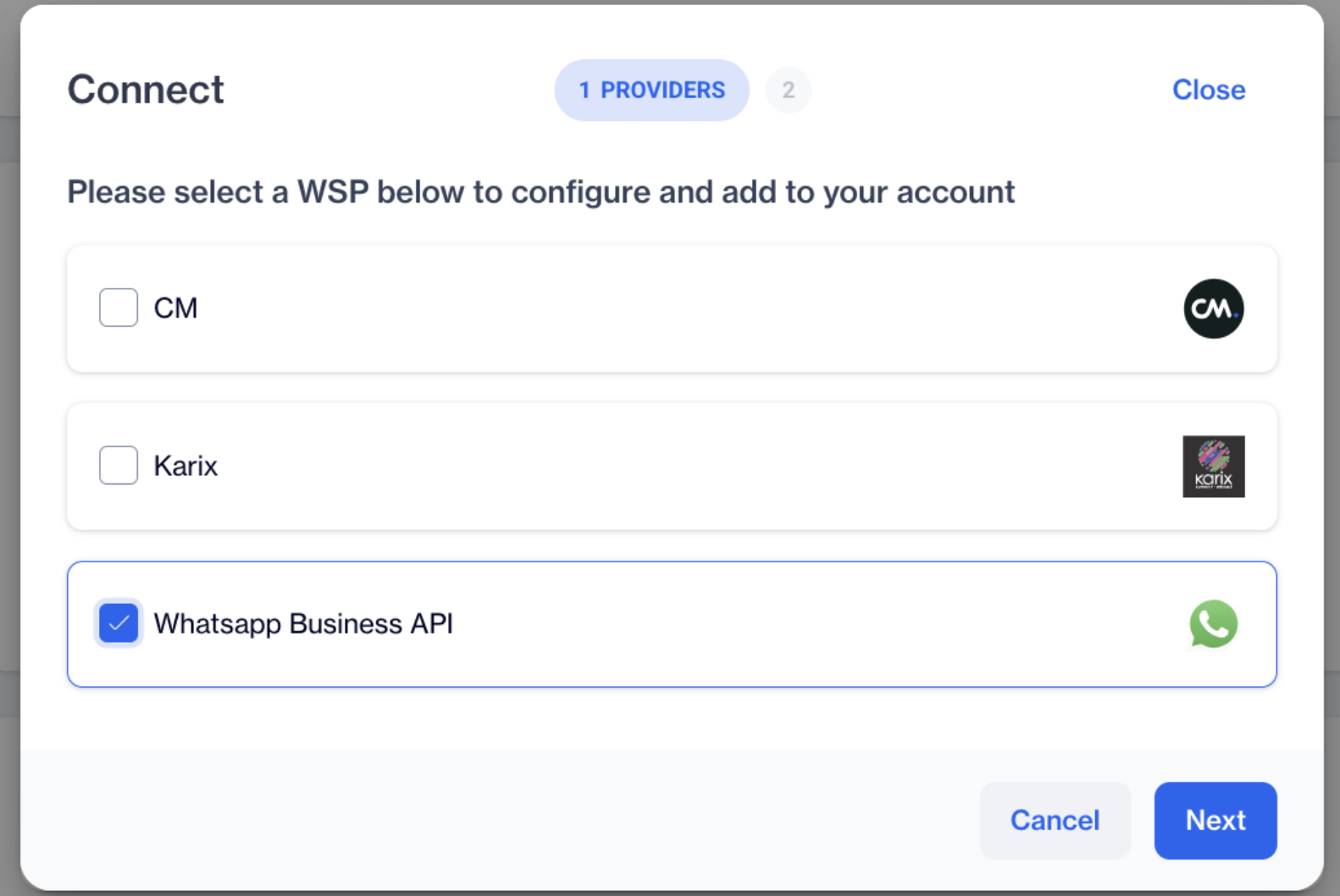
Providers
Fill in Configuration Details
Configuration Name
Name your setup (e.g., “Main WhatsApp API”).
WhatsApp Information
In the Configuration screen, enter the required WhatsApp credentials, which must be retrieved from your Meta Developers Account.
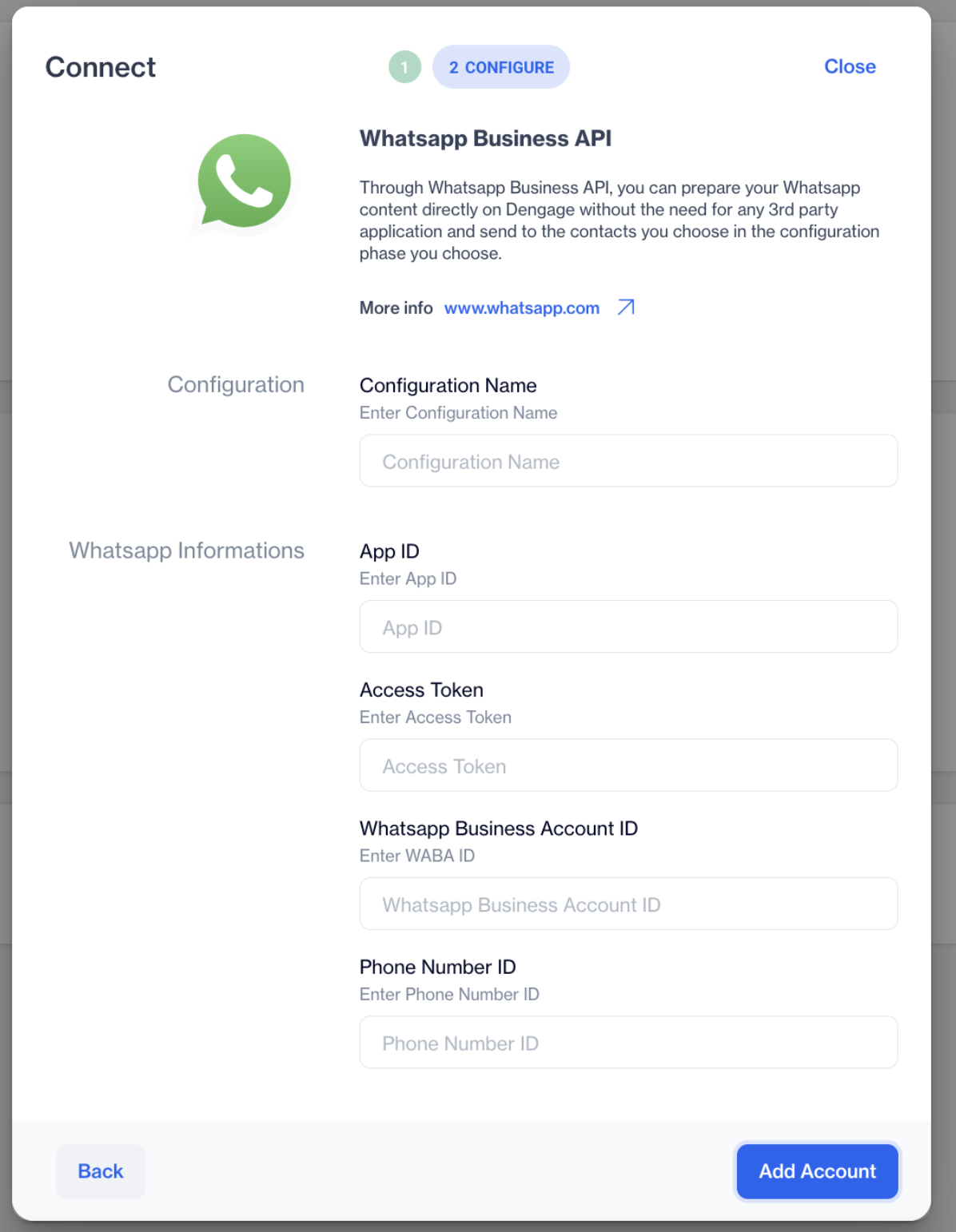
Whatsapp Business API
App ID
Please refer to the Meta-specific requirements in Step 3: Create a Meta App.
For the App ID field, log in to your Meta Developers Account, navigate to Meta > WhatsApp, and locate the App ID at the top-left corner of the screen. Copy this App ID and paste it into the "App ID" field on the Dengage configuration screen, then continue filling in the remaining required fields using the information provided in your Meta account.
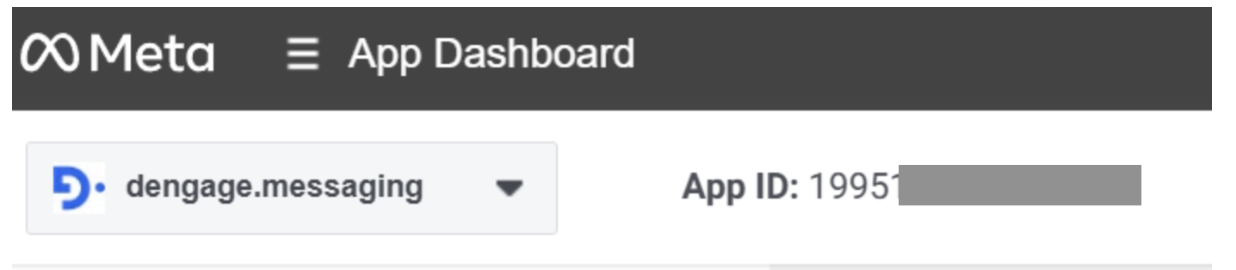
Meta Account

Dengage Platform
Access Token
Important Note:While you can generate an access token from your Developer Account under the API Setup section, this token is temporary and will expire after a short period. To generate a permanent access token, you must navigate to your Meta Business Account and follow the steps under the System Users section as described above.
Please refer to the Meta-specific requirements in Step 5: Generate a Permanent Access Token.
To create a permanent access token, go to Meta Business Account . To ensure the "Generate Token" option displays the necessary permissions, you first need to assign the System Admin role correctly within your Business Account. Go to Accounts > Apps and select the app you want to link. Then, click Assign People and choose the user who will act as the System Admin. After this assignment is completed, navigate to Users > System Users, select the system user you just assigned as admin, and click Generate Token.
A pop-up window will appear—start by selecting the app you want to use for the integration.
Next, you’ll be prompted to choose the token expiration period. You can select either 60 days or Never.
If you select 60 days, you must renew the token every 60 days—otherwise, your WhatsApp messages will not be sent. For this reason, it is recommended to choose Never to avoid interruptions.
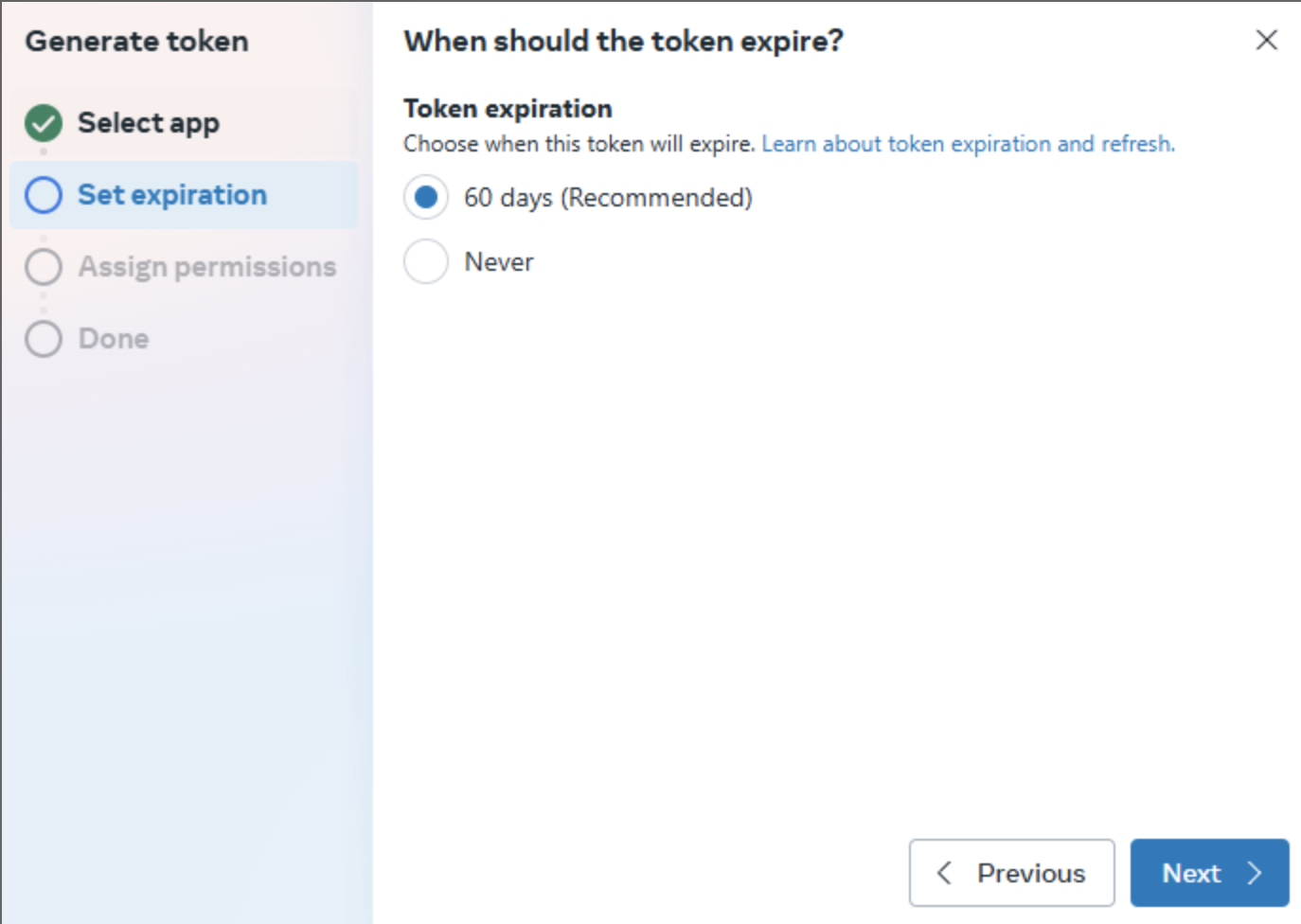
Token Expiry
After assigning the necessary permissions—business_management (for sending messages), whatsapp_business_messaging (for creating templates), and whatsapp_business_management (for capturing events), click the Generate Token button.
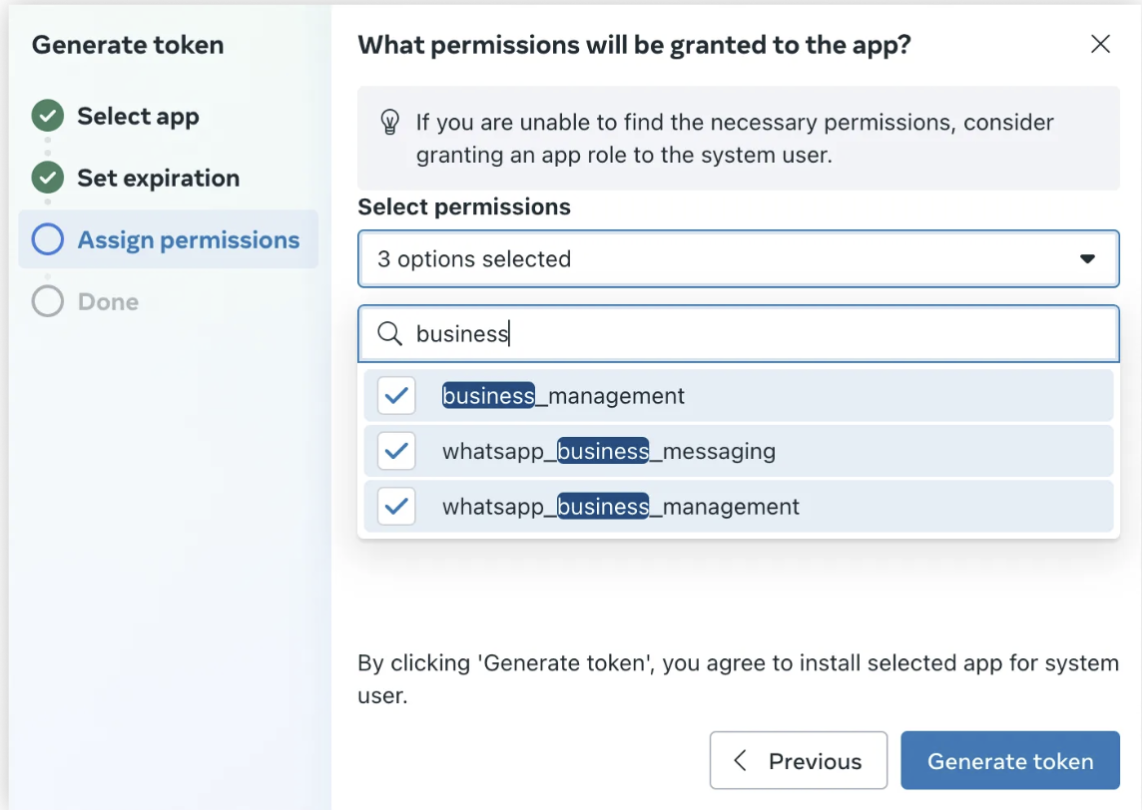
Permissions
Once the token is generated, it will be displayed on the screen. Copy the token immediately and paste it into the Access Token field on the Dengage WhatsApp Integration screen.
Important:The token is shown only once. After you copy it, it disappears from the interface. If you forget to copy it or navigate away from the screen, you will not be able to retrieve it again and must generate a new one.
WABA ID (WhatsApp Business Account ID) and Phone Number ID
Please refer to the Meta-specific requirements in Step 6: Retrieve WABA ID and Phone Number ID.
Go to your Meta account > WhatsApp > Quickstart screen, complete the quickstart process, and click the "Start using API" button to open the API Setup page.
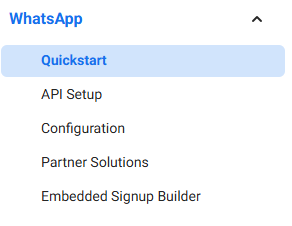
Quickstart
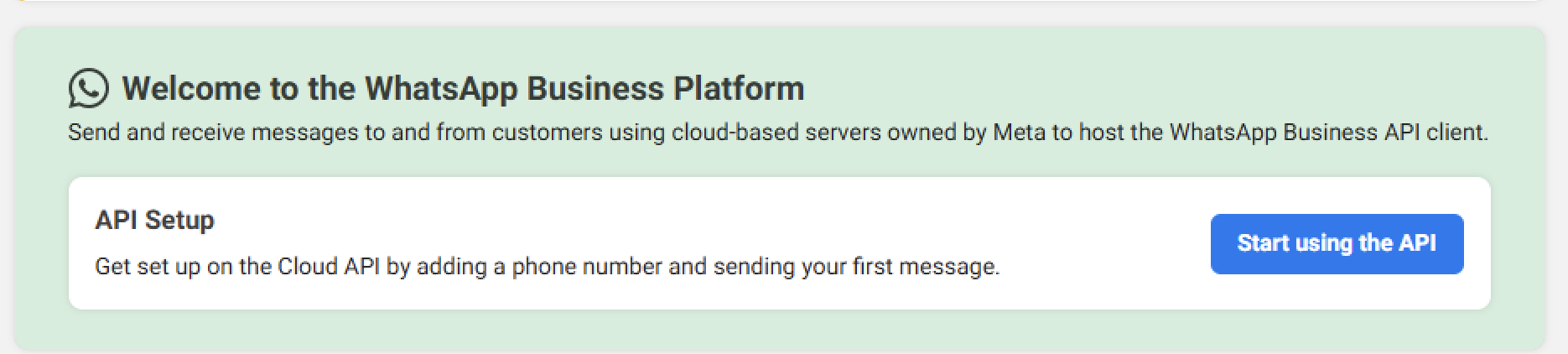
Start using the API
Quickstart
On the API Setup screen, scroll to the Send and receive messages section. Select your test number, and you’ll see both the WABA ID (WhatsApp Business Account ID) and the Phone Number ID displayed. Copy these values and paste them into the corresponding fields on the Dengage WhatsApp integration screen.

Phone Number ID and WABA ID
Adding WABA ID and Phone Number ID to Dengage
To add these values, go to your Dengage Panel and navigate to Settings > Integrations > 3rd Party Integrations > WhatsApp to open the Dengage WhatsApp integration screen. Under the section called WhatsApp Information, paste the WABA ID and Phone Number ID you copied from the Meta API Setup page into the corresponding fields. Once the information is entered, confirm by clicking the Add Account button.
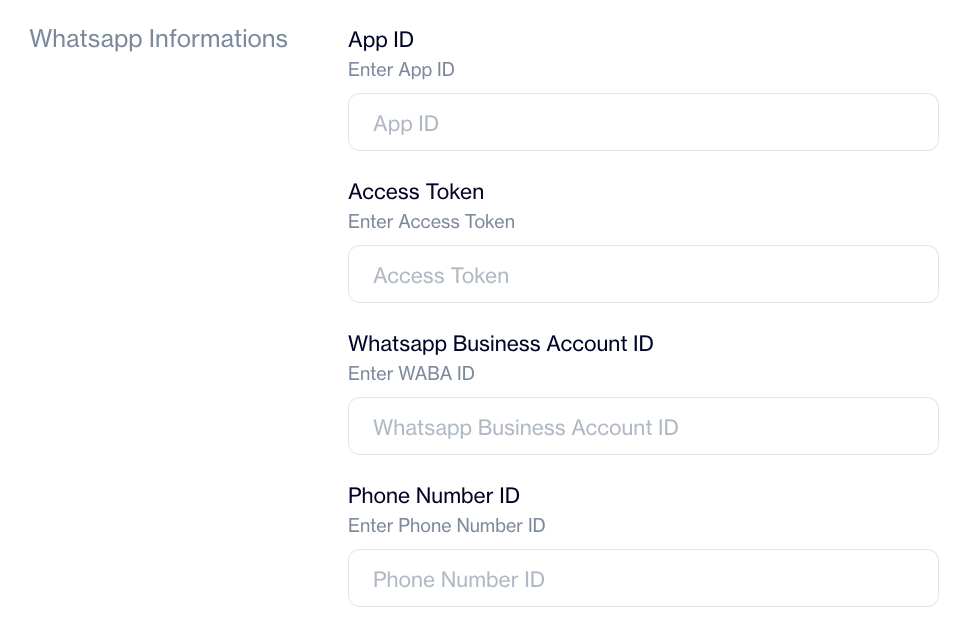
Adding WABA ID and Phone Number ID to Dengage
Dengage supports multiple numbers: use New WSP for each additional sender. App ID & Access Token usually remain the same; WABA ID / Phone Number ID change per number.
Webhook Configuration
After filling out the WhatsApp Information section on the Dengage Integration screen, click the Add Account button. This will reveal the Webhook Configuration section.
The WhatsApp Information section contains details required for creating content and sending messages, while the Webhook Configuration section is used for tracking incoming messages, such as delivery status.
Once the Webhook Configuration appears , the Callback URL and Verify Token fields will be automatically filled in.
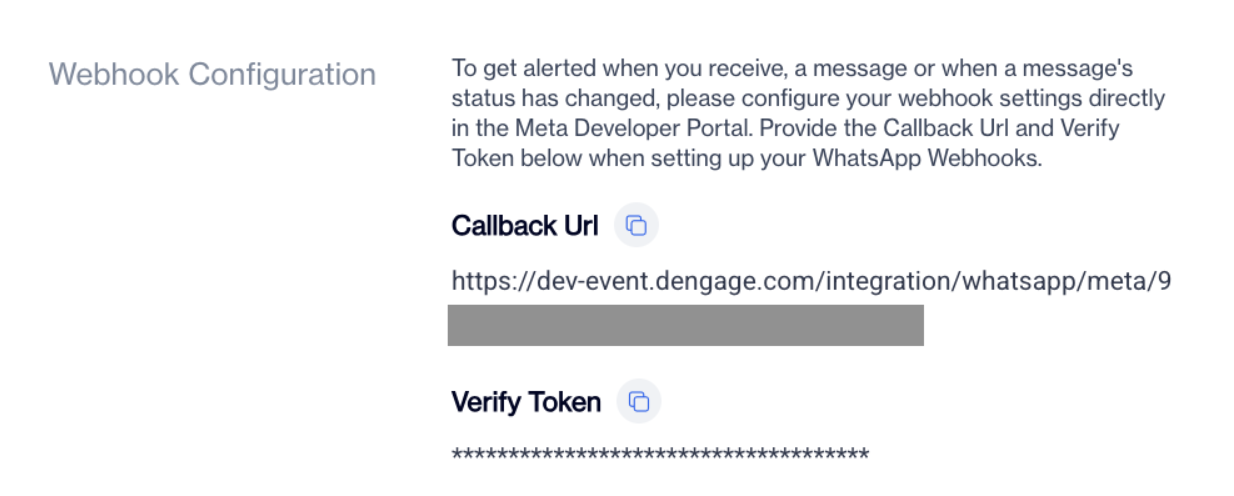
Dengage Webhook Configuration
Copy these values on Dengage Configuration Screen, then go to your Meta Developers Account > WhatsApp > Configuration section. Paste the Callback URL and Verify Token into the corresponding fields, and click Verify and Save.
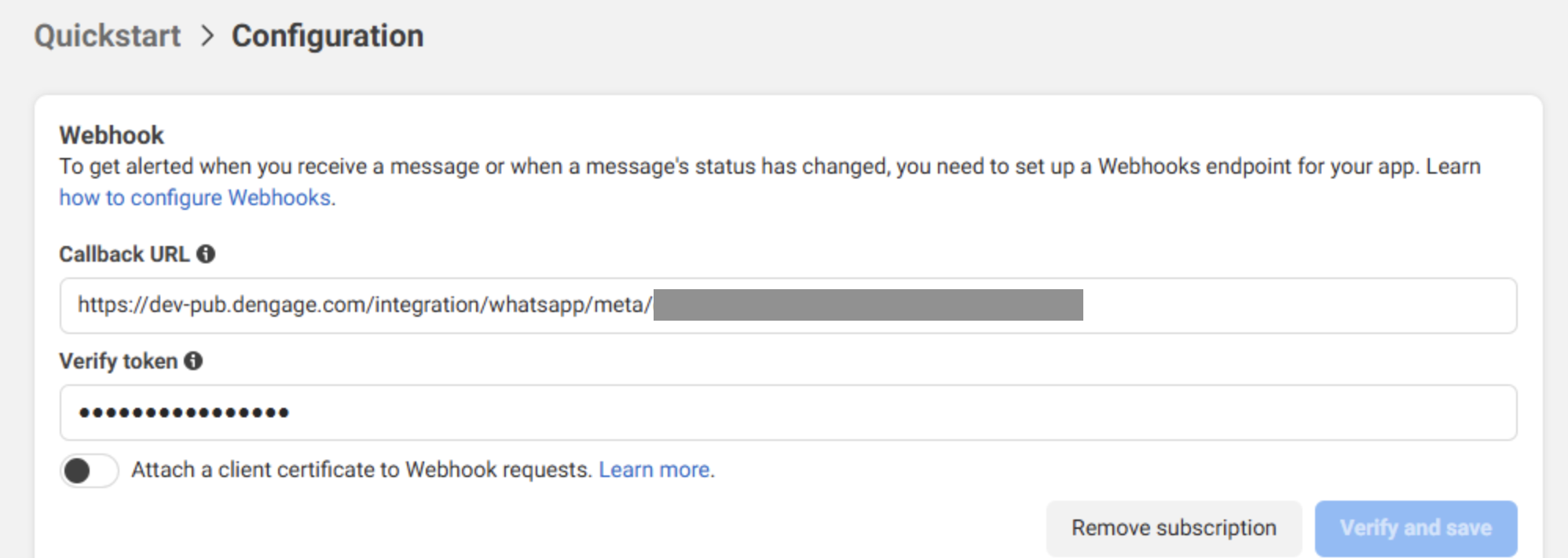
Meta Configuration
If everything is set up correctly, a list of Webhook Fields will appear. From this list, make sure to activate the “messages” subscribe toggle only. Do not subscribe to any other fields in the list. This completes the WhatsApp integration process.
Important:All current enhancements are built for WhatsApp API version 22.0 and above. Make sure your Meta application is also set to use version 22.0 or above to ensure full compatibility.
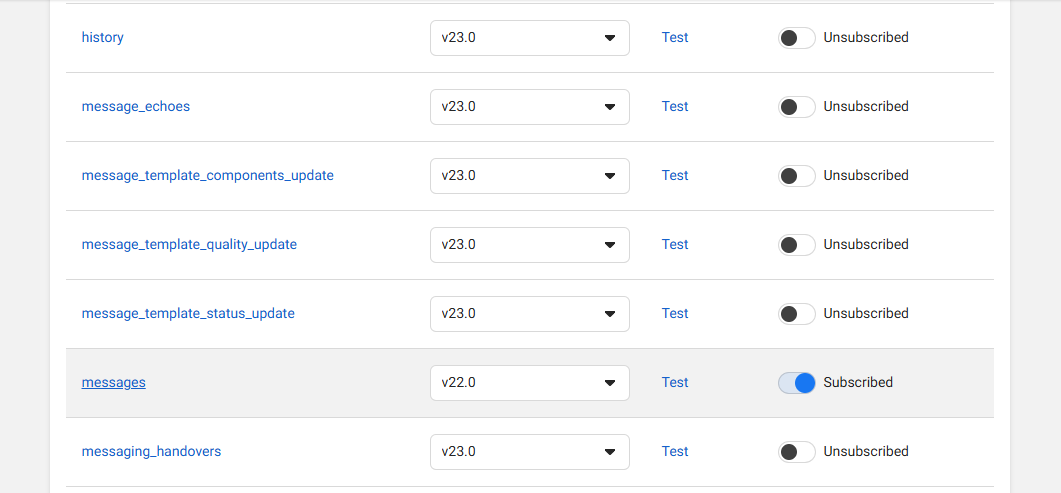
WhatsApp API version 22.0
After saving your webhook settings in Meta, go back to the Dengage panel and click Update WSP to finalize the configuration.
You can enter multiple accounts, but only one account per modal.
Adding an Additional WhatsApp Phone Number
If the user wants to use more than one WhatsApp number, they should navigate to Developers Account > WhatsApp > API Setup > Step 1: Select Phone Numbers. In this section, click the "Add Phone Number" button from the dropdown menu. In the modal that appears, fill in the required fields under the WhatsApp Business Profile section, such as the WhatsApp Business Display Name. Then proceed to the "Add Number" section to input the new phone number. In the final step, Verify Number, complete the number verification process.
Important Note:The number being added must not be associated with any existing WhatsApp account (personal or business).
Adding a Second Phone Number Under the Same Application in the Platform
When a new phone number is selected from the From dropdown in the API Setup, both the Phone Number ID and the WhatsApp Business Account ID (WABA ID) will change based on the selected number.
If you want to add an additional number to the same application via the Dengage platform, follow these steps:
- Go to Integration > 3rd Party Integration > WhatsApp.
- Click the "New WSP" button to add a new WhatsApp sender profile.
- Under the WhatsApp Information section:
- Enter a Configuration Name for the new setup.
- App ID and Access Token will remain the same. You can copy these from the existing configuration and paste them here.
- Update the Phone Number ID and the WhatsApp Business Account ID (WABA ID) fields using the values associated with the new phone number from Meta Developers Account.
- After filling in the required fields, click the Add Account button to complete the process.
Important Note:If the newly created application is linked to an existing WhatsApp Business account, all phone numbers connected to that account will automatically appear in the From dropdown under the API Setup section in the Meta Developer Console.
As a result, all content associated with the existing phone number(s) will be visible in the Dengage WhatsApp Content section. This is because content visibility is determined by the Phone Number.
However, when a new phone number is added and linked through the same application using the method described above, only content tied to that specific number will be visible. In this setup, it behaves as if a different partner is using the system, keeping content visibility limited to that number.
How Message Delivery Works
When sending a WhatsApp message through Dengage, the message is delivered to the number stored in the whatsapp_number field in the master_contact table. At the same time, the system checks the whatsapp_permission field to ensure the contact has granted permission to receive WhatsApp messages. A message will only be sent if the contact exists in the master contact list and has the appropriate WhatsApp permission.
Quick Validation (Optional but Recommended)
Send a test message using your WhatsApp test phone, then confirm:
- The event appears under your Dengage WhatsApp logs/reports.
- The delivery status updates as expected.
Webhook Checklist
- Callback URL & Verify Token set in Meta
- Messages subscription enabled
- Events visible in Dengage after a test
Integration with Karix
- From the list of providers, select Karix.
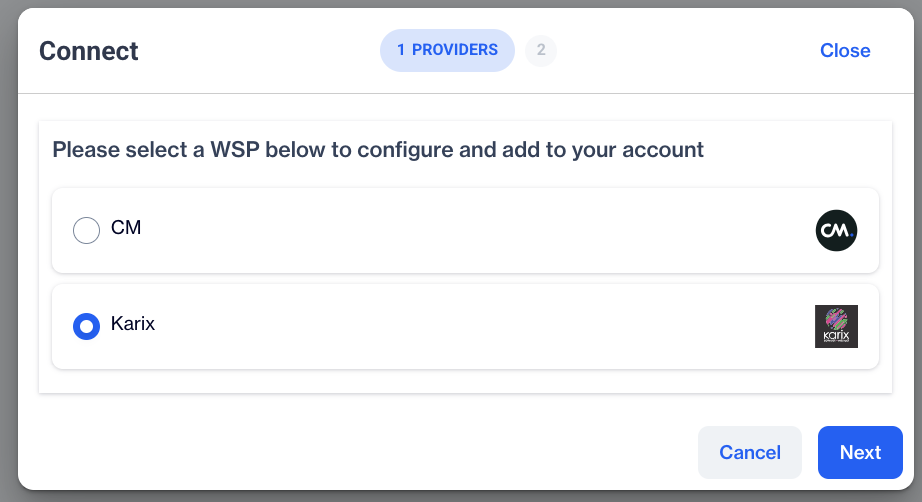
Karix
A configuration form will appear. Please follow the step-by-step guide below to fill in the necessary fields.
Obtaining WABA Id
- Login to your Karix Panel
- Navigate to WhatsApp Campaign
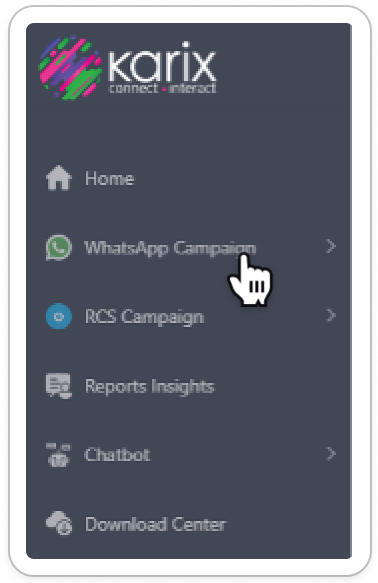
Karix WhatsApp Campaign
- Select the WABA Status
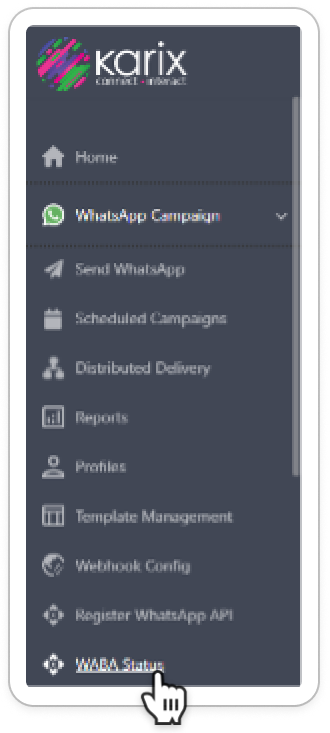
WABA Status
- From the data grid, Copy The WABA ID .
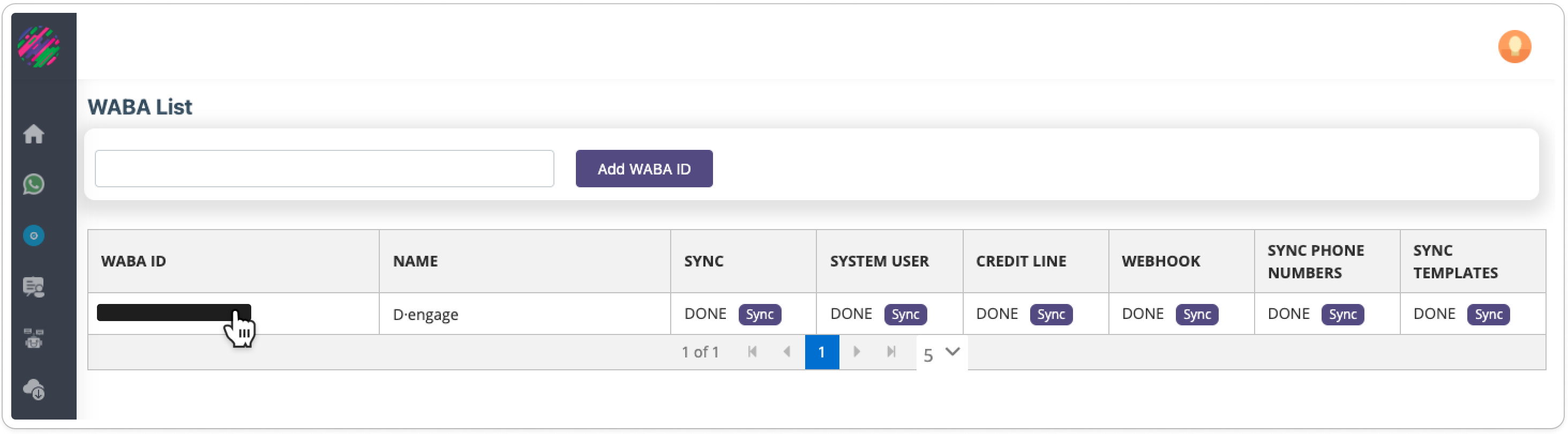
Copy The WABA ID
- In the WSP form, paste the WABA ID into the designated section.
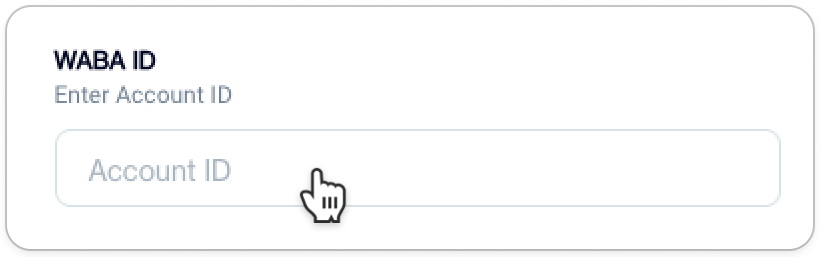
Paste WABA ID
Obtaining Product Tokenge**](http
- Access the Karix Lounge
- Under the Power API section, click on the API KEYS button.
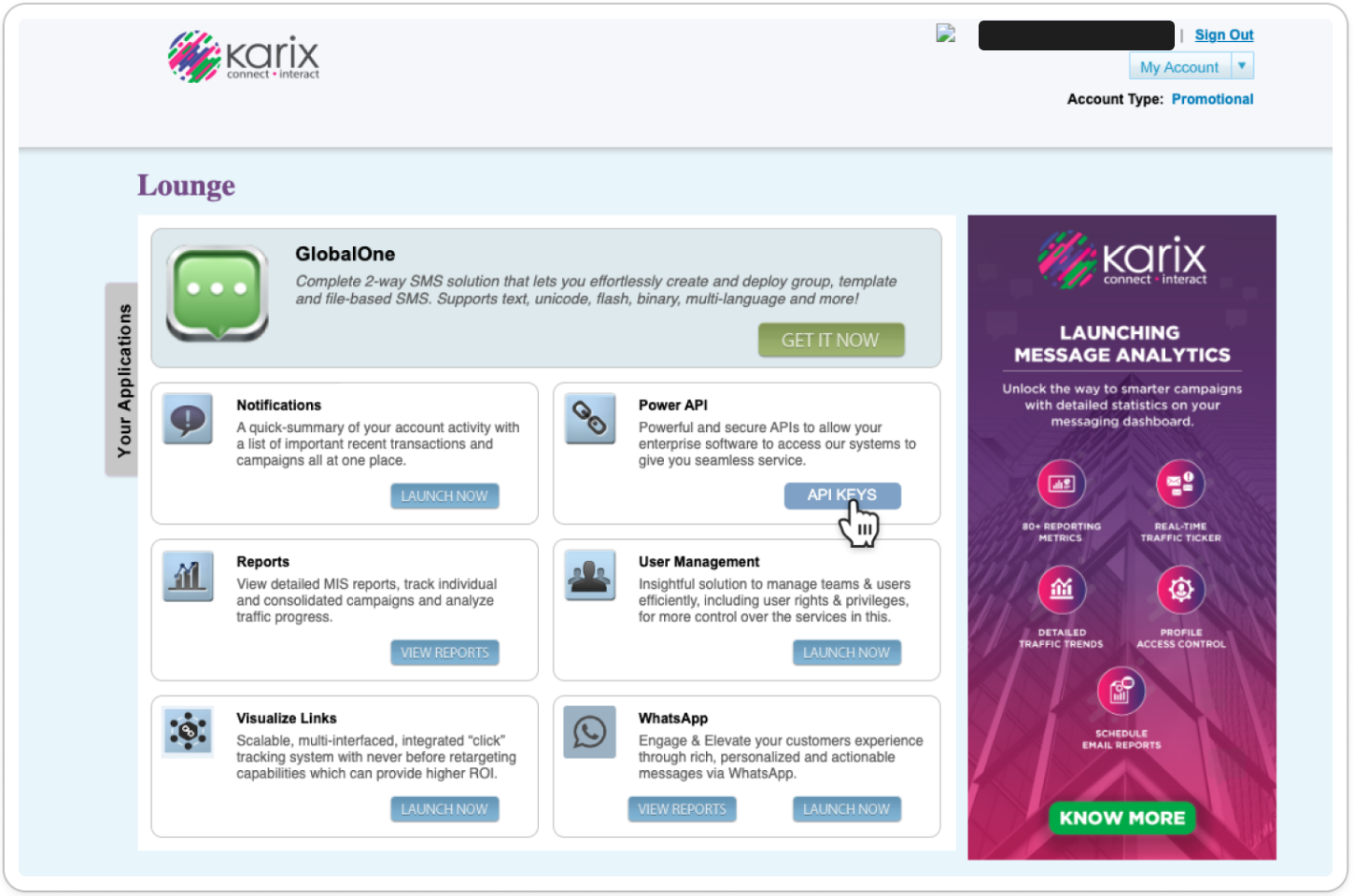
- Reveal the API Key by clicking the Eye icon and copy it.
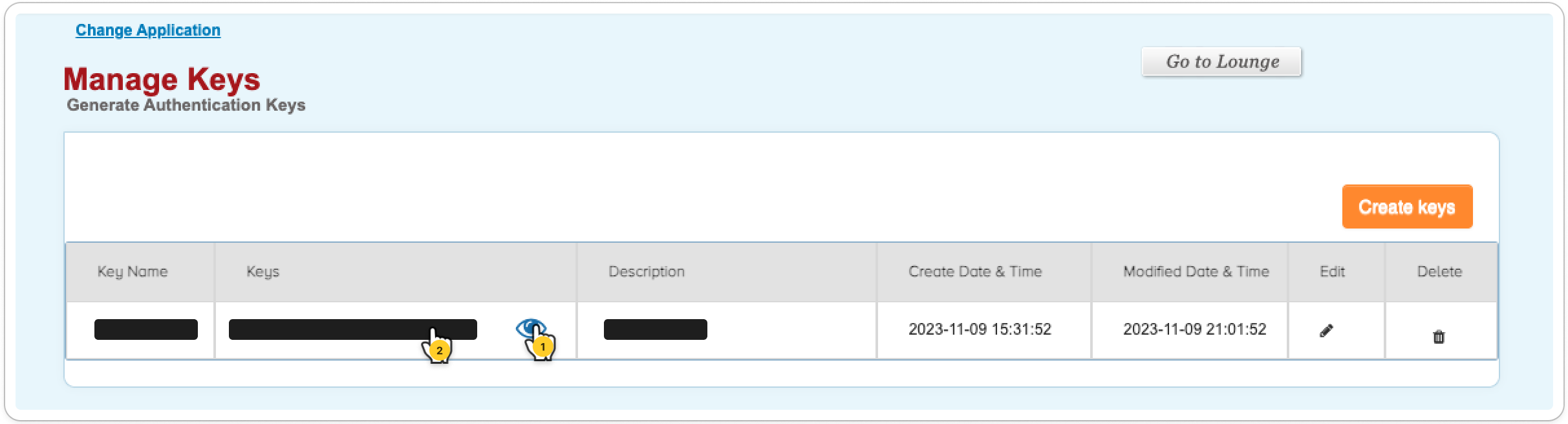
Manage Keys
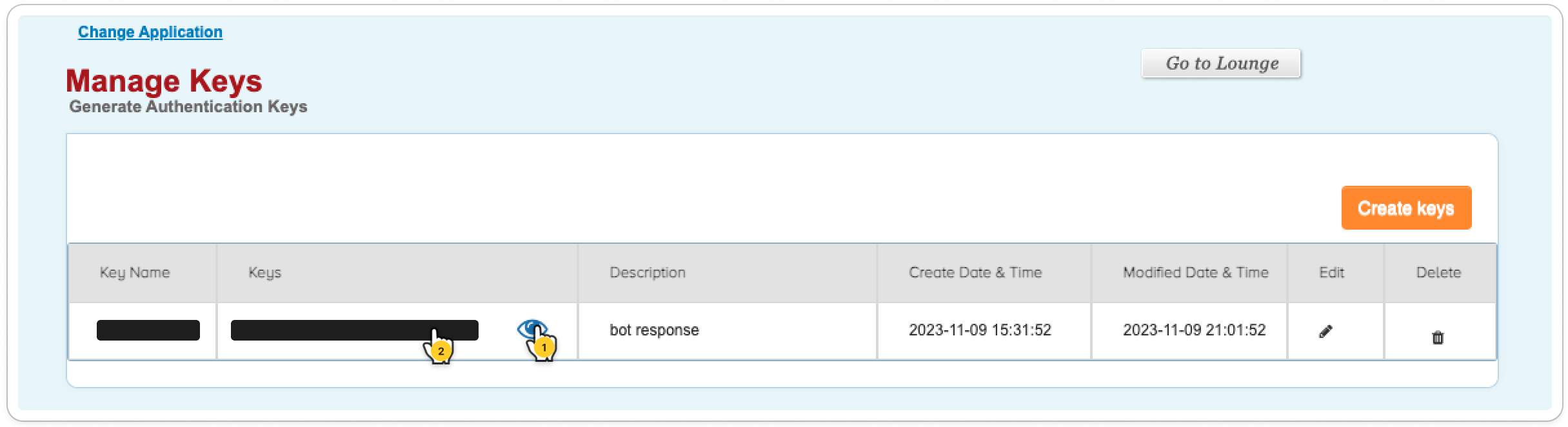
- **Paste the copied ID into the Product Token ** section on the WSP form.
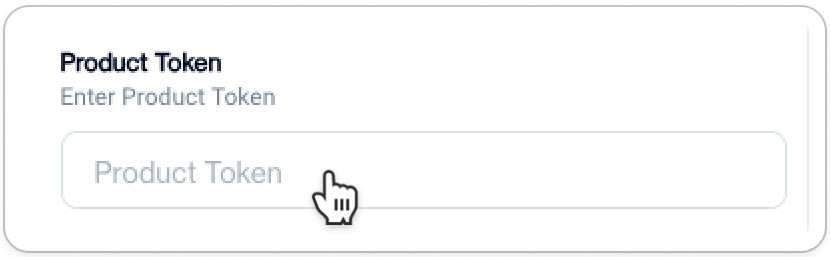
Product Token
- Enter your WhatsApp Business Profile number as Sender Name in the provided field.
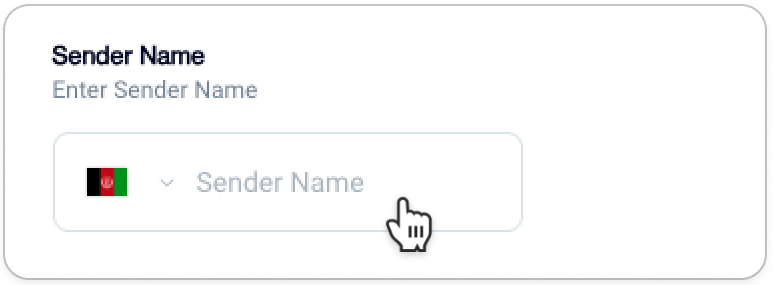
Sender Name
- To finalize the configuration, click the Add Account button.
Add Account
Important Information on Message Tracking & Reporting
- For seamless integration of data from the Karix platform into D·Engage Send Reports, please initiate a request with our Technical Support Team. This step is crucial to ensure accurate and complete data transfer.
- Additionally, comprehensive reports are readily available directly from the Karix panel, providing an alternative source for detailed insights.
Integration Complete
Your Dengage and Karix accounts are now connected. You're all set to send WhatsApp Marketing Messages through the registered WhatsApp Business Profile on Karix and receive detailed reports on your campaigns.
Integration with CM.com
- Provide a name for your configuration. This name will be used for selection when sending a campaign and can be any name of your choice.
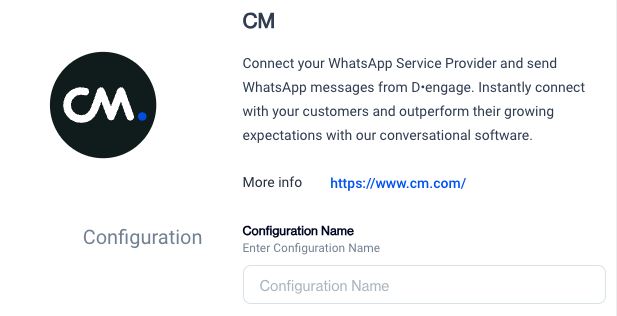
CM
- Complete all the required information in the following sections.
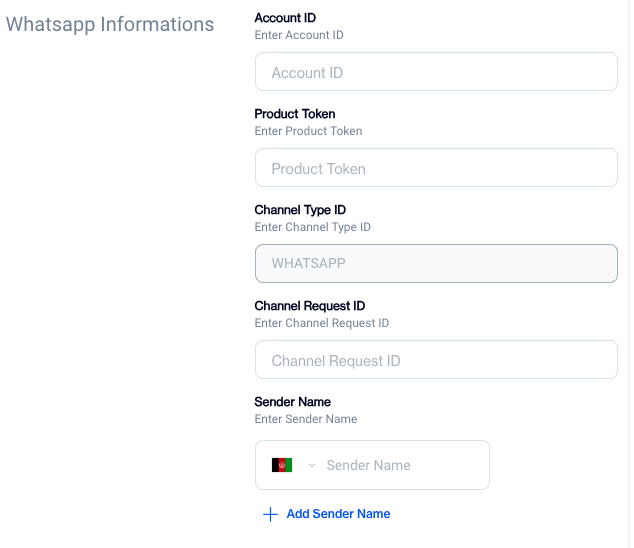
Required Info
Sender Name is your WhatsApp Business Profile NumberTo complete the integration, the "Sender Name" field should be filled with your WhatsApp Business Profile Number. If you intend to add more than one Business Profile, click on the "Add Sender Name" button.
Integration Complete
Your Dengage and CM.com accounts are now connected. You're all set to send WhatsApp Marketing Messages through the registered WhatsApp Business Profile on CM.com and receive detailed reports on your campaigns.
Related Articles
Whatsapp
You can send WhatsApp messages through three different service providers, depending on your business needs and integration preferences. Each method supports WhatsApp message delivery with unique setup and operational flows. This section covers all ...Whatsapp
Note on Whatsapp API Integration Before creating WhatsApp message templates, please ensure your WhatsApp Business API integration is complete. If it's not yet set up, click here to complete the integration. WhatsApp Template (Content) Listing Page ...Whatsapp Business API
Dengage now supports direct integration with the WhatsApp Business API. Users can seamlessly set up and manage their WhatsApp messaging without relying on third-party providers. Once the integration is configured via Settings > Integrations > 3rd ...Advanced Personalization Whatsapp
WhatsApp - Customization and Advanced Personalization WhatsApp Advanced Personalization lets you send customized WhatsApp messages using pre-approved templates. By adding variables to your template, you can personalize each message with dynamic ...Messaging
The Messaging section allows you to create and manage message templates for direct communication through channels like WhatsApp. These messages are typically used in real-time or triggered scenarios—such as sending delivery updates, responding to ...