Content Languages
The Content Languages feature enables you to manage and configure the languages used in your campaign content. This ensures consistency in communication and supports creating multilingual campaigns to reach a diverse audience effectively.
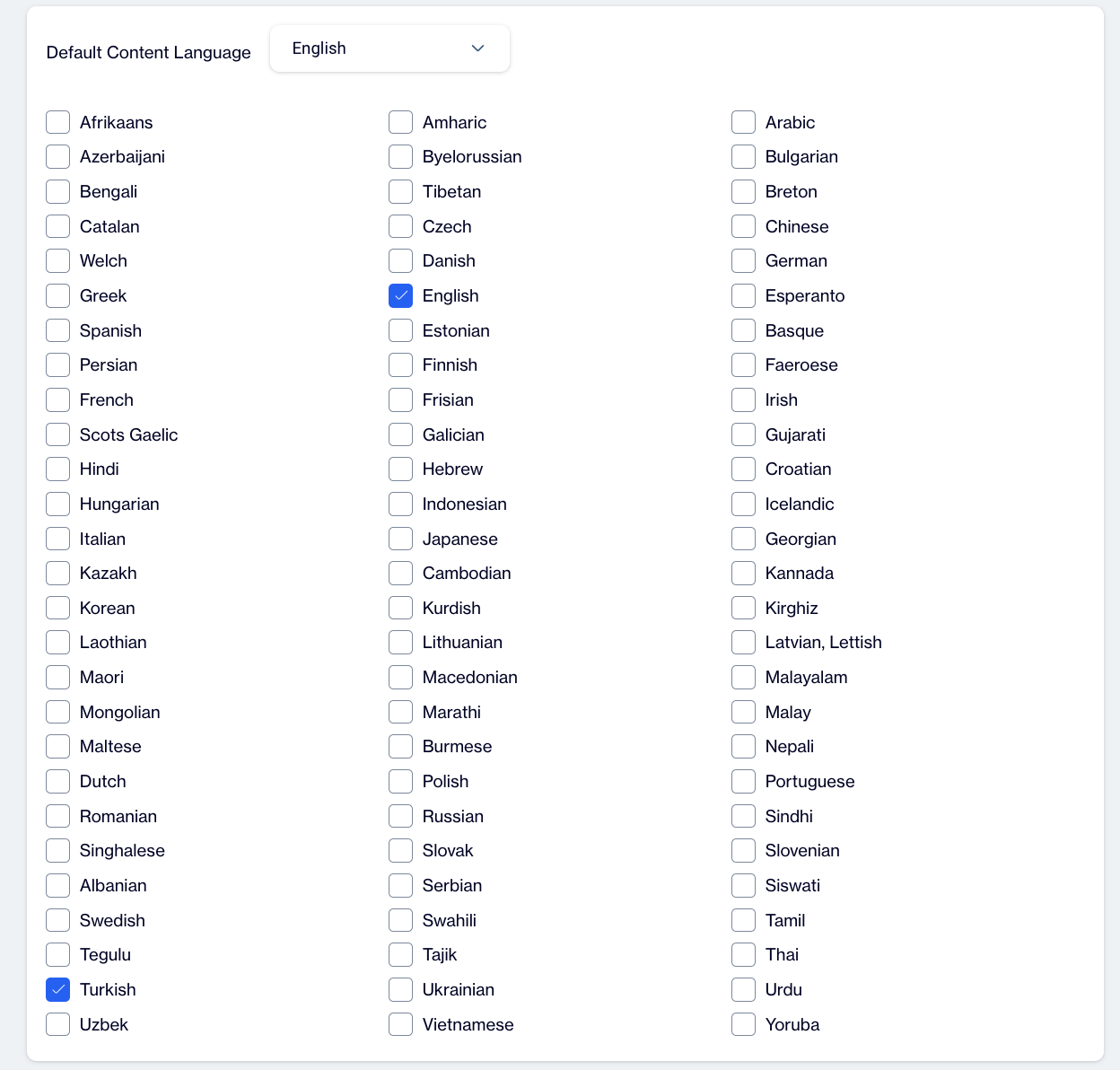
Content Languages
How to Configure Content Languages
1. Set the Default Content Language
- Locate the Default Content Language field in the Content Languages settings.
- Select the primary language for your campaign content. This will serve as the default language used if no other languages are specified.
2. Select Additional Languages
- Use the Languages (Check Box Selection) section to add multiple languages:
- Check the boxes next to the languages you wish to enable.
- Selected languages will allow you to create and deliver campaign content in these additional languages.
3. Save Your Configuration
- Once you’ve chosen the default and additional languages, click the Save button.
- Your selected languages will now be saved and available for use in your campaigns.
Related Articles
Creating Email Content
The Email Content section allows users to create email content using different tools based on their requirements. You can create email content using the Rich Text Editor, Code Editor, Email Builder, or by Uploading a pre-designed file. This ...Creating SMS Content
The SMS section allows users to efficiently create and manage SMS messages for rapid communication with their audience. This feature streamlines the process of generating SMS content, ensuring that users can quickly craft and organize messages for ...Creating Push Content
The Push Content section allows users to create push notifications in a straightforward way. Push notifications are created in a single format, ensuring simplicity and efficiency in the content creation process. Users can define the message content, ...Language Support for Onsite Template Content
The Language Support for Onsite Template Content feature allows users to create multilingual onsite content. Users can add languages to their content and manage them efficiently. When adding a language, they have two options: Copy From Content: ...Content Versioning
This guide explains how to use the version selection feature available for all content types in the platform excluding Image Library. This feature enables users to view all available versions of their content, switch between versions seamlessly, and ...