Content Versioning
This guide explains how to use the version selection feature available for all content types in the platform excluding Image Library. This feature enables users to view all available versions of their content, switch between versions seamlessly, and access data such as the creation date and time, as well as the user who created or updated each version.
How to Use the Version Selection Feature
1. Access the Content Type
Navigate to the desired content type (e.g., Email, Push, or Dynamic Content) from the main menu.
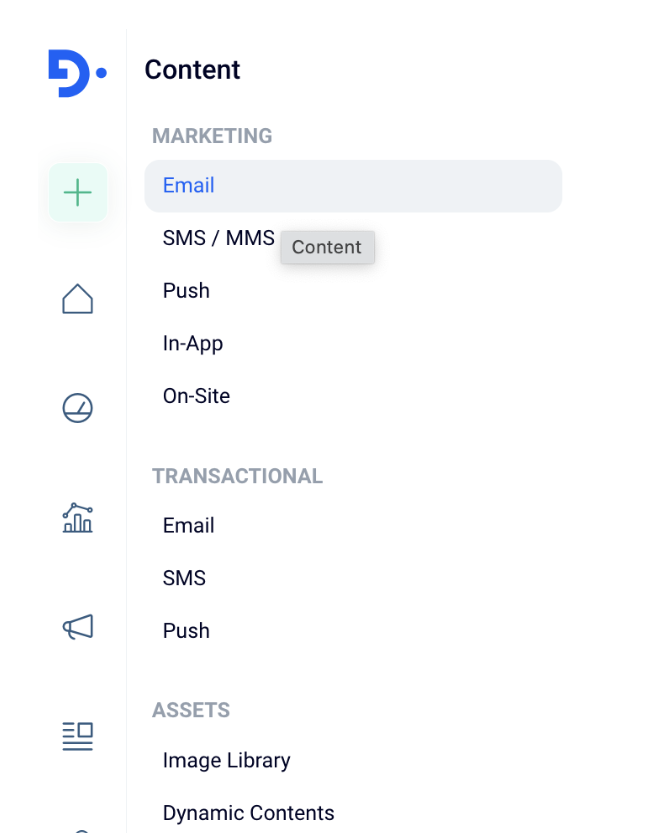
Content Type
2. Open the Version Dropdown Menu
On the content editing or viewing screen, locate the "Current Version" dropdown menu.
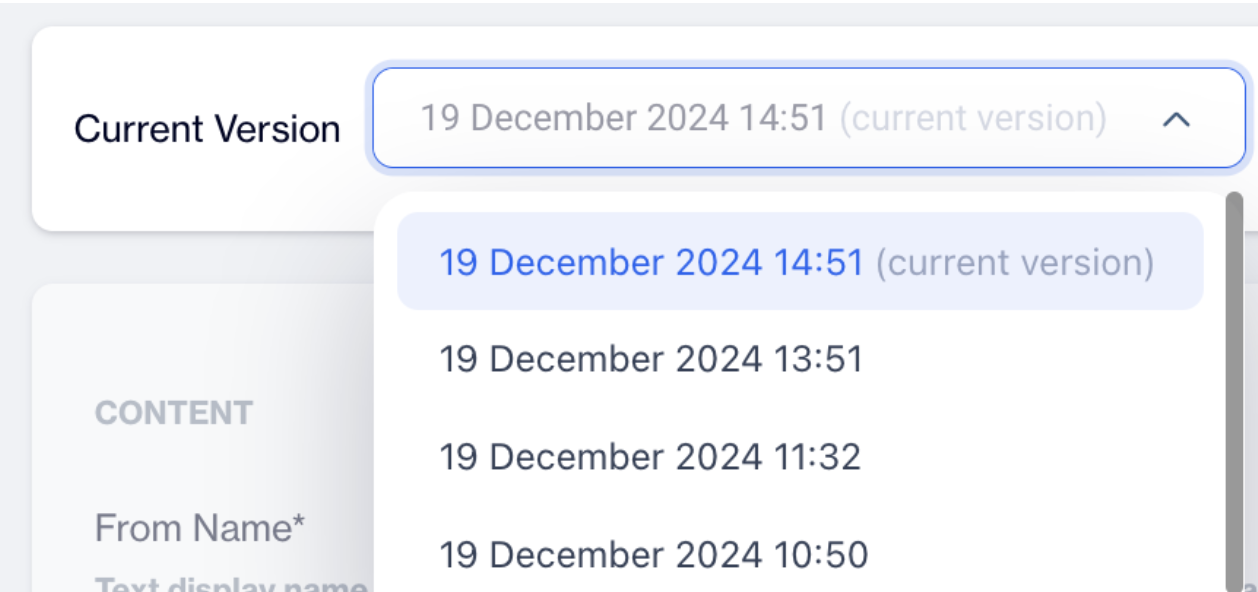
Version Dropdown Menu
3. View Available Versions
- The dropdown menu lists all versions of the content.
- Each version entry includes:
- The creation date and time.
- The user who created or last updated the version.

Current Version
4. Select a Version
- Click on a version from the dropdown list.
- The content displayed will automatically update to the selected version.
5. View Version Data
- When a version is selected, the following data is displayed:
- Updated By: Shows the name of the user who last updated this version.
- Created On: Displays the date and time when the version was created.
Related Articles
Content Languages
The Content Languages feature enables you to manage and configure the languages used in your campaign content. This ensures consistency in communication and supports creating multilingual campaigns to reach a diverse audience effectively. Content ...Editing Email Content
You can update your content depending on its status. There are two possible scenarios: Draft Content: If your content is in draft status, you can directly edit it without restrictions. Approved Content: If your content has been approved, follow these ...Editing Push Content
You can update your content depending on its status. There are two possible scenarios: Draft Content: If your content is in draft status, you can edit it without restrictions. However, if you want to make the content usable, you must first send it ...Editing SMS Content
You can update your content depending on its status. There are two possible scenarios: Draft Content: If your content is in draft status, you can edit it without restrictions. However, if you want to make the content usable, you must first send it ...Creating In-App Content
The In-App Content feature enables you to deliver targeted messages and interactive content directly within your mobile app. This includes elements like banners, pop-ups, and other notifications designed to engage users, promote offers, and drive ...