Geofence Trigger Period Adjustment
The Geofence Trigger Period Adjustment feature allows for greater flexibility in geofence campaigns by enabling users to specify active days and time intervals within a campaign’s defined date range. This enhancement ensures campaigns are more precise, efficient, and aligned with business needs, ultimately improving targeting and reducing unnecessary activity.
- Trigger Period: Define specific active days and time intervals for campaigns.
- Day Selection: Choose applicable days via checkboxes (Monday to Sunday).
- Time Interval Selection: Define start and end times for each day using a Time Picker.
- Default Behavior: Campaigns remain continuously active if no specific days or time intervals are set.
How to Access
- Navigate to Campaign > Targeting > Geofencing > New+.
- Select the campaign type as Single Channel and the channel as Push.
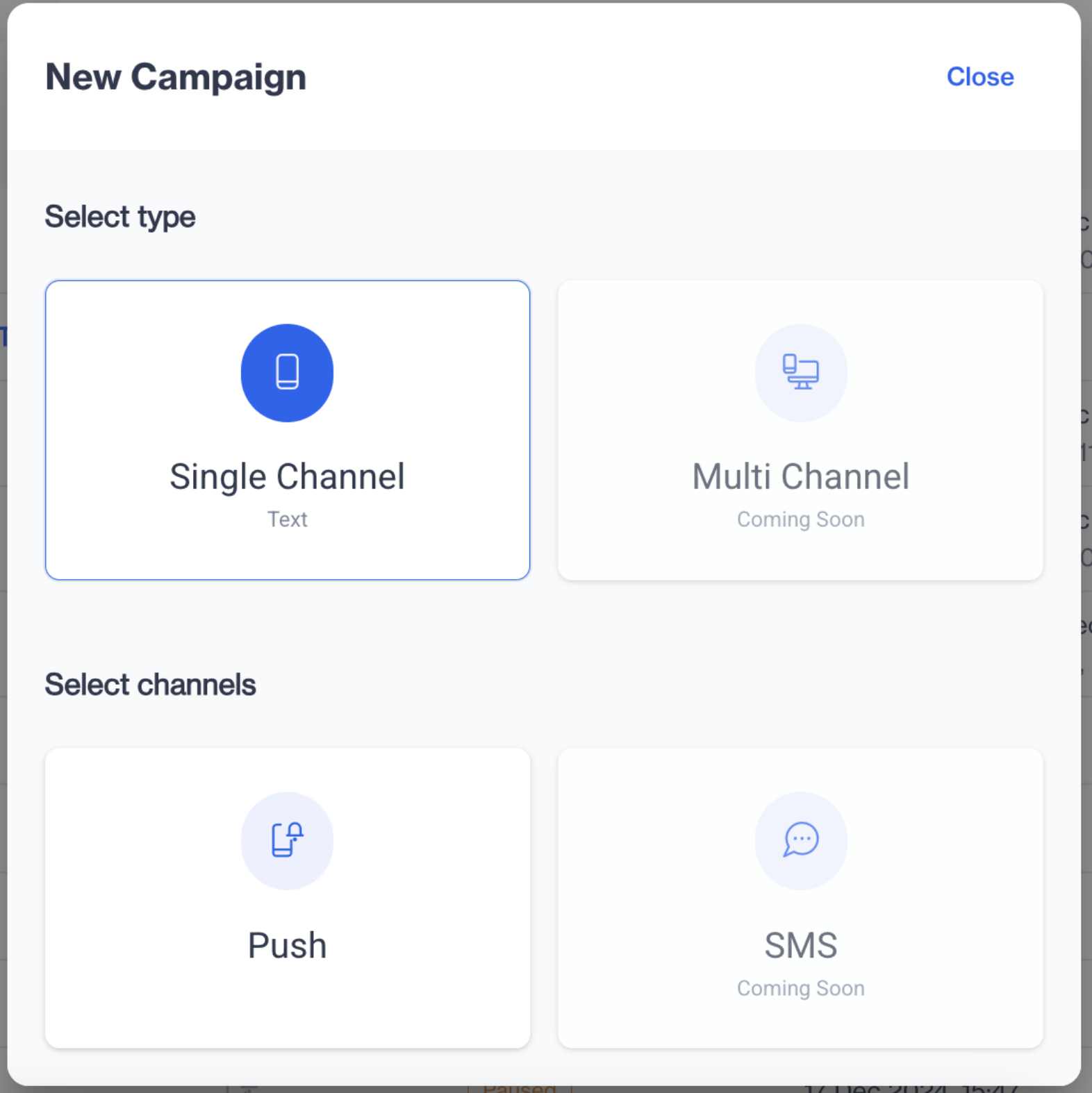
Single Channel - Push
3.Fill in the required details:
Name: Enter the campaign name.
Tag: Add a tag for the campaign.
Application: Select the applicable application.
4.Under the Schedule option, define the start and end dates for the campaign.
5.Enable the Periodic Trigger option:
- From the dropdown menu, choose either:
- All Days: Activates the campaign for all days within the date range.
- Custom Days: Specify selected days.
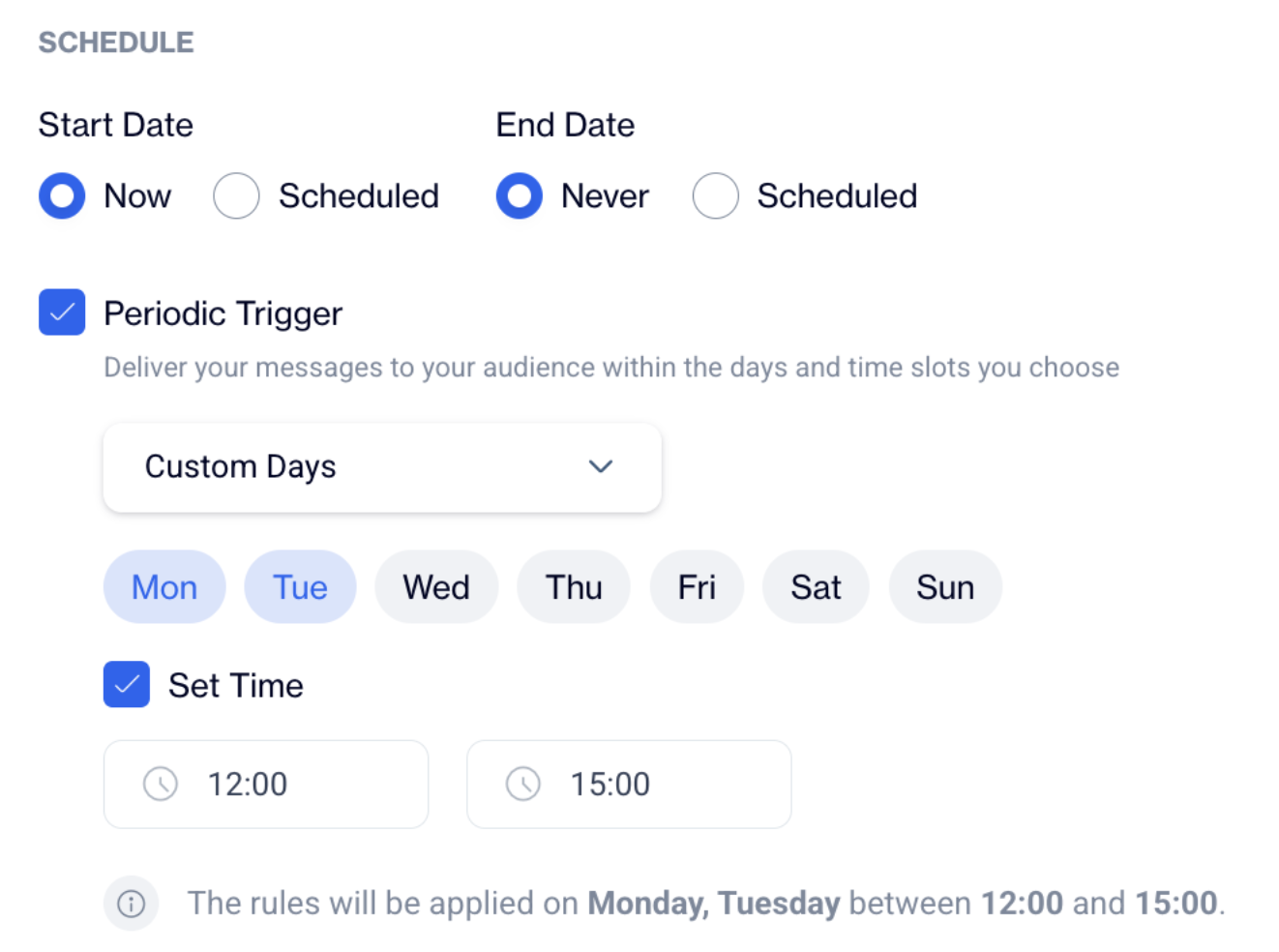
Periodic Trigger
6.Enable the Set Time checkbox to define the active time interval:
- Specify the Start Time and End Time for each active day.
This feature ensures that campaigns can operate more efficiently and precisely, reducing unnecessary activity and maximizing impact.
Prerequisites
- The receiver must grant geolocation permission.
- The Geofence Trigger Period Adjustment feature is available as an add-on and must be purchased separately to enable it for your campaigns.
Related Articles
Geofence Campaign - Add Segment
The "Geofence Campaign - Add Segment" feature ensures geofence-triggered notifications are sent exclusively to a selected segment of users. Previously, geofence campaigns targeted all users without the option to narrow the audience. This new ...Geofence
This section will guide you through the process of creating and managing geofence clusters, as well as understanding how geofences function in the background once users grant location permission. A geofence is a virtual perimeter for a real-world ...Geofence - Frequency Capping Update
The Geofence - Frequency Capping Update gives you more control over how often users receive messages in location-based campaigns. Previously, frequency capping was mainly managed through campaign configuration rules. With this update, you can now ...Segmenting Users Who Click on Geofence Push Campaigns
The segmentation tool for Geofence Push Notifications has been enhanced to include a new "Clicked" option under the Users who section. This addition allows users to segment audiences who have clicked on push notifications, providing more refined ...Directly on Flow
To create a push campaign directly within the Campaign flows, follow these steps: Access Campaign Flows: Navigate to the Campaign flows section in your account. Click on the "New" Button: In the upper right corner of the page, you’ll see a New ...