Profiles
The Dengage Platform relies on profiles as the core components of our contact management system. Dengage excels in constructing a comprehensive view of each user profile, offering extensive insights into user interactions and behaviors. This inclusive approach ensures that every profile contains a wide range of information, including demographic details, engagement histories, preferences, and behavioral insights. This wealth of information enables the creation of highly targeted and personalized marketing strategies, allowing businesses to connect with their audience more effectively. By integrating various data points, Dengage provides a nuanced understanding of each user, empowering marketers to create messages and campaigns that resonate on a personal level. This level of detail and insight establishes the groundwork for building enduring relationships and boosting engagement across all stages of the customer journey.
This section comprises two primary components:
- Contact Information
- Device Data
To reach out to Profile main page please navigate to Audience > Profile.

Profiles
Contacts Listing
This segment displays end-user details, encompassing contact information, reachability metrics, IYS (If-You-See) data, RFM (Recency, Frequency, Monetary) analysis, acquisition data, and customizable fields.
All these attributes are accessible via the "View Columns" feature, enabling users to tailor their display preferences by selecting from the available options.
This data grid displays all available information for any contact in your database.
(1) NEW CONTACT: It Allows you create a new contact by following parameters:
- Contact Key andatory]
- Name
- Surname
- Phone Number
(2) Filter : This enables the use of advanced filtering to refine and condense the data grid according to your specific needs.
Advanced FilteringUtilize the advanced filtering functionality to apply multiple conditions using the AND logic and filter the grid data accordingly.
(3) View Columns: Add/Remove displaying information on grid data. Customize the grid view according to your specific requirements.
Devices Listing
This data grid displays all available information for any device existing on your database.
(1) Filter : This enables the use of advanced filtering to refine and condense the data grid according to your specific needs.
Advanced FilteringUtilize the advanced filtering functionality to apply multiple conditions using the AND logic and filter the grid data accordingly.
(2) View Columns: Add/Remove displaying information on grid data. Customize the grid view according to your specific requirements.
Manual addition of devices is not supported. Devices are automatically matched with corresponding contacts based on visitor behaviors. If there is no existing contact in your database, a device may be labeled as Anonymous. To locate devices associated with specific contact(s), you can utilize the advanced filtering options.
Contact Card
The Contact Card presents comprehensive information about each contact. It provides detailed engagement analytics, campaign performance data, device information, and permissions related to any user in your database
To access the Contact Card go to Audience > Profiles > Contacts List, then click on the row of the desired contact. You will be taken directly to that contact’s Contact Card.The Contact Card is divided into 6 tabs, each containing different types of information. Below, you will find detailed descriptions of the information included in each tab.
Overview
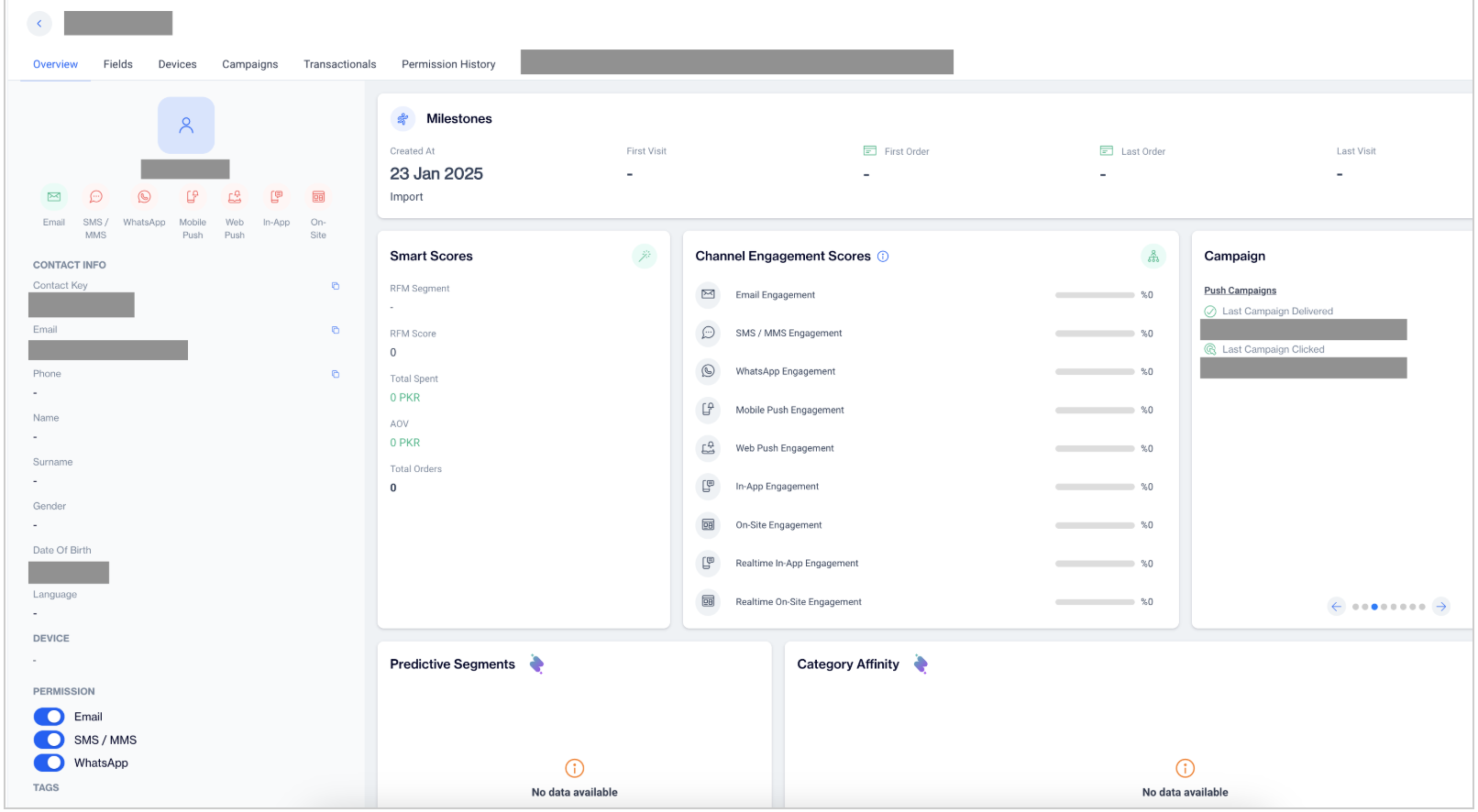
The Overview tab is the first and default tab of the Contact Card. It provides a concise overview of the contact's information. The Overview tab consists of 11 sections, each providing specific details. The sections are further explained in detail below.
Contact Card
(1) Condensed Contact Profile (Contact Card): This section provides a summary of the contact's information. It includes demographic details, a brief overview of their device information, channel permissions, and any assigned tags.You can add or remove tags associated with the contact.
(2) Milestones: The Milestones section displays significant events in the user's engagement history, along with their respective dates and event sources. Created at indicates the registration date and the source through which the contact was registered. Visit & Order milestones provide information about the dates and platforms through which the contact engaged.
(3) Smart Scores: This section presents data related to the contact's spending and orders over time. It includes the contact's classified
- RFM Segment: Categorization of the contact based on RFM (Recency, Frequency, Monetary) analysis.
- RFM Score: Numerical score assigned to the contact based on RFM analysis.
- Average Order Value(AOV): Average amount spent per order by the contact.
- Total Spent: Cumulative amount spent by the contact.
- Total Number of Orders: The count of orders made by the contact.
(4) Channel Engagement Score: This section highlights the channel engagement data from the previous 6 months. The data reflects the contact's engagements with targeted campaigns. As a result, all the data within this section is presented as percentages.
(5) Campaign: This section serves as an activity log, displaying the most recently engaged campaigns per channel within the last 6 months. It features a carousel-like view that allows you to navigate between channels. All types of latest engagements for each channel are listed in this section.
(6) Predictive Segments: The LTV (with average), Likelihood to Buy, and Likelihood to Churn rates for a contact are displayed in this section. These metrics are derived from the contact's engagements and behaviors.
- The Lifetime Value (LTV) provides valuable insights into the contact's long-term value.
- The Likelihood to Buy and Likelihood to Churn rates indicate the probability of the contact making a purchase or churning, respectively.
This data offers valuable insights into the contact's behavior and can help inform targeted strategies and campaigns.
(7) Category Affinity: The Category Affinity section provides valuable insights into the purchasing behavior of contacts by displaying the percentage breakdown of purchases across different categories. It showcases the affinity or preference of the contact towards specific product categories based on their past purchases. This data helps identify the categories and a deeper understanding of their preferences. By leveraging the Category Affinity section, you can tailor your strategies to enhance customer satisfaction and engagement.
(8) Likelihood to Uninstall: The Likelihood to Uninstall section provides insights into the probability of a contact uninstalling an application. It displays uninstall rates categorized as Low, Medium, or High, which are determined by algorithms analyzing user behaviors on each device. The section features a carousel-like view that allows you to navigate between devices and view the uninstall rates specific to each device. This information helps identify potential churn risks and allows you to take proactive measures to retain users and improve user experience.
(9) Affinities: The Affinities section provides valuable insights into the engagement patterns of a contact compared to a similar audience. It displays an engagement rate indicating the level of engagement relative to similar users. Additionally, it reveals the best-engaged channel for the contact and the optimal engagement times per channel. All of this information is derived from the contact's previous behaviors, allowing you to understand their preferences and tailor your communication strategies accordingly.
(10) Localization: The Localization section provides key information about the contact's localization settings. It includes the Last Known Country, User Language, and User's Time Zone for displaying the contact's data. Understanding these localization settings allows you to deliver personalized experiences, communicate effectively, and ensure timely interactions with contacts in their preferred language and within their local time zone.
(11) Activities Pane: To access this section you need to click on left arrow icon on the right pane .
The Activities section provides a comprehensive view of a contact's interactions over the past 30 days. It includes;
- Sessions by Devices: Number of sessions recorded on different devices.
- Page Views: Number of times pages have been viewed.
- Shopping Cart Activities: Data related to activities in the shopping cart, such as adding or removing items.
- Orders: Number of orders made by the contact.
- Order Items: Details about items included in each order.
- Searches: Information on searches performed by the contact.
- Wish List Events: Events related to wish lists, such as adding or removing items.
These activities are presented as an activity log, organized by each day. Additionally, you have the ability to filter the events based on the device used by the contact.
This section allows you to track and analyze the contact's engagement history, enabling a deeper understanding of their browsing and purchasing behavior. By leveraging the Activities section, you can gain insights into user preferences, identify potential trends, and optimize your strategies to deliver personalized experiences and maximize customer satisfaction.
Fields
The Fields section provides a comprehensive display of the System Fields and Custom Fields values associated with a contact within our platform.
By accessing the System Fields, users can obtain essential demographic data, channel permissions, RFM Scores, and other system-defined information such as segments and consent dates.
Custom Fields, on the other hand, are created by clients who utilize the platform. This section allows users to access and retrieve the values of these Custom Fields. By leveraging the Fields section, users gain access to a wealth of contact information, both standard and customized, enabling personalized experiences, targeted campaigns, and a deeper understanding of the contact's profile and preferences.
Devices
The Devices section within the contact profile allows users to view a table displaying information related to the contact's devices. The table includes columns such as ;
- Device Name
- Token: Push token is a unique identifier assigned to a mobile device for enabling push notifications. It allows applications to send targeted messages to users on their devices.
- Application: The application being used on each device.
- Last Activity Date: This section provides an organized view of the contact's devices, allowing users to track and manage device-specific information
Available Actions
1.You can copy the Token to your clipboard by clicking on the icon next to it.
2.To access detailed device information, simply click on the Device name.
Device Details
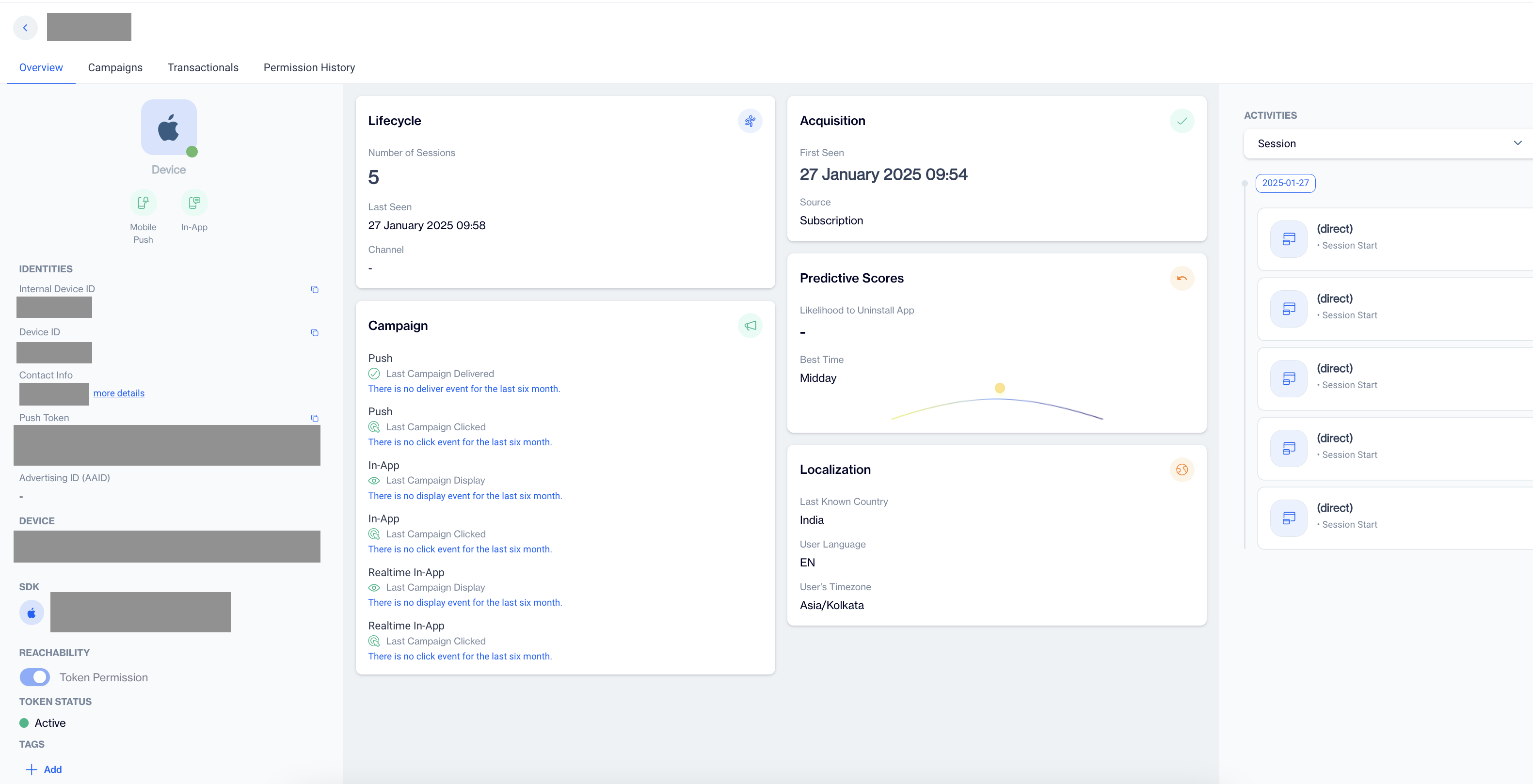
Identities: This section provides a comprehensive display of identity-related information for a contact. It includes;
- Device ID: Unique device identifier
- Contact Info: Name and Email
- Push Token: Push token is a unique identifier assigned to a mobile device for enabling push notifications. It allows applications to send targeted messages to users on their devices.
- Advertising ID: AAID (Android Advertising ID) is a unique identifier assigned to Android devices by Google. It helps advertisers and developers track and personalize ads while giving users control over their ad preferences.
Additionally, it denotes the available channels, such as Mobile Push and In-App, using colored icons (red or yellow) to indicate their status.
Furthermore, it displays the SDK version being used by each app. Users can gather Reachability Statuses; Token Permission and Token Status, enabling a deeper understanding of the contact's device engagement.
Additionally, this section allows users to view/edit the assigned tags for the contact, providing further categorization and customization options.
Available Actions
1.Identity fields can be copied to clipboard by clicking icon next to it.
- Tags can be added to or removed from Device .
Lifecycle: This section provides insights into the contact's activity and engagement history. It includes;
- Number of Sessions, indicating the total number of sessions the contact has had.
- The Last Seen date and time represent the most recent activity timestamp of the contact.
Additionally, the section displays the channel through which the contact was last active. By referring to the Lifecycle section, users can track the contact's engagement patterns, identify their last interaction, and gain valuable information to tailor their communication strategies accordingly.
Predictive Scores: This section provides valuable insights into the contact's behavior and engagement patterns on regarding device. Within this section,
- Likelihood to Uninstall score indicates the probability of the contact uninstalling the application, categorized as low, medium, or high.
- Best Time predicts the optimal engagement time for displaying device of the contact.
These predictive scores are derived from the contact's previous behaviors on selected device.
Acquisition: This section provides valuable information about the contact's acquisition or first encounter with your platform. It displays the acquisition details based on;
- First Seen date, which represents the timestamp of the initial interaction.
- Source, indicating the channel or origin through which this device was acquired.
Localization: This section provides key information about the device localization settings. It includes the Last Known Country, User Language, and User's Time Zone for displaying the device data.
Campaign: This section provides an overview of the contact's recent interactions with campaigns on regarding device.
It displays information about the last delivered campaign, the last clicked campaign on the Push channel, as well as the last campaign displayed and clicked on the In-App channel.
These details are collected based on the contact's behavior on the targeted device. This information allows for the optimization of future campaigns and the delivery of personalized and targeted messages to enhance customer engagement and drive desired actions.
Device Details
Campaigns
The Campaigns section displays a data grid specifically tailored to the activity of a single contact. The grid provides a comprehensive overview of the contact's campaign engagements, including columns such as;
- Campaign Name: Name or title of the campaign.
- Campaign Type: Type or category of the campaign (e.g., email, push notification, in-app message).
- Send Name: Name of the specific send instance or version of the campaign.
- Send Date: Date when the campaign was sent to recipients.
- Last Action: Last action taken in relation to the individual send (e.g., opened, clicked).
- Last Action Date: Date when the last action related to the campaign was performed.
Each campaign may consist of multiple sendings, and the data in the grid reflects the last action taken for each individual send by the contact.
By leveraging the 'Campaigns' section, users can gain insights into the contact's campaign interactions, evaluate the effectiveness of their campaigns, and make informed decisions to optimize future engagement strategies.
(1) Filtering Options: Users have the flexibility to filter the data grid based on
- Channel
- Campaigns
- Sends
- Date Interval allowing them to analyze the contact's campaign engagement over a specified period.
Please note that the Date Interval filter has a maximum limit of 3 months.
Transactionals
This section displays a data grid that provides detailed information about transactional sends for a specific contact. The grid includes columns such as;
- Content Name: Name or title of the content being referred to.
- Tags: Labels or categories assigned to the content for organization and identification purposes.
- Send Date: Date when the content was sent to recipients.
- Last Action: Last action taken in relation to the content (e.g., opened, clicked).
Each row represents transactional send data parameters based on the actions taken by the contact. By leveraging the Transactionals section, users can gain insights into the contact's transactional interactions, track their engagement with different content, and analyze the effectiveness of their transactional communications.
(1) Filtering Options: Users have the ability to filter the data grid by Channel, Content, Tags, and Date Interval, allowing them to narrow down the results according to their specific requirements.
Please note that the maximum Date Interval for filtering is 3 months.
Permission History
Permission History section displays a data grid that provides a comprehensive overview of the permission history for both the contact and device of the contact. The grid includes headers such as;
- Profile: Represents the contact and device information.
- Source: Indicates the origin for the permission-related changes.
- Column: Refers to any permission-related column in the database.
- History: Displays the modifications made to the corresponding column value.
- Date: Timestamp of when the permission-related changes were recorded.
This section allows users to track and analyze the permission-related changes over time for both the contact and their associated device. By leveraging the 'Permission History' section, users can gain insights into the permission settings, understand the source of changes, and maintain a detailed record of permission-related activities. This information facilitates compliance with privacy regulations and helps ensure transparency in permission management processes.
(1) Filtering Options: Users are able to filter data by Device . Multiple Device selection is available.
Device Card
The Device Card presents comprehensive information about each device. It provides detailed for a specific device such as; engagement analytics, campaign performance data, device identities, and permissions history for any device in your database
Important DisclaimerAll devices that generate events are recorded in the database, which means there may be anonymous devices in your database. When displaying an Anonymous Device, please note that certain fields or sections may not be available. This is because the device does not have associated identifiable information. However, you can still access other available data and insights related to the device's events and engagement.
To access the Device Card from the Device List, simply click on any row corresponding to the desired device.
Overview
(1) Device Profile: Device Profile displays condensed view of the device with following information.
Identities: This section provides a comprehensive display of identity-related information for a contact. It includes;
- Device ID: Unique device identifier
- Contact Info: Name and Email
- Push Token: Push token is a unique identifier assigned to a mobile device for enabling push notifications. It allows applications to send targeted messages to users on their devices.
- Advertising ID: AAID (Android Advertising ID) is a unique identifier assigned to Android devices by Google. It helps advertisers and developers track and personalize ads while giving users control over their ad preferences.
Additionally, it denotes the available channels, such as Mobile Push and In-App, using colored icons (red or yellow) to indicate their status.
Furthermore, it displays the SDK version being used by each app. Users can gather Reachability Statuses; Token Permission and Token Status, enabling a deeper understanding of the contact's device engagement.
Additionally, this section allows users to view/edit the assigned tags for the contact, providing further categorization and customization options.
Available Actions
1.Identity fields can be copied to clipboard by clicking icon next to it.
- Tags can be added to or removed from Device .
(2) Lifecycle: This section provides insights into the contact's activity and engagement history. It includes;
- Number of Sessions, indicating the total number of sessions the contact has had.
- The Last Seen date and time represent the most recent activity timestamp of the contact.
Additionally, the section displays the channel through which the contact was last active. By referring to the Lifecycle section, users can track the contact's engagement patterns, identify their last interaction, and gain valuable information to tailor their communication strategies accordingly.
(3)Acquisition: This section provides valuable information about the contact's acquisition or first encounter with your platform. It displays the acquisition details based on;
- First Seen date, which represents the timestamp of the initial interaction.
- Source, indicating the channel or origin through which this device was acquired.
(4)Campaign: This section provides an overview of the contact's recent interactions with campaigns on regarding device.
It displays information about the last delivered campaign, the last clicked campaign on the Push channel, as well as the last campaign displayed and clicked on the In-App channel.
These details are collected based on the contact's behavior on the targeted device. This information allows for the optimization of future campaigns and the delivery of personalized and targeted messages to enhance customer engagement and drive desired actions.
(5)Predictive Scores: This section provides valuable insights into the contact's behavior and engagement patterns on regarding device. Within this section,
- Likelihood to Uninstall score indicates the probability of the contact uninstalling the application, categorized as low, medium, or high.
- Best Time predicts the optimal engagement time for displaying device of the contact.
These predictive scores are derived from the contact's previous behaviors on selected device.
Localization: This section provides key information about the device localization settings. It includes the Last Known Country, User Language, and User's Time Zone for displaying the device data.
(6) Localization: This section provides key information about the device localization settings. It includes the Last Known Country, User Language, and User's Time Zone for displaying the device data.
(7) Activities: The Activities section provides a comprehensive view of a contact's interactions over the past 6 months with displaying device. It includes;
- Sessions by Devices: Number of sessions recorded on different devices.
- Page Views: Number of times pages have been viewed.
- Shopping Cart Activities: Data related to activities in the shopping cart, such as adding or removing items.
- Orders: Number of orders made by the contact.
- Order Items: Details about items included in each order.
- Searches: Information on searches performed by the contact.
- Wish List Events: Events related to wish lists, such as adding or removing items.
These activities are presented as an activity log, organized by each day. This section allows you to track and analyze the contact's engagement history on specific device, enabling a deeper understanding of their browsing and purchasing behavior. By leveraging the Activities section, you can gain insights into user preferences, identify potential trends, and optimize your strategies to deliver personalized experiences and maximize customer satisfaction.
Campaigns
The Campaigns section displays a data grid specifically tailored to the activity of selected device. The grid provides a comprehensive overview of the contact's campaign engagements on specific device, including columns such as
- Campaign Name: Name or title of the campaign.
- Campaign Type: Type or category of the campaign (e.g., email, push notification, in-app message).
- Send Name: Name of the specific send instance or version of the campaign.
- Send Date: Date when the campaign was sent to recipients.
- Last Action: Last action taken in relation to the individual send (e.g., opened, clicked).
- Last Action Date: Date when the last action related to the campaign was performed.
Each campaign may consist of multiple sendings, and the data in the grid reflects the last action taken for each individual send by the contact on displaying device.
By leveraging the Campaigns section, users can gain insights into the contact's campaign interactions on selected device, evaluate the effectiveness of their campaigns, and make informed decisions to optimize future engagement strategies.
(1) Filtering Options: Users have the flexibility to filter the data grid based on
- Channel
- Campaigns
- Sends
- Date Interval allowing them to analyze the contact's campaign engagement over a specified period.
Please note that the maximum Date Interval for filtering is 3 months.
Transactionals
This section displays a data grid that provides detailed information about transactional sends for displaying device. The grid includes columns such as
- Content Name: Name or title of the content being referred to.
- Tags: Labels or categories assigned to the content for organization and identification purposes.
- Send Date: Date when the content was sent to recipients.
- Last Action: Last action taken in relation to the content (e.g., opened, clicked).
Each row represents transactional send data parameters based on the actions taken by the contact on displaying device.
By leveraging the Transactionals section, users can gain insights into the contact's transactional interactions on specific device, track their engagement with different content, and analyze the effectiveness of their transactional communications.
(1) Filtering Options: Users have the ability to filter the data grid by Channel, Content, Tags, and Date Interval, allowing them to narrow down the results according to their specific requirements.
Please note that the maximum Date Interval for filtering is 3 months.
Permission History
Permission History section displays a data grid that provides a comprehensive overview of the permission history for device. The grid includes headers such as;
- Profile: Represents the contact and device information.
- Source: Indicates the origin for the permission-related changes.
- Column: Refers to any permission-related column in the database.
- History: Displays the modifications made to the corresponding column value.
- Date: Timestamp of when the permission-related changes were recorded.
This section allows users to track and analyze the permission-related changes over time for associated device. By leveraging the 'Permission History' section, users can gain insights into the permission settings, understand the source of changes, and maintain a detailed record of permission-related activities. This information facilitates compliance with privacy regulations and helps ensure transparency in permission management processes.
Related Articles
3rd Party Integration
This section provides a comprehensive guide to integrating Dengage with third-party platforms such as TikTok, Typeform, Shopify, Magento, WooCommerce, Salesforce, Mixpanel, WhatsApp, Microsoft Dynamics, and more. Each integration is explained in ...Extending the Contact Card
The Extending the Contact Card feature allows you to easily access contact-specific data directly within the Profile section. By linking tables related to the master_contact table, this feature provides deeper insights into customer profiles, ...Tags
Tags are a fundamental concept used in marketing platforms to categorize, organize, and manage users based on specific criteria, behaviors, preferences, or actions. The Tags Listing feature provides users with a centralized view of all tags, ...Onsite Builder
Onsite Drag and Drop Editor (Onsite Builder) The Onsite Builder is a new feature that introduces a drag-and-drop interface for creating onsite content. It allows users to design banners, pop-ups, floating bars, and more using a visual editor—without ...Collect Leads with Rating
The Collect Leads with Rating is an on-site element designed to engage visitors by gathering feedback through a rating system. This popup encourages user interaction and helps collect subscriptions based on user ratings. Creating Collect Leads with ...