Silent Push
Silent push notifications allow background updates without interrupting the user. They are automatically handled within the SDK but can be customized for specific use cases.
Android SDK
Default Handling
Silent push notifications are automatically processed by the SDK in the onMessageReceived method.
Custom Handling
If you have other notification systems or multiple sources, use the dengage.showdengagenotification function to check whether Dengage should display the notification.
If dengage.showdengagenotification returns false, you can add custom logic to distinguish the notification’s source and decide whether or not to show it.
Example:
iOS
On iOS, silent push notifications are automatically handled by the operating system. No extra configuration is needed.
How to Access and Enable Silent Push
Step 1: Navigate to Application Settings
- Go to Settings > Integrations > Applications.
Step 2: Create or Edit an Application
- To create a new application:
- Click the New button.
- Choose the application type (iOS, Huawei, or Android).
- To edit an existing application:
- Select an existing application from the list and edit.
Step 3: Enable Silent Push
- Under the Push Notifications section, ensure that Push Notifications are enabled.
- Check the Uninstall Tracking option to enable Silent Push.
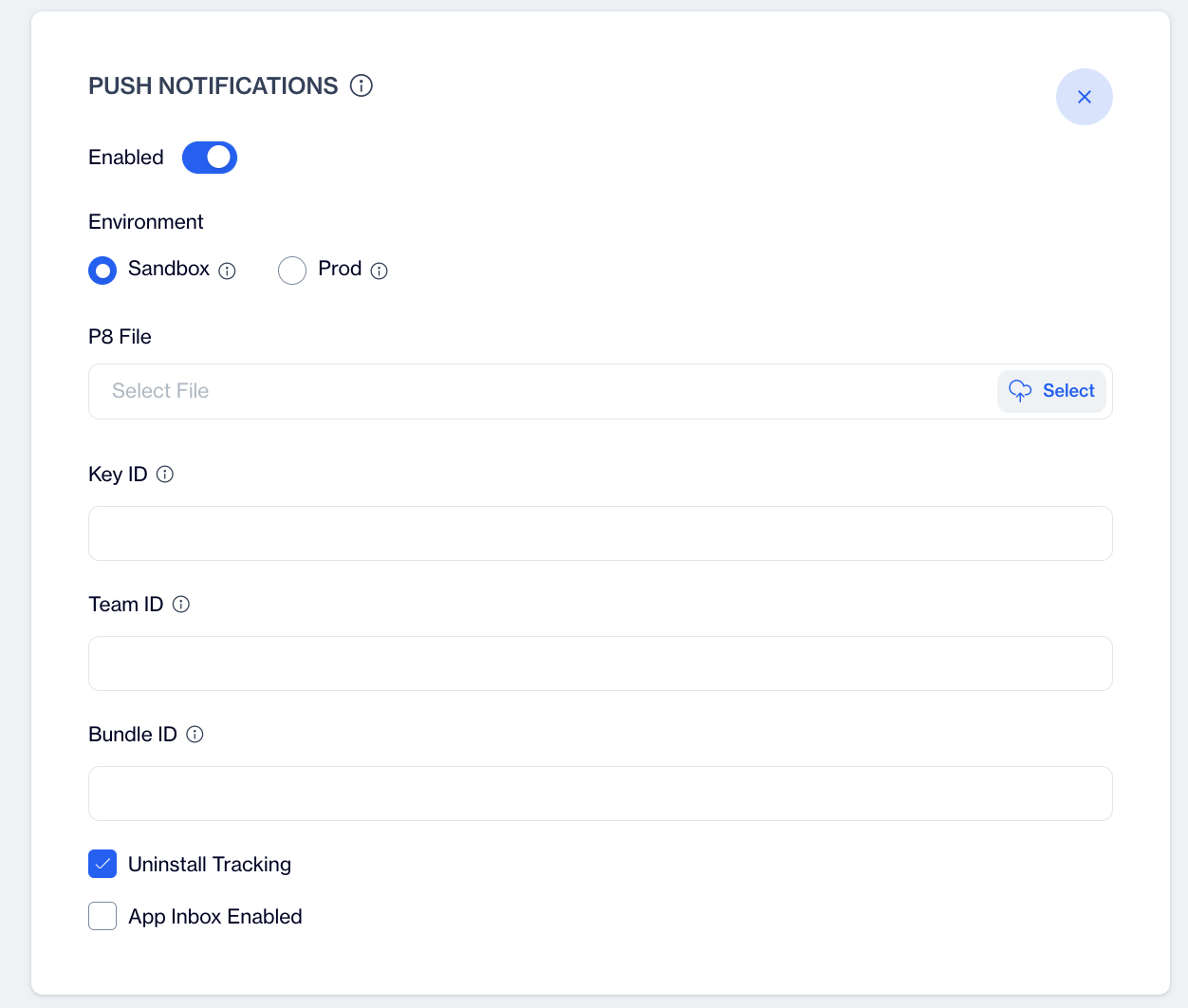
iOS Uninstall Tracking
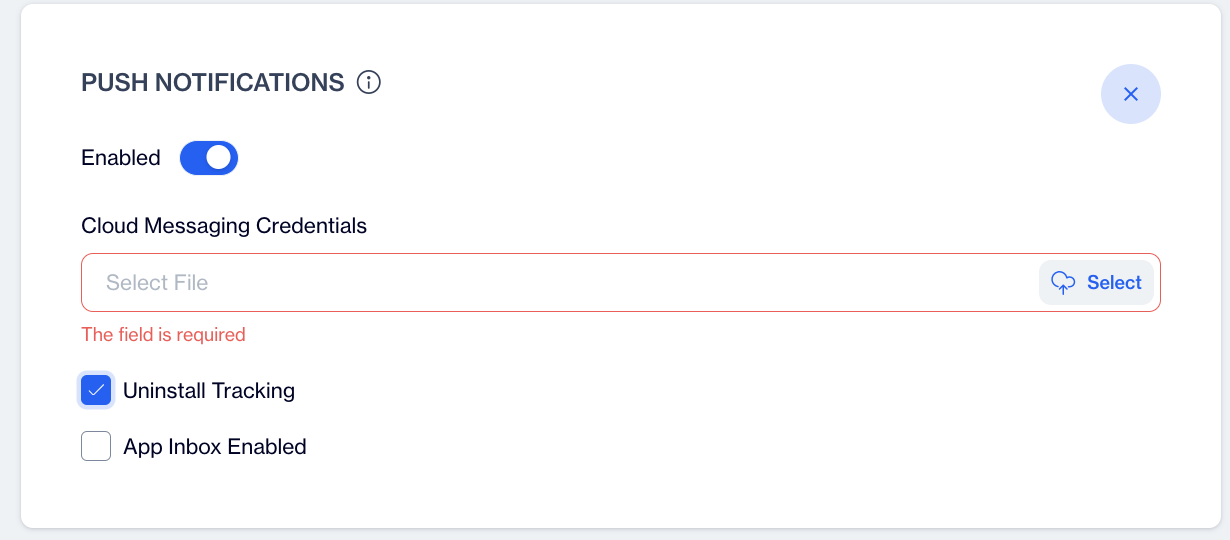
Android Uninstall Tracking
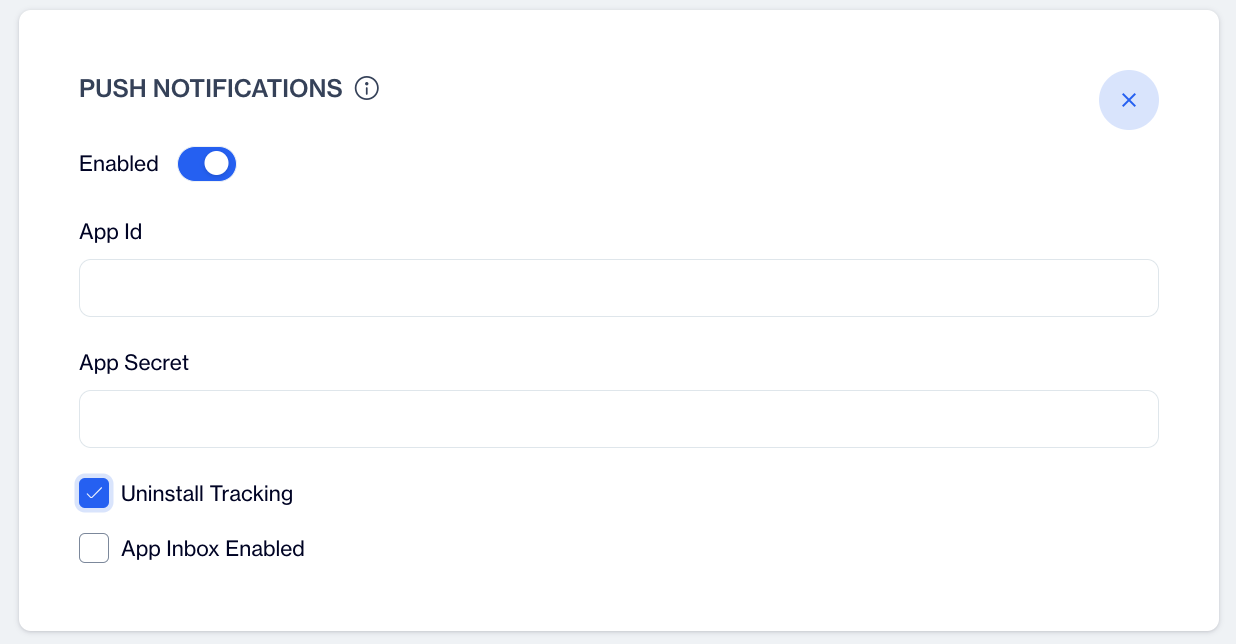
Huawei Uninstall Tracking
Step 4: Save Changes
- Click Save to apply the settings.
When Uninstall Tracking is enabled under Push Notification, a silent push is sent at night. Devices that have uninstalled the app are detected during the nightly calculation, and their statuses are updated accordingly.
Related Articles
Web Push SDK Setup
Requirements D·engage Application Definition - Required for configuring push notification settings. Access to your Website Files - Needed to add the Service Worker File and the Injection Script. D·engage Web SDK provides an interface that handles ...React Native
1. Prerequisites React Native >= 0.65.0 and React >= 17.0.2 (see peerDependencies in the package). Android: Android Studio, JDK, Firebase project with google-services.json, and an integration key from the Dengage dashboard. iOS: Xcode, CocoaPods, ...API Endpoints by Datacenter
D·engage provides below API endpoints to send subscription and events in Mobile SDK. Turkey - Istanbul Datacenter For api: https://tr-api.dengage.com For subscription: https://tr-push.dengage.com For events: https://tr-event.dengage.com For geofence: ...Response Codes
Metot Route Yanıt Kodu Açıklama POST /getUserInfo 200 Token geçerli, kullanıcı bilgileri başarıyla döndürüldü POST /getUserInfo 400 Token geçersiz veya kullanıcı bulunamadı POST /getRoleDetails 200 Rol detayları başarıyla döndürüldü POST ...Huawei SDK Setup
Requirements Huawei Developer Account Java JDK installation package Android SDK package Android Studio 3.X HMS Core (APK) 4.X or later Huawei Device or Huawei Cloud Debugging Supports Android API level 4.4 or higher. Information Huawei AdID service ...